


X (Twitter) advanced search lives in two places: a form at x.com/search-advanced on the web, and operators such as from:, since: and "exact phrase" typed straight into the search box anywhere, the mobile apps included. It does not search private accounts or deleted posts, and the results are not a complete archive of anything.
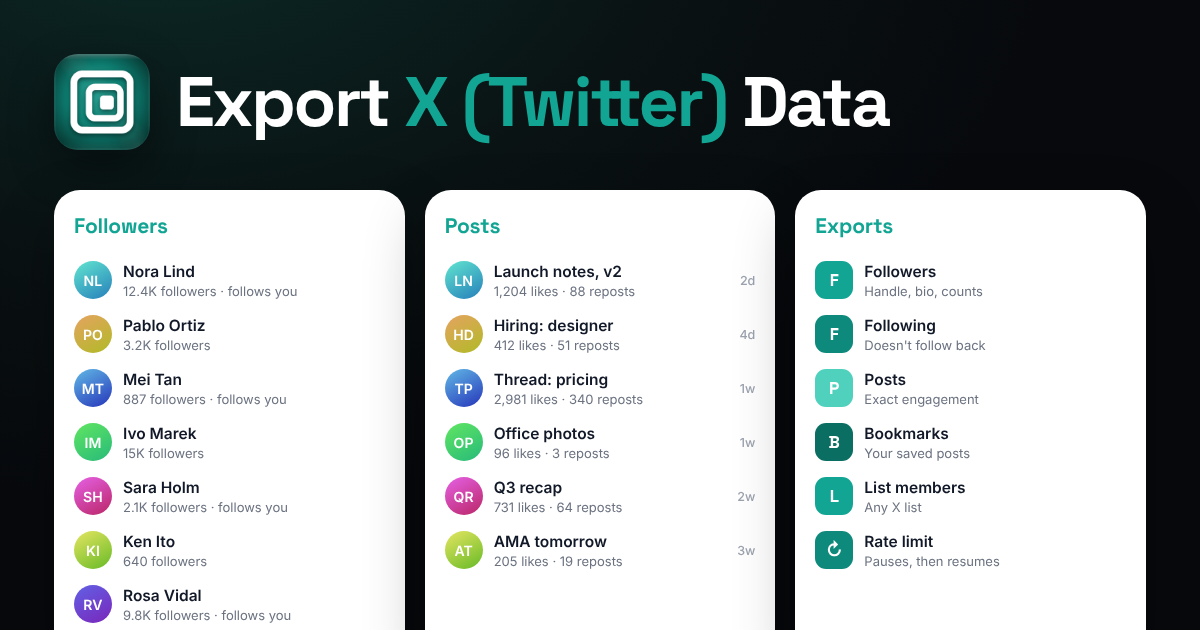
When you want the results as a file, the Mastros Twitter Scraper saves the posts in a search, a profile's posts, followers, following or your own bookmarks to a spreadsheet, so you can filter and sort them in Excel. It runs in your own browser, on the X page you have open, signed in as yourself.
One warning first. X changes search behaviour without notice. Every operator below has worked for years, but none is promised. If one returns nothing, it may have stopped working.
How do I use advanced search on X?
Three methods. The first two give you a results page on X, the third a file.
1. Use the advanced search form
The form is the easiest start, because it needs no syntax.
- Open x.com/search-advanced in a desktop browser, signed in to X.
- Fill in the Words fields: all of these words, this exact phrase, any of these words, none of these words, or hashtags.
- Under Accounts, enter a handle: from these accounts, to these accounts, or mentioning these accounts.
- Set what you need under Filters (replies, links), Engagement (minimum replies, likes and reposts) and Dates (from and to).
- Click Search, then open the Latest tab to read the results in time order instead of the Top ranking.
Look at the search box afterwards. The form has written your choices there as operators, which is the quickest way to learn them and to see what X accepts today.
Best for: a first search, or a complicated one you do not want to type by hand. Web only: the apps have no such form.
2. Type operators in the search box
- Click the search box on x.com, or open the search tab in the app.
- Type your words, then add operators from the table below with a space between each. Example:
from:nasa moon -filter:replies. - Leave no space after a colon.
from:nasais an operator;from: nasais two plain words. - Press Enter and choose Latest for time order.
- On the web, bookmark the results page in your browser to run the same search again later.
Best for: anyone who searches often, and anyone on a phone.
3. Export an account's posts and filter them in a spreadsheet
Search answers one question at a time. For many questions about one account, get its posts into a spreadsheet once.
- Install the Mastros Twitter Scraper from the Chrome Web Store. It needs no password and no API key.
- Open the account's profile on x.com in Chrome, signed in as yourself.
- Open the Mastros panel and start the export of the profile's posts. You start every run yourself.
- Let it run. When X's rate limit is close, the export pauses, keeps every row, and continues on its own when X's window resets.
- Save the file as CSV, XLSX, JSON or JSONL.
- Open it in Excel or Google Sheets. Search the post text for a word, or sort by replies, reposts, quotes, likes, bookmarks or views, which arrive as exact numbers rather than "1.2K".
The same panel also exports the posts in an X search, a post and its replies, and your bookmarks. It reads only what X loads for you.
Best for: studying one account, or keeping a record you can sort. Free with no record limit during the beta: see pricing.
What search operators work on X?
These are the long-standing ones. They work on the web and in the app.
| Operator | What it does | Example |
|---|---|---|
word word |
Posts containing all the words, in any order | coffee grinder |
"exact phrase" |
Posts containing the phrase word for word | "cold brew" |
OR |
Posts containing either term. Capitals are required | espresso OR filter |
-word |
Leaves out posts containing the word | coffee -decaf |
#hashtag |
Posts carrying the hashtag | #latteart |
from: |
Posts sent by the account | from:nasa |
to: |
Replies sent to the account | to:nasa |
@name |
Posts that mention the account | @nasa |
since:YYYY-MM-DD |
Posts sent on or after the date | since:2024-01-01 |
until:YYYY-MM-DD |
Posts sent before the date | until:2024-02-01 |
min_faves: |
Posts with at least that many likes | min_faves:500 |
min_retweets: |
Posts with at least that many reposts | min_retweets:100 |
min_replies: |
Posts with at least that many replies | min_replies:20 |
filter:links |
Only posts containing a link | coffee filter:links |
filter:media |
Only posts with an image or a video | from:nasa filter:media |
filter:images |
Only posts with an image | from:nasa filter:images |
filter:replies |
Only replies | from:nasa filter:replies |
-filter:replies |
Leaves replies out | from:nasa -filter:replies |
lang: |
Posts in one language, by two-letter code | coffee lang:en |
Operators combine, and a space between them means "and". So from:nasa moon since:2024-01-01 until:2024-02-01 -filter:replies reads as: posts by @NASA containing "moon", sent in January 2024, replies left out.
How do I search tweets by date?
Use since: and until: together.
- Type the words or the account you want, for example
from:nasa. - Add
since:with the first day you want:since:2024-03-01. - Add
until:with the day after the last day you want:until:2024-04-01. X readsuntil:as "before this date", so the date itself is left out. - Press Enter and open Latest.
- If a post you expected is missing, widen the range by a day on each side. The day boundary X uses may not match your time zone.
For a single day, use that day and the next: since:2024-03-10 until:2024-03-11. In the form, the same thing is the Dates section, with a from date and a to date.
Date search is where people expect an archive and do not get one. X decides what search returns, and a date range can come back shorter than what was really posted in that period.
How do I search one account's posts?
Put from: in front of the handle. The @ sign is not needed.
- Type
from:usernameand the word or phrase you remember:from:username "release notes". - Add
-filter:repliesto leave the account's replies out, orfilter:repliesto see only its replies. - Narrow by date with
since:anduntil:, or by popularity withmin_faves:. - Open Latest to read in time order.
Two limits apply. A protected account's posts appear in search only to followers it has approved. And search returns matches for a query, not the account's whole history. When you want everything X shows on the profile, method 3 is the better tool.
Which method should I use?
| Method | What you get | Effort | Price |
|---|---|---|---|
| Advanced search form | A results page on X, built from form fields. Web only | Low: fill in the form | Free with an X account |
| Operators in the search box | The same results on the web and in the apps, and on the web a URL you can bookmark | Medium: you have to remember the syntax | Free with an X account |
| Export and filter (Mastros) | A CSV, XLSX, JSON or JSONL file of a profile's posts with exact engagement numbers, or of a search, a post's replies or your bookmarks | Install a Chrome extension, then one run per export | Free during the beta, see pricing |
The first two rows are one search engine with two front ends, so they share the same gaps. The third does not search X at all: it saves what X shows you, and the filtering happens in your spreadsheet.
Who this is not for
- Anyone trying to read a protected account they do not follow. Search does not show those posts, and the Mastros extension reads only what your own signed-in session shows.
- Anyone looking for deleted posts, or posts from accounts that no longer exist. Search covers what is on X now.
- Anyone who needs a complete, provable record of an account. Search results are not a complete archive. For your own account, the archive X lets you request in its settings is the fuller record.
- Anyone who wants direct messages. Advanced search covers posts, and the Mastros extension exports no direct messages. It only reads: it never posts, likes, follows or sends messages.
FAQ
Is there an advanced search in the X app?
Not as a form. The form is a web page at x.com/search-advanced. In the app, type the operators into the normal search box: from:, since:, until: and the rest work there too.
Why does my X search return nothing?
Check the syntax first: no space after the colon, dates as YYYY-MM-DD, and a since: date earlier than the until: date. Protected and deleted posts never appear. If the syntax is right, the operator may have stopped working: X changes search without notice.
Can I search tweets from a specific date?
Yes. Add since: and until: with dates as YYYY-MM-DD, or use the Dates section of the form. until: means "before this date", so set it to the day after the last day you want.
Can advanced search find deleted tweets or posts from private accounts?
No. Search covers posts that are on X now and that your account is allowed to see. A protected account's posts appear only to followers it has approved.
Can I export X search results to Excel?
X has no export button for search. The Mastros Twitter Scraper saves the posts in a search, a profile's posts, a post's replies or your bookmarks as CSV or XLSX, in your own browser. It is free with no record limit during the beta.
Related reading
- Twitter Scraper: the extension used in method 3, and every list it exports.
- Export LinkedIn Post Searches Locally: the same search-then-save approach on LinkedIn.
- Open Semicolon CSVs in Excel: why an exported CSV sometimes lands in one column, and the fix.