


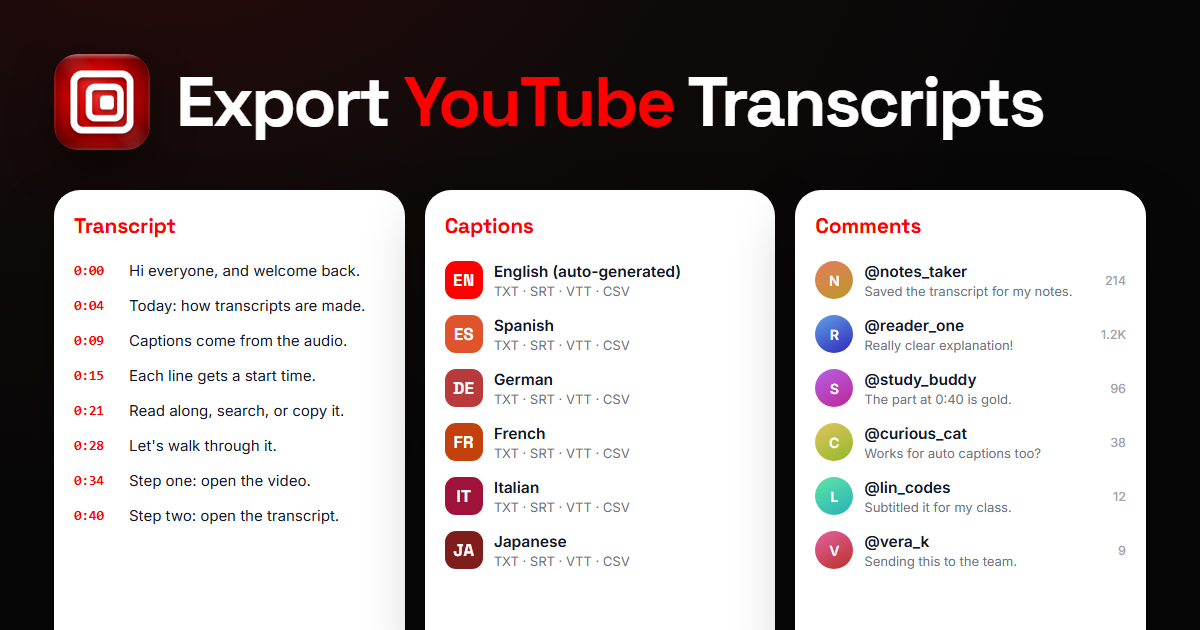
To get the transcript of a YouTube video, open it in a desktop browser, expand the description and click Show transcript. The text opens beside the video with timestamps, and you can copy it. This only works when the video has captions, uploaded or auto-generated. A video with no captions has no transcript to show.
To keep it as a file, the Mastros YouTube Transcript Generator exports that same transcript as TXT, SRT, VTT or CSV, or copies it ready to paste into your AI assistant. It runs in your own browser, on the YouTube page you have open. It reads captions: it does not download video or audio, and it does not turn speech into text.
Does every YouTube video have a transcript?
No. A YouTube transcript is the video's caption track, shown as a list of lines. Captions come from two places: the creator adds them, or YouTube generates them from the audio. If neither happened, there is no track, and the Show transcript button does not appear.
YouTube does not produce automatic captions for every video. Its help page on automatic captioning says they depend on the language spoken and on audio that its speech recognition can follow. So a tool that promises a transcript for "any video" means any video with captions, unless it runs speech-to-text on the audio itself.
How do I get the transcript of a YouTube video?
Whether you searched for "youtube to transcript", a "youtube transcript generator" or "download youtube transcript", the job is the same: get the caption track out of the page. Four methods, starting with the one that needs no install.
1. Use YouTube's own Show transcript button
- Open the video on youtube.com in a desktop browser.
- Click ...more under the video to expand the description.
- Scroll down the description and click Show transcript.
- The transcript opens in a panel next to the video. Click any line to jump to that moment.
- To copy it, drag to select the lines, press Ctrl+C (Cmd+C on a Mac) and paste into a document.
Best for: reading or copying one transcript right now. There is no download button, so the result is whatever you paste.
2. Download the caption file from YouTube Studio
This one is for your own videos only. YouTube Studio holds the caption track of every video on a channel you manage.
- Open YouTube Studio (studio.youtube.com) and choose Subtitles in the left menu.
- Pick the video, then the language.
- Open the options menu on that caption track and choose Download.
- Pick a subtitle file type, such as .srt or .vtt.
Best for: creators who need their own captions as a subtitle file. It covers nothing outside your channel.
3. Paste the link into a transcript website
Many websites take a YouTube URL and return the transcript.
- Copy the video's URL from the address bar.
- Paste it into the site's box and submit.
- Copy the text, or download it if the site offers a file.
The work is done on the site's server, so the URL you paste goes to a third party. Many of these sites read the same caption track YouTube shows. Some run speech-to-text on the audio instead, which is the only route here that can produce text for a video with no captions.
Best for: a one-off on a computer where you cannot install anything.
4. Export the transcript with the Mastros extension
This is the route for a real file, or for getting the text into your AI assistant.
- Add the YouTube Transcript Generator from the Chrome Web Store. There is no account and no login.
- Open a video with captions on youtube.com. A Transcript button appears on the player.
- Click Transcript on the player, or Export in the Mastros panel. The extension presses YouTube's own Show transcript button and reads the panel the page loads. It makes no request to YouTube.
- Download TXT, timestamped TXT, SRT, VTT or CSV. Or click Copy text for plain text, or Copy for AI for the text with the title and channel on top.
- Optional: under Summarize with your AI, pick a summary, chapters with timestamps, study notes or a quiz, then click ChatGPT, Claude or Gemini. The transcript and the prompt are copied, the assistant opens in a new tab, and you paste.
It works with auto-generated and manual captions, one language at a time, and the file says which language it is. When a video has captions disabled, is members-only or is age-gated, the panel tells you the reason instead of writing an empty file.
Best for: saving transcripts as files, subtitles in SRT or VTT, and getting a video's text into ChatGPT, Claude or Gemini. Every plan is free while the beta runs: see pricing.
Which method should I use?
| Method | What you get | Timestamps | Formats | Price |
|---|---|---|---|---|
| YouTube Show transcript | The caption track, on screen | Shown beside each line | Copy and paste only | Free |
| YouTube Studio | The caption file of your own video | Inside the subtitle file | Subtitle files such as .srt and .vtt | Free |
| Transcript website | Whatever the site returns for the URL | Varies by site | Varies by site | Varies by site |
| Mastros extension | The caption track of the video you have open, as a file | Your choice: with or without | TXT, timestamped TXT, SRT, VTT, CSV, or the clipboard | Free during the beta (pricing) |
One note on the last row. YouTube's panel gives a start time for each line and no end time. In the SRT and VTT files the start times are exact, and the end times are worked out from reading speed. It is not frame-accurate subtitling.
Can I get a transcript for a video without captions?
Not from YouTube. With no caption track there is nothing for Show transcript, the YouTube Studio download or the Mastros extension to read. The extension exports YouTube's own captions and does not transcribe audio. That leaves three options:
- Check again later. On a new upload, automatic captions are not always ready the moment the video is published.
- Ask the creator. They can add captions, or send you the text.
- Use speech-to-text. If the video is yours, run the original file through a speech-to-text tool. For someone else's video, a website that transcribes the audio is what remains, with the caveats from method 3.
Which format should I download: TXT, SRT, VTT or CSV?
- TXT: plain text with no timestamps, for reading, quoting and notes.
- Timestamped TXT: the same text with the start time in front of each line.
- SRT and VTT: subtitle files. VTT, short for WebVTT, is the one web video players use.
- CSV: one row per line, with the start time, end time and text in columns, for Excel or Google Sheets.
Copy for AI is not a file. It puts the plain text on your clipboard with the title and channel on top.
Who this is not for
- Anyone who wants the video or the audio. The Mastros extension exports text and never downloads video or audio.
- Anyone who needs text from a video with no captions. Methods 1, 2 and 4 cannot read what is not there.
- Anyone who needs every transcript of a channel or playlist in one run. The extension exports the transcript of the video you have open, one video at a time.
- Anyone who needs a word-perfect record. Auto-generated captions are a machine's reading of the audio. Names, numbers and technical terms can come out wrong, and every method here passes those mistakes along unchanged.
- Anyone working only on a phone. The extension is a Chrome extension for a desktop browser.
FAQ
How do I get a transcript of a YouTube video for free?
Open the video in a desktop browser, expand the description and click Show transcript, then copy the text. For a file, the Mastros YouTube Transcript Generator is free while its beta runs.
Is there a free YouTube transcript generator?
Yes, with one clarification. Many tools called a YouTube transcript generator, the Mastros extension included, export the captions YouTube already has and do not create text from the audio. The Mastros one is free during the beta, and pricing shows what applies afterwards.
Can I download a YouTube transcript as a text file?
Not from YouTube's own panel, which only lets you copy and paste. The Mastros extension downloads the transcript as TXT, timestamped TXT, SRT, VTT or CSV, and TXT has no timestamps. For your own videos, YouTube Studio downloads the caption track as a subtitle file.
Why is there no Show transcript button on my video?
The usual reason is that the video has no caption track: the creator added none, and YouTube produced no automatic captions. Without captions there is no transcript to show, on YouTube or in any tool that reads captions.
How do I turn a YouTube video into a transcript for ChatGPT?
Export the transcript with the Mastros extension, then click Copy for AI and paste it into the chat. Or use the ChatGPT button under Summarize with your AI, which copies the transcript with your prompt and opens the assistant in a new tab. It runs in your own account, and no AI model runs on the Mastros side.
Related reading
- YouTube Transcript Generator: the extension from method 4, with subtitles, the comment finder and playlist export.
- AI Chat Exporter: once the summary is in ChatGPT, Claude or Gemini, export that chat to PDF, Word or Markdown.
- Is It Safe to Use Chrome Extensions in 2026?: which permissions matter, and how to vet an extension before you install it.