


There is no official one-click way to import a ChatGPT account into Claude. Nothing transfers by itself. What moves is your text: you export your chats, memories and project instructions from ChatGPT as files, then upload or paste them into Claude yourself. Claude reads them as reference material. It does not treat them as its own chat history.
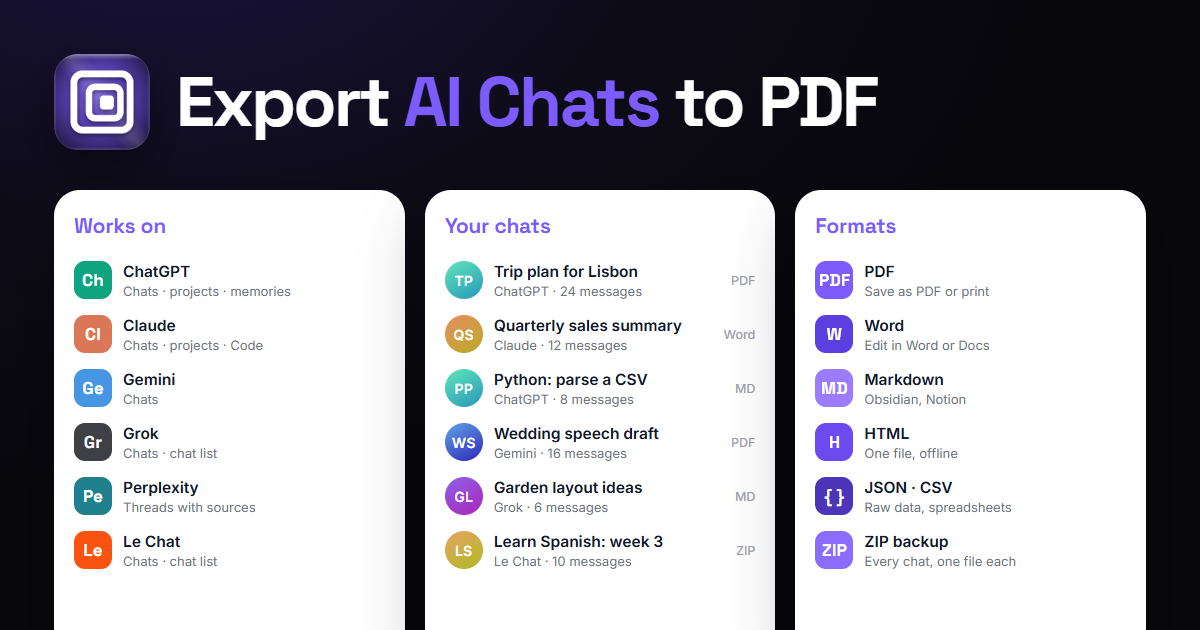
The Mastros AI Chat Exporter builds those files in your own browser. On chatgpt.com, its Switch to another AI option saves one ZIP: your chats as Markdown bundles sized for a Claude Project, your memories ready for Claude's memory import, a context summary and the import steps. The upload is yours to do.
Can I import my ChatGPT account into Claude?
No. Claude has no setting that signs in to ChatGPT and pulls your history across, and ChatGPT has no "send to Claude" button. What you can move is narrower, and it works:
- Chats become files. You upload them to a Claude Project, where Claude can read them when you ask.
- Memories become a block of text. You paste it into Claude's memory import, or into a Project's instructions.
- Projects become new Claude Projects. You copy the instructions across and upload the files again.
What does not move: the chat list in the sidebar, the option to continue an old thread where it stopped, and anything ChatGPT keeps but does not show you. None of the methods below needs you to hand a password to anyone, so be wary of a tool that asks for one.
How do I move my ChatGPT chats to Claude?
Three methods. The first two need no extra tool.
1. Use ChatGPT's own data export
ChatGPT can send you a copy of your account data.
- In ChatGPT, open Settings → Data controls → Export data and confirm.
- OpenAI emails you a download link. Download the ZIP when it arrives, because the link expires.
- Unzip it. Your conversations are in a JSON file, next to an HTML page you can open in a browser to read them.
- In Claude, create a Project and upload the conversation file, or the parts of it you want Claude to read.
The catch is step 4. The JSON holds the whole history in one file written for programs, and a long history can be too large to upload in one piece. Expect to split or convert it first.
Best for: a complete official archive to keep, and anyone comfortable handling a JSON file.
2. Copy and paste a few chats
For a handful of conversations, no export is needed.
- Open the chat on chatgpt.com.
- Select the conversation and copy it, or use the copy button under a single answer.
- Paste it into a text or Markdown file and give the file a clear name.
- In Claude, add the file to a Project, or paste the text into a new chat and say what it is.
Best for: five or ten chats that matter. Code blocks and tables can lose their formatting on the way, and the method does not scale to a full history.
3. Build a migration pack with the Mastros extension
When the job is the whole history, memories included, the pack does the reshaping for you.
- Add AI Chat Exporter to Chrome and open chatgpt.com while signed in. It asks for no password and no API key: it reads what your own session already shows you.
- Open the Export tab on the right edge of the page, choose Switch to another AI and pick Claude.
- Let the run finish. It reads your chats in your browser, on the site you are signed in to, and nothing is uploaded.
- Save the ZIP. It holds your chats as Markdown bundles sized for a Claude Project, your memories formatted for Claude's memory import, a context summary and the import steps.
- In Claude, create a Project, upload the bundles to it, and follow the import steps in the pack for the memories.
The extension stops at the ZIP. It never writes into Claude or ChatGPT and it imports nothing for you: the last step is yours.
Best for: a full ChatGPT history with its memories, ready to upload the same day. Free while the beta runs.
Which method should I use?
| Method | What moves | Format | Effort | Price |
|---|---|---|---|---|
| ChatGPT data export | Your conversation history | A ZIP with a JSON file and an HTML page | Request it, wait for the email, then split or convert the JSON | Free |
| Copy and paste | The chats you pick, one at a time | Text you save yourself | A few minutes per chat | Free |
| Migration pack (Mastros) | Chats and memories, plus a context summary and import steps | A ZIP of Markdown bundles sized for a Claude Project | One run in Chrome, then the upload | Free in beta, then a monthly allowance |
Can Claude import ChatGPT memories?
Not from your ChatGPT account, but the text can be carried over. In ChatGPT, saved memories are listed in the memory section of Settings → Personalization, where you can read and copy them.
On the Claude side, the settings include a memory import that takes pasted text. It reads memories, not conversations. Menus change, so look for the import option in the memory section of Claude's settings. If you do not have it, paste the same text into a Project's instructions, which Claude reads at the start of every chat in that Project.
Read the list before you paste it. Memories pile up over time, and some will be out of date or more personal than you want to carry into a new assistant.
How do I move ChatGPT projects to Claude?
A Claude Project accepts two things: custom instructions and uploaded files. A ChatGPT project maps onto that by hand.
- In Claude, create a Project with the same name.
- Copy the ChatGPT project's instructions into the Claude Project's instructions.
- Upload the project's files again from your computer.
- Add the project's chats as files, using any of the three methods above.
The AI Chat Exporter also saves your ChatGPT projects with their instructions and the names of their files, which gives you a checklist for steps 2 and 3. The files themselves are not in that export, so keep the originals.
Does Claude remember my old ChatGPT chats?
No, not as its own history. The uploaded chats do not appear in Claude's chat list, and you cannot reopen one and carry on from the last message. They are files in a Project. Claude reads them when a conversation in that Project calls for it, and chats outside the Project do not see them.
Two practical consequences. A Project has finite room, so a very long history may not all fit: upload the bundles that matter first. And the simplest way to pick up an old thread is to start a new chat in the Project and ask Claude to summarise the earlier conversation before you continue.
Who this is not for
- Anyone who expects Claude to behave as if the old conversations happened there. They become reference files and instructions, and that is all.
- Anyone who needs images and uploaded documents carried over. The pack is text. Images on screen can be saved when you export one open chat; other attachments are listed by name.
- Anyone on a work account where an administrator decides what may be exported, or where policy forbids taking conversations to another provider. Ask first.
- Anyone who does not use Chrome on a computer. The extension is a Chrome extension; methods 1 and 2 work without it.
- Anyone moving a Claude history out in bulk. Full backups and Switch to another AI read ChatGPT today.
FAQ
Is there an official way to transfer ChatGPT to Claude?
There is no official tool that imports a ChatGPT account into Claude. ChatGPT gives you an export of your data, and Claude accepts uploaded files and pasted memories. The step between the two is manual, whichever method prepares the files.
How do I export my ChatGPT memory?
Open the memory section of Settings → Personalization in ChatGPT and copy what is saved there. The AI Chat Exporter saves the same memories as a file, and its migration pack formats them for Claude's memory import.
Are my chats uploaded to Mastros?
No. The files are built in your browser on chatgpt.com and saved to your disk. The licence server receives an install ID, your Chrome profile email if you are signed in to Chrome, and a count of chats saved, never a chat, a title or a file.
Does exporting delete anything from ChatGPT?
No. An export is a copy, and your ChatGPT account stays as it was until you change it yourself. The extension only reads: it never sends a message, edits, deletes or shares anything on an assistant's site.
Is the migration pack free?
Exporting the chat you have open is free in every format. Backups and migration packs have no limit while the beta runs. After the beta, chats saved by a backup or a pack count toward a monthly allowance: see pricing.
Related reading
- AI Chat Exporter: the extension used in method 3, the assistants it reads and every format it saves.
- How to Merge Chat Exports from ChatGPT, Telegram, and WhatsApp: what to do with the JSON from ChatGPT's own export.
- Is Mastros Safe?: what a Mastros extension can and cannot access, and how to check it yourself.