


Coming soon · in final testing
 AI Chat Exporter · Chrome extensionComing soon
AI Chat Exporter
Export any AI chat to PDF, Word or Markdown in one click. Back up every ChatGPT chat, pick the chats you want from your list, and move your history to Claude or Gemini, memories included. Your chats never leave your computer.
The launch beta starts free for everyone. Join the waitlist and we'll email you the moment it's on the Chrome Web Store.
How it works
How it works
Install, open a chat, export. Nothing runs on its own.
Add the extension
One click from the Chrome Web Store. No account needed to export.
Open an AI chat
ChatGPT, Claude, Gemini, Grok, Perplexity, DeepSeek, Copilot or Le Chat. The Export tab appears on the right edge.
Pick what to export
This chat, chats you tick from your list, a full backup, or a pack for another AI.
Save it
PDF, Word, Markdown or a ZIP, saved on your computer.
What you get
One chat in every format first, then backups, picked chats and a move to another assistant behind it.
Export any chat
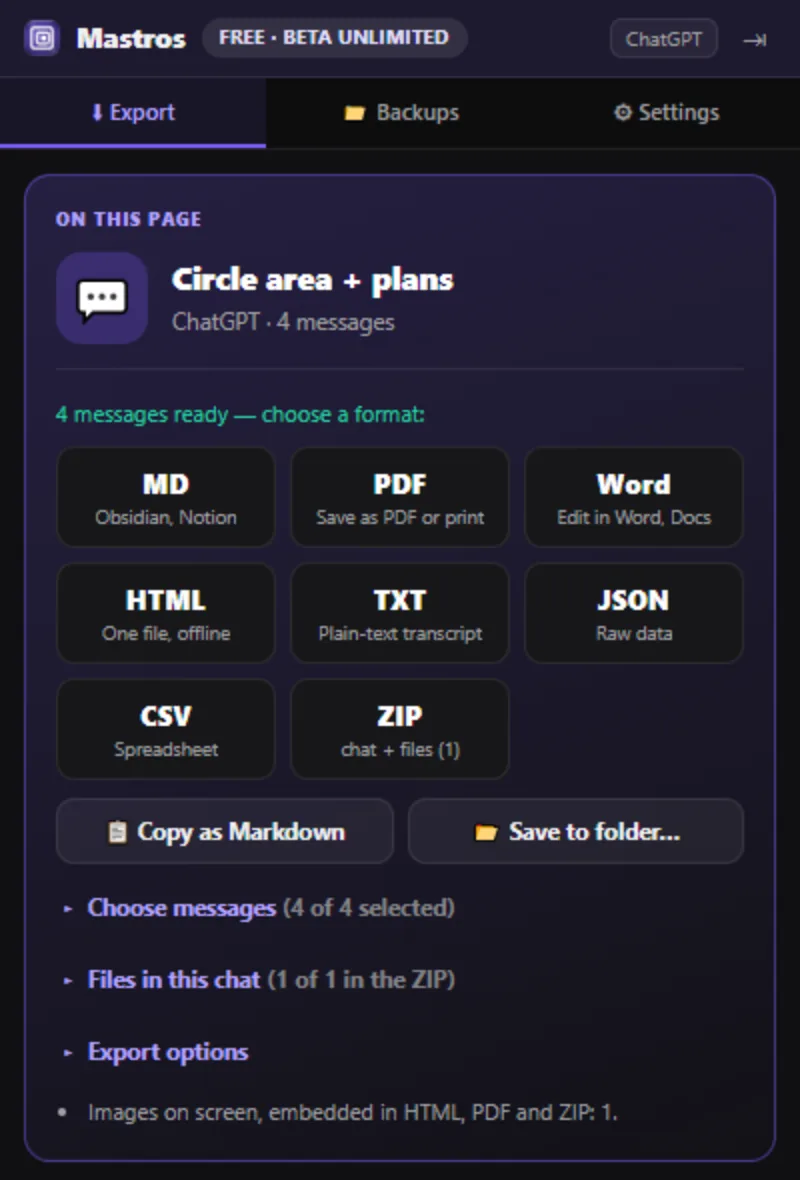
PDF, Word (.docx), Markdown for Obsidian or Notion, HTML, TXT, JSON or CSV in one click, or copy it as Markdown.
Code, tables and sources intact
Code blocks, tables, math and links come out as they were; cited sources as links or as footnotes.
Choose messages
Tick any message, Shift-select a range, take the first or last N, or answers only. No message cap.
Files in a chat
Images on screen, ChatGPT canvases and Claude artifacts as files in a ZIP. You choose which, or save one on its own.
Back up every ChatGPT chat
One ZIP with a Markdown file per chat and an index. Next time, only new and changed chats. Stop and resume any time.
Pick chats from your list
List your chats, tick the ones you want, and choose how much of each: the list, the full chats, or the chats with their files.
Switch to another AI
Move from ChatGPT to Claude or Gemini: your chats sized for a Project or a Gem, your memories ready to import, and three steps.
Projects and memories
ChatGPT and Claude projects with their instructions, and what ChatGPT remembers about you.
Save into a folder
Straight into your Obsidian vault, or a Google Drive, Dropbox or OneDrive folder on your computer.
Says what it could not export
An attachment not exported, text read from the page, a sign-in needed: it tells you, never a silent gap.
Why it's different
Your chats, your files, your computer
AI Chat Exporter reads the chats your own signed-in session can see and builds the file in your browser. Nothing is uploaded: the chat text, titles and files never reach our servers, and there is no emailed data export to wait for.
It only reads. It never sends a message, edits, deletes or shares anything on an assistant's site, and moving to another AI gives you files and three steps rather than importing anything for you. When something cannot be exported, the file and the panel say so.
Reviews
What people say
4.95 out of 5 from 152 reviews across all Mastros extensions on the Chrome Web Store. Read every review
I tested the extension and everything I tried worked smoothly chat messages exported successfully to csv, group members were well organized, and media was downloaded into a zip file i especially liked that it can find a member’s profile name when it isn’t shown in the group.
Works really well and saves me a lot of time when downloading Telegram videos and media. Simple, useful, and easy to use.
Building lead lists used to feel like an endless punishment of copy pasting profile URLs all afternoon.This extension detects search results instantly and pulls the whole batch into an excel file with clean aligned columns