



Excel uses semicolons instead of commas in CSV files because it follows your Windows list separator setting, which is tied to your regional decimal symbol. When your system uses a comma for decimals (common across much of Europe and Latin America), Excel switches the list separator to a semicolon so numbers do not get chopped in half. The fastest fix on open is Data > From Text/CSV and picking Semicolon manually; a common fix on export is adding a sep=; line to the top of the file.
TL;DR:
- CSV files with semicolons originate from regional settings where commas are used for decimals, causing Excel to interpret the delimiter differently based on locale.
- Using Power Query or adding a sep=; header line effectively ensures correct column separation regardless of regional separator settings.
- To preserve data types like dates or IDs, perform imports via Power Query and set the locale to match the export system for accurate parsing.
- Changing the system's list separator globally can cause unintended issues with formulas and other applications, so file-level fixes are safer and more reliable.
- Always verify delimiter, encoding, and quotation usage before sharing CSV files to prevent misinterpretation or garbled characters across different machines.
Table of Contents
- Why does a CSV open in one column in Excel?
- Quick steps to open a semicolon-delimited CSV in Excel
- How to import a semicolon CSV without breaking column types
- How to save or export a CSV with commas or semicolons
- File-level fixes that do not touch system settings
- Pitfalls and a validation checklist before you send
- Treat a CSV as a contract, not a guess
- Export clean CSVs from the start with Mastros
- Sources
- FAQ
Why does a CSV open in one column in Excel?
The mismatch has nothing to do with a broken file. It comes down to how Excel's Windows list separator interacts with the decimal symbol: if your regional settings treat the comma as a decimal point (as in "3,14" for pi), Excel cannot also use it to separate fields, so it defaults to a semicolon instead. This is why a CSV built by a colleague in Germany or Spain often opens as one giant column on a machine set to US English, and vice versa.
The industry term for this is the "list separator," and it is worth knowing because it shows up in Windows Regional Settings, not inside Excel itself. Once you understand that a semicolon separated values file is just a comma-separated values file adapted for a different locale, the fixes below make a lot more sense. This is a locale problem, not a corruption problem, and treating it that way saves you from unnecessary re-exports or panicked calls to IT.
Quick steps to open a semicolon-delimited CSV in Excel
You do not need to touch any system settings to view a semicolon CSV correctly. Two methods work for almost every case:
- Use Power Query (Get & Transform). Go to Data > From Text/CSV, select your file, choose the correct encoding (usually UTF-8), and set Delimiter to Semicolon in the preview window. Click Load for a straight import, or Transform Data if you need to clean columns first.
- Use the legacy Text Import Wizard. If your Excel build still supports it, choose Delimited, click Next, and check the Semicolon box under delimiters. Set a Text Qualifier (usually a double quote) so quoted fields with embedded commas or semicolons stay intact.
- Add a
sep=;header line. Open the file in Notepad, addsep=;as the very first line, and save. Double-clicking the file afterward tells Excel exactly which delimiter to use, regardless of your regional settings.
The sep= trick is the one worth remembering, since it travels with the file. Anyone who opens it, on any machine, gets the correct columns without touching a single Excel option.
How to import a semicolon CSV without breaking column types
A quick open is fine for a glance. A reliable import, the kind you can trust for dates, currency values, or IDs with leading zeros, takes a few extra clicks in Power Query or the Text Import Wizard.
- Open Data > From Text/CSV and pick your file.
- Check the encoding dropdown at the top of the preview. UTF-8 is the safest default for modern exports; older systems sometimes still produce ANSI files.
- Set Delimiter to Semicolon and watch the preview grid split into proper columns before you commit to anything.
- Click Transform Data instead of Load if any column looks like text when it should be a date or number. Power Query's locale setting under Using Locale lets you tell Excel "this file was built with a specific locale" so dates parse correctly instead of throwing errors.
- Always preview before loading to the worksheet. Catching a misread date column here takes ten seconds; catching it after 50,000 rows have already loaded does not.
The Text Import Wizard still has a place if you are working with a legacy macro or a shared template that expects it, since it exposes column-by-column type overrides that some users find easier to see at a glance than Power Query's transform steps.
Pro Tip: If a date column imports as text no matter what you try, check whether the source system exported day/month/year while your locale expects month/day/year. Setting the import locale explicitly in Power Query almost always fixes this faster than reformatting cells after the fact.
How to save or export a CSV with commas or semicolons
Exporting is where most of the frustration happens, because Excel does not give you a delimiter dropdown when you hit Save As > CSV. It just uses whatever your system is already configured for. You have three real options, in order of how much they disturb your setup:
- Temporary in-Excel override. Go to File > Options > Advanced, scroll to Editing options, and uncheck Use system separators. This unlocks manual fields for Decimal separator and Thousands separator. Setting the decimal separator to a period forces Excel back toward comma-delimited output for that session, without touching Windows itself.
- Global Windows change. Open Region > Additional settings > List separator in Windows Settings and change it directly. This works, but it is blunt: changing the list separator also changes the argument separator inside every Excel formula, so
SUM(A1,A2)might suddenly need to beSUM(A1;A2)in every workbook you open afterward, and other installed programs that read the same registry setting shift too. - Per-file workaround. Save as plain TXT and control the delimiter yourself during a deliberate import/export pass, or hand off files with a
sep=,orsep=;header line so the recipient's Excel picks the right delimiter automatically, no matter their regional settings.
Option 2 is the one to avoid unless you fully understand the blast radius. It is a system-wide change masquerading as a file fix, and it tends to surface as a mystery bug in a completely unrelated spreadsheet three weeks later.
File-level fixes that do not touch system settings
Most delimiter problems can be solved at the file level, which is safer than touching Windows Regional Settings or Excel's global options. A few tactics cover almost every real-world case:
- Force the delimiter with
sep=;orsep=,. Add it as the literal first line of the CSV in Notepad, then save. This is the single most portable fix, since it works across Excel versions and machines without requiring the recipient to change anything. - Use Find & Replace carefully, not blindly. Swapping every semicolon for a comma in Notepad or Notepad++ works fine on simple files, but it can silently break rows where a comma is inside a quoted text field, like an address or product description. Check for quoted fields before running a global replace.
- Use Text to Columns for a one-time split. If a file already loaded into a single column, select it, go to Data > Text to Columns, choose Delimited, and pick Semicolon. This fixes the current worksheet, not the source file.
- Fix garbled characters with a UTF-8 re-save. If accented letters or symbols show up as strange characters, the file is probably UTF-16 or UCS-2 with a byte-order mark that Excel misreads as plain ANSI text. Re-open it in Notepad, use Save As, and explicitly choose UTF-8 encoding.
Pro Tip: If you import the same semicolon file format every week, a short workbook macro that runs TextToColumns with Semicolon:=True on open saves you from repeating these steps by hand every single time.
Pitfalls and a validation checklist before you send
A handful of issues cause most delimiter headaches downstream, and nearly all of them show up if you check the first ten rows before sending or importing a file.
- Decimal and list separator mismatch. A number like
1.234,56will parse completely differently depending on which locale reads it, so eyeball a numeric column before trusting it. - Unexpected quoting. Excel sometimes wraps fields in quotation marks on export, which can confuse importers built to expect plain comma-delimited text.
- Encoding mismatches. UTF-8 files with or without a byte-order mark behave differently, and that difference is a common cause of columns collapsing into one.
A short checklist before you hand a file off: keep the original untouched, confirm the actual delimiter by opening it in Notepad, preview a handful of sample rows in Excel's import dialog, check that dates and numbers parsed as the right type, and write down the delimiter and encoding you used somewhere the recipient can see it.
Treat a CSV as a contract, not a guess
Most delimiter headaches trace back to a single bad assumption: that a .csv extension guarantees a comma. It does not, and treating the file as a contract between producer and consumer rather than a fixed format prevents most of the damage. The delimiter, the encoding, and the quoting rules are all part of that contract, and none of them are guaranteed just because the file ends in .csv.
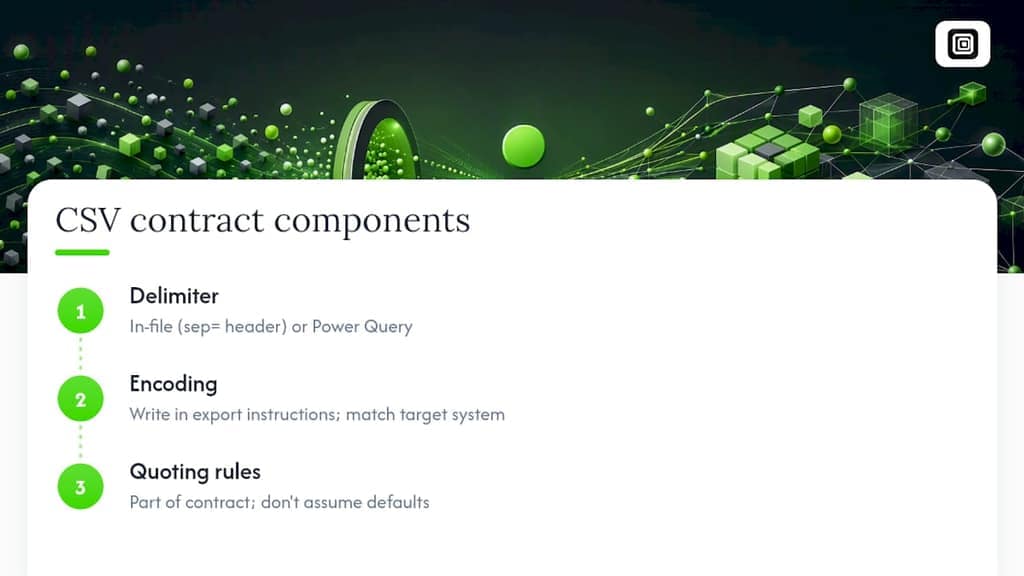
Whenever you have a choice, favor the fix that stays inside the file, like a sep=; header or a Power Query import with an explicit delimiter, over one that changes your operating system's regional settings. A global change fixes today's file and quietly breaks three others you were not thinking about. If you regularly hand CSVs to teammates or a CRM, write down the expected delimiter and encoding in your export instructions. It takes one sentence and it eliminates the "mystery semicolon" complaint for good.
If you regularly export data for a CRM or lead list, the same contract mindset applies. Mastros's LinkedIn export workflow is built around producing files that match the delimiter and encoding a target system actually expects, rather than whatever your local Excel happens to default to.
— Elias Mahdavi
Export clean CSVs from the start with Mastros
Fixing a semicolon problem after the fact is manageable, but it is easier to never create the problem in the first place. If you are pulling contact lists, group members, or chat exports out of LinkedIn or WhatsApp Web for use in Excel or a CRM, the file format you choose at export time determines how much cleanup you do later. Mastros's LinkedIn and Sales Navigator data exporter runs entirely in your browser, reading what your signed-in session already shows, and lets you save leads and connections directly to CSV, XLSX, JSON, or JSONL, so you can pick the format that matches your import contract instead of fighting Excel's regional defaults after the fact.
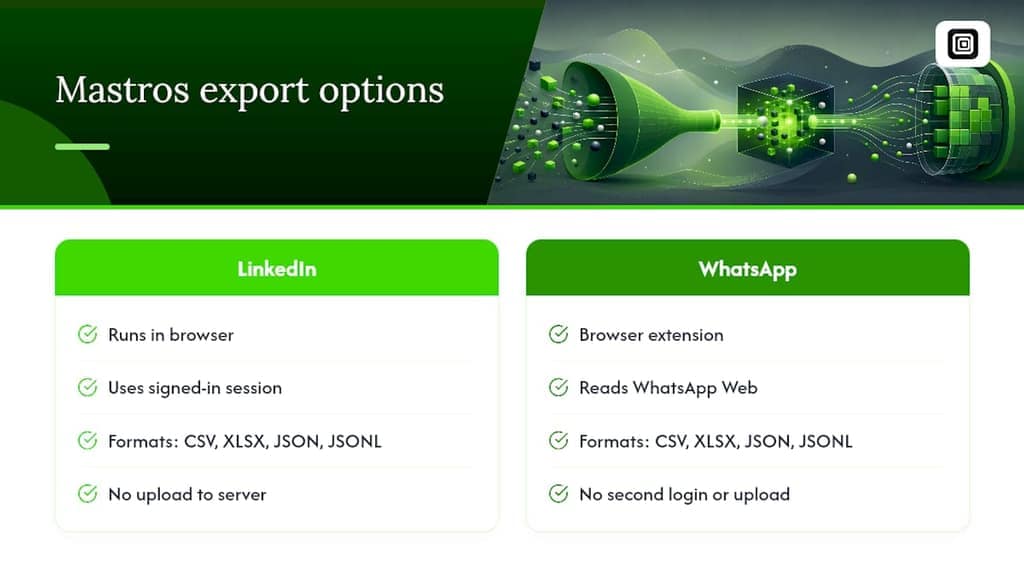
The same logic applies to chat data. Mastros's WhatsApp export extension pulls group members, messages, and contacts straight from WhatsApp Web into a spreadsheet-ready file, without an API key, a second login, or any automated messaging. Nothing gets uploaded to a Mastros server. It just reads what you can already see and saves it in a format Excel can open cleanly the first time.
Sources
- How to change Excel CSV delimiter to comma or semicolon — Ablebits
- Import or export text (txt or csv) files - Microsoft Support
- Excel's List Separator setting and “Mystery Semicolon” CSVs — Elysiate
FAQ
How do I open a CSV file with semicolons in Excel?
Use Data > From Text/CSV, select the file, and set the Delimiter dropdown to Semicolon before loading. Alternatively, add a sep=; line as the file's first row so Excel applies the correct delimiter automatically on double-click.
How do I save an Excel file as CSV with semicolons?
Go to File > Options > Advanced, uncheck Use system separators, then set your Decimal and Thousands separators to values that push Excel's CSV output toward the delimiter you want. For full control across every export, change the List separator under Windows Region settings, though that also affects formula argument separators system-wide.
Does CSV use a comma or a semicolon?
CSV traditionally stands for comma-separated values, but Excel actually follows your operating system's regional list separator setting, which defaults to a semicolon in locales where the comma is already used as the decimal symbol. Neither delimiter is universally correct; the file format only works if producer and consumer agree on it.
How do I change a CSV from comma to semicolon (or back)?
Open the file in Notepad and add a sep=, or sep=; header line to force Excel's behavior without touching any settings. For a permanent change on export, adjust Excel's separator options under File > Options > Advanced, or change the Windows list separator if the change needs to apply system-wide.
Why does my semicolon CSV show garbled characters in Excel?
This usually points to an encoding mismatch, often a UTF-16 or UCS-2 file with a byte-order mark that Excel misreads. Re-open the file in Notepad, use Save As, and choose UTF-8 encoding explicitly before reopening it in Excel.