



The fastest practical way to speed up a Telegram export is to export one chat at a time from Telegram Desktop, skip media, and save as JSON instead of HTML. For bigger archives, Telegram's takeout API or a parallel-worker tool can cut export time dramatically, and a browser-only exporter gives you selective, in-browser downloads without the extra setup.
TL;DR:
- For a faster Desktop export, select one chat, choose JSON, exclude photos, videos, voice messages, and files, and limit the date range.
- Media transfer usually causes the longest delays, so export text first and run a separate media job only for files you need.
- A new device may trigger an authorization wait of several hours; keep Desktop open during export, and Telegram can resume interrupted runs.
- For large archives or multiple accounts, scripted takeout and parallel workers can help, but setup, device confirmation, and flood waits limit gains.
- A browser extension suits targeted exports of member lists or recent media when you want selection in your browser without API credentials or another login.
Table of Contents
- Priority checklist: what to try first to speed exports
- How to export a chat quickly with Telegram Desktop (step-by-step)
- Speed tweaks that materially reduce export time (and why)
- Advanced: takeout API, tg-chat-dump and multi-account parallel exports
- A privacy-first browser alternative: Mastros' Telegram extension (when it fits)
- Troubleshooting slow or stalled exports
- Author perspective: which method to pick by user type and scale
- Try Mastros: a privacy-first, in-browser exporter for faster selective exports
- FAQ
- Sources
Priority checklist: what to try first to speed exports
Before you touch the takeout API or any third-party tool, run through this list. Most slow exports get fixed by one of these four changes, and together they take less than a minute to set up.
- Export a single chat instead of your whole account. A whole-account export pulls every conversation, every group, and every channel you're in, which multiplies both size and time for no benefit if you only need one conversation.
- Untick photos, videos, and files, and pick Machine-readable JSON over HTML. Media is almost always the bottleneck, and JSON writes faster than Telegram's styled HTML output.
- Set a date range instead of exporting your entire history. Limiting an export to the last six months, for instance, can shrink both file size and run time.
- Use a wired connection on a machine that can stay on and idle, and let the export run without closing Telegram Desktop or putting the computer to sleep.
Get these four right and you've already solved the problem for the vast majority of exports. The sections below cover what to do when they aren't enough.
How to export a chat quickly with Telegram Desktop (step-by-step)
Telegram's own export tool, announced on the Telegram blog, can write JSON or HTML files for a single chat or your entire account. Here's the fastest path through it.
- Install Telegram Desktop and sign in. If you're signing in on a new device, expect Telegram to enforce a wait, sometimes several hours, before it allows a full export, since takeout sessions can require device confirmation on unfamiliar hardware.
- Open the chat you want to export, click the three-dot menu, and select Export chat history.
- Choose Machine-readable JSON (HTML is fine for casual reading, but JSON parses faster and is easier to filter later).
- Untick photos, videos, voice messages, and files unless you specifically need them, then set a date range if you only need recent history.
- Click Export and let it run uninterrupted.
- Once it finishes, open the export folder and confirm result.json is present and complete before closing the window.
Pro Tip: Run a test export on your smallest group chat first. It confirms your settings and format choice before you commit to a multi-gigabyte export of your main archive.
Speed tweaks that materially reduce export time (and why)
Each tweak below addresses a specific bottleneck, not just a general slowdown.
- Exclude media entirely when you only need text. Media transfer, not message count, is what usually stretches an export from minutes to hours.
- Run media separately if you do need files. A text-only JSON export followed by a dedicated media export is often faster overall than one combined run, since each job has a simpler task to finish.
- Paginate by date rather than exporting ten years of history in one pass. Smaller batches finish faster and are easier to retry if something interrupts them.
- Use a wired connection and a local SSD. Wi-Fi and spinning disks are common bottlenecks once an export moves into the gigabytes.
- Let interrupted exports resume. Telegram's exporter is designed to pick up where it left off rather than restart from zero, according to Telegram's own documentation.
- Consider cryptg for heavy media exports. Decrypting thousands of media files is CPU-intensive, and optimized crypto libraries can noticeably cut wall-clock time on media-heavy runs, per notes in the telegram-export project.
One export, two formats, very different speed. A text-only JSON export of a chat typically finishes in a fraction of the time a full media export takes, simply because JSON writes structured text while media export involves downloading and decrypting every photo, video, and voice note individually.
Advanced: takeout API, tg-chat-dump and multi-account parallel exports
If you're exporting an entire account, a large research archive, or multiple groups at once, Telegram's manual export tool starts to show its limits. The core Telegram takeout API exposes account.initTakeoutSession and invokeWithTakeout, letting developers request a takeout session programmatically and control exactly which data types get pulled, including messages, media, and contacts.
Third-party tools build on this. tg-chat-dump, for example, can run multiple workers or multiple accounts in parallel, shifting around Telegram's per-account rate limits rather than waiting on a single connection.
- Takeout mode alone gives a large single-account speed boost over the standard Desktop export.
- Running two accounts in parallel multiplies that gain further, though returns taper off once flood waits start appearing.
- Expect an initial authorization delay the first time you request a takeout session, since Telegram may confirm the request before releasing data.
A side-by-side test on a 420,000-message group was reported by tg-chat-dump. The setup cost is real, but so is the setup cost: you're writing or configuring a script, managing multiple logins, and handling device confirmations instead of clicking a menu item.
A privacy-first browser alternative: Mastros' Telegram extension (when it fits)
Between a one-click Desktop export and a scripted takeout job, there's a middle option worth knowing about: an in-browser extension that reads what your signed-in Telegram Web session already shows you, without touching any API or server.
- The exporter exports chat messages, group members, recent contacts, mutual groups, and bulk media (photos, videos, documents, audio, and voice notes) from any chat or channel you can open.
- Everything runs in your browser. Nothing uploads to servers, no API keys or developer credentials are needed, and there's no second login.
- You choose how many messages to scan and which media types to include, so a run stays focused on exactly what you need instead of pulling an entire chat by default.
- Results export to CSV, JSON, or JSONL, which makes filtering or analysis easier than working from Telegram's own HTML output.
Pro Tip: If you only need a group's member list or recent media rather than a full message history, a browser-based export can finish a targeted job faster than configuring a full takeout session for the same result.
This fits users who want more control than Desktop's basic export offers but don't want to manage API credentials or parallel accounts. For a deeper look at the tradeoffs between these options, see our breakdown of how to pick the export method that fits your goal.
Troubleshooting slow or stalled exports
Most stalled exports trace back to one of a few causes.
- A multi-hour wait on a new device is normal. Telegram can enforce an authorization delay before a full export runs on a freshly signed-in computer, so plan your export for a time you don't need the result immediately.
- Slower than a plain "save as" download usually means media is the problem. Exclude media or split the run into smaller date ranges instead of troubleshooting the connection.
- A blank page or a failed export often clears up after re-signing in, clearing temporary files, or retrying on a different machine.
- Still too slow for your volume? That's the point to look at scripted takeout, a parallel-worker tool, or a browser extension built for Telegram Web rather than troubleshooting the built-in exporter further.
Author perspective: which method to pick by user type and scale
Casual users should stick with a per-chat Desktop export in JSON, no media. Power users exporting specific media or member lists get more out of a targeted browser extension. Teams and researchers working across many accounts are better served by scripted takeout on dedicated hardware.
— Elias Mahdavi
Try Mastros: a privacy-first, in-browser exporter for faster selective exports
If you've tried the Desktop tweaks above and still want more control over what gets exported, a Telegram extension runs entirely in your browser and pulls chat messages, group members, contacts, and bulk media straight to CSV or JSON. Nothing passes through servers, there's no API key to set up, and there's no second login to manage.
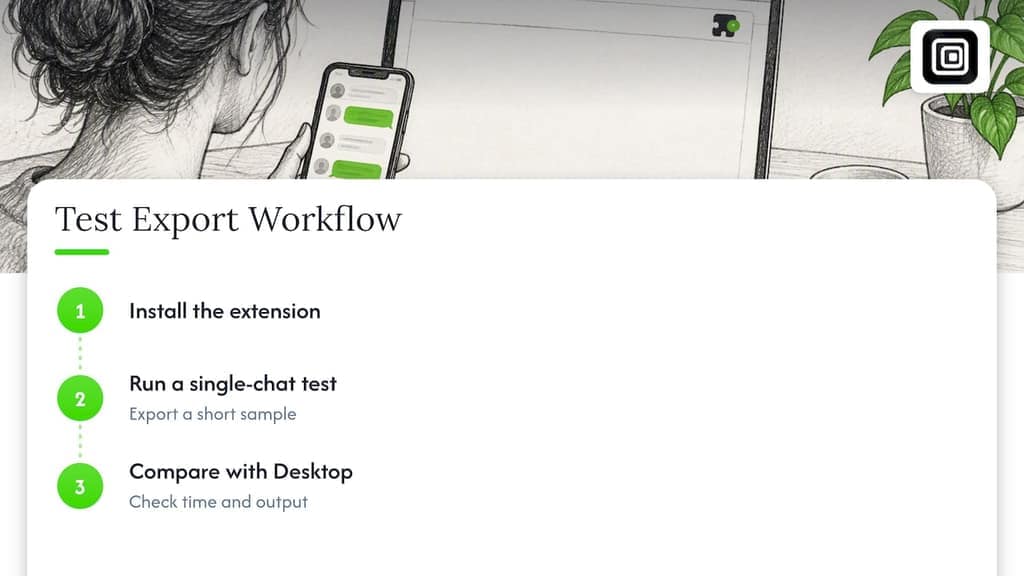
The simplest way to see if it fits your workflow is to install it and run a short test export on a single chat, comparing the time and output against what Telegram Desktop gave you. If you're already managing exports at scale, the Telegram Scraper page walks through the available plans and what each one unlocks.
FAQ
How to make Telegram videos faster?
Exclude video from a general chat export and run a separate, media-only export for just the videos you need. This keeps your text export fast while letting the video download run on its own without competing for bandwidth.
How do I get back old Telegram messages?
Scroll up in the chat to load older history, or run a full chat export through Telegram Desktop's Export chat history option, which pulls the complete conversation into a JSON or HTML file. If messages were deleted, Telegram does not provide a built-in recovery option.
Can I send a 3 GB file on Telegram?
Telegram supports file uploads up to 4GB per file for most users, so a 3GB file typically goes through without issue. Export speed for large files still depends on your connection and whether you're including media in a bulk export.
How fast does Telegram download?
Download speed depends on your connection and whether you're exporting with or without media, since media transfer is almost always the slower part of the job. A text-only JSON export finishes in a fraction of the time a full media export takes for the same chat.