



You can get Telegram messages, contacts, and media into Airtable three ways: export Telegram Desktop's data and convert result.json into a CSV, wire a Telegram bot to a no-code automation platform that writes to Airtable, or use a privacy-first browser exporter that produces Airtable-ready CSV or JSON directly. For a quick, privacy-conscious one-off import, the browser exporter is usually the fastest route. For live, ongoing sync, the bot plus automation path is the right call.
TL;DR:
- Telegram Desktop exports should use JSON, not HTML; selected media appears in companion folders, while result.json needs parsing before Airtable can import it.
- Airtable’s CSV import guidance favors files under 25,000 rows, so split large histories by chat or date range before importing.
- Live syncing requires a Telegram bot created through BotFather and an Airtable Personal Access Token scoped to data.records:write; use message IDs to prevent duplicate records.
- The browser exporter saves messages, members, contacts, and media as CSV, JSON, or JSONL without uploads or API credentials; test a sample before importing.
Table of Contents
- Manual export, automation, or in-browser exporter: which fits your job?
- How to export Telegram data and convert it for Airtable import
- Automating a live sync: Telegram bot, Make or Zapier, and Airtable
- Mastros' Telegram Scraper: a privacy-first path to Airtable-ready files
- A quick decision guide by role
- Export Telegram data to Airtable without a bot or upload
- FAQ
- Sources
Manual export, automation, or in-browser exporter: which fits your job?
Each of these three paths solves a different problem, and picking the wrong one just means more cleanup later. A one-off archive (backing up a community before a migration, pulling records for research) calls for a manual export you control from start to finish. A live feed, where new Telegram messages need to land in Airtable as they happen, calls for automation. And when you want structured, Airtable-ready output without touching a bot token or an API key, an in-browser exporter does the job in minutes.
Here's a quick breakdown of what each approach asks of you:
- Manual export and convert: needs Telegram Desktop, a converter script or tool, and some comfort with files. Expect some time for processing a small chat, and longer durations for larger ones.
- Bot plus automation (Make or Zapier): needs a Telegram bot via BotFather, an Airtable Personal Access Token, and time to build and test the scenario. Expect an afternoon for the first working flow.
- Privacy-first browser exporter: needs only your signed-in Telegram Web session. Expect a few minutes from export to CSV file, no bot, no API key, no upload.
The sections below walk through each path in enough detail to actually execute it, starting with the manual route since it requires the least setup.
How to export Telegram data and convert it for Airtable import
Telegram Desktop's own export tool is the starting point for the manual path, and it's well documented. Open Settings → Advanced → Export Telegram data, then choose what to include.
- Select the chats or the entire account, and check JSON as the format (not HTML) since JSON is what a conversion script can actually parse.
- If you need photos, videos, or voice notes, check those media categories too. This downloads them into subfolders alongside a
result.jsonfile that documents chat history, media, and contacts in a structured schema. - Once the export finishes, open
result.jsonwith a parser rather than a text editor. A short Python script usingpandas(orjqon the command line) can flatten each message into a row with columns likechat_id,chat_name,message_id,timestamp_iso,sender_name,sender_id,message_text, andmedia_path_or_url. Our guide on exporting Telegram's result.json to JSON and parsing it with jq and pandas walks through the exact commands. A tool liketg-export-mdcan also convert the file into readable Markdown or CSV with filters for chat and date range. - For large exports, split the output by date range or by chat before importing. Airtable's CSV import extension works best under its practical 25,000-row guidance, so a sprawling channel history is better split into several smaller files than dumped in as one.
- In Airtable, open the CSV import extension, upload your file, map each column to a field type (date fields for
timestamp_iso, long text formessage_text), choose a primary field (message_id works well), and decide whether to create new records or merge into existing ones using a unique ID.
Pro Tip: Keep media files in a dedicated folder and store only the file path or a hosted URL in your CSV; Airtable attachments work better from a URL than from a raw file hunt after the fact.
Automating a live sync: Telegram bot, Make or Zapier, and Airtable
A manual export gives you a snapshot. If you need Telegram activity to show up in Airtable as it happens, like new leads from a group chat or messages tagged for follow-up, you need a bot sitting in the middle. The architecture is simple: a Telegram bot receives events, an automation platform processes them, and the Airtable API or a Sync API connection writes the records.
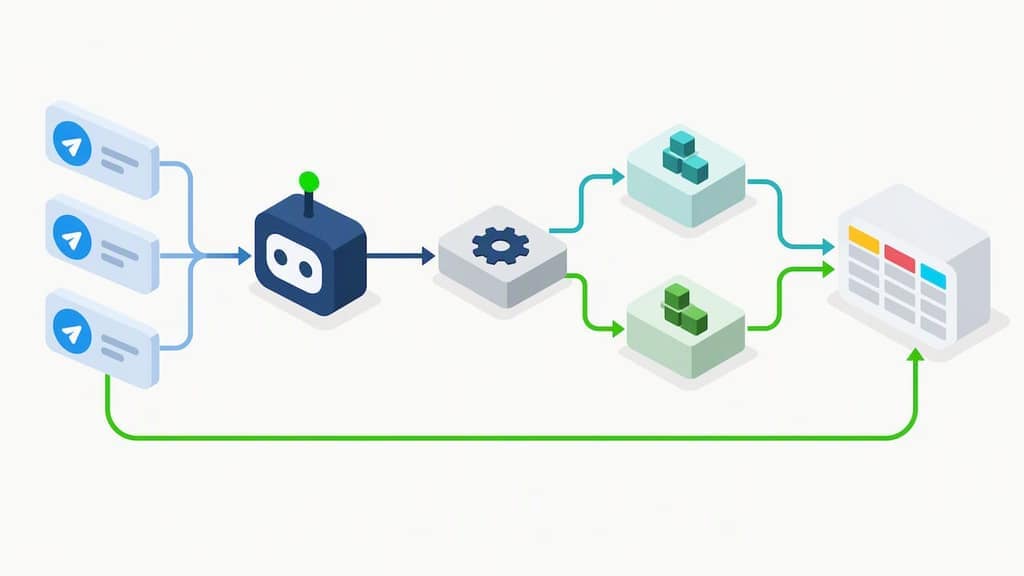
Start by creating a bot through BotFather inside Telegram, which gives you an API token. On the Airtable side, you'll need a Personal Access Token scoped to data.records:write for straightforward API writes. Make's Telegram and Airtable integration provides pre-built modules that typically use this bot as the trigger for record creation, and the same pattern applies to Zapier.
Field mapping follows a predictable pattern:
- Message text maps to a long-text field so formatting and line breaks survive.
- Timestamps map to a date field using ISO format to avoid timezone ambiguity.
- Sender name or ID maps to a linked record (if you're building a contacts table) or a single-line text field for simpler setups.
- Media maps to an attachment field or a stored external URL, depending on where the file lives.
- Message ID or a composite key should be used for deduplication so reruns or retries don't create duplicate rows.
One automation platform typically requires a Telegram bot created via BotFather to act as the trigger for Airtable record creation, which means there's no way around setting one up if you want a live feed.
Choosing between Make, Zapier, or a direct API call usually comes down to volume and budget; platforms like Larven's Facebook Ads Automation demonstrate how automation can scale complex workflows without needing dedicated media buyers. Make tends to offer more granular control over data transformations at a similar price point, Zapier's interface is often faster to prototype in, and a direct API integration makes sense once volume or reliability needs outgrow either platform's rate limits. Whichever you choose, add a small logging table in Airtable to catch dropped events, since bot-triggered flows fail silently more often than you'd expect.
Mastros' Telegram Scraper: a privacy-first path to Airtable-ready files
When a bot and a Personal Access Token feel like more setup than the task deserves, our Telegram Scraper runs the whole export inside your browser instead. Nothing gets uploaded to a server, no API keys or developer credentials are needed, and there's no second login. The extension reads what your own signed-in Telegram Web session already shows you, and saves it to a file.
It exports group members, chat messages, recent contacts, and mutual groups, and bulk-downloads photos, videos, documents, audio, and voice notes from any chat or channel you can open. You choose how many messages to scan, and each exported item carries its type and date, so you can narrow a run to a specific period or media type before you even open Airtable.
Once you have the file:
- Export to CSV directly and drop it into Airtable's CSV import extension for a one-time load.
- Export to JSON or JSONL when you want to script a transformation step first, or feed the file into a programmatic workflow.
- Use the per-item type and date fields already in the export to pre-filter rows before import, cutting cleanup time significantly.
Pro Tip: Run a small export first (a few hundred messages) to confirm your column mapping in Airtable before committing to a full channel history.
A quick decision guide by role
If you're archiving a community or doing research, a manual export plus a converter script gets you a clean, one-off CSV with full control over the schema. If you manage a community and need member lists or media pulled regularly without touching code, our Telegram Scraper gets you there faster, no bot and no token. If you're in growth or lead generation and need new Telegram activity to land in Airtable as it happens, a bot wired through Make or Zapier is worth the extra setup time. Match the method to how often you need the data, not just what the data looks like.
— Elias Mahdavi
Export Telegram data to Airtable without a bot or upload
Setting up a bot and a scoped Personal Access Token makes sense for a live sync, but most people reaching for Telegram data just need a clean file, fast. Our Telegram Scraper runs entirely in your browser: no uploads, no API keys, no second login, just the messages, members, contacts, and media your own session can already see, saved to CSV or JSON.
Try the Free plan first, export a small sample chat, and import that CSV into Airtable using the CSV import extension to confirm your field mapping works. Once you're ready for larger exports, the Pro and Scale plans on our plans page unlock higher volume limits. If you also manage WhatsApp or LinkedIn data, the same browser-only approach applies to WhatsApp and LinkedIn exports.
FAQ
Can I export chats from Telegram?
Yes. Telegram Desktop includes a built-in export tool under Settings → Advanced → Export Telegram data that produces chat history, contacts, and media in JSON or HTML format. You can also use a privacy-first browser extension like our Telegram Scraper to export messages and media directly from Telegram Web without touching the desktop app.
Can you extract data from an Airtable base?
Yes, Airtable supports extracting records through its API using a Personal Access Token, or by exporting individual views as CSV files from within a base. For ongoing extraction into another system, Airtable's Sync API handles one-way programmatic data movement.
How do I transfer data from Excel to Airtable?
Save your Excel file as a CSV, then open Airtable's CSV import extension, upload the file, and map each column to the matching field type. You can choose to create new records or merge rows into an existing table using a unique identifier column, following the same CSV import process used for Telegram exports.
Is Airtable basically Excel?
Not quite. Airtable functions like a spreadsheet on the surface but behaves more like a lightweight database, with linked records, attachment fields, and automation options that a standard spreadsheet doesn't offer. That structure is exactly why converting raw exports like Telegram's result.json into clean rows first makes the import so much smoother.
What's the best way to handle large Telegram exports for Airtable?
Split the export by date range or by individual chat rather than importing one massive file, since Airtable's CSV import extension works best under its 25,000-row guidance. For continuous or very large datasets, batch uploads through the Sync API tend to hold up better than per-message writes.