



For most people, the fastest reliable path is Telegram Desktop's built-in export, which pulls full chats plus attachments into JSON or HTML. If you only need media from one conversation, a browser extension on Telegram Web gets you there faster. Power users who want repeatable, scriptable exports should look at CLI tools or, for full programmatic control, the Takeout API. Whichever route you pick, make sure the media has actually loaded before you export, since that's the number one reason attachments end up missing.
TL;DR:
- Exporting large Telegram accounts with Desktop's built-in tool ensures the most complete archive, including all media, but requires sufficient disk space and time for large data sets.
- Browser extensions for Telegram Web only download media that is currently loaded and visible on-screen, so scrolling through chats to load all media before export is essential.
- CLI tools provide repeatable, filtered exports suitable for regular backups or processing, but require setup and careful management of authentication and file size limits.
- The Takeout API allows developers to automate full account exports with granular control over what media and data are included, though large files may need chunking and retry logic.
- Common causes of missing attachments include media not loaded before export, skipped media types during setup, broken relative paths after folder moves, or size limits on large files during export.
Table of Contents
- Four ways to export Telegram attachments and when each makes sense
- Step-by-step: exporting a full archive with Telegram Desktop
- Browser-based exports: pulling visible media from Telegram Web
- CLI tools for repeatable, filtered exports
- Developer route: the Takeout API and file size limits
- Fixing missing or incomplete attachments
- Choosing the right method for your situation
- What privacy-first browser exports get right
- Where a browser extension fits if you export regularly
- Where to go for the technical details
- Sources
- FAQ
Four ways to export Telegram attachments and when each makes sense
Telegram gives you more than one road to the same destination, and the right one depends on how much data you need and how comfortable you are with technical tools.
- Telegram Desktop's native export produces JSON or HTML archives with photos, videos, documents, and voice notes included. It's the most complete and the easiest for nontechnical users, though large exports can take a while and eat up disk space.
- Browser extensions on Telegram Web let you grab specific media from a single chat without touching your whole account. They're quick and privacy-friendly since everything runs locally, but they only see what's currently loaded on the page.
- CLI tools like popstas/telegram-download-chat suit anyone who wants filtered, repeatable exports (by date range or media type) and doesn't mind a bit of setup.
- The Takeout API is for developers building automated backup or migration pipelines and needing granular control over what gets pulled and how.
If you're backing up an entire account, start with Desktop. If you just want the photos from one group chat, a browser tool is quicker. If you need this to run on a schedule or across many chats, CLI or the API is the right call.
Step-by-step: exporting a full archive with Telegram Desktop
Telegram's own export feature remains the most dependable way to get a complete, self-contained archive, attachments included. It packages everything server-side and writes it into a consistent folder structure, which is why it holds up better than browser-based methods for large or complete exports, according to Android Police's walkthrough of the feature.
Before you start, install the latest version of Telegram Desktop, sign in with your account, and free up enough disk space. A chat-heavy account with years of photos and videos can easily need several gigabytes.
- Open Telegram Desktop and go to Settings > Advanced > Export Telegram data.
- Choose whether to export your entire account or, from inside a specific chat's menu, just that conversation.
- Check the boxes for the media types you want: photos, videos, documents, voice messages, stickers, and so on. Unchecked types get skipped entirely, even if they exist in the chat.
- Pick your output format. JSON gives you a machine-readable
result.jsonwith messages and relative paths to each media file. HTML produces a browsablemessages.htmlyou can open directly in any browser, with media either embedded or linked. - Set a size or date limit if you want a partial export, then click Export.
- Wait for Telegram to finish packaging. Larger accounts can take from a few minutes to over an hour.
Our own walkthrough of how the Desktop export structures its output breaks down exactly how attachments map to folders if you want to inspect the schema more closely.
Once it's done, open messages.html to skim the conversation visually, or open result.json in a text editor and search for the media paths tied to specific messages. Both formats save attachments into subfolders next to the export file rather than inside the JSON or HTML itself.
Pro Tip: For very large exports, split by chat instead of exporting your whole account at once. It's easier to verify a 2 GB export than to troubleshoot a 40 GB one.
Browser-based exports: pulling visible media from Telegram Web
Browser extensions and userscripts work differently from Desktop's export. Instead of packaging everything server-side, they read what's currently rendered in the page's DOM and save it through your browser's own download system, according to Telegram's blog post on export tools. That means they only see media that has already loaded, which is the source of almost every complaint about missing files with this method.
Telegram Web intentionally loads media progressively to save bandwidth, so older photos and videos in a long chat history won't exist in the DOM until you scroll up far enough or manually play them. Extensions can't download what the page hasn't fetched yet.
The general workflow looks like this:
- Open Web and load the chat you want to export from.
- Scroll up through the history (or use search) until the media you need is visible on screen, playing videos or voice notes if the tool requires it.
- Open your extension's popup and select the media types you want: photos, videos, documents, voice notes.
- Run the download and let the browser save files to your Downloads folder, typically named by date or message ID.
Before installing anything, check what permissions it asks for. A tool that only needs activeTab and downloads is behaving itself: it can read the current page and save files, nothing more. Anything asking for broader access to your browsing history or other sites deserves a second look. Our guide on downloading Telegram media without a bot or token covers this in more detail, and our walkthrough on bulk media downloads explains how to prepare a long chat before running a tool against it.
Pro Tip: Test any new extension on a short, low-stakes chat first. If it misses files or grabs the wrong ones, you'll want to know before running it against your most important conversation.
CLI tools for repeatable, filtered exports
If you need to export the same chat regularly, filter by date range, or process the output with a script afterward, a command-line tool beats clicking through menus every time. popstas/telegram-download-chat is a widely referenced example: it downloads messages with attachments and supports flags like --media to pull files, along with options for JSON, TXT, or HTML output and date filtering.
These tools typically authenticate the same way the Telegram apps do, by sending a login code to your phone that you enter once in the terminal. That code stays local to your machine. As with any tool that touches your account, read the README before running anything, check who maintains the project, and never hand your login code or session file to a third-party service.
A typical export creates an attachments folder with subfolders for images, videos, documents, audio, and stickers, with files often named using the message ID plus the original filename so you can trace any file back to its message.
- Use CLI tools when you need the same export repeated on a schedule.
- Use them when you want to filter a huge chat down to a specific date range or media type before exporting.
- Use them when you're feeding the output into another script or database rather than reading it by hand.
For a one-time backup of a personal chat, this is more setup than most people need. For an admin archiving years of a busy channel in pieces, it's often the fastest way to get exactly what you want.
Developer route: the Takeout API and file size limits
For fully programmatic exports, Telegram exposes account.initTakeoutSession through its Takeout API. This lets a developer start a session with specific flags, such as message_users, message_chats, and files, to control which categories of data and media get included in the takeout.
The files flag alone isn't enough to pull attachments. You also need to set file_max_size in bytes, which tells Telegram the largest file it should include. Leave it too low, or omit it, and larger attachments simply get skipped from the takeout, silently.
Once a session is running, media is fetched through uploads.getFile, wrapped in invokeWithTakeout. Large files can require chunked re-fetches, and file reference tokens can expire mid-process, so any serious implementation needs retry logic built in.
This route makes sense for a developer building an automated backup pipeline, a migration tool, or an integration that needs full-account archival without a human clicking through Desktop's menus. For a one-off personal export, it's more infrastructure than most readers will want to build.
Fixing missing or incomplete attachments
Almost every "my export is missing files" complaint traces back to one of a handful of causes, and they're worth checking in order before you re-run anything.
- Media wasn't loaded before export. This is the most common issue with browser-based tools. Telegram Web fetches media progressively, so scroll through the full range you need and let images and videos actually render before running the extension.
- Export options weren't checked. In Telegram Desktop, unchecked media types are skipped entirely. Reopen Settings > Advanced > Export Telegram data and confirm every attachment type you want is selected.
- Relative paths got separated from the export. Both JSON and HTML exports reference media by relative paths in Telegram's own schema, rather than embedding files directly. If you moved or renamed the export folder, those links break. Keep the whole folder structure intact.
- A per-file size limit cut off large attachments. For Takeout API exports, this usually means
file_max_sizewas too low. For Desktop exports, very large video files can sometimes bump into practical size limits worth testing on a small scale first.
To verify a completed export, open messages.html and scan visually, or open result.json and check that the media paths it references actually exist in the attachments folder. If something's missing, try splitting the export by date range or by individual chat rather than pulling your whole account at once, which also makes it easier to spot exactly where the gap is.
Choosing the right method for your situation
Before you pick a tool, answer a few quick questions about what you actually need.
- Do you need your entire account archived, not just one chat? Use Telegram Desktop's export.
- Do you only need media from one specific conversation? A browser extension on Telegram Web will be faster.
- Do you need this to run repeatedly or filtered by date? A CLI tool like telegram-download-chat fits better.
- Are you building an automated system or integration? Go with the Takeout API and budget time for handling file size limits and token expiry.
- Is this for legal or record-keeping purposes where completeness matters most? Stick with Desktop's official export since it's the most consistent and auditable format.
Archive completeness, whether you need structured JSON for further processing, how much data you're dealing with, and your own comfort with technical tools all point toward different answers. Our comparison of export methods by goal walks through more edge cases if your situation doesn't fit neatly into one of these.
Pro Tip: When in doubt, start with Desktop's export. It's the one method that won't leave you wondering whether you got everything.
What privacy-first browser exports get right
Official documentation and the tools built around it agree on one thing: the safest exports are the ones that never leave your machine. Telegram Desktop's export runs against your own session and writes files to your own disk. Well-built browser extensions and userscripts, the kind documented in projects like TG Media Saver, work the same way: a content script reads what's already rendered on the page and streams it straight to your Downloads folder, with no server in between.
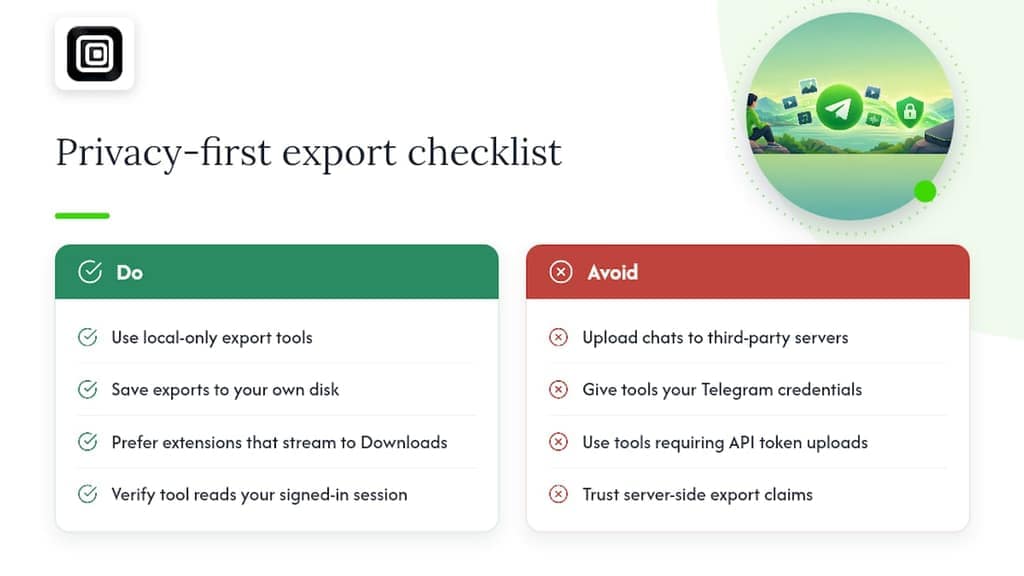
That local-only design matters most when the content itself is sensitive: a support group's history, a legal record, a client conversation you need to keep but don't want sitting on a third party's infrastructure. A tool that needs your Telegram login credentials, an API token, or uploads your chat to its own servers introduces a step you didn't ask for and a party you didn't choose to trust.
This is the same philosophy behind how we build Telegram exports at Mastros: read what your signed-in session already shows you, save it locally, and never touch a server we control. It's a narrower promise than some tools make, but it's one we can actually keep, and it's worth checking any tool you use against that same standard.
— Elias Mahdavi
Where a browser extension fits if you export regularly
If you've read this far and landed on "browser tool" as your answer, our Telegram Scraper is built for exactly that job. It runs entirely inside Chrome against your own signed-in Telegram Web session: no API keys, no second login, nothing uploaded anywhere. It bulk-downloads photos, videos, documents, and voice notes from any chat or channel you can open, and you control how many messages it scans so a run stays focused on the period and media types you actually want.
It's not a replacement for Desktop's export if you need a full-account archive. Think of it as the faster option when you need media from a specific chat without exporting everything, or when you want to run the same kind of pull again next month without repeating a manual scroll-and-click routine by hand.
The extension is free to start, with Pro at $9 a month and Scale at $18 a month for anyone running heavier volumes regularly. Check Telegram Scraper for the details, or browse Mastros' full plan lineup if you're also managing exports from WhatsApp or LinkedIn.
Where to go for the technical details
If you want to go straight to primary sources, the Telegram blog's export announcement covers the original Desktop feature. Telegram's import-export schema documents exactly how relative media paths work inside result.json. Developers building programmatic exports should read the Takeout API reference directly, and anyone considering a CLI workflow can check the telegram-download-chat README for current flags and setup steps. Our broader comparison of five export methods is a useful next stop if you want more detail on any single approach.
Sources
- Chat Export Tool, Better Notifications and More
- popstas/telegram-download-chat
- How to export Telegram chats, groups, channels and images to HTML or JSON
FAQ
Is there a way to export messages from Telegram?
Yes. Telegram Desktop has a built-in Export Telegram data feature under Settings > Advanced that exports messages and attachments to JSON or HTML. Browser extensions, CLI tools, and the Takeout API offer alternative routes depending on how much control or automation you need.
How do I export a Telegram chat to a PDF?
Telegram doesn't offer a direct PDF export option. The common workaround is exporting to HTML through Telegram Desktop's export feature, then opening messages.html in a browser and using its print function to save as PDF.
How do I export all photos from Telegram chat?
For a full chat's photos, use Telegram Desktop's export and check only the "photos" media type under Settings > Advanced > Export Telegram data. For a quicker pull from one open conversation, a browser extension on Telegram Web can grab visible photos directly, as long as you scroll through the chat first so older images load.
Why isn't my chat history showing when I export Telegram chats?
The most common cause is that older messages or media simply haven't loaded on the page yet, since Telegram Web fetches content progressively as you scroll. It can also happen if a media type wasn't checked during Desktop's export setup, or if the exported folder's relative paths got separated from the JSON or HTML file that references them.