



If you want a readable backup, use Telegram Desktop's HTML export. If you need to parse or import data programmatically, choose JSON or the Takeout API. If you want spreadsheet-ready files or targeted bulk media, an in-browser Telegram exporter beats both. Splitting exports by chat or date range fixes almost every size problem you'll hit along the way.
TL;DR:
- Export large media-rich chats in smaller chunks by splitting the date range or chat scope to avoid hitting the 4GB size cap.
- Use Telegram Desktop for full account exports or chat-specific files, but only on desktop, not mobile or web.
- For targeted media downloads or filtered contact lists, in-browser exporters like Mastros run locally and do not upload data to servers.
- Developers can automate exports through the Takeout API and CLI tools, allowing for customized, repeatable data extraction and filtering.
- Files over 4GB require narrowing the scope or splitting the export into smaller segments to prevent incomplete data retrieval.
Table of Contents
- How Do You Choose a Telegram Export Method?
- How Do I Export a Chat Using Telegram Desktop?
- When Should You Use a Browser Extension Instead?
- What About the Takeout API and CLI Tools?
- How Do You Handle Exports Over 4GB?
- What Are the Limits and Privacy Risks to Know?
- Why Mastros Built an In-Browser Exporter
- If You Need Spreadsheet-Ready Exports, Try Mastros
- Primary Sources and Tools to Consult
- Sources
- FAQ
How Do You Choose a Telegram Export Method?
Your goal decides the method, not the other way around. Someone backing up a family group chat needs something completely different from a growth marketer pulling group members into a CRM.
Start by asking what you're actually going to do with the exported file once you have it:
- Read it later, like a diary. Telegram Desktop's HTML export renders chats in a browser window, formatted and clickable, close to how they looked in the app.
- Feed it into a script or database. JSON preserves structure, timestamps, and metadata that HTML strips away for readability.
- Drop it into Excel, Airtable, or a lead list. Neither native format is spreadsheet-ready out of the box. A CSV or JSONL export saves the conversion step.
- Grab every photo, video, or voice note from one chat without the message clutter. Bulk media extraction is its own use case, and it's where the native tool's size limits start to hurt.
Two constraints apply no matter which path you pick. Telegram's native export tool only runs on the desktop app, never mobile or web, and it requires you to be signed into the account you're exporting from. Keep both in mind before you plan a workflow around it.
How Do I Export a Chat Using Telegram Desktop?
Telegram's native tool lives in one place, and it's easy to miss if you've never gone looking for it.
- Open Telegram Desktop and go to Settings > Advanced > Export Telegram data.
- Pick what to include: personal data, contacts, individual chats, or your full account history.
- Choose your format. JSON keeps the raw structure for developers; HTML produces a browsable export_results.html or messages.html file for casual review.
- Set the media size slider. It defaults to 8MB per file, but you can raise it up to 4GB total for the whole export session, according to AndroidPolice's testing.
- Set a date range if you only want a slice of history rather than everything.
- Click Export, and let Telegram write the files to your chosen folder.
For a single conversation instead of your whole account, select just that chat in step 2. Telegram's own documentation confirms a single-chat export produces one Chat object inside result.json, which keeps the file smaller and easier to search.
When it finishes, you'll find messages.html (open it in any browser) or result.json (open it in a text editor or parse it with code) inside the export folder. If the folder looks empty or truncated, the export likely hit the size cap, not a bug.
Pro Tip: Export one chat at a time when you're only after a specific conversation. It's faster, the file is smaller, and you avoid babysitting a multi-hour export of your entire account history.
When Should You Use a Browser Extension Instead?
The native tool was built to help people with huge message histories back up their data, not to pull out a clean list of group members or convert months of chat into a spreadsheet. That's a different job, and it calls for a different tool.
In-browser exporters run inside Telegram Web itself, reading whatever your signed-in session already displays. Nothing gets uploaded anywhere. Mastros, for example, works this way: no server upload, no API keys, no second login, and no automated messaging of any kind.
What this approach is good for:
- Exporting group members, recent contacts, or mutual groups as clean CSV, JSON, or JSONL files.
- Scanning a set number of messages instead of committing to a full-account pull.
- Bulk-downloading photos, videos, documents, or voice notes from one chat or channel, filtered by type and date.
The basic flow: install the extension, open Telegram Web, sign in as usual, open the chat or channel you want, choose your scan depth and media types, then run the export and download the file.
Pro Tip: Before installing any browser extension for chat data, check whether it runs entirely locally or sends data to a server. If you can't tell from the listing, that's a red flag worth taking seriously.
What About the Takeout API and CLI Tools?
Developers who need automation skip the UI entirely and go straight to Telegram's Takeout API for building a repeatable, automated pipeline. It lets you initialize a takeout session with account.initTakeoutSession, set flags for messages, chats, channels, or files, then close it out with account.finishTakeoutSession. You can even cap file size with file_max_size, which gives far more control than the desktop slider.
Once you have a result.json from either the API or Desktop export, open-source CLI tools take over. A project like telegram-download-chat on GitHub can filter by sender, apply --min-date or --last-days flags, convert output to TXT or CSV, and batch-download media into separate folders.
Pick based on your actual constraints:
- Takeout API for building a repeatable, automated pipeline.
- CLI tools for cleaning up or reshaping an export you already have.
- Desktop JSON when you just need one clean file and don't want to write any code.
How Do You Handle Exports Over 4GB?
Media-heavy chats routinely blow past the 4GB session cap, and Telegram won't warn you clearly when that happens. It just stops including files.
- Narrow the scope. Export one chat, or split the date range into smaller chunks, and run the export again for each slice. Power users rely on this to avoid hitting the export cap altogether.
- Verify the result. Open
messages.htmland scroll to the end, or check the message and media counts insideresult.jsonagainst what you expected to see. - If anything's missing, don't guess. Rerun the export with a tighter date window, or switch to an extension for targeted media downloads instead of a full re-export.
Pro Tip: Keep a simple log of which date ranges you've already exported. It's the fastest way to avoid duplicate files when you're running several passes on the same chat.
What Are the Limits and Privacy Risks to Know?
A few constraints apply regardless of which method you pick, and they're worth flagging before you start.
- The native export tool only runs on Telegram Desktop. There's no mobile equivalent, so plan for a computer.
- Exported files can contain phone numbers, private messages, and media you'd never want on an unsecured drive. Store them encrypted, or at minimum on a password-protected device.
- If you're exporting a group or channel you don't fully control, think about the people on the other end of those messages before you archive or share their content.
- An in-browser exporter that never touches a server, like Mastros, reduces one entire category of risk: your data never leaves your machine in the first place.
The default 8MB media slider inside Telegram Desktop exists for a reason. It keeps casual exports fast and small; you have to deliberately raise it to 4GB if you actually need the media, according to AndroidPolice.
Why Mastros Built an In-Browser Exporter
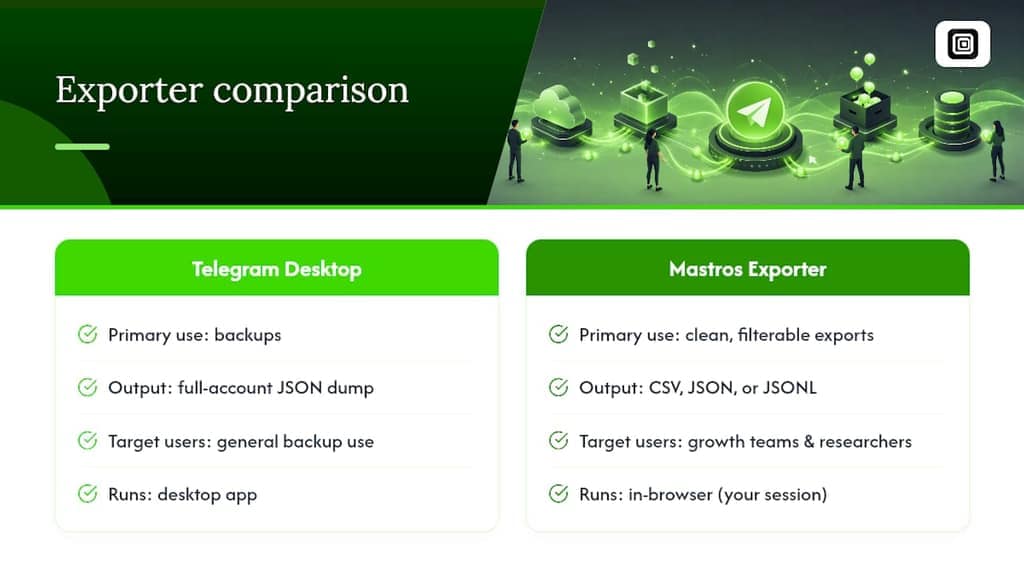
Telegram Desktop's export tool solves backups well but stops short of what growth teams and researchers actually need day to day: clean, filterable spreadsheets and targeted media pulls, not a full-account JSON dump they'd have to parse themselves.
An exporter was built to fill that specific gap. It runs entirely in your browser, reads only what your signed-in Telegram Web session already shows, and never sends anything to a server. Group members, messages, contacts, mutual groups, and bulk media all export straight to CSV, JSON, or JSONL. It complements Telegram's own tool rather than replacing it.
— Elias Mahdavi
If You Need Spreadsheet-Ready Exports, Try Mastros
Telegram Desktop and the Takeout API both do their jobs well, but neither hands you a spreadsheet. You still have to convert JSON, filter result.json with a CLI, or accept whatever the HTML file gives you. Mastros skips that entire step.
A Chrome extension exports Telegram group members, chat messages, recent contacts, and mutual groups directly to CSV, JSON, or JSONL, plus bulk downloads of photos, videos, documents, and voice notes from any chat or channel you can open. Everything runs locally in your browser. No server uploads, no API keys, no second login, and nothing gets sent or automated on your behalf.
If your goal is a clean file you can drop into a spreadsheet or lead list today, try the Telegram exporter on Mastros and run your first export in a few minutes.
Primary Sources and Tools to Consult
Verify the steps above against Telegram's own import/export schema and Takeout API docs, Telegram's export feature announcement, and the telegram-download-chat CLI project for post-export processing.
Sources
- Telegram: How to export chats, groups, channels, and images — AndroidPolice
- Core
- telegram-download-chat — GitHub
FAQ
How Do I Export an Entire Chat From Telegram?
Open Telegram Desktop, go to Settings > Advanced > Export Telegram data, select the specific chat instead of your full account, choose HTML or JSON, and set your media size limit before clicking Export.
Can Telegram Chat History Be Recovered After Deletion?
Once a chat is deleted on your device and synced across your account, Telegram does not offer a built-in recovery option, which is exactly why exporting important conversations before deleting them matters.
How Do I Export a Chat Conversation to a Readable File?
Choose HTML format in the Desktop export tool for a browser-readable archive, or use a CSV/JSONL export from a browser extension like Mastros if you plan to open the conversation in a spreadsheet.
How Do I Export Videos From Telegram in Bulk?
Raise the media size slider up to its 4GB session maximum in Telegram Desktop, or use an in-browser exporter to pull just the videos from a specific chat without downloading the entire message history.