



Yes, you can export Telegram chats without phone numbers, but it takes two deliberate moves: uncheck contacts when you run the export, or export a single chat instead of your whole account. Even then, check the result. JSON exports can carry phone_number fields in contact and account metadata, so the first real step is unchecking "contacts" in the export dialog, or switching to single-chat export entirely.
TL;DR:
- For full account exports, uncheck contacts; phone numbers may also appear in account metadata or phone number change history under other_data.
- A single chat export can include its messages and media while skipping the account level contacts block, making it preferable when sharing one conversation.
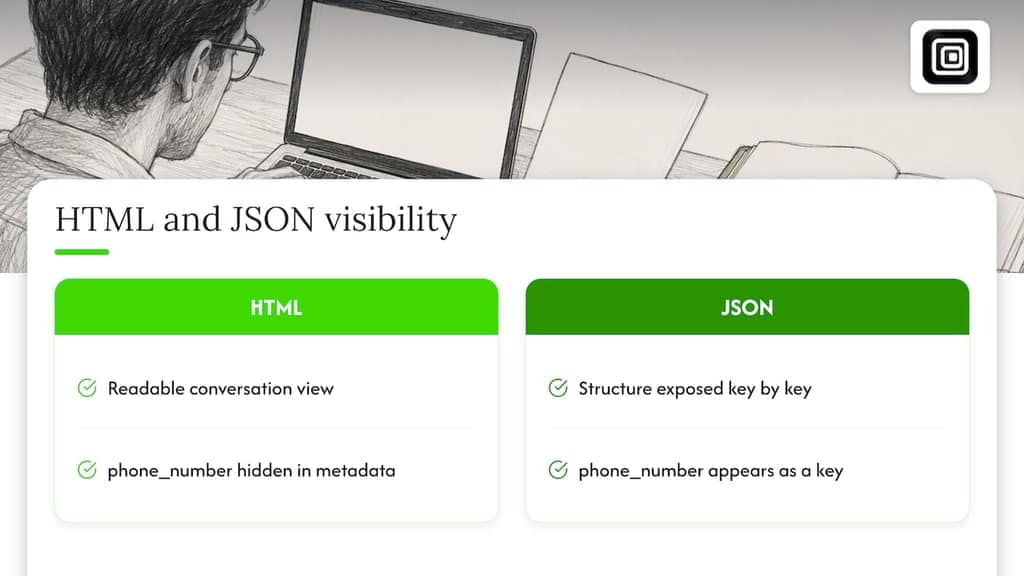
- HTML and JSON contain the same underlying data, but HTML may hide metadata, so search result.json for phone_number and country codes before sharing.
- If you already have JSON, remove every phone_number key with jq on a copy and keep the original untouched to avoid corrupting the archive.
- Turning off contact syncing and deleting previously synced contacts affects future exports only; existing archives require separate inspection and cleanup.
Table of Contents
- Step-by-step: create an export that omits contacts (desktop)
- What the export files contain: JSON schema, contacts, and the phone_number fields
- Inspect and sanitize your export before sharing
- Account takeout and API flags: request exports that omit contacts
- Account privacy settings to change before future exports
- A privacy-first local export option: a Telegram browser extension
- Export minimally, then inspect: our view
- Try a local, privacy-first Telegram export tool
- FAQ
- Sources
Step-by-step: create an export that omits contacts (desktop)
Before you start, sign into Telegram Desktop and let it finish syncing with the cloud. If you have just set up a new device, give it a little time before the full chat history is available locally.
From there, you have two paths depending on what you actually need:
- Single chat: open the conversation, tap the three-dot menu, choose "Export chat history," then pick your format (JSON or HTML), set a date range, and decide whether to include media.
- Full account: go to Settings > Advanced > Export Telegram data, then uncheck the "contacts" box along with any other account-level boxes you don't want included, and confirm the format and media settings before starting.
Once the export finishes, Telegram Desktop saves everything to a local export folder, typically containing a result.json file for JSON exports or a messages.html file (plus linked media folders) for HTML exports, as documented in Telegram's blog announcement of the desktop export tool.
Single-chat exports are the safer default when you only need to share or archive one conversation: they're smaller, faster to inspect, and never touch your contact list. Full exports make sense for personal backups, but they carry more surface area to check before you hand the file to anyone else.
What the export files contain: JSON schema, contacts, and the phone_number fields
Telegram's own export schema breaks a full export into sections: personal_information, contacts, chats, and other_data. The contacts section is where phone numbers live most directly, but other_data can also hold a phone-number-change history, which is easy to miss if you're only scanning the obvious fields.
Here's the part that trips people up: HTML and JSON exports contain the same underlying data, just presented differently. HTML renders a readable conversation view, so a phone_number field tucked into account metadata doesn't visibly show up on the page. JSON exposes that same structure directly, key by key, which is exactly why checking result.json matters even when the HTML file looks clean.
Single-chat exports avoid most of this risk by design: they pull messages and media from one conversation and skip the account-wide contacts block entirely. Full exports include that block unless you uncheck it, which is why the checkbox step in the previous section is the one that actually matters most.
Inspect and sanitize your export before sharing
Once you have a file, open the export folder and locate result.json or messages.html. From here, a quick search does most of the work:
- Use a text editor's search function, or a command like
grep "phone_number" result.jsonon Mac or Linux, orfindstr "phone_number" result.jsonon Windows. - Search for
contacts,phone, and common country-code patterns (like+1,+44,+91) to catch anything a plain field-name search might miss. - For a small file, you can manually delete the
contactsblock or remove specific fields by hand in a text editor. - For a large export, a command like
jq 'del(..|.phone_number?)' result.json > sanitized.jsonstrips everyphone_numberkey across the whole file in one pass, which is far safer than editing a multi-megabyte JSON file line by line. - Keep the original file untouched and work only on a copy, since a bad find-and-replace in a text editor can corrupt a large JSON structure.
HTML exports are generally safer to share as-is once you've confirmed no sensitive metadata is embedded in linked files, while sanitized JSON is the better choice when someone downstream needs to parse the data programmatically.
Pro Tip: Before you sanitize anything, make a copy of the original export and note its file size or checksum, so you always have an unmodified version to fall back on if a redaction script goes wrong.
Account takeout and API flags: request exports that omit contacts
Developers pulling data through Telegram's Takeout API get more granular control than the desktop UI exposes directly. The account.initTakeoutSession method accepts flags like contacts, message_users, message_chats, message_megagroups, message_channels, and files, each one toggling a specific slice of the export on or off.
The mapping to the desktop app is straightforward: unchecking "contacts" in Settings > Advanced > Export Telegram data is the UI equivalent of leaving the contacts flag off in a takeout request. The files flag, paired with file_max_size, controls whether media gets pulled at all and caps how large each downloaded file can be, which matters both for export size and for limiting what ends up in a shared archive.
For anyone building on the API rather than clicking through the desktop app, the rule is the same: set each flag to exactly the data you want, nothing more.
Account privacy settings to change before future exports
Changing your sync settings won't touch a file you've already exported, but it does reduce what future exports can pick up. Telegram's privacy policy covers the relevant controls under Settings > Privacy & Security > Data Settings:
- Turn off contact syncing so Telegram stops matching your phone's address book to your account.
- Delete previously synced contacts from the same Data Settings menu if you no longer want them tied to your account.
- Run a new export only after making these changes, since an archive created before the change still reflects the old sync state.
Think of this as closing the door for next time, not patching a hole in a file you already have sitting on your desktop. If you need to clean up something you already exported, that's a job for the sanitization steps above, not a settings toggle.
A privacy-first local export option: a Telegram browser extension
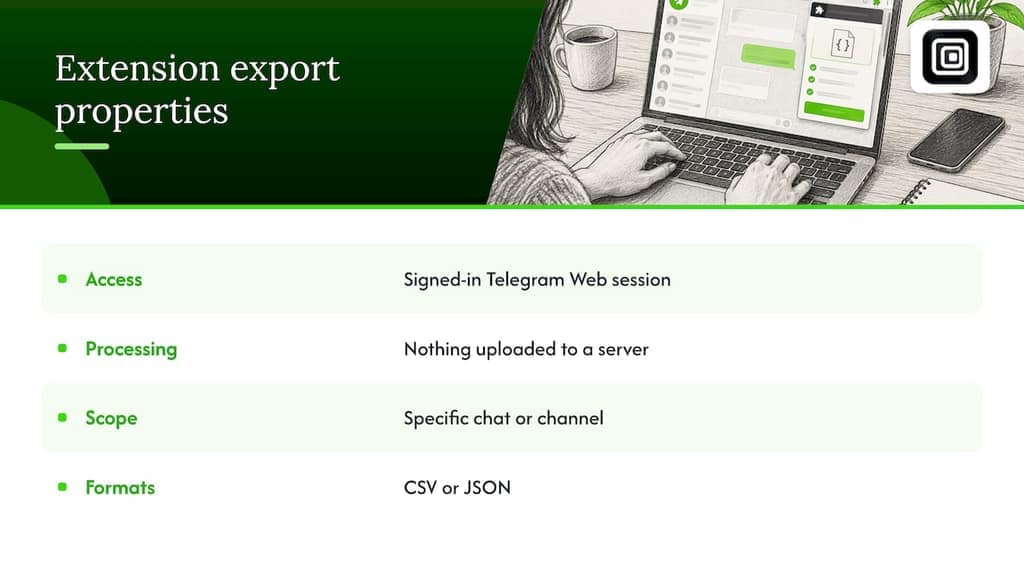
If you'd rather not manage takeout flags or dig through a result.json file by hand, a locally running browser extension offers a more selective starting point. Such an extension reads only what your signed-in Telegram Web session already displays and saves it to a file, with nothing uploaded to a server and no API keys required.
It exports group members, chat messages, recent contacts, and mutual groups, plus bulk media like photos, videos, documents, and voice notes, into CSV or JSON. Because each export is scoped to a specific chat or channel, rather than your entire account, there's no account-wide contacts dump sitting in the output. This cuts down the chance of a stray phone number showing up where you didn't expect one. For a deeper look at how the desktop export itself structures these files, see our explainer on HTML and JSON exports, and for help pulling large media sets locally, check our guide to exporting attachments.
Export minimally, then inspect: our view
Convenience and privacy pull in opposite directions here: the easiest export (full account, everything checked) is also the one most likely to carry data you didn't mean to share. Export the smallest slice that answers your actual need, whether that's a single chat or a scoped local tool, and treat inspection as a required step, not an optional one.
— Elias Mahdavi
Try a local, privacy-first Telegram export tool
When you need a selective export rather than a full account dump, our Telegram Scraper pulls messages, members, and media straight from Telegram Web into CSV or JSON, without uploading anything to a server or asking for API credentials. Install the extension, sign into Telegram Web, open the conversation or channel you want, choose which fields and media types to include, and export. If someone exported chats as part of a scam investigation and needs the data preserved properly, forensic preservation guidance covers how to handle that evidence correctly. For a look at current plans, including the free tier, visit our pricing page.
FAQ
How do I remove phone numbers from a Telegram export?
Uncheck the "contacts" box when running a full account export from Settings > Advanced > Export Telegram data, or export a single chat instead, since single-chat exports skip the contacts block entirely. If you already have a JSON file, search it for phone_number fields and remove them with a tool like jq before sharing, as described in Telegram's export schema.
How do I stop Telegram from showing my phone number?
Go to Settings > Privacy & Security on Telegram and adjust who can see your phone number, separate from the export settings. This changes what other users see on your profile going forward, as outlined in Telegram's privacy policy, but it does not alter any export files you've already created.
Why would someone use Telegram instead of other messaging apps?
People choose Telegram for features like large group sizes, channels for broadcasting to big audiences, cloud-synced chat history across devices, and built-in tools like the desktop export feature for backing up conversations. Reasons for choosing any specific app vary by person and by what they need from a messaging tool.
How do I export Telegram data without linking a phone number?
Telegram requires a phone number to create an account, but you can still produce an export that excludes phone data by unchecking "contacts" during a full export or by exporting individual chats, which never pull from your contact list. Reviewing result.json for phone_number fields afterward confirms the export is clean, per Telegram's export schema.