



Most Telegram export failures trace back to session or permission problems, not to bugs in the tool itself. Reload Telegram Web, confirm you're logged into the right account with a single active session, and check that your export extension has permission to run on web.telegram.org. If that doesn't resolve it, the cause is usually a rate limit, a stalled scroll on a huge chat, or a browser policy blocking the extension. A privacy-first exporter that runs entirely in-browser can handle most of these cases without needing a server connection at all.
TL;DR:
- Most export failures are caused by session or permission issues, so reloading Telegram Web, updating extensions, and verifying permissions often resolve problems quickly.
- Testing small exports, narrowing data ranges, and avoiding large media batches can prevent rate limits, stalls, and timeouts during bulk exports.
- Using a dedicated browser profile without conflicting extensions or enterprise policies helps isolate environment-specific causes of export failures.
- Exporting from Telegram Desktop as a local process provides a reliable backup method when browser-based tools encounter persistent issues.
- Verifying extension permissions, especially in managed environments, is crucial to prevent silent blocking caused by group policies or security restrictions.
Table of Contents
- Quick Checklist: Immediate Fixes You Can Try in 2 to 10 Minutes
- Step-by-Step Troubleshooting Workflow to Reproduce, Isolate, and Fix
- Permissions, Enterprise Policies, and Privacy Checks That Block Exports
- When to Escalate: What to Include in a Support Ticket or IT Request
- How Telegram Web Session and Login Cookies Affect Your Export
- How Message Range and Media Limits Affect Bulk Exports
- Desktop vs. Mobile vs. Web: Why Export Features Aren't the Same
- Step-by-Step: Using Telegram Desktop's Native Export as a Backup Option
- Why Exported Files Come Out Corrupted or in the Wrong Format
- How Chat Type Changes What You Can Export
- Storage Space and Disk Permissions During Large Exports
- Responsible Extension Use and the Privacy Trade-Off
- Fix Failed Exports Without Sending Your Data Anywhere Else
- Sources
- FAQ
Quick Checklist: Immediate Fixes You Can Try in 2 to 10 Minutes
Before you dig into logs or contact support, run through this list. Most Telegram export not working complaints resolve at step two or three.
- Reload Telegram Web and retry small. Refresh the tab, wait for the chat list to fully load, then try exporting just 50 messages or a single media file. If a small export works but a large one doesn't, you're dealing with a scale problem, not a broken connection.
- Check for duplicate sessions. Telegram Web sometimes logs a device into an older session that no longer matches your active account. Open Settings > Devices in Telegram and terminate sessions you don't recognize, then log back in fresh.
- Update Chrome and the extension. An outdated browser build or a stale extension version is one of the most common, least glamorous causes of export tool problems. Check
chrome://extensionsfor a pending update. - Re-enable host permissions. Chrome occasionally resets site access after an update. Visit
chrome://extensions, click "Details" on your export tool, and confirm it has access toweb.telegram.org. - Disable competing extensions temporarily. Ad blockers, privacy shields, and script blockers often interfere with the page scripts an exporter needs to read chat data. Turn them off one at a time and retest.
- Try Incognito or a separate browser profile. If the export works in a clean profile but not your main one, something in your regular setup, likely another extension, is the culprit.
Pro Tip: Keep a dedicated Chrome profile just for exports. No ad blockers, no unrelated extensions, nothing else fighting for control of the page. It turns a 10-minute troubleshooting session into a 30-second retry.
Step-by-Step Troubleshooting Workflow to Reproduce, Isolate, and Fix
When the quick checklist doesn't clear things up, you need a repeatable process, the same one a support engineer would run before escalating anything.
1. Reproduce on a small sample first. Pick one chat, one date range, and try exporting messages only, then media only, then members only. This tells you whether the export tool problems are universal or specific to one data type. A group export failing while a private chat export succeeds points to permission scope on that specific group, not a broken extension.
2. Isolate the environment. Open an Incognito window (with the extension explicitly allowed to run there), or try a different browser profile entirely, or test from another machine if one's available. If the export succeeds elsewhere, the problem lives in your regular browser environment, likely a conflicting extension, a corrupted cache, or a local policy.
3. Adjust extension settings and retest. Most export tools let you set a message count, a date range, and media-type filters. Narrow all three to the smallest useful slice, confirm success, then widen gradually. This isolates whether the export process not completing is a volume issue rather than a permissions or authentication issue.
4. Watch for rate limits and CAPTCHAs. Telegram Web throttles rapid scrolling and bulk requests to prevent abuse. If your export stalls at the same point every time, or if a CAPTCHA prompt appears mid-scroll, you've hit an anti-scraping protection, not a bug. Split the run into smaller batches (a few hundred messages at a time) and add pauses between them.
5. Collect diagnostics before you give up. Open Chrome DevTools (F12 or right-click > Inspect), go to the Console tab, and screenshot any red error text. Switch to the Network tab and watch for failed requests (marked in red) or requests to domains you don't recognize. Timestamp everything. This log is what turns a vague "it's not working" into a fixable ticket.
Here's what the diagnostic step often reveals: unexpected outbound requests during an export attempt are worth stopping and investigating immediately, since Arcanum's exfiltration analysis found this exact network behavior in extensions that quietly upload page data without disclosing it. If your Network tab shows requests going somewhere other than Telegram's own domains during an export, stop the run and check what the extension is actually doing before you troubleshoot further.
Permissions, Enterprise Policies, and Privacy Checks That Block Exports
Chrome extensions rely on three permission types to function: host permissions (which sites the extension can read), scripting (whether it can run code on the page), and storage (where it temporarily holds data before writing your file). You can view and adjust all three from chrome://extensions by clicking "Details" on any installed extension. If host permissions for web.telegram.org are limited instead of fully allowed, that alone can cause an export to silently fail partway through.
Enterprise environments add another layer. Managed Chrome profiles often run allowlist policies, Content Security Policy restrictions, or group policy objects that block extensions from executing scripts on certain domains, even if the extension itself is installed and enabled. If your export works on a personal machine but fails on a company laptop, this is almost always why.
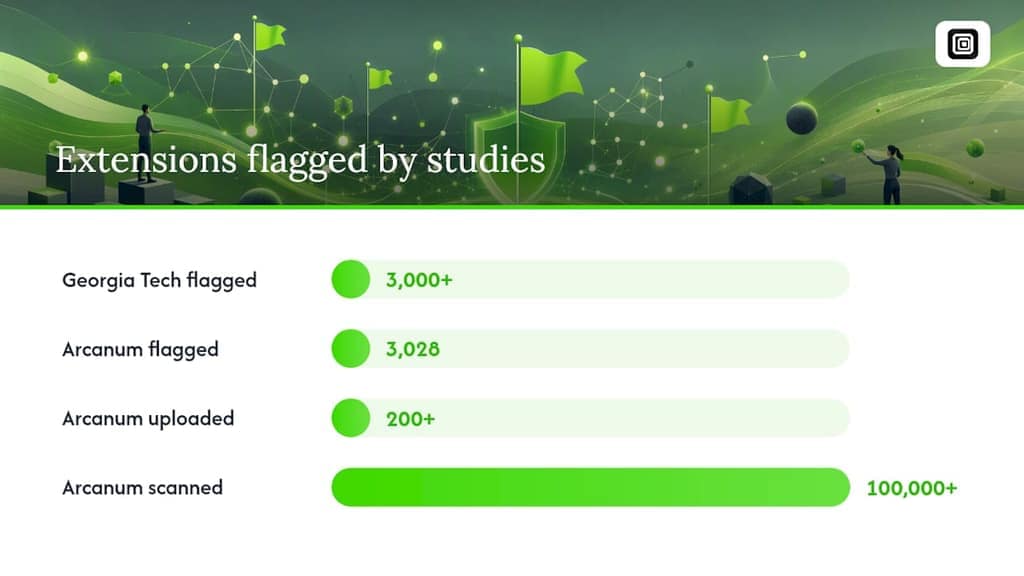
This matters more than most teams realize. Georgia Tech researchers found more than 3,000 extensions collecting potentially sensitive user content, often without disclosing it in their privacy policies. Separately, the Arcanum study scanned over 100,000 extensions and flagged 3,028 that extract private page content, more than 200 of which uploaded that data to external servers.
The pattern researchers keep finding is the same: extensions request broad permissions to function, then use that access to send far more than necessary back to a server, frequently without telling the user.
Before trusting any export tool with chat data, verify its behavior directly rather than taking a privacy claim at face value.
- Check the extension's manifest and permissions list in
chrome://extensionsfor anything beyond what exporting requires. - Watch the DevTools Network tab during a real export; a local-only tool should show zero outbound traffic to third-party servers.
- Prefer extensions that explicitly state local-only processing over ones that are vague about where your data goes.
Pro Tip: If an export tool asks for permissions unrelated to reading a webpage, like broad clipboard access or background network requests you didn't trigger, that's your cue to dig deeper before running anything sensitive through it.
When to Escalate: What to Include in a Support Ticket or IT Request
A vague "export isn't working" ticket gets a vague, slow response. A well-documented one gets fixed fast.
- Console errors: a screenshot of any red text in DevTools Console during the failed attempt.
- Network snippets: the specific failed or suspicious requests from the Network tab, with timestamps.
- A small reproducible sample: the exact chat, date range, and settings that failed, ideally reduced to the smallest case that still breaks.
- Steps, expected output, actual output: write it like a bug report, not a complaint. "I selected 500 messages from Chat X on [date]; expected a CSV with 500 rows; got a CSV with 40 rows and a console error at timestamp 14:32."
If the failure only happens on a managed device, involve IT directly, this usually means an allowlist or Content Security Policy is blocking the extension, which individual users can't override. In the meantime, a separate browser profile dedicated to exports, or splitting large jobs into smaller batches, keeps you moving while the ticket is open.
How Telegram Web Session and Login Cookies Affect Your Export
Telegram Web authenticates through a session token stored in your browser, not a traditional password login on every visit. That token controls what an export tool can see and do, and it's more fragile than most people assume.
If you log into Telegram Web on a second device or browser, the original session sometimes stays "active" in the interface while actually losing sync with the server. An export tool reading that stale session can return partial data, empty results, or a failure mid-scroll, even though the page looks perfectly normal to you. This is why "reload and re-login" fixes so many cases: it forces a fresh session token rather than relying on a cookie that's quietly gone stale.
Clearing cookies for web.telegram.org specifically (not your entire browser history) and logging back in resets this cleanly. It's a more surgical fix than a full cache wipe, and it preserves your other site logins while forcing Telegram to issue a new, valid session.
Multiple simultaneous sessions across devices compound the problem. Telegram allows several active logins at once, but an export tool running in a browser tab that isn't the "primary" session sometimes gets throttled differently or denied access to certain data types, like member lists in large groups. Checking Settings > Devices and closing sessions you're not actively using removes that ambiguity before you troubleshoot anything else.
How Message Range and Media Limits Affect Bulk Exports
Bulk media exports fail more often than text exports, mostly because of sheer data volume. A channel with thousands of photos and videos takes far longer to scan and download than a text-only chat, and that extra time is where timeouts, stalls, and rate limits show up.
Setting a message range before you start is the single most effective way to avoid this. Rather than scanning an entire multi-year channel history, narrow the run to a specific date window or a fixed message count, say, the last 2,000 messages, or everything from the last quarter. Most export tools let you set this range up front and apply media-type filters (photos only, videos only, documents only) so you're not scanning content you don't need.
Splitting a large export into batches solves the same problem from a different angle. Instead of one run covering an entire year of a busy group, run four separate exports covering three months each. This keeps each individual request small enough to avoid triggering Telegram's anti-scraping throttling, and it means a failure in batch three doesn't cost you the data you already captured in batches one and two.
Media-heavy exports also hit local constraints faster: large video files and voice notes consume disk space and browser memory in a way that plain text never does, which is worth keeping in mind before you kick off a run covering months of a high-activity channel.
Desktop vs. Mobile vs. Web: Why Export Features Aren't the Same
Telegram's three main interfaces don't offer identical export capabilities, and assuming they do is a common source of confusion when a method that worked on one platform doesn't translate to another.
Telegram Desktop includes a native "Export Telegram Data" tool built into the app itself, covering chat history, media, and account data in formats like HTML and JSON. The mechanics of that desktop tool differ meaningfully from browser-based extraction: it runs as a local desktop process rather than reading a live web session, which is why desktop export settings and browser extension settings aren't interchangeable.
Telegram's mobile apps (iOS and Android) offer more limited built-in export options, generally scoped to individual chat backups rather than bulk operations across many groups or channels at once. Bulk member exports and mutual-group data, in particular, are far more restricted on mobile than in a browser environment.
Telegram Web, meanwhile, is the interface where in-browser extensions like Mastros operate. Because Web runs entirely through your browser session, it's the only one of the three where a Chrome extension can read the page and export what you're already viewing, no separate app process, no desktop installation. That also means Web inherits browser-specific problems, like extension permission conflicts, that neither Desktop nor Mobile ever encounter.
Step-by-Step: Using Telegram Desktop's Native Export as a Backup Option
If your browser-based export keeps stalling and you need something out the door today, Telegram Desktop's built-in tool is worth trying as a fallback, particularly for single-chat backups rather than bulk multi-group jobs.
- Open Telegram Desktop and go to Settings > Advanced > Export Telegram Data.
- Select the data types you want: chat history, photos, videos, voice messages, or account information.
- Choose your preferred format. HTML is readable in a browser; JSON preserves structure better for programmatic use.
- Set a size limit for media files if you're exporting a media-heavy chat, this prevents the export from ballooning to gigabytes unexpectedly.
- Click Export, then wait. Large chats with years of media can take a while to process locally.
- Check the destination folder Telegram specifies at the end, the export saves locally, not to any cloud service.
This method works well for a single chat backup but doesn't scale to bulk operations across dozens of groups or channels, and it doesn't produce a spreadsheet-ready CSV the way a browser exporter does. For comparing export methods side by side, including where each one is faster or more limited, it's worth checking the differences before committing a whole afternoon to one approach.
Why Exported Files Come Out Corrupted or in the Wrong Format
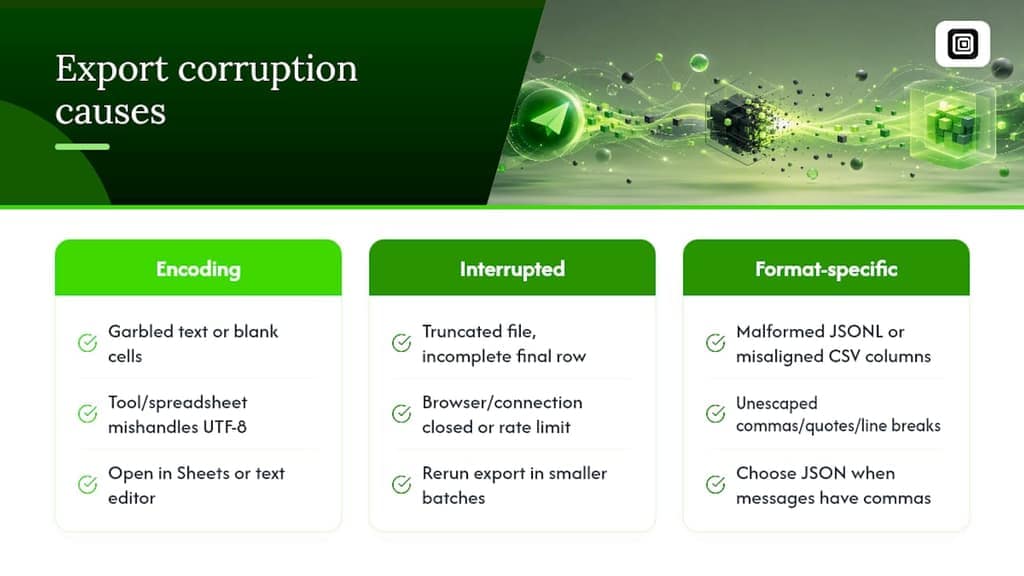
A file that opens as garbled text, shows blank cells in Excel, or simply won't open at all usually points to one of three causes, and each has a different fix.
Encoding mismatches are the most common culprit. Telegram messages can include emoji, non-Latin scripts, and special characters, and if your export tool or spreadsheet software doesn't handle UTF-8 encoding correctly, those characters turn into broken symbols or cause the file to fail validation entirely. Opening a CSV directly in Excel is a frequent trigger for this, since Excel's default import settings sometimes mangle UTF-8 text. Opening it first in Google Sheets or a plain text editor, then reimporting, usually resolves it.
Interrupted exports produce truncated files. If your browser tab closed, your connection dropped, or the extension hit a rate limit mid-run, the resulting file may have an incomplete final row or a missing closing bracket in JSON, which breaks the whole structure when a program tries to parse it. The fix here isn't file repair, it's rerunning the export in a smaller batch so you can confirm completion before moving to the next chunk.
Format-specific issues show up differently depending on output type. A malformed JSONL file (one JSON object per line) will fail entirely if even one line is broken, while a CSV with unescaped commas inside message text can shift entire columns out of alignment. Choosing JSON over CSV when your messages contain lots of commas, quotes, or line breaks avoids this problem at the source.
How Chat Type Changes What You Can Export
Not every Telegram chat gives you the same export access, and the differences trip up a lot of first-time bulk exporters.
Private one-on-one chats are the most straightforward. You have full visibility into the entire message history and any shared media, since there's no membership list or admin-only content to worry about.
Groups add member-list exports to the mix, but access depends on your role. Regular members typically can't see a full member list in large groups, only admins and the group creator get that visibility, which means a member export attempt from a non-admin account will come back empty or partial even if the extension itself is working correctly.
Channels behave differently again. Channels are broadcast-only by design, so there's no traditional member list to export in the same way a group has one; you're generally limited to exporting the message and media content of the channel itself, plus subscriber counts where visible. Mutual-group data, similarly, only surfaces for accounts and contacts where that information is mutually visible in the first place, not something an export tool can override.
Before assuming an export tool is broken, check whether the account running the export actually has the visibility Telegram grants for that specific chat type. A perfectly functional exporter can't return data the account itself isn't permitted to see.
Storage Space and Disk Permissions During Large Exports
Media-heavy exports fail for a reason that has nothing to do with Telegram or the extension at all: running out of local disk space mid-download.
A channel with several years of video and voice content can easily total multiple gigabytes. If your device is low on storage, the export process not completing often isn't a software bug, it's the operating system quietly refusing to write more files. Check available disk space before starting any bulk media run, particularly on laptops with smaller SSDs or work devices with storage quotas enforced by IT.
Browser download permissions matter too. Chrome needs write access to whatever folder your downloads are configured to save into, and on managed enterprise devices, IT policy sometimes restricts which folders are writable at all. If downloads silently fail without an obvious error, check chrome://settings/downloads to confirm your save location is one your account actually has permission to write to.
For genuinely large jobs, exporting in batches (by date range or media type) keeps each run's storage footprint manageable and means a disk-space failure on batch four doesn't cost you the three successful batches before it.
Responsible Extension Use and the Privacy Trade-Off
Bulk export tools need broad access to function. That's not a flaw, it's the nature of reading a live web page. The trade-off is real, though, and the research on extension exfiltration should change how growth and research teams evaluate what they install, not just whether an export button works.
Local-only processing matters most for sensitive chat data: recruiter conversations, community member lists, research subjects. Practically, that means running exports from a dedicated browser profile, auditing installed extensions quarterly, and enforcing allowlist policies on managed devices rather than trusting default settings. Tools that state clearly they don't upload your data anywhere, like Mastros does, deserve real scrutiny of that claim, not blind trust, but they're also the right category to be scrutinizing in the first place.
— Elias Mahdavi
Fix Failed Exports Without Sending Your Data Anywhere Else
This exporter runs entirely inside your Chrome browser, reads the Telegram Web session you're already logged into, and does not upload chat data, member lists, or media to an external server. There's no API key to configure and no second login to manage, which removes an entire category of session and permission conflicts other tools introduce.
If your last export stalled, start smaller than you think you need to. Set the message count to a few hundred, apply a date range or media-type filter, and confirm a clean export before scaling up to the full history. That workflow alone resolves most of the rate-limit and timeout issues covered in this guide.
For bulk media specifically, the Telegram video downloader handles photos, videos, documents, and voice notes from any chat or channel you can already open, with the same message-range controls. Set your filters, run a small test batch, and scale from there once you confirm it's clean.
Sources
- Arcanum (Usenix/Arcanum study) — extension data exfiltration analysis
- Study finds thousands of browser extensions compromise user data — Georgia Tech News
FAQ
Why Does My Telegram Export Keep Failing Partway Through?
Large exports often hit rate limits or session timeouts mid-run. Split the export into smaller batches by date range or message count, and confirm a small sample completes cleanly before scaling up.
Is It Safe to Use a Chrome Extension to Export Telegram Data?
It depends entirely on whether the extension processes data locally. Research on extension exfiltration found over 200 extensions among 100,000+ scanned that uploaded sensitive page content to external servers, so verify local-only behavior via the DevTools Network tab before trusting any tool with sensitive chats.
Why Can't I Export Members From a Telegram Group?
Member-list visibility depends on your role in that group. Only admins and the group creator can typically see and export a full member list; regular members will get an empty or partial result even with a fully functional export tool.
Does Telegram Desktop's Export Work Differently Than a Browser Extension?
Yes. Telegram Desktop's built-in export runs as a local desktop process covering chat history and media in HTML or JSON, while browser extensions like Mastros read your live Telegram Web session directly and export to CSV, JSON, or JSONL without a separate app installation.
What Should I Check First When a Telegram Export Not Working Issue Shows Up on a Work Laptop?
Managed devices often run allowlist policies or Content Security Policy restrictions that block extensions from running on certain domains. Check with IT before assuming the export tool itself is broken, since enterprise allowlist management is a common blocker on company hardware.