



To analyze WhatsApp chats in Python, you export the chat as a .txt file without media, parse it into a pandas DataFrame, clean the text, then run standard analyses like message counts, activity heatmaps, and sentiment scoring. You'll need pandas, regex, matplotlib or Plotly, and a sentiment library like NLTK's VADER, but no WhatsApp API. The whole thing runs on your machine, and tools like the Mastros WhatsApp extension can help when you need a bigger or more selective export first.
TL;DR:
- Accurate parsing relies on regex that detects timestamps at the start of lines, accommodating both Android and iOS formats, and accumulates lines until the next timestamp.
- Cleaning involves isolating system messages, demojizing emojis, removing media placeholders, and lemmatizing words with personalized stopword lists to prevent distortions in analysis.
- Core analyses include message contribution percentages, timeline resampling, heatmaps for activity patterns, word clouds, URL/domain frequency, emoji usage, and sentiment scoring; advanced analysis adds response times and network mapping.
- Bulk export tools like Mastros' browser extension allow more precise, media-inclusive data collection beyond WhatsApp's native 40,000-message cap, with options to export contacts and media.
- Parsing accuracy is critical; testing your pipeline on small samples with varied message types, multi-line chats, and encoded characters ensures reliable downstream sentiment, frequency, and network insights.
Table of Contents
- What You Need: Files, Formats, and Python Libraries
- Parsing Exported .txt Into a Structured DataFrame
- Cleaning and Preprocessing: Making Chat Text Analysis Reliable
- Core Analyses to Run: Counts, Timelines, Emoji, Links, and Sentiment
- Visualizing and Sharing Results: Charts, Dashboards, and Reports
- Practical Minimal Pipeline: An End-to-End Example
- Privacy-First Export Options and Mastros' In-Browser Approach
- Handling Group Chat Specifics: Members Added, Removed, and Renamed
- Addressing Message Types Beyond Text
- Advanced Analyses: Sentiment Over Time, Response Times, and Network Structure
- What Matters Most When You Analyze Chat Data
- Sources
- FAQ
What You Need: Files, Formats, and Python Libraries
Before writing a line of code, export the chat correctly. On WhatsApp, open the chat, tap the menu, choose "Export chat," and select "Without media" so you get a clean .txt file instead of a folder of images and voice clips.
The exported lines look different depending on the phone's operating system. Android typically formats a line like 12/3/23, 14:05 - John: Hey, are we still on for tomorrow? while iOS often wraps the timestamp in brackets: [12/3/23, 2:05:32 PM] John: Hey, are we still on for tomorrow? Both use commas and dashes differently, and that distinction drives your parsing regex later.
Set up your environment with these packages:
pandasfor the DataFrame and grouping operationsre(built into Python) for timestamp detectionemojifor demojizing and counting emojimatplotlib,seaborn, orplotlyfor chartsnltk(with VADER) or a transformer library for sentiment- Python 3.9 or newer to avoid dependency headaches
Watch for UTF-8 encoding issues, and expect placeholder text like "Media omitted" or "This message was deleted" scattered throughout the file.
Parsing Exported .txt Into a Structured DataFrame
The core challenge in analyzing WhatsApp chats in Python isn't running the analysis. It's getting the raw text into a shape pandas can use. Most messages aren't single lines. Someone types three sentences, hits enter between each, and WhatsApp exports all three as one logical message with line breaks. A parser that assumes one message per line will shred your data into fragments.
The fix is a defensive, timestamp-first approach:
- Write a regex that matches the timestamp pattern at the start of a line (accounting for both the Android comma-dash format and the iOS bracketed format).
- When a line matches that pattern, treat it as the start of a new message and extract date, time, and author.
- When a line does not match, append it to the previous message's text instead of starting a new row.
- Keep the raw, unparsed line stored alongside the parsed fields so you can debug mismatches later.
This "accumulate until next timestamp" pattern is the same logic recommended in academic work on WhatsApp chat parsing, and it's the difference between a parser that survives a locale change and one that silently drops half your messages. Also decide early whether you're converting 12-hour AM/PM timestamps to 24-hour time. Storing everything in ISO 8601 format saves you pain during the timeline analysis later.
Cleaning and Preprocessing: Making Chat Text Analysis Reliable
Raw parsed text is noisy. System messages ("Messages and calls are end-to-end encrypted"), media placeholders, and deleted-message markers will all contaminate your word counts if you don't isolate them first.
Handle cleaning in this order:
- Flag and separate system notifications from actual user messages. They're often unambiguous because they lack a sender name in the log.
- Count "Media omitted" instances separately rather than deleting them outright. That count is itself a useful metric.
- Demojize emoji using the
emojilibrary so😂becomes:face_with_tears_of_joy:for text analysis, but keep the original emoji column intact for emoji-specific counts. - Strip stopwords and lemmatize with spaCy so "running," "ran," and "runs" all collapse to "run" for accurate word frequency.
- Run language detection (via
langdetectorlangid) if the chat mixes languages, and route each language through its own stopword list and lemmatizer.
Skipping this stage is the single most common mistake in chat analysis. Improperly removed media markers or unhandled emoji noise will distort your word counts and skew any topic model you build on top, according to practitioner writeups on WhatsApp chat cleaning workflows. If you want a deeper walkthrough of normalization choices, Mastros has covered chat analysis methods that reveal real patterns in more depth.
Pro Tip: Build your stopword list from the actual chat, not a generic English list. Group chats accumulate inside jokes and nicknames that a standard stopword set will never catch, and those words often dominate your word cloud if left in.
Core Analyses to Run: Counts, Timelines, Emoji, Links, and Sentiment
Once your DataFrame has clean date, time, author, and message columns, the actual analysis is mostly groupby and resample calls. Here's the sequence that covers what most readers actually want out of a WhatsApp export:
- Message counts and contribution share. Group by author, count rows, then divide by total messages to get each person's percentage share. Add a
word_countcolumn (split message text by whitespace) to compute average words per message per person. - Timeline analysis. Set the datetime as the index and use
.resample('D')or.resample('M')to get daily or monthly message volume. This is where you spot the week everyone went quiet or the month activity spiked. - Weekday by hour heatmap. Pivot the data with weekday as rows and hour as columns, then count messages per cell. Seaborn's
heatmap()or a Plotly heatmap turns this into the classic "when does this group actually talk" visual. - Word frequency and word cloud. After cleaning, run a
Counteron all tokens, then feed the top results into thewordcloudlibrary or a horizontal bar chart of top n-grams. - URL extraction and domain frequency. A regex pull for
httppatterns, followed by parsing each URL's domain withurllib.parse, tells you what the group actually shares. - Emoji frequency. Tally the raw emoji column separately from text tokens. Emoji patterns often tell a different story than word frequency does.
- Sentiment scoring. Run each cleaned message through VADER for a fast baseline, then aggregate by day or by author.
By the numbers: There's no public WhatsApp API for pulling private chat exports, which is exactly why this entire workflow runs on the exported .txt file rather than a live connection, as noted in coverage of WhatsApp sentiment analysis in Python. VADER handles straightforward positive and negative language well, but expect it to misfire on sarcasm, slang, and heavy emoji use. When accuracy matters more than speed, a transformer-based model picks up nuance that a lexicon-based scorer simply can't.
Visualizing and Sharing Results: Charts, Dashboards, and Reports
The right visualization tool depends on who's going to see the output. A one-off report for yourself is a different job than a dashboard you hand to a teammate.
- Matplotlib or Seaborn for static, publication-quality charts. Best when you're exporting PNGs for a slide deck or a written report.
- Plotly when you want interactivity. Hovering over a bar to see the exact message count, or zooming into a busy week on the timeline, makes exploration faster.
- Streamlit when you need a shareable dashboard without building a full web app. Pairing pandas with Streamlit is the fastest route to something a non-technical stakeholder can actually click through themselves.
For sharing, export self-contained HTML files (Plotly does this natively), save static figures as PNG or SVG, and keep a CSV snapshot of your cleaned DataFrame so someone else can rerun the analysis without repeating the parsing step. If you're building anything resembling a dashboard, include a user selector, a date range picker, and a keyword filter as baseline UX. Callflow's guide on training data visualization for coaching dashboards covers filter design principles that transfer directly to chat dashboards, even though it's written for a different use case.
Practical Minimal Pipeline: An End-to-End Example
A working pipeline breaks cleanly into four functions, each doing one job:
parse_chat(filepath)reads the .txt file line by line, applies the timestamp regex, and returns a raw DataFrame with columns for date, time, author, and message text.clean_messages(df)strips system notifications into a separate DataFrame, tags media placeholders, demojizes emoji, and lemmatizes the message text into a new column.analyze(df)runs your groupby stats, resamples for the timeline, pivots for the heatmap, and scores sentiment with VADER.visualize(results)takes the analysis outputs and renders charts, either as static images or an interactive Plotly dashboard.
Before trusting any of it, run the pipeline on a small sample. A chat with 100 to 1,000 messages is enough to catch multi-line parsing failures, encoding errors, and edge cases like a contact whose name contains a comma. Once that sample runs clean, scale up.
Pro Tip: Avoid looping row by row in Python for transformations pandas can vectorize. Applying a regex across an entire column with .str.extract() runs in a fraction of the time a for loop takes on a chat with tens of thousands of messages.
Privacy-First Export Options and Mastros' In-Browser Approach
WhatsApp's own "Export Chat" feature works, but it caps out around 40,000 messages (10,000 if you include media) and counts backward from the most recent message. If you're analyzing an older group or need a specific media type isolated, that limit gets in the way fast.
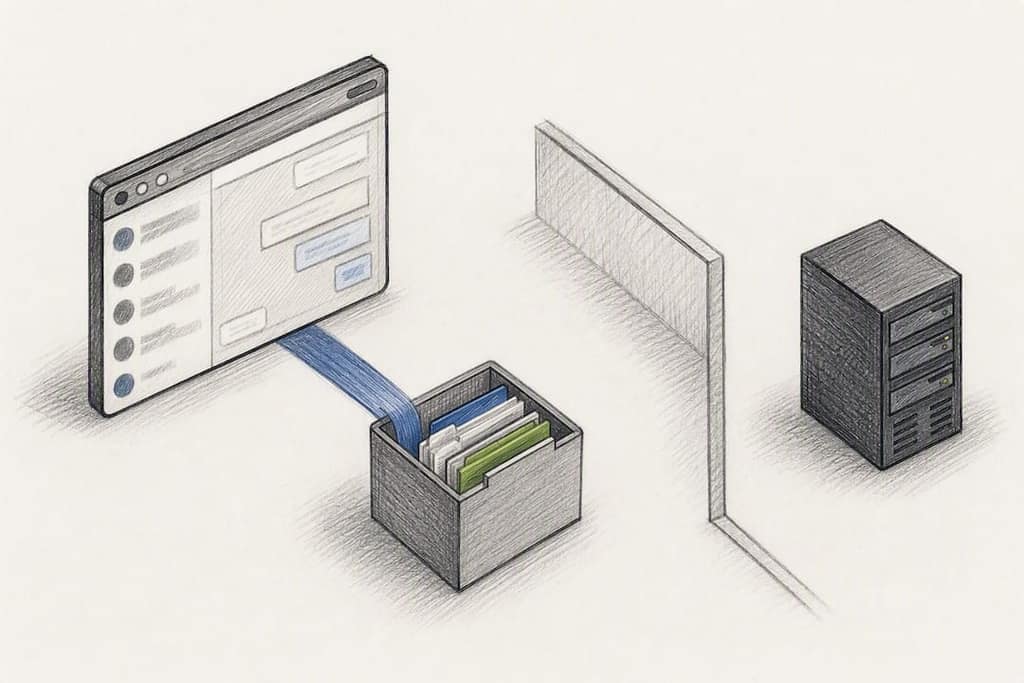
Mastros takes a different approach. Its WhatsApp Scraper Chrome extension runs entirely in your browser, reading what your own signed-in WhatsApp Web session already displays and saving it to CSV, JSON, or JSONL. Nothing uploads to a Mastros server, there's no second login, and it doesn't touch the WhatsApp Business API.
Where this matters for analysis:
- You choose the media types and how far back to scroll, so a run can target exactly the period you're studying.
- Group member lists, chat messages, and contacts export as structured files pandas can read directly, skipping the .txt parsing step entirely for those data types.
- Bulk photo, video, and voice note downloads happen alongside the text export, useful if your analysis includes media metadata.
For readers who want to compare export approaches before picking one, Mastros has also reviewed chrome extension WhatsApp exporter alternatives.
Handling Group Chat Specifics: Members Added, Removed, and Renamed
Group chats generate a category of message that one-on-one chats never produce: system notifications about the group itself. "John added Sarah," "You removed Mike," "Group name changed to 'Weekend Trip 2026'" all show up as lines in your export, and they're gold for understanding group dynamics if you parse them correctly instead of discarding them as noise.
Treat these as their own event type rather than lumping them in with regular messages. A simple approach uses keyword matching on the parsed message text since these notifications follow predictable phrasing: "added," "removed," "left," "changed the subject to," and "changed this group's icon" cover most cases in English exports, though phrasing varies by the account holder's language setting.
Once isolated, these events let you build a membership timeline. Plot the group's size over time by incrementing on "added" events and decrementing on "removed" or "left" events. That timeline often explains sudden shifts in message volume better than any content analysis does. A group that goes quiet after losing three members isn't a sentiment problem. It's a headcount problem.
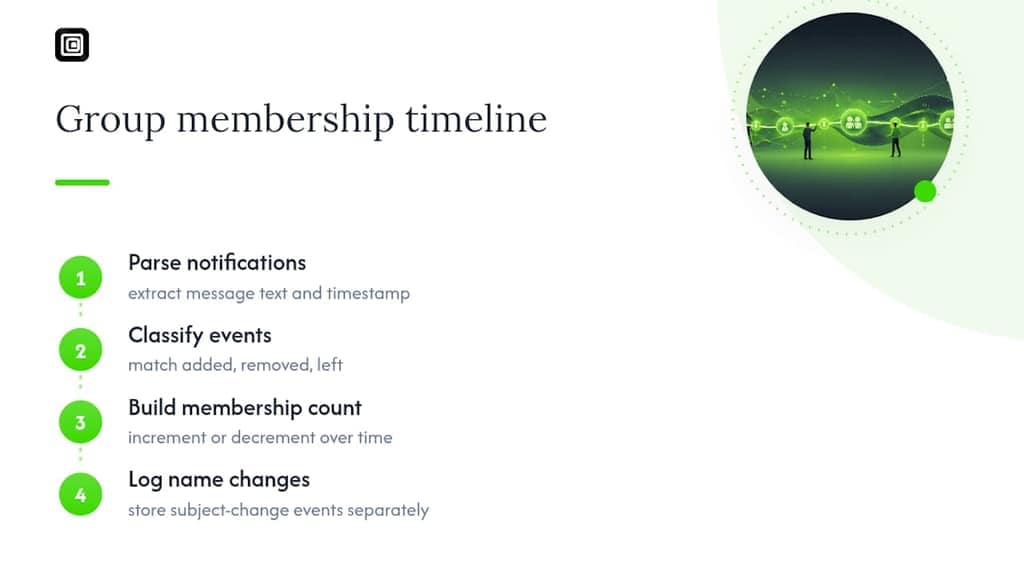
Name changes deserve their own log too. Extracting every "changed the subject to" event with a timestamp gives you a simple history of how the group's identity shifted, which is particularly useful if you're studying long-running communities that have rebranded multiple times. Store these as a separate small DataFrame indexed by date rather than trying to merge them into your main message table, since they don't share the same shape as a regular chat row.
Addressing Message Types Beyond Text
Not every row in your parsed DataFrame is a sentence someone typed. WhatsApp exports represent voice notes, stickers, images, videos, and shared locations as placeholder text rather than the actual content, and treating those placeholders as regular words will quietly corrupt your word frequency and sentiment results.
Voice notes typically appear as "audio omitted" or a similar marker depending on the phone's language setting. Since the export never includes a transcript, your options are either to count voice notes as their own category (useful for measuring how a person communicates, not just what they say) or to skip transcription entirely unless you've separately downloaded the audio files and run them through a speech-to-text tool.
Stickers show up as "sticker omitted" in most exports and carry no text content at all, so they belong in the same media-count bucket as photos and videos rather than the word-frequency pipeline. Shared locations are a special case: WhatsApp exports them as a line containing coordinates or a "location shared" marker rather than a clickable map link, which means location-heavy conversations (trip planning groups are a good example) need a dedicated parser branch if you want to extract latitude and longitude for mapping.
The practical move is to tag every non-text message type in a separate message_type column during cleaning: text, media, voice, sticker, location, system. That single column lets you filter cleanly for every downstream analysis instead of writing conditional logic scattered across your pipeline. If your goal includes actual media files rather than just their placeholders, that's where a bulk media downloader becomes useful for pulling the originals out of the conversation before analysis.
Advanced Analyses: Sentiment Over Time, Response Times, and Network Structure
Once the basic counts and timelines are working, three advanced analyses tend to reveal the most interesting patterns in group data.
Sentiment over time goes beyond a single aggregate score. Resample your VADER or transformer sentiment scores by week or month per author, then plot the trend line. A steady decline in one person's sentiment score across months often surfaces relationship or team friction well before it becomes obvious in the message content itself. Remember that off-the-shelf sentiment tools remain weaker on slang, sarcasm, and emoji-heavy text, so treat sudden dips as a signal to investigate rather than a definitive verdict.
Response time analysis measures the gap between one person's message and the next person's reply within the same conversational thread. Sort by timestamp, calculate the time delta between consecutive messages from different authors, and you get a distribution of response latency per person. This works best in smaller groups or one-on-one chats where "who's replying to whom" is unambiguous. In large groups, response time gets noisy fast since multiple conversations often run in parallel.
Network analysis treats each participant as a node and each reply relationship as an edge, then uses a library like networkx to map who talks to whom most often. In a large group, this frequently reveals subclusters. Some members mostly reply to one or two people rather than broadcasting to the whole group. Degree centrality and betweenness centrality metrics from networkx can quantify who functions as the group's connector versus who talks past everyone into the void.
What Matters Most When You Analyze Chat Data
Most tutorials on this topic race straight to the sentiment chart because it looks impressive in a portfolio. That's backwards. The parsing step is where nearly every project actually breaks, and it's the part almost nobody spends enough time on.
I'd argue the conventional advice undersells preprocessing hygiene specifically. A word cloud built from unlemmatized, un-stopworded text isn't wrong exactly, it's just measuring the wrong thing: article frequency instead of meaning. The same goes for treating VADER's output as ground truth rather than a rough first pass that needs spot-checking against messages you'd read yourself.
If you're prioritizing anything first, prioritize the parser. Test it against a real export with multi-line messages, mixed languages, and a few system notifications before you write a single line of analysis code. Everything downstream, the heatmaps, the sentiment trends, the network graphs, inherits whatever errors live in that first DataFrame. Get clean rows first, then chase interesting numbers.
— Elias Mahdavi
Sources
A few sources are worth keeping open while you build this pipeline:
- Analyzing My WhatsApp Chat with Python
- Analyzing WhatsApp Chat Using Python Libraries (conference paper)
FAQ
How Do I Analyze a WhatsApp Chat in Python?
Export the chat as a .txt file without media, parse it into a pandas DataFrame using a timestamp-detecting regex, clean the text (removing system messages and media markers), then run groupby stats, timeline resampling, and sentiment scoring with VADER or a transformer model.
Is There a Public WhatsApp API for Python?
No. There's no public WhatsApp API for extracting private chat exports, which is why the standard workflow relies on the exported .txt file rather than a live API connection.
Can I Decrypt WhatsApp Chats for Analysis?
WhatsApp's end-to-end encryption protects messages in transit, but the "Export Chat" feature gives you the decrypted, human-readable text directly from your own device, so no separate decryption step is needed for analysis.
How Can I Extract Data From WhatsApp Chats Beyond the Basic Export?
Beyond the standard text export, browser-based tools like Mastros' WhatsApp Scraper can pull structured group member lists, contacts, and media in bulk directly from your WhatsApp Web session without hitting WhatsApp's roughly 40,000-message export cap.