



Yes, a privacy-first, browser-only read-only export lets you bulk-export WhatsApp Web messages, contacts, and media into CSV or JSON without sending messages or uploading data anywhere. This method runs entirely inside your own signed-in browser session, capturing group members, chat history, and media links, then saving them into a spreadsheet-friendly file. It's built for growth teams, recruiters, community managers, and researchers who need structured data, not another inbox to manage. The Mastros WhatsApp extension is the tool behind this workflow, exporting group members, contacts and chat messages to CSV, JSON or JSONL.
TL;DR:
- This export method reads only what is already rendered on WhatsApp Web, making it fully private without transmitting data to third parties or requiring API access.
- Scroll-based loading limits the amount of data captured, so reaching further back in chat history requires deliberate scrolling to load older messages.
- CSV is generally best for small to moderate exports, while JSON or JSONL formats suit more complex or larger data sets for integration or database use.
- Exported media files should be downloaded separately with filenames matching timestamps to keep messages and media correctly linked.
- Using incremental, targeted exports of current contacts or recent conversations helps maintain privacy and simplifies data management.
Table of Contents
- What Does WhatsApp Read Only Mode Cover?
- How Does a Read-Only Export Work?
- How Do You Run a Read-Only Export Step by Step?
- Is a Local Export Truly Private? A Compliance Checklist
- Common Errors and Where Read-Only Exports Hit a Wall
- Mastros: The Extension Behind This Whole Workflow
- Why Read-Only Beats the Alternatives Most Teams Try First
- Sources
- FAQ
What Does WhatsApp Read Only Mode Cover?
WhatsApp read only mode, in the way growth and research teams use it, means reading what your browser has already rendered on WhatsApp Web and saving it to a file. Nothing gets sent, nothing gets uploaded to a third-party server, and there's no API key involved. It's a local process from start to finish.
That definition matters because it draws a hard line around what this method can and can't touch:
- Included: chat messages, group member lists, your contact list, and bulk downloads of photos, videos, and voice notes from an open conversation.
- Excluded: anything WhatsApp hasn't loaded into the page yet, hidden phone numbers, and any interaction with WhatsApp's Business API.
- Not covered here: WhatsApp's own in-app settings that mute read receipts or lock a chat from replies. That's a different feature entirely, and this article isn't about it.
Media handling deserves a quick note: some files download as full attachments, others surface as metadata (file type, timestamp, sender) that you match back to a message row later.
How Does a Read-Only Export Work?
The mechanics come down to one browser behavior most people never think about: WhatsApp Web only holds messages in memory once they've been rendered on screen. It doesn't preload your entire chat history. Scroll-based tools have to nudge the page upward, force older messages to load, then read them out of the document object model before they export anything. Skip the scrolling and you get a partial file, not an error message.
Format choice is the second decision point, and it's one growth teams get wrong constantly.
- CSV is the right call when the export lands comfortably in Excel or Google Sheets and someone on your team is going to eyeball it or run filters.
- JSON works better when the data feeds into another script or app that expects nested structure (a message with a sender object, a timestamp, and a media reference all in one record).
- JSONL (newline-delimited JSON) is the pick once you're pulling thousands of rows, since it can be streamed line by line into a database instead of loaded all at once into memory.
Pro Tip: If you're not sure which format to pick, default to CSV for anything under a few thousand rows. Switch to JSONL the moment a file starts choking Excel on open.
One distinction worth remembering: media metadata (who sent a photo, when) is separate from the bulk media download itself. Keep downloaded files in dated folders that mirror your export filenames, or matching a voice note back to its message row three weeks from now becomes a guessing game.

How Do You Run a Read-Only Export Step by Step?
Treat this like a checklist, not a one-click button. Skipping a step is usually what causes a partial or corrupted file later.
Before you start:
- Confirm you're logged into WhatsApp Web with the account that actually has access to the chat or group you need.
- Free up local storage. Media-heavy exports (voice notes, video) add up fast.
- Check that your browser extension has permission to read the current tab. Most read-only tools ask for this explicitly, and it's a good sign when they do.
Running the export:
- Open the specific chat or group you want to pull data from.
- Scroll to the point in history you need. If you want six months of messages, scroll until six months of messages have rendered. There's no shortcut here.
- Choose your output format (CSV for a quick spreadsheet review, JSON or JSONL for anything downstream).
- Run the export and let it finish before switching tabs.
Handling media:
- If you're pulling photos, videos, or voice notes in bulk, run that as a separate pass and let filenames carry the message timestamp so you can match media back to text later.
After the export:
- Deduplicate rows, especially if you ran the export more than once on an overlapping date range.
- When importing into Excel or Sheets, map sender name, phone number, timestamp, and message body to consistent column headers before you do anything else with the data.
Pro Tip: Run a small test export on a five-minute conversation before you commit to scrolling back through a year of group history. It catches format mistakes early, when they're cheap to fix.
Is a Local Export Truly Private? A Compliance Checklist
Local processing is the whole privacy argument here, and it's a real one. When an extension reads only what your browser has rendered and never phones home to a server, there's no third party sitting between you and the data. No API credentials change hands, no second login, and nothing leaves your machine unless you move the file yourself.
That said, local processing doesn't erase your responsibility once the file exists. A few practices keep exports from turning into a liability:
- Export the minimum you actually need. Pulling six months of a group's full chat history when you only need current member contacts creates risk with no upside.
- Store exported files in access-controlled folders, not a shared drive open to the whole team.
- Set a retention window and stick to it. Old exports sitting on a laptop indefinitely are the kind of thing that turns into a problem during an audit.
- Get consent before you contact anyone pulled from an export, especially recruiting or lead lists sourced from community groups.
| Practice | Why it matters |
|---|---|
| Export only current, live contacts | Reduces file size and avoids managing stale data nobody needs |
| Store files with restricted access | Limits exposure if a device is lost or shared |
| Set a retention deadline | Prevents old exports from becoming an unmanaged risk |
| Confirm consent before outreach | Keeps community trust intact and reduces complaint risk |
Teams that treat an export as a snapshot rather than a permanent database tend to avoid the mess entirely. Lead management guidance consistently points the same way: start with live leads only, since migrating full history into a spreadsheet usually creates more maintenance work than it saves.
Common Errors and Where Read-Only Exports Hit a Wall
WhatsApp's own Export Chat feature has limits on the number of messages and media that can be exported, and it always counts backward from the most recent message. A DOM-read export doesn't share that ceiling, but it inherits a different one: it only captures what you've scrolled into view first.
A few problems show up often enough to flag in advance:
- Missing thumbnails or blank media rows usually mean the export ran before images finished loading on screen. Scroll slower and let the page catch up.
- Stale session errors happen when WhatsApp Web logs out mid-scroll, often triggered by two-step verification timing out. Re-authenticate and restart the run.
- Sluggish performance on large pulls is a memory issue, not a bug. Splitting a big export into smaller date-range runs, or switching to JSONL, usually solves it.
- When you genuinely need real-time sync, not a periodic snapshot, a DOM-read export is the wrong tool. That's the point where teams typically move toward API-based integration or a CRM connector instead of manual exports, since WhatsApp itself was never built to function as a CRM.
Mastros: The Extension Behind This Whole Workflow
Everything described above is exactly what the Mastros WhatsApp extension does in practice. It exports group members, chat messages, and your full contact list straight from WhatsApp Web, and pulls photos, videos, and voice notes in bulk from any conversation you can already open.
The privacy model is the whole point: the extension runs inside your browser, reads only what your signed-in session displays, and never uploads anything to a Mastros server. There's no API key to configure, no second login, and it never sends messages or sits between you and WhatsApp's own interface. Hidden phone numbers stay hidden, and the WhatsApp Business API never enters the picture.
You choose the format (CSV, JSON, or JSONL) and how far back to scroll, which means a recruiter pulling group member lists and a researcher archiving a year of messages get the same tool tuned to two different jobs. If your export leans heavier on media than text, the WhatsApp media downloader handles bulk photo, video, and voice note pulls on their own, separate from a full chat export. Full walkthroughs and format options live on the WhatsApp chat backup product page if you want to see the extension in action before committing to a workflow.
Why Read-Only Beats the Alternatives Most Teams Try First
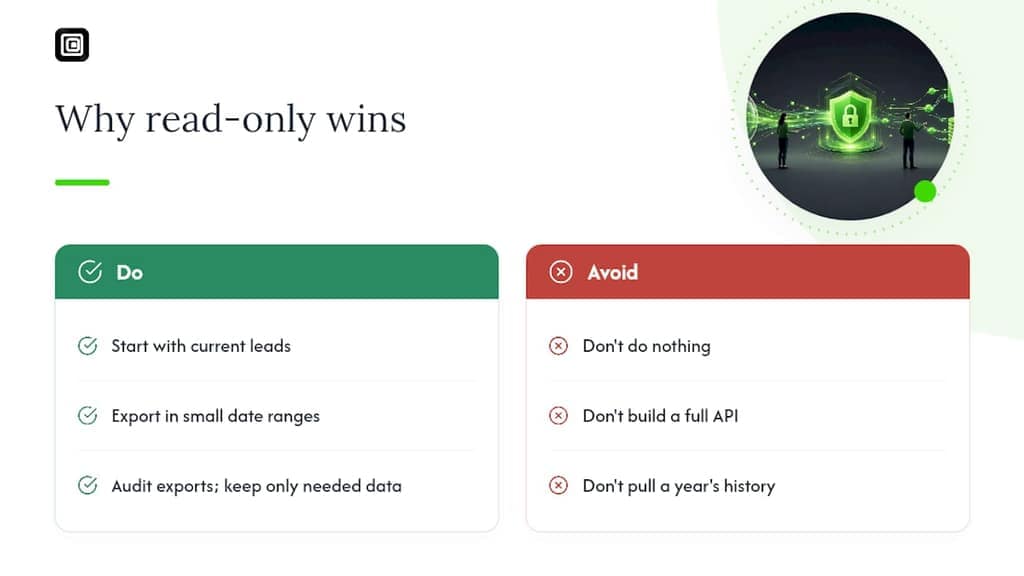
Read-only exports are a pragmatic middle path between doing nothing and building a full API integration you don't need yet. Most teams reach for one or the other extreme, and both are usually overkill for the actual job in front of them.
My advice comes down to two things. Start with your live, current leads or members, not a full year of history you'll never touch again. Then export incrementally, in date ranges, rather than trying to pull everything in one pass. It's less prone to error, easier to audit, and it forces you to only keep the data you'll genuinely use, which is the whole point of doing this the read-only way in the first place.
— Elias Mahdavi
Sources
- How to export WhatsApp Web group members and chats to CSV (without the API) - DEV Community
- WhatsApp Lead Management Without Spreadsheets (2026 Guide)
FAQ
What Is WhatsApp Read Only Mode in This Context?
It's a browser-based method for exporting messages, contacts, and media that your WhatsApp Web session already displays, without sending data anywhere or using WhatsApp's API.
Do I Need API Access to Export WhatsApp Web Data?
No. Read-only exports work by reading the rendered page (the DOM) directly in your browser, which means no API keys or developer credentials are required.
Why Do I Need to Scroll Before Exporting?
WhatsApp Web only loads messages into memory once they've appeared on screen, so scrolling back through a conversation is what makes older messages available to export.
Should I Export to CSV, JSON, or JSONL?
Use CSV for smaller exports you'll review in a spreadsheet, JSON for structured data feeding another app, and JSONL once a pull runs into the thousands of rows.
Is This Different From WhatsApp's Built-In Export Chat Feature?
Yes. WhatsApp's native export has limits on the number of messages and media that can be exported and always counts backward from the most recent message, while a DOM-read export captures whatever you've scrolled through and choose to save.