



Yes, you can connect WhatsApp Business to HubSpot, and you have two ways to do it: a native shared channel or coexistence, which lets HubSpot and the WhatsApp Business App run on the same number at once. You will need a WhatsApp Business account, a registered phone number, and a Marketing Hub or a Service Hub Professional or Enterprise subscription before you touch the setup screen. If you want a copy of your contacts and chat messages before you connect, the Mastros WhatsApp extension exports them from WhatsApp Web to CSV, JSON or JSONL.
TL;DR:
- A successful connection requires a Professional or Enterprise subscription, a verified WhatsApp Business Account, and admin access in both HubSpot and Meta Business Manager.
- Standard HubSpot channel connection only syncs new messages moving forward, so pre-existing message history must be archived separately before connecting.
- Coexistence mode allows simultaneous use of the WhatsApp Business App and HubSpot on the same number, but disconnections or re-registrations can cause message loss.
- Campaign automation can trigger templates once approved, but only within a 24-hour window and under monthly conversation limits.
- Exporting WhatsApp data before connection with tools like Mastros prevents message loss during number migration or re-registration processes.
Table of Contents
- What You Need Before You Start Connecting WhatsApp to HubSpot
- How Do You Connect WhatsApp as a Standard HubSpot Channel?
- How Do You Set Up WhatsApp Coexistence With HubSpot?
- What Can You Automate Once WhatsApp Is Connected to HubSpot?
- What Are the Limits and Compliance Rules to Plan Around?
- When Should You Export WhatsApp Data Before or After Connecting?
- How Do You Troubleshoot a Failed WhatsApp Connection?
- A Practical Rollout Order for Growth and Sales Teams
- A Privacy-First Way to Back Up WhatsApp Before You Connect
- Where to Verify These Setup Steps Yourself
- Sources
- FAQ
What You Need Before You Start Connecting WhatsApp to HubSpot
Before an admin opens the settings panel, run through the prerequisites, because a missed permission or the wrong subscription tier is the number one reason setups stall halfway through.
HubSpot requires a Professional or Enterprise subscription of either Marketing Hub or Service Hub to connect a WhatsApp channel to the conversations inbox. The Starter tier will not show the WhatsApp connection option at all, so check your plan before you plan a rollout date.
You also need a few things lined up outside HubSpot itself:
- A verified WhatsApp Business Account and a phone number dedicated to that account (a personal number attached to WhatsApp Messenger will not work).
- Super Admin access in HubSpot to authorize the connection.
- Admin-level access to Meta Business Manager to complete phone number verification.
- A defined opt-in capture process, since HubSpot will not let you send business-initiated messages without recorded consent.
- Someone assigned to own template approvals and monthly conversation quota tracking, because both affect whether campaigns go out on schedule.
One detail catches teams off guard every time: historical WhatsApp messages do not import when you connect. HubSpot only syncs new messages sent after the connection is live, so if you need a record of prior conversations, archive them before you flip the switch.
How Do You Connect WhatsApp as a Standard HubSpot Channel?
The standard channel is the more common route, and it works well if your team wants one clean, centralized inbox rather than a hybrid mobile setup. Here is the sequence:
- In HubSpot, go to Settings → Inbox → Channels → WhatsApp, then select "Connect a WhatsApp phone number."
- Choose the Meta Business Manager assets tied to your WhatsApp Business Account and select the phone number you want to connect.
- Grant the requested permissions when the WhatsApp login and consent pop-up appears; this is where Meta verifies you own the number and the business asset.
- Pick the destination: a standard conversations inbox or a help desk workspace, depending on how your service team is structured.
- Save the connection and send a test inbound message to confirm it lands where you expect.
Once live, only new messages sync going forward, matched to existing contacts by phone number property. HubSpot will create a contact automatically if none match. Supported media types include images, documents, and voice notes, though very large files or certain formats may not render inline in the inbox.
The 24-hour messaging window applies here just as it does within the WhatsApp Business API: once a customer's last message is older than 24 hours, businesses must use a pre-approved message template to reply.
Pro Tip: Test with a spare or staging phone number before connecting your main business line. It costs you nothing and it saves you from discovering a permissions gap in front of a live customer conversation.
How Do You Set Up WhatsApp Coexistence With HubSpot?
Coexistence solves a specific problem: sales reps who want to keep texting from their phone while support agents work the same number inside HubSpot's shared inbox. It is a genuinely different setup path from the standard channel, and getting the sequence wrong risks losing inbound messages during the switch.
- Register the phone number inside the WhatsApp Business App first. This step has to happen before you touch HubSpot.
- In HubSpot, start the WhatsApp connection flow and choose "Connect your existing WhatsApp Business App" instead of the standard new-number option.
- Scan the QR code HubSpot generates using the WhatsApp Business App on the registered device, then complete the linking steps HubSpot prompts.
- Choose whether the connected number routes to a standard inbox or a help desk workspace.
- Confirm the connection with a test message sent from outside the organization.
Once linked, messages sync bidirectionally in near real time between the WhatsApp Business App and HubSpot. HubSpot's own documentation on connecting a WhatsApp number using coexistence warns that disconnecting or re-registering a number mid-flow can cause inbound messages to drop during the gap, so schedule any changes for low-traffic hours.
Coexistence suits mobile-first teams where reps text customers directly. Organizations that want tighter, single-source automation and don't need a mobile handoff usually do better with the standard channel, since it avoids that reconnection risk entirely.
What Can You Automate Once WhatsApp Is Connected to HubSpot?
Connecting the channel is the setup step. The payoff comes from what you build on top of it once messages and contacts are flowing into HubSpot's CRM.
HubSpot's workflow tools let you trigger approved WhatsApp message templates based on contact property changes, deal stage movement, or ticket status, and you can tokenize those templates with actual contact data like first name or order number. Because every conversation logs to the contact timeline, sales and support see the same history without switching tools, which HubSpot's product team points to as the main reason teams stop losing context between departments.
Common automation patterns worth building first:
- Abandoned-cart reminders sent as a template message once a deal sits idle past a set number of hours.
- Appointment confirmations tied to a meeting-booked property, with a reminder template 24 hours out.
- Onboarding checklists that fire a sequence of messages after a deal closes.
- Support routing that creates a ticket automatically from an inbound WhatsApp message, with SLA reminder tasks assigned to the right rep.
Every one of these depends on two constraints that are easy to overlook: the message template has to already be approved through Meta, and you can only initiate contact outside the 24-hour window using one of those approved templates. Skip either step and the workflow action simply fails silently.
Pro Tip: Build your first automation around a template you already use in a manual reply. Approval takes time, so reusing wording you know works cuts a full review cycle out of your rollout.
What Are the Limits and Compliance Rules to Plan Around?
Every WhatsApp integration lives inside a few hard limits, and hitting one mid-campaign is a worse experience than planning around it in advance.
- The 24-hour window: once a contact's last message passes 24 hours old, you can't send a free-form reply. You must use a pre-approved template to reopen the conversation.
- Monthly conversation limits: HubSpot enforces a cap on the number of conversations processed per billing cycle, and teams that don't forecast volume tend to hit that ceiling right in the middle of a big campaign push.
- Opt-in tracking: HubSpot records subscription preferences and won't allow a business-initiated send without documented consent, so your opt-in capture process has to be airtight before any outbound automation goes live.
- Staggered sending: spreading a large send across several hours instead of firing it all at once reduces the odds of tripping delivery throttling on Meta's side.
If you're running a time-sensitive alert, like a fraud notice or a shipping delay, keep a fallback channel such as email or SMS ready in case a contact's WhatsApp window has closed and no approved template covers that specific message.
When Should You Export WhatsApp Data Before or After Connecting?
HubSpot logs opt-ins and builds a conversation timeline the moment a number connects, but it does not reach backward. Historical WhatsApp messages sent before that connection stay outside HubSpot entirely, which is a problem the moment you need a record for an audit, a CRM backfill, or a simple backup before switching numbers.
For that gap, a read-only, in-browser export tool is the safer choice over anything that asks for API credentials or uploads your chat data to a third party. Mastros builds exactly that kind of tool: its WhatsApp extension reads what your own signed-in WhatsApp Web session already displays and saves contacts, chat messages, and media to CSV or JSON, all without touching a Mastros server or requiring any API key.
Before you import an export into HubSpot, run through this quick checklist:
- Map exported phone numbers to HubSpot's contact phone property exactly, including country codes.
- Confirm consent timestamps travel with the export so opt-in history isn't lost in the move.
- Never re-send a message to an imported contact without a fresh, explicit opt-in, even if the export shows an old conversation.
Pro Tip: Run an export the week before any number re-registration or coexistence switch. It's a five-minute safety net against the exact message-loss window HubSpot warns about during reconnection.
How Do You Troubleshoot a Failed WhatsApp Connection?
Most connection failures trace back to one of a handful of causes, and working through them in order saves you a support ticket.
- Permission errors: confirm you have Super Admin access in HubSpot and admin rights in Meta Business Manager. Either gap blocks the connection outright.
- "Number already connected" errors: disconnect the number from whatever tool currently holds it (another CRM, a chatbot platform) before HubSpot can claim it.
- Missing message history: this is expected, not a bug. Only messages sent after the connection date sync, so archive anything older beforehand.
- Lost inbound messages after a coexistence switch: this happens during the brief window when a number is being re-registered. Schedule changes during low-traffic hours to minimize exposure.
- Templates not sending: check that the template is fully approved in Meta and that the recipient's 24-hour window hasn't already closed.
Run a full end-to-end test, template send included, on a spare number before rolling changes out to your main line.
A Practical Rollout Order for Growth and Sales Teams
Start smaller than you think you need to. Connect one number, launch with two or three approved templates covering your highest-volume use case, and route everything through one shared inbox before you add a second automation layer.
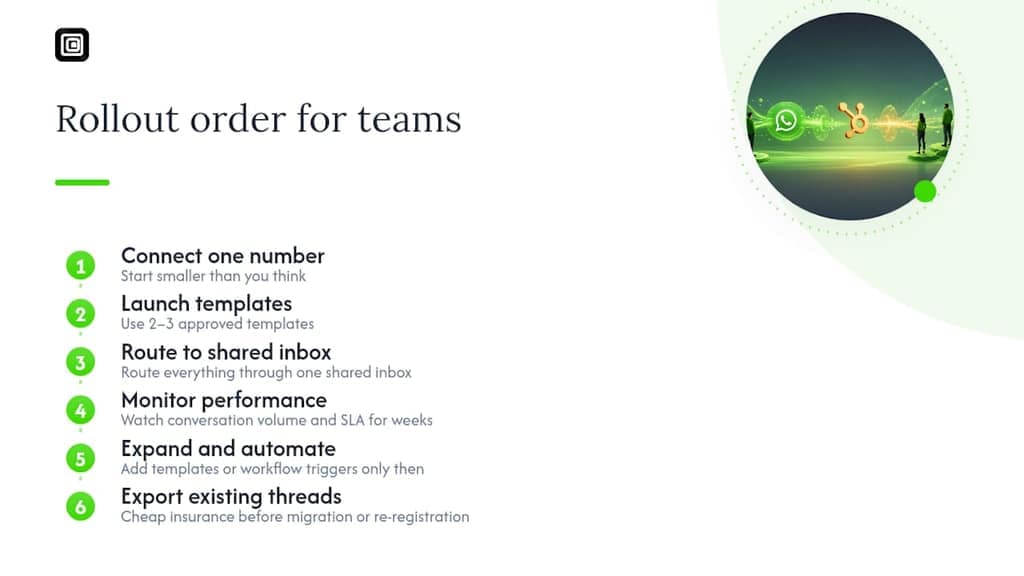
Watch conversation volume and SLA adherence for a few weeks. That data tells you whether you're close to a monthly cap and whether response times hold up once WhatsApp traffic mixes with your existing channels. Only then expand templates or add workflow triggers.
If a number migration or re-registration is coming, export existing threads first. It's a cheap insurance policy against a sync gap you can't undo.
— Elias Mahdavi
A Privacy-First Way to Back Up WhatsApp Before You Connect
HubSpot's integration is built for what happens after the connection: live conversations, CRM timelines, automated templates. It was never built to reach back into WhatsApp history, and that's a real gap if you're migrating a number, closing out a support archive, or need a CRM-ready file of contacts before your Professional plan even goes live.
Mastros fills that gap without adding a second login or a security review to your checklist. The WhatsApp Scraper extension runs entirely inside your browser, reading only what your own signed-in WhatsApp Web session already shows, and saves contacts, chat messages, and media straight to CSV or JSON. Nothing uploads to a Mastros server, no API key is required, and it never sends a message or triggers any automation on your behalf. If you specifically need bulk photos, videos, or voice notes pulled out of a thread before an archive or a CRM handoff, the WhatsApp media downloader handles that separately.
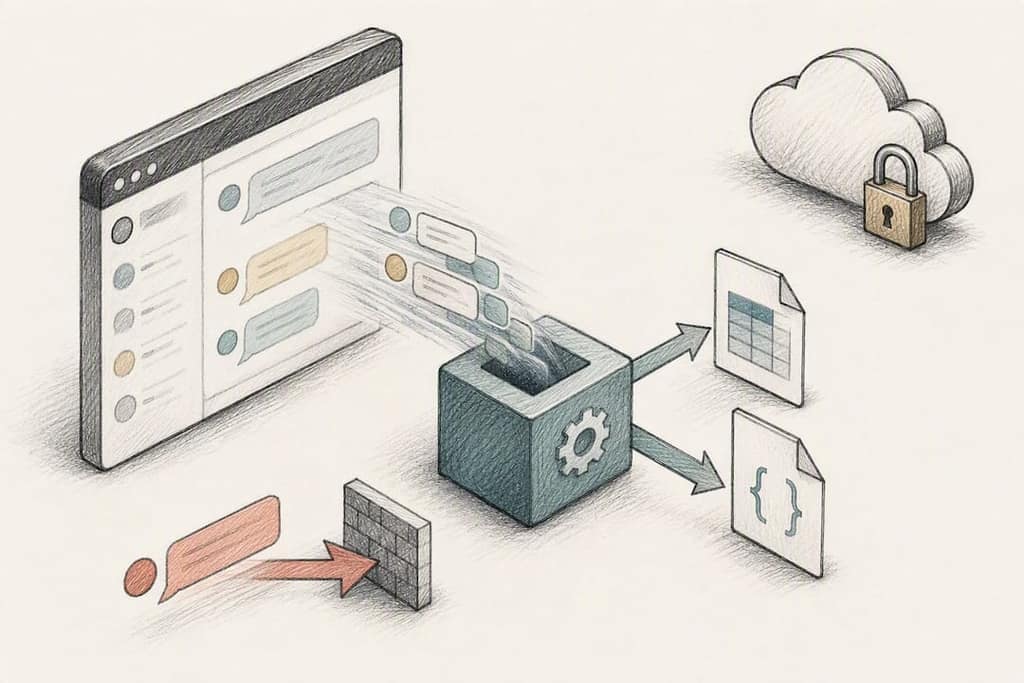
Start on the Free plan to export a sample chat and see the file format before you commit to a Pro or Scale plan for larger volume.
Where to Verify These Setup Steps Yourself
HubSpot's own knowledge base is the source of truth for exact UI steps, since Meta and HubSpot both update flows periodically. Start with connecting a WhatsApp channel to the conversations inbox and connecting a WhatsApp number using coexistence. For appointment-reminder workflow patterns, Dexcore Technologies' guide to HubSpot appointment integration covers sync rules worth reviewing before you build a confirmation template.
FAQ
Can You Connect WhatsApp to HubSpot?
Yes. HubSpot supports a native WhatsApp channel and a coexistence mode, both of which require a WhatsApp Business Account and a Marketing Hub or Service Hub Professional or Enterprise subscription.
Can I Integrate WhatsApp With My CRM Using Third-Party Tools?
HubSpot's own integration covers the core connection, but teams that need to back up or export existing WhatsApp threads for CRM import often use a read-only browser tool like Mastros's WhatsApp Scraper, which never touches the WhatsApp Business API or sends messages.
What Is the 24-Hour Rule on WhatsApp?
Once 24 hours pass since a contact's last message, you can no longer send a free-form reply. You must use a pre-approved message template to restart the conversation.
Can I Use WhatsApp Coexistence With HubSpot?
Yes. Coexistence lets the WhatsApp Business App and HubSpot share the same phone number, syncing messages in near real time, though disconnecting or re-registering the number mid-process risks losing inbound messages during that window.
Does HubSpot Import Old WhatsApp Messages When You Connect?
No. Only messages sent after the connection goes live sync into HubSpot, so archive any conversation history you need beforehand.