


WhatsApp Web has no export button of its own. The fastest route to a file is the Mastros WhatsApp extension, which reads the chat, group or contact list you have open on web.whatsapp.com and saves it as CSV, JSON or JSONL, with the photos, videos and voice notes as a ZIP. The phone app's Export Chat still covers a single personal conversation, and copy-and-paste covers a few lines.
WhatsApp Web has no native full-export button, so the "best" method depends on what you need. Use the mobile app's Export Chat for a complete, official transcript. Use a manual copy or print-to-PDF for a quick excerpt of a few messages. Use a privacy-first browser extension when you need structured data (CSV, JSON, or JSONL) or bulk media from a group. For most desktop-first, bulk, or CRM-style needs, the extension route wins on speed and structure.
TL;DR:
- Export chats from the mobile app limits you to about 40,000 messages without media or 10,000 with media, suitable for personal archives.
- Browser extensions can export structured data and media from WhatsApp Web for large groups or CRM import, but require scroll-to-load the full history first.
- Manual methods like copying text or printing to PDF only work for small exchanges and do not capture full chat histories or media.
- Fixing incomplete exports often involves ensuring sufficient scrolling in WhatsApp Web, checking extension settings, and exporting in smaller batches.
- Always keep original export files untouched for legal proof and verify that extensions process data locally without uploading or exposing your contacts.
Table of Contents
- Why is Export chat not available on WhatsApp Web?
- WhatsApp Web Export Guide: Comparing Your Three Real Options
- How Do I Export a Full WhatsApp Chat From My Phone?
- What Can You Export Directly From WhatsApp Web?
- How Do You Run a Browser Extension to Export WhatsApp Web Chats?
- Why Do My Exports Come Out Incomplete or Broken?
- Privacy and Legal Practices for Exporting Chats
- Converting Raw Export Files to CSV, JSON or JSONL
- Why Extensions Are the Pragmatic Choice for Bulk Exports
- Match the Export Method to the Job
- Get Structured WhatsApp Exports Without Uploading Anything
- Sources
- FAQ
Why is Export chat not available on WhatsApp Web?
The Export chat function exists only in the WhatsApp phone app. WhatsApp Web can display, copy and print what is on screen, and it loads messages only as you scroll to them, so it has no full-history export of its own. To get a file on a computer, run Export chat on the phone and move the TXT or ZIP across, or use a browser extension that reads your signed-in Web session and saves the chat as CSV or JSON.
WhatsApp Web Export Guide: Comparing Your Three Real Options
Before picking a tool, it helps to see what each method actually gives you and where it falls short. None of the three is universally "better." They solve different problems.
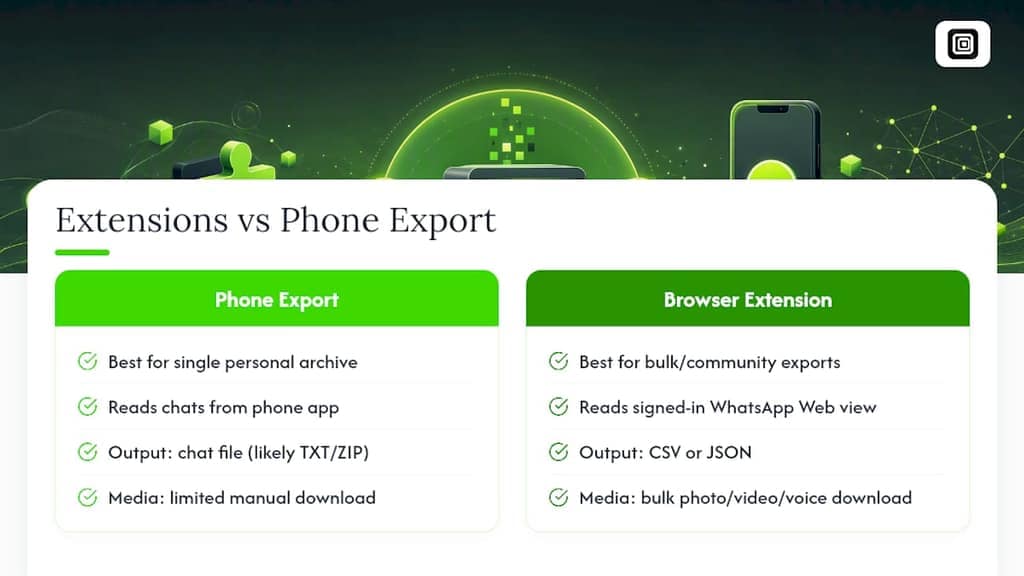
- Phone export (Export Chat): Produces an official TXT file, or a ZIP with media, straight from the app. It's the most complete and legally defensible option, but the format is a flat transcript with no structure, and WhatsApp caps it at roughly 40,000 messages without media, or about 10,000 when media is included.
- Manual web snapshot: Selecting text or using your browser's print-to-PDF function on WhatsApp Web works fine for grabbing a short exchange to send someone. It's fast, needs no setup, and captures nothing that isn't already rendered on screen, which means older messages you haven't scrolled to simply won't appear.
- Browser extensions: These read the WhatsApp Web session you're already logged into and output structured files, CSV, JSON, or JSONL, along with bulk media downloads. They're the best fit for community rosters, CRM imports, or archiving a large group, but you need to vet the extension first.
If you're archiving one personal conversation for safekeeping, the phone export is your answer. If you're pulling a 500-person group roster into a spreadsheet, an extension is the only realistic route.
How Do I Export a Full WhatsApp Chat From My Phone?
The phone-based Export Chat feature is the only officially supported way to generate a complete transcript, and it's documented directly by WhatsApp's Help Center. Here's how to run it and get the file onto your desktop.
On Android:
- Open the chat, tap the three-dot menu, then More > Export chat.
- Choose Include Media or Without Media.
- Pick a destination: email, Google Drive, or another app.
On iPhone:
- Open the chat, tap the contact or group name at the top.
- Scroll down and tap Export Chat.
- Choose Attach Media or Without Media, then share via Mail, AirDrop, or Files.
Expect a cap around 40,000 messages without media, and closer to 10,000 when media is bundled in. Test on a smaller chat first if you're not sure where your history stands.
Once you have the file on your phone, moving it to desktop is straightforward. AirDrop works instantly if you're on a Mac. Otherwise, email the ZIP to yourself, save it to Google Drive or Dropbox and download it on desktop, or connect your phone via USB and pull the file through Files (iPhone) or your file manager (Android).
One detail worth flagging clearly: WhatsApp's own documentation notes that the exported text file cannot be reimported as a WhatsApp backup. It's a readable archive, not a restore point.
Pro Tip: Leave the original ZIP or TXT file untouched in a dated folder before you open or edit anything. If you ever need to prove when a conversation happened, an unmodified original carries far more weight than a copy you've already parsed.
This method is the right call when you need provenance, think legal disputes, HR documentation, or a formal personal archive, over structure or bulk scale.
What Can You Export Directly From WhatsApp Web?
WhatsApp Web itself gives you a few manual options, and they're useful for quick jobs, just not complete ones.
- Selecting text: Click and drag to select visible messages, then copy and paste them into a document. Add the chat name and today's date manually since none of that metadata carries over.
- Print to PDF: Open the browser's print dialog and choose "Save as PDF." This captures whatever is currently rendered on screen, but WhatsApp Web only loads messages you've scrolled to, so anything above your current scroll position gets skipped entirely. Pagination can also cut messages awkwardly across page breaks.
- Downloading visible media: Click any photo, video, or voice note in the chat and use the download icon that appears. Save it with a note of the sender and date, since the filename alone rarely tells you which conversation it came from.
These methods are fine for grabbing a short exchange to forward to someone. They're not a substitute for a full history.
How Do You Run a Browser Extension to Export WhatsApp Web Chats?
This is where most bulk, structured exports actually happen, and it's also where vetting matters most, since an extension is reading live data from your logged-in session.
Vet the extension first. Before installing anything, check for a clearly identified publisher, a real review history on the Chrome Web Store, and an explicit statement that all processing happens locally in your browser. A legitimate WhatsApp Web export tool never asks for an API key or a second login; it simply reads what your browser already displays. If a tool asks you to authenticate somewhere other than the standard WhatsApp Web QR scan, close the tab.
Running the export:
- Install the extension from the Chrome Web Store and pin it to your toolbar.
- Open
web.whatsapp.comand scan the QR code with your phone, as usual. - Open the specific chat or group you want to export.
- Scroll upward manually, or trigger the extension's auto-scroll, to load the range of history you need. WhatsApp Web only renders messages you've scrolled into view, a technique known as virtualized scrolling, so this step is not optional.
- Trigger the export function inside the extension.
- Choose your output format and whether to include media.
- Download the file to your desktop.
That scroll-to-load step trips up more people than any other part of this process. Developer guidance on exporting WhatsApp Web data confirms the message list only exists in the page's memory once you've scrolled it into view, so any tool worth using either automates that scroll or clearly tells you to do it yourself first.
Choosing a format:
- CSV is the right call for a human reviewing the data in a spreadsheet, sender, timestamp, and message body in clean columns.
- JSON suits developers feeding the export into another system or app.
- JSONL, where each message is its own line-delimited JSON object, is the better choice once you're dealing with a chat history running into the tens of thousands of messages, since it can be streamed instead of loaded all at once.
- PDF or HTML works when the goal is simply a readable copy to hand to someone else.
For very long histories, chunk the job. Export by date range in batches rather than trying to pull five years of messages in one pass, and lean on JSONL for any single export that's getting large. Chrome Web Store listings for these tools commonly document exactly these formats and limits, so check the listing before you install.
Pro Tip: If a group has thousands of members, export the roster and the message history as two separate runs. Combining them in one pass is where most extensions choke or time out.
Why Do My Exports Come Out Incomplete or Broken?
Most export problems trace back to one of four causes, and all four are fixable once you know what to look for.
- Missing older messages: This is almost always the virtualized scrolling issue. WhatsApp Web doesn't keep the full chat in memory, only what you've scrolled through. Scroll to the top of the conversation manually, or confirm your extension's auto-scroll actually ran, before exporting again.
- Missing media or timestamps: Check that media download was enabled in the extension's settings before the run, and compare your exported message count against a rough manual count in the app itself.
- Duplicate messages across two export attempts: If you ran the export twice to cover different date ranges, overlapping messages are common. Sort by timestamp and message ID (where available) and drop exact duplicates before merging files.
- The export stalls or the browser slows down on huge histories: This is a memory problem, not a bug. Break the job into date-range chunks and export in JSONL format, which reads and writes one line at a time instead of holding the entire chat in memory.
A chat with tens of thousands of messages and years of embedded photos can genuinely strain a browser tab. If your extension supports chunked exports by date, use that feature rather than forcing one giant run, and always spot-check the final message count against what you can see in the app.
Privacy and Legal Practices for Exporting Chats
Exporting a group roster or chat history isn't just a technical task. It's also a moment where you're handling other people's personal information, so a few habits matter more than they might seem to.
- Confirm the extension states clearly that it processes data locally, with nothing uploaded to an external server, before you trust it with a group's contact list.
- Never enter your WhatsApp password or scan a QR code anywhere except the official
web.whatsapp.comlogin screen. A tool that asks for credentials outside that flow is not reading your session, it's phishing for it. - If you plan to contact people from an exported roster, check your applicable data protection obligations first; exporting a list and using it for outreach are two different actions with different consent requirements.
- Keep exported files, especially group rosters with phone numbers, on encrypted storage and limit who else can open them.
- Log the basics for every export you take: who ran it, when, and what scope it covered. That habit turns a random file into something you can actually defend later if anyone asks where the data came from.
A privacy-focused guide to vetting data tools makes a point worth repeating here: the safest assumption is that any tool asking for more access than it needs is one you should skip.
Pro Tip: Keep the original exported ZIP or TXT file completely untouched in one folder, and do all your editing, converting, and reformatting on copies. If a dispute ever comes up, an unaltered original is worth more than a perfectly organized copy.
Converting Raw Export Files to CSV, JSON or JSONL
A raw TXT export from the phone app looks like a wall of text, one line per message, with the timestamp and sender name stacked at the front of each line. A short script or even a spreadsheet's "text to columns" function can split that into timestamp, sender, and message body using the consistent formatting WhatsApp uses.
- CSV is the format to reach for when a person, not a program, needs to review the messages, filter by sender, or sort by date in Excel or Google Sheets.
- JSON fits when the data is heading into another application or database; most languages parse it natively.
- JSONL is the practical choice for very large histories, since tools like
jqcan process it one line at a time without ever loading the full file into memory. - Matching media to messages from a mobile ZIP export usually comes down to filenames, which typically embed a timestamp or sequence number you can cross-reference against the message list to reattach photos and videos to their original context.
Why Extensions Are the Pragmatic Choice for Bulk Exports
For a single personal archive, the phone's Export Chat is genuinely enough. Once the job shifts to managing a community, recruiting through a group, or feeding contacts into a CRM, that math changes fast, and a local-first extension becomes the practical tool for the job.
Some browser extensions operate on exactly that principle. These extensions read what your own signed-in WhatsApp Web session already displays—group members, chat messages, your contact list—and export it to CSV or JSON, with bulk photo, video, and voice note downloads available too. Nothing gets uploaded to any server, no API key or second login is involved, and the extension never sends a message or automates outreach on your behalf.
For a recruiter pulling names and numbers from a hiring group, or a community manager archiving a channel's roster before a migration, that combination of structure and read-only behavior is what turns an hours-long manual copy job into a file you can open in Excel five minutes later.
Match the Export Method to the Job
Most WhatsApp export advice treats the phone's Export Chat as the whole story and stops there. That's fine advice for someone archiving one personal chat, and it's genuinely bad advice for anyone managing a group with real scale, a hiring pipeline, a community, a client list, because a flat text file with a 40,000 message cap was never built for that job.
The overlooked variable isn't the export button. It's the scroll. Virtualized rendering means most "incomplete export" complaints aren't tool failures, they're scrolling failures. Fix that first, before blaming the format or the extension.
If there's one thing to prioritize, it's matching the tool to the actual job. A short excerpt needs nothing more than a print-to-PDF. A full personal archive needs the phone export. A structured, bulk, or recurring export needs a local-first extension that reads the session you're already logged into and hands you a file a spreadsheet can open. Skipping straight to the fanciest option when a simpler one would do is the real waste of time here, not the reverse.
— Elias Mahdavi
Get Structured WhatsApp Exports Without Uploading Anything
Mastros is the alternative to manual copy-paste and capped mobile exports when you need WhatsApp Web data in a format a spreadsheet or CRM can actually read. The WhatsApp extension exports group members, chat messages, and your full contact list to CSV or JSON, and downloads a conversation's photos, videos, and voice notes in bulk with the media types and scroll depth you choose.
Every run happens locally in your browser. Nothing uploads to a Mastros server, no API key or second login is required, and the extension never sends messages, invites, or automated replies of any kind. For bulk media specifically, the WhatsApp Media Downloader page walks through supported formats and exactly what stays private. Install the extension, open your target chat, and run your first export in the next few minutes to see the file it produces.
Sources
- How to export your chat history | WhatsApp Help Center
- How to export WhatsApp Web group members and chats to CSV (without the API) — DEV Community
- Chrome Web Store: Chats backup / WhatsApp export extension listing
FAQ
Can I Export Chats Directly From WhatsApp Web?
Not with a native, complete export feature. WhatsApp Web can display and print what's on screen, but the full Export Chat function only exists in the mobile app, and reaching a full history from the desktop browser requires either transferring the mobile export or using a browser extension that reads the Web session.
How Can I Export an Entire WhatsApp Conversation?
Use the mobile app's Export Chat feature under the chat's menu, choosing "Include Media" or "Without Media," then transfer the resulting file to your computer via email, Drive, or AirDrop. Expect a cap around 40,000 messages without media, or roughly 10,000 with media included.
Will the Other Person Know if I Export a WhatsApp Chat?
No. Exporting a chat, whether through the phone's Export Chat feature or a local browser extension, only reads data your own account can already see and does not notify or alert the other participant.
How Do I Read a WhatsApp Export File?
A TXT export opens in any text editor and shows one line per message with the timestamp and sender at the start of each line; a ZIP export includes that same text file alongside a folder of media. For CSV, JSON, or JSONL files produced by an extension, open CSV in a spreadsheet program and JSON or JSONL in a text editor or a script using a tool like jq.