


You can export WhatsApp without API access in four ways: the phone app's Export Chat for a single conversation, a converter that turns its ZIP into HTML or JSON, the Mastros WhatsApp extension, which reads the chats, groups and contacts you open on WhatsApp Web and saves them as CSV or JSON, and database parsing for people who need everything.
You have four workable ways to get WhatsApp data out without touching WhatsApp's Business API: the native mobile Export Chat feature for one-off conversations, a phone-to-computer conversion workflow for archiving, privacy-first in-browser extensions for bulk or selective exports, and database parsing for advanced users who need everything. Casual users should stick to mobile Export Chat; anyone exporting professionally or in volume needs an in-browser tool.
TL;DR:
- Exporting multiple WhatsApp chats in bulk is best achieved with browser extensions that read WhatsApp Web directly, saving time and avoiding repetitive manual exports.
- Converting exported ZIP files into HTML, JSON, or CSV formats using tools like chat-export improves readability and facilitates analysis or archiving.
- Decrypting WhatsApp backup databases offers full chat history retrieval but depends on obtaining the correct decryption keys and is vulnerable to app updates.
- Manual mobile exports are limited to one chat and typically produce smaller files, making them unsuitable for professional or large-scale archiving needs.
- Non-API methods do not involve WhatsApp charges but have inherent restrictions on volume, media size, and re-import capability.
Table of Contents
- How Do You Export a WhatsApp Chat Without the API?
- Getting Exports Onto a Desktop and When to Use a Browser Tool Instead
- What Tools Turn a WhatsApp ZIP Into Readable HTML or JSON?
- Should You Try Decrypting WhatsApp's Database Files?
- What Are the Real Limits of Exporting WhatsApp Without an API?
- Why In-Browser Extraction Beats Manual Exports for Professional Use
- The Overlooked Trade-Off in Every Non-API Export Method
- Export WhatsApp Data Without Ever Touching an API Key
- Where to Verify the Details Yourself
- Sources
- FAQ
How Do You Export a WhatsApp Chat Without the API?
WhatsApp built Export Chat right into the app, and it's still the fastest way to grab a single conversation. On Android, open the chat, tap the three-dot menu, then More → Export chat. On iPhone, open the chat, tap the contact or group name at the top, scroll down, and tap Export Chat. Both paths lead to the same fork in the road: Without Media or Include Media.
Without Media produces a lightweight text file, usually named _chat.txt, with timestamps and message content but no attachments. Include Media bundles that same text file with photos, videos, and voice notes into a ZIP, though WhatsApp compresses media and skips anything already deleted from the device. This is the official mobile-only Export Chat feature, and there's no equivalent button inside WhatsApp Web or Desktop.
Once you choose a format, WhatsApp opens your phone's share sheet. From there:
- Pick a destination that survives large files: Google Drive, Files (iOS), or a direct AirDrop to a Mac.
- Avoid email or messaging apps for exports with media. They frequently choke on file size.
- On the receiving computer, download the ZIP and unzip it before opening anything.
- Confirm the media count matches what you expected. Some attachments silently drop if storage synced with cloud-only versions.
Getting Exports Onto a Desktop and When to Use a Browser Tool Instead
WhatsApp never gave desktop users their own export button, so this comes down to two paths. Every export still starts on the phone, then you either convert what you got or you switch to a browser tool that reads WhatsApp Web directly.
The first path is the phone export → conversion route: export the chat on mobile, upload the ZIP to Drive or Files, download it to your computer, and run it through a converter. This works fine for a handful of conversations. It gets tedious past three or four, because each chat is its own export, its own ZIP, and its own manual transfer.
The second path skips the phone entirely. Browser extensions that read the WhatsApp Web interface can pull messages, contact lists, and media directly from your signed-in session, no phone shuffling required. The privacy-first version of this model runs the whole extraction locally: nothing gets uploaded to a third-party server, no API key, no second login. It just reads what your screen already shows and writes it to a file.
Here's how the two compare:
- Mobile export + conversion: free, no extra software beyond a converter, but strictly one chat at a time and slow for bulk needs.
- In-browser extension: handles group members and multiple chats faster, outputs structured formats like CSV, JSON, JSONL, or Excel, but depends on your WhatsApp Web session staying open.
- Output flexibility: mobile export gives you a text file and a media folder; browser tools can give you a spreadsheet-ready file from the start.
Pro Tip: If you're exporting more than two or three chats, don't repeat the phone export five times. A single in-browser session usually covers the same ground in a fraction of the clicks.
What Tools Turn a WhatsApp ZIP Into Readable HTML or JSON?
A raw _chat.txt file is readable but ugly, just timestamps and plain text stacked line after line. Converting it into HTML or JSON makes it searchable, printable, and far easier to hand to someone else.
- chat-export is a Python tool built for exactly this. Feed it your exported ZIP, and it outputs HTML with either inline media (everything embedded, larger file) or a compact version (media linked, smaller file). It supports command-line and batch modes, so converting a dozen exports at once is realistic.
- whatsapp-chat-exporter on GitHub goes a step further and parses backup databases directly rather than requiring a ZIP export first. It's the tool of choice when you're working from
msgstore.dbfiles instead of exported text. - Choosing a format matters more than it sounds. HTML with embedded media is best for archiving or printing. JSON or CSV output is better if you plan to import the conversation into a spreadsheet or run any analysis on it, something Python-based parsing workflows handle well without touching an API.
Sender attribution and character encoding both depend on how the converter reads participant names, so double-check names render correctly before trusting a large converted archive.
Should You Try Decrypting WhatsApp's Database Files?
Database parsing is the most powerful non-API option and the easiest to break. Tools like WhatsApp-Chat-Exporter can read Android and iOS backup files (msgstore.db.crypt12, crypt14, or crypt15) and rebuild full chat histories with media. The catch is you need the right decryption key or key file, and WhatsApp's encryption scheme has changed enough times that a tool working today may fail after the next app update.
Before attempting it, run through this checklist:
- Back up your entire device first, not just the WhatsApp folder.
- Copy the database and key files to a separate working folder. Never edit originals.
- Work offline while parsing, and test the process on a duplicate copy before trusting the real file.
- Confirm your backup type. WhatsApp's passkey-encrypted backups add another layer that some older parsing tools don't support yet.
Pro Tip: If you don't have the key file handy or the process feels shaky, skip it. Mobile Export Chat or an in-browser extension gets you most of the same content with none of the risk.
What Are the Real Limits of Exporting WhatsApp Without an API?
Every non-API method eventually hits a wall, and knowing where it sits saves you a wasted afternoon.
- Export Chat works on one conversation at a time. There's no "export all chats" button, mobile or otherwise.
- Media-included exports are noticeably capped compared to text-only exports, since WhatsApp compresses and limits attachment count per file.
- Large exports sent through email or standard messaging apps fail more often than not. Drive, Files, or a local network drive handle them far more reliably.
- Exported text files are a dead end for migration. You cannot re-import a
_chat.txtfile back into WhatsApp, confirmed directly in WhatsApp's own help documentation.
That last point trips people up constantly: export and backup are not the same thing. An export is a static, read-only snapshot for viewing or archiving. A backup is what actually restores your messages when you switch phones, and it still runs through WhatsApp's own cloud or local backup system, not through any export you generate manually.
Why In-Browser Extraction Beats Manual Exports for Professional Use
The in-browser model works because it reads what your session already displays and writes it locally, without a server sitting in between. No API key, no second login, no data leaving your machine, which matters if you're handling client conversations or anything covered by privacy regulation.
That local-only design also solves the volume problem mobile export can't touch. Exporting group member lists, pulling months of messages across several chats, or bulk-downloading photos and voice notes one attachment at a time is realistic in-browser and painfully slow through the phone. Anyone doing recurring exports for research, recruiting, or lead work runs into this ceiling fast, and it's worth reading how structured, spreadsheet-ready exports compare to piecing together a dozen mobile ZIPs by hand.
The Overlooked Trade-Off in Every Non-API Export Method
The conventional advice on this topic treats every export method as roughly interchangeable: pick whichever one gets you a file. That undersells how differently these methods handle risk. Mobile Export Chat is safe but severely limited. Database parsing is powerful but breaks the moment WhatsApp changes its encryption, and it asks non-technical users to touch key files they don't fully understand.
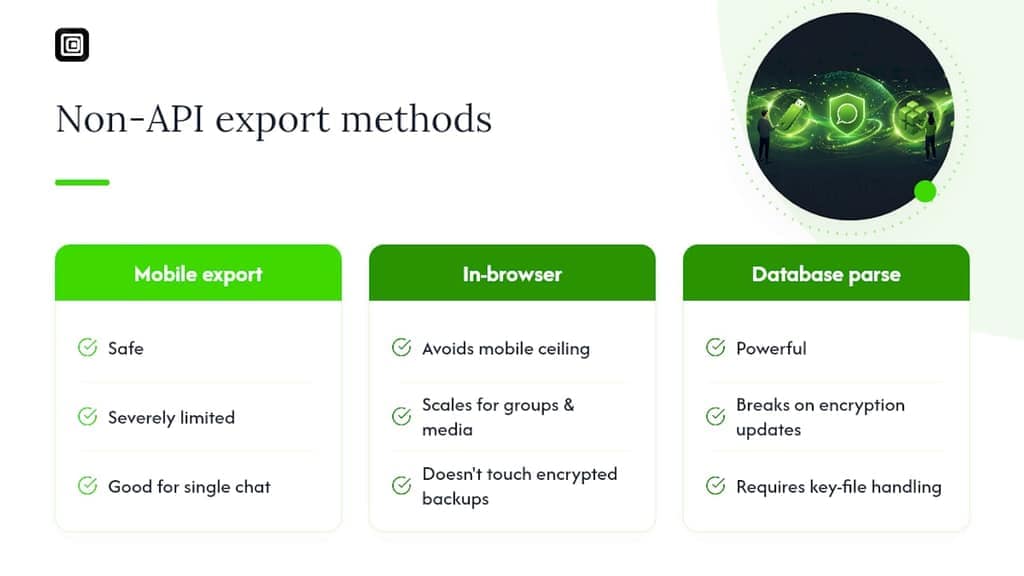
What actually matters is matching the method to the stakes. A single sentimental chat you want to keep? Mobile export is fine. A recurring professional need to pull group data or media at scale? That's where in-browser extraction earns its place, because it avoids both WhatsApp's mobile ceiling and the fragility of decrypting a database by hand.
The mistake most guides make is treating database parsing as the "advanced" default for anyone who outgrows mobile export. It shouldn't be. It's a last resort for people with no better option, not a stepping stone. Readers should prioritize methods that don't touch encrypted backups at all before reaching for a tool that could stop working with the next WhatsApp update.
— Elias Mahdavi
Export WhatsApp Data Without Ever Touching an API Key
If you've read this far, you already know the tradeoff: mobile Export Chat is limited to one chat at a time, and database parsing asks you to gamble on key files that might stop working tomorrow. There are browser extensions that read your signed-in WhatsApp Web session and export chat messages, group member lists, and contact lists directly to CSV, JSON, or Excel, plus bulk-download photos, videos, and voice notes from any conversation you can open.
Nothing runs through WhatsApp's Business API, and nothing uploads to a Mastros server. The extraction happens entirely in your browser, so there's no API key to manage and no second account to log into. If you're exporting for research, recruiting, or archiving group conversations, check out the WhatsApp Media Downloader to see how the export options map to your workflow.
Where to Verify the Details Yourself
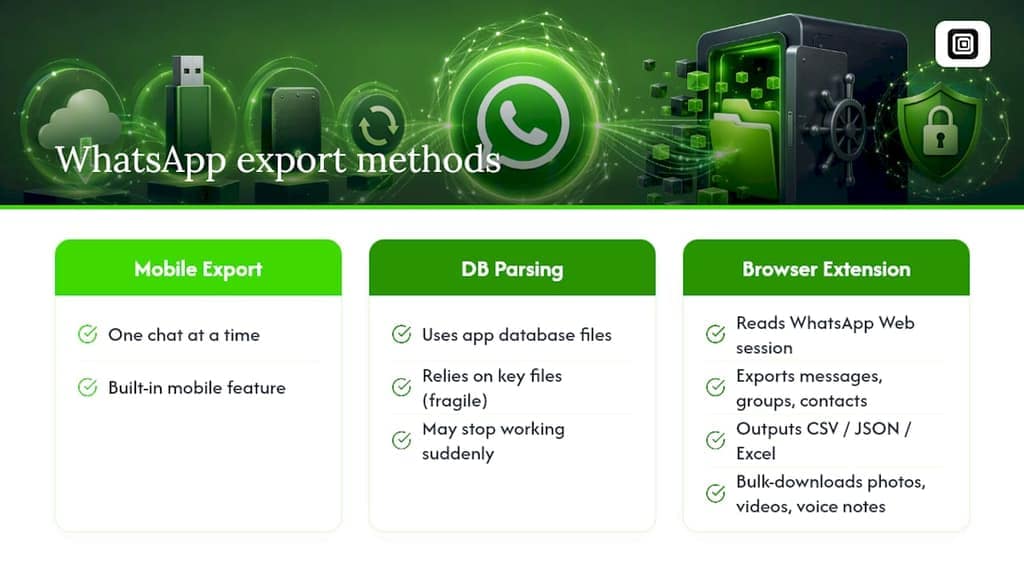
For exact steps and current limits, go straight to the source. WhatsApp's own Export Chat documentation covers menu paths and file behavior. For conversion, chat-export on GitHub and WhatsApp-Chat-Exporter handle ZIP and database parsing respectively. For archiving discipline, the WITNESS Blog's export guide covers metadata preservation worth following.
Sources
- How to export your chat history | WhatsApp Help Center
- mtln/chat-export
- Encrypting your WhatsApp chat backup just got easier
FAQ
Is It Possible to Export an Entire WhatsApp Chat?
Yes, using the native Export Chat feature on Android or iOS, though it only handles one chat at a time and there's no built-in option to export every conversation at once.
Does WhatsApp Charge for API Access?
WhatsApp's Business API involves setup and messaging costs through approved providers, but none of the non-API methods in this guide, including mobile Export Chat and in-browser extensions like Mastros, require an API key or any API-related fees at all.
How Do I Export a WhatsApp Chat Locally Without the Cloud?
Use Export Chat on your phone, choose Without Media for a lightweight text file, then transfer it to your computer through a direct connection like AirDrop or a USB cable instead of a cloud service.
Can I Export WhatsApp Chats Without Opening Them One by One?
Not through WhatsApp's own mobile export, which requires opening each chat individually, but privacy-first in-browser extensions can pull messages and media from multiple chats in a single session without that repetition.