



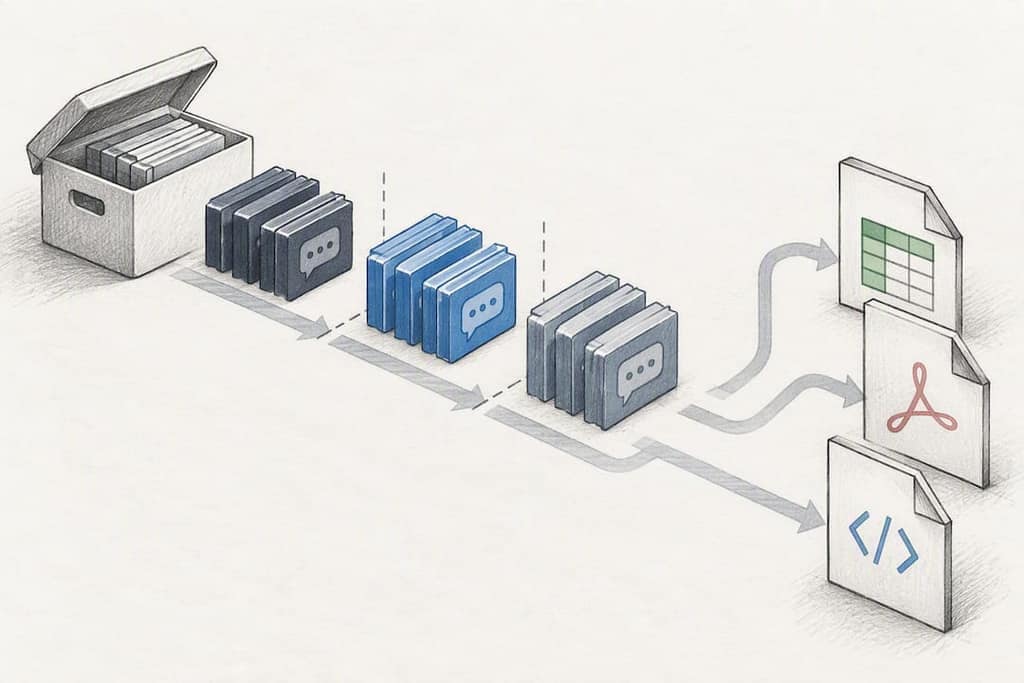
WhatsApp exports a plain-text chat file (_chat.txt) or a ZIP that bundles that text file with any media you included. It's a readable snapshot you can hand off, print, or convert. It is not a restorable backup. Depending on what you need next, that file becomes a PDF for evidence, a CSV for analysis, or an HTML page for easy reading.
TL;DR:
- WhatsApp export files include a UTF-8 encoded chat log and may contain media files, but original filenames and captions might not always survive the export process.
- The maximum message limit for exports without media is typically tens of thousands, and exporting large histories often results in truncated files or incomplete media bundles.
- Exported chats can be converted into PDF, CSV, or HTML formats using mobile print functions or desktop tools, with CSV being ideal for analysis and HTML for readability.
- WhatsApp Web does not support native chat exporting; browser extensions are needed to locally extract messages, media, and contacts without uploading data to external servers.
- The native export option is best for quick backups or evidence, while specialized tools or scripts are necessary for bulk management, analysis, or structured data extraction.
Table of Contents
- What Are WhatsApp's Native Export Formats?
- What's Actually Inside the Export ZIP?
- What Message Limits Should You Expect?
- How Do You Convert an Export to PDF, CSV, or HTML?
- Does WhatsApp Web Support Chat Export?
- Which Export Format Should You Actually Use?
- Export WhatsApp Web Data Without Uploading Anything
- Where to Learn More About WhatsApp Exports
- Sources
- FAQ
What Are WhatsApp's Native Export Formats?
WhatsApp gives you exactly two output shapes when you use the built-in Export Chat feature, and the choice happens on the phone, not on the desktop. Open the chat, tap More options (or the contact/group name on iOS), then Export chat. From there you pick Without media or Include media.
The steps come straight from the WhatsApp Help Center, and the behavior underneath is simple:
- Without media produces a single
_chat.txtfile, UTF-8 encoded, with no attachments. - Include media produces a ZIP file containing
_chat.txtplus separate media files, but only for whatever media the app has recently pulled down. - Either way, WhatsApp hands the result to your phone's share sheet, so where the file lands (Drive, Files, AirDrop, Mail) depends on what you choose next.
That last point trips people up more than it should. The export itself doesn't save anywhere by default. It's a one-time push through the share sheet, so if you tap the wrong destination, you're exporting again. Pick a cloud destination like Google Drive or iCloud Files if you plan to open the export on a computer later. Trying to email a media-heavy ZIP to yourself is usually where the first problems start.
What's Actually Inside the Export ZIP?
The _chat.txt file is the backbone of every WhatsApp export, whether you grabbed it with or without media. Each line follows a predictable pattern: a timestamp in brackets, a sender name, then the message text. Because the file is UTF-8 encoded, emoji, Arabic script, Cyrillic, and other non-Latin characters render correctly rather than turning into garbled placeholder symbols, according to the detailed breakdown of export file structure from ThreadRecap.
When you include media, the ZIP adds files named with a date stamp and a sequence number, and _chat.txt references each one with a placeholder line like "image omitted" or the actual filename, depending on your WhatsApp version. Here's what you'll typically find:
| File type | Extension | What it contains |
|---|---|---|
| Chat log | .txt |
Every message, timestamp, and sender name |
| Photos | .jpg |
Images shared in the conversation |
| Videos | .mp4 |
Video clips and short recordings |
| Voice notes | .opus or .m4a |
Audio messages and voice recordings |
| Documents | .pdf, .docx |
Files shared as attachments |
| Contact cards | .vcf |
Shared contact details |
One gap worth knowing about: original filenames and captions attached to media sometimes don't survive the export. If a photo caption matters, cross-reference the timestamp in _chat.txt with the media file's own timestamp to line them back up.
What Message Limits Should You Expect?
WhatsApp's native export isn't built for massive histories, and it shows. Chats without media typically cap out at tens of thousands of messages, and chats with media include fewer messages due to file size limits, according to reporting from Android Police on real-world export truncation. Cross a group chat that's been running for three years with daily activity, and you'll likely hit that ceiling before you reach the oldest messages.
Pro Tip: If your chat is old and busy, export without media first to grab the full text history, then run a second export with media just for the date range you actually need photos and videos from.
A few other gotchas worth flagging before you export anything important:
- Large ZIP files often fail to send through email or messaging apps that cap attachment size. Route them to Drive, iCloud, or a direct file transfer like AirDrop instead.
- The "Include media" option only bundles recently downloaded media, so older photos and videos in a long chat may simply be missing from the ZIP.
- Encoding issues are rare but happen most often when a chat mixes multiple scripts (say, English and Thai) and the receiving app doesn't fully support UTF-8.
Backups and exports are not the same thing. A WhatsApp backup to Google Drive or iCloud is encrypted and meant to restore your chats onto a new phone. It's not a file you can open and read. Export Chat, by contrast, creates a portable, human-readable snapshot, a distinction the WhatsApp Help Center spells out clearly. If someone tells you to "just export a backup," they mean something different than what Export Chat gives you.
How Do You Convert an Export to PDF, CSV, or HTML?
The raw _chat.txt file works fine for a quick read, but most real use cases need a different format. Here's how to get there depending on your setup.
- Phone only, no computer needed. Export the chat to Files (iOS) or Drive (Android), open the file in a document viewer, and use the built-in Print function to save it as a PDF. This works well for short chats you need as quick evidence.
- Desktop, general use. Download the ZIP to a computer, open
_chat.txtin a plain text editor, and either reformat it manually into HTML or feed it into a local conversion tool. A project like chat-export on GitHub does exactly this, turning the raw text into a browser-readable HTML page with inline media, no cloud upload required. - Desktop, structured data. If you need to sort, filter, or redact messages, a Python script is the most direct route. The Python ecosystem has straightforward text-parsing libraries that turn
_chat.txtinto a clean CSV, one row per message, with columns for timestamp, sender, and text.
Which format fits which job? CSV wins when you're analyzing patterns, sorting by sender, or redacting sensitive lines before sharing with a third party. HTML wins when readability matters most, since media displays inline and the layout looks like the original chat. PDF wins when you need something that looks official and can't be edited after the fact, which matters for evidence or documentation.
For chats spanning years, converting everything at once risks losing structure. Split the work into date ranges. Export chat history in monthly or quarterly chunks, then convert each batch separately, avoiding truncated attachments that show up when you try to push a giant file through a mobile share sheet.
Does WhatsApp Web Support Chat Export?
No. Export Chat lives exclusively in the mobile app; it never appears in the WhatsApp Web or desktop client menus. If you're managing conversations from a browser and need the same kind of readable output, the mobile export path simply isn't there for you.
That gap is exactly where privacy-first browser extensions come in. These tools read what your signed-in WhatsApp Web session already displays on screen, the same messages, contacts, and group members you can see and scroll through, and save that content locally to CSV, JSON, or Excel. Nothing gets uploaded anywhere, because the extension runs entirely in your browser tab.
A typical workflow looks like this:
- Sign into WhatsApp Web as usual, no extra login or API key needed.
- Scroll up through the conversation to load older messages before running the export, since WhatsApp Web only keeps recent messages rendered in memory.
- Set a date range and choose which media types to grab, if the tool supports it.
- Download the finished file directly to your computer.
Mastros builds extensions along exactly this model, reading visible WhatsApp Web content and exporting it locally without sending anything to a Mastros server. If you're curious how that compares to the mobile-only export path, the guide to exporting WhatsApp without an API walks through the operational details.
Which Export Format Should You Actually Use?
For a fast personal archive, stick with the native .txt or .zip export. It's built in, free, and good enough for reading back through old conversations. For legal or workplace evidence, convert to PDF, since it looks final and doesn't invite editing questions. For any kind of analysis, sorting, or bulk review, CSV is the only format that behaves like data instead of just text. For sharing a readable record with someone else, HTML with inline media beats a wall of plain text.
Before you export anything you'll need later, run through a short checklist: confirm whether you picked Include or Without Media, choose a cloud destination instead of email, check whether the chat's message count might exceed WhatsApp's caps, and open the resulting _chat.txt once to confirm emoji and special characters rendered correctly. If you're pulling data from WhatsApp Web instead of the phone, the WhatsApp Web export walkthrough covers the browser-specific steps in more depth.
— Elias Mahdavi
Export WhatsApp Web Data Without Uploading Anything
If you've read this far, you already know the native export has real limits: no web support, message caps around 40,000 without media, and media that only covers a recent window. Mastros solves the WhatsApp Web gap specifically. The extension runs in your browser, reads what your signed-in session already shows, and exports chat messages, group members, and your contact list to CSV, Excel, JSON, or JSONL, with zero uploads to any outside server and no API key required.
It also bulk-downloads photos, videos, and voice notes from a conversation, letting you pick media types and how far back to scroll before a run starts. Start with the free plan at Mastros, or go straight to the WhatsApp Scraper product page to see exactly what a local export looks like before you commit to a paid plan.
Where to Learn More About WhatsApp Exports
The WhatsApp Help Center remains the definitive source for the official Export Chat steps and the backup-versus-export distinction. For a granular look at what's inside the ZIP file itself, ThreadRecap's breakdown covers every file type. Developers converting exports locally should look at the chat-export tool on GitHub. Businesses managing WhatsApp at scale may also find SzopaLabs' guide to WhatsApp chatbots useful for automation context beyond exports.
Sources
- How to export your chat history — WhatsApp Help Center
- What's Inside a WhatsApp Chat Export (Every File) | ThreadRecap
- chat-export: Convert WhatsApp Chats to HTML — GitHub
- WhatsApp export limits and practical truncation issues — Android Police
FAQ
What Format Does WhatsApp Export Chats In?
WhatsApp exports chats as a plain-text _chat.txt file, or as a ZIP containing that same text file plus media, depending on whether you choose Without media or Include media during export. The text file is UTF-8 encoded and can be opened in any text editor or converted to PDF, CSV, or HTML afterward.
How Do I Send a 20 MB File in WhatsApp?
WhatsApp caps file-sharing sizes for documents sent within a chat, and large files often exceed email attachment limits too. Route large exports through Google Drive, iCloud, or a direct transfer like AirDrop instead of trying to send them through the app's share sheet or an email provider.
How Do I Export an Entire WhatsApp Chat as a PDF?
Export the chat first using Export chat in the app, save it to Files or Drive, then open the resulting text file and use your device's Print function to save it as a PDF. For long chats near the message caps, exporting in date-range batches before converting avoids truncated content.
Can I Bulk Export Multiple WhatsApp Chats at Once?
WhatsApp's native Export Chat feature only handles one conversation at a time, with no built-in bulk option. A privacy-first browser extension like the Mastros WhatsApp Scraper can pull chat messages, contacts, and group members from WhatsApp Web locally, which is closer to a bulk workflow for anyone managing several conversations.
What's the Difference Between a WhatsApp Backup and an Export?
A backup, saved to Google Drive or iCloud, is encrypted and meant to restore your chats onto a new phone; it isn't a readable file. An export creates a plain-text or ZIP snapshot you can open, read, print, or convert, but it can't be used to restore your chat history on a device.