



For professionals, "whatsapp backup" means exporting WhatsApp Web data locally to structured formats like CSV, JSON or JSONL, not backing up a phone to the cloud. The recommended approach is a local-first browser export that produces spreadsheet- and CRM-ready files while bundling media on the side. Tools like Mastros run this entirely in your browser, which keeps the process fast and keeps your data off anyone else's server.
TL;DR:
- Browsers export WhatsApp Web data, including messages, contacts, and media, directly from your session without uploading to third-party servers, ensuring local control.
- Using smaller, staged exports helps manage memory use and prevents stalls, especially when extracting multi-year histories or large groups.
- CSV is ideal for quick CRM imports, JSON/JSONL suits programmatic pipelines with nested data, and HTML provides a human-readable conversation archive.
- When Advanced Chat Privacy is enabled on a chat or group, exports become impossible, and no browser tool can bypass this restriction.
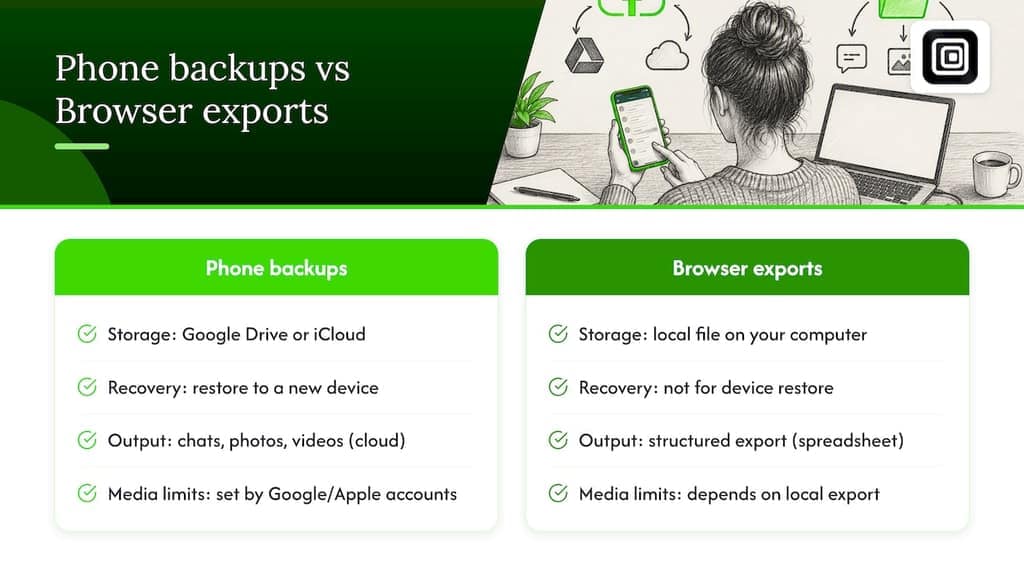
- Phone backups stored on Google Drive or iCloud are for device restoration, while browser exports produce structured data for analysis, filtering, and research purposes.
Table of Contents
- Exactly what you can export from WhatsApp Web and who should use it
- Step-by-step export procedure you can run in a browser session
- Choosing CSV, JSON, JSONL or HTML for your exports
- Platform privacy settings and operational limits to expect
- How a privacy-first browser exporter implements these exports
- Creating and managing WhatsApp backups on your phone
- Restoring a WhatsApp backup to a new or existing device
- Local backups versus cloud backups: what changes
- Automating backups and adjusting how often they run
- Troubleshooting common backup problems
- Security and encryption details worth knowing
- What professionals get wrong about WhatsApp exports
- Try a WhatsApp Web export before you build anything bigger
- FAQ
- Sources
Exactly what you can export from WhatsApp Web and who should use it
Before you open a single chat, it helps to know what is actually on the table. A browser export can pull chat messages, group participant lists, your contact list and bulk media (photos, videos and voice notes) straight from the WhatsApp Web interface you already use every day.
This guide is built for a specific job, not a general audience. If you are a growth marketer building a lead list, a recruiter researching candidates through shared groups, a community manager auditing engagement, or a researcher assembling an archive for analysis, this is your workflow. If you are trying to move your personal chat history to a new phone, this is not the guide you want, since that is a device-level restore process, not a web export.
Typical use cases include:
- Building structured lead lists from group chats for outreach or CRM import.
- Archiving community conversations for long-term research or compliance records.
- Pulling shared media out of a group for content audits or academic study.
- Documenting candidate or contact history during recruiting research.
Step-by-step export procedure you can run in a browser session
Running a clean export is less about clicking the right button and more about setting yourself up so the browser does not choke halfway through. Here is the sequence that works reliably for small test runs and for multi-year histories alike.
- Sign into WhatsApp Web in your browser and confirm the session is stable, meaning no repeated "connecting" loops or QR re-scans.
- Run a small test export first. Pick one short chat, export it, and open the output file before touching anything larger. This catches formatting or encoding issues early.
- Select your scope. Choose specific chats and groups, or select all, depending on whether you need a single conversation or a full archive.
- Set date ranges or scroll limits. Narrowing the window to a quarter or a year at a time keeps memory use manageable on long-running chats.
- Choose your format and media options. Decide between CSV, JSON, JSONL or HTML, and whether to include photos, videos and voice notes in the pull.
- Run the export. For larger jobs, a ZIP bundle option groups messages and media together instead of leaving loose files scattered across folders.
- Verify the output. Open the file, check row counts against what you expected, and confirm timestamps and sender fields line up correctly.
- Map columns to your destination. Align export fields (chat ID, sender, timestamp, text) with your CRM or analysis spreadsheet before bulk importing.
Local-first exporters that read WhatsApp Web's internal message store, rather than scraping the visible page, tend to handle large histories more reliably than tools that depend on scrolling and screen-scraping alone, according to the purr-wa project documentation. If an export stalls or aborts partway through, split the date range into smaller chunks, close unused browser tabs to free memory, and give the page a longer pause between scroll actions before retrying.
Pro Tip: Run your first export on a chat with under 500 messages. It takes under a minute and tells you everything you need to know about formatting before you commit to a 50,000-message archive.
Choosing CSV, JSON, JSONL or HTML for your exports
The format you pick determines how much work you do after the export finishes. Each one fits a different downstream job.
- CSV works best as a row-per-message table with columns for chat ID, sender ID, an ISO 8601 timestamp, message text and an attachment reference. It opens directly in Excel or Google Sheets.
- JSON or JSONL suits programmatic pipelines, since it can nest reactions, multiple attachments and multi-line text without flattening the structure. Extension examples on GitHub show JSON exports carrying an
exported_attimestamp, a total message count and amessagesarray with sender, timestamp, text, image and reaction fields, per the whatsapp-web-chat-export project. - HTML produces a self-contained, human-readable archive with images embedded inline, which is handy for audits, legal review or simply printing a conversation.
A manifest file that maps message IDs to media filenames, something like media/CHATID_20260414_143000.jpg tied back to a media-manifest.json, makes media audits far more reliable than cramming binary data into CSV cells. For cross-chat analysis, many exporters also produce an ALL_combined.csv alongside the per-chat files, which saves you from stitching dozens of exports together manually.
| Format | Best for | Structure |
|---|---|---|
| CSV | Spreadsheet analysis, quick CRM import | Row per message, flat columns |
| JSON/JSONL | Programmatic pipelines, nested data | Message objects with reactions and attachments |
| HTML | Human review, audits, printing | Self-contained page with embedded media |
Platform privacy settings and operational limits to expect
WhatsApp's Advanced Chat Privacy setting is the one wall no browser tool can get around. When a chat or group has it enabled, participants cannot export that chat or save its media, according to the WhatsApp Help Center. Treat it as an absolute blocker rather than a setting to work around: a group admin or participant turns it on per chat, and once it is active, that conversation is simply off-limits to export tools.
A few practical habits reduce both technical and compliance risk, including following a helpful WhatsApp GDPR checklist for UK businesses:
- Favor local-first tools that process everything in the browser and never upload your export to a third-party server.
- Batch large histories by date instead of attempting one giant scroll-all run across several years of messages.
- Verify manifest integrity after export, confirming that every media reference in your CSV or JSON actually points to a file that exists.
- Draft a simple data-sharing agreement before handing exported data to a colleague or client, covering format, retention and deletion.
Research into platform data access has found that tools provided directly by platforms are often built for individual consumers, not bulk professional use, leaving researchers to rely on browser-based exporters for project-specific extraction, according to a 2024 policy review on data donation studies. That gap is exactly why local export tools exist in the first place.
When you do share exported data externally, ICO guidance on data-sharing agreements recommends spelling out formats, retention and deletion schedules, transmission methods and breach procedures up front, rather than figuring them out after something goes wrong.
How a privacy-first browser exporter implements these exports
Some WhatsApp data export extensions follow the workflow described above: scan the chats you select, choose your export format, set a date range or scroll limit, bundle media if needed, then verify the output before use.
A few characteristics distinguish such tools:
- Everything runs in the browser. No data is uploaded to a server, no API key is required, and there is no second login beyond the WhatsApp Web session you already have open.
- They only read, never act. The extension exports what your signed-in session already displays. It never sends messages, never auto-replies and never broadcasts anything.
- Output formats match common workflows. CSV, JSON and JSONL exports, plus bulk download of photos, videos and voice notes, map directly onto formats and media handling described earlier.
- Scope is user-set. Users choose which media types to pull and how far back the scroll reaches, rather than getting an all-or-nothing dump.
For teams weighing a custom script against a ready-made exporter, the trade-off usually comes down to time and exposure. A script you maintain yourself still has to handle session cookies, scroll pacing and format conversion, work the Mastros WhatsApp Scraper product page already shows solved for a local-first, no-upload workflow.
Pro Tip: If your team needs both messages and media from the same conversation, run one export with media download turned on rather than two separate passes, it keeps your manifest consistent.
Creating and managing WhatsApp backups on your phone
Separate from browser exports, WhatsApp's own phone backup system saves your chat history to cloud storage so you can restore it later. On Android, this means Google Drive: open WhatsApp, go to Settings > Chats > Chat backup, and choose how often backups run, daily, weekly or monthly. On iPhone, the same idea applies through iCloud: Settings > Chats > Chat Backup, with a manual "Back Up Now" option alongside the automatic schedule.
Both systems back up your messages, photos and videos, though media backup frequency and size limits depend on your Google or Apple account settings rather than WhatsApp itself. Checking that you are signed into the right Google or Apple account, and that your cloud storage has room, is worth doing before you assume a backup succeeded.
This phone-level backup system solves a different problem than a browser export. It is built to restore your personal chat history onto a new device, not to produce a spreadsheet of messages you can filter, search or import into a CRM. If your job involves pulling structured data out of group chats for research or lead generation, a local browser export covers that gap; phone backups are about continuity of your own conversations, not analysis.
Restoring a WhatsApp backup to a new or existing device
Restoring a backup happens automatically the first time you install WhatsApp on a device and verify your phone number. On Android, WhatsApp checks Google Drive for an existing backup tied to that number and offers to restore it before you set up your account. On iPhone, the same check happens against iCloud during the initial setup flow, and you tap "Restore Chat History" when prompted.
A few things matter for this to go smoothly. The phone number you verify has to match the one tied to the backup, and you need enough free storage on the device to hold the restored messages and media before the process starts. If you are moving from Android to iPhone or the reverse, WhatsApp's official move tool handles the cross-platform transfer differently than a same-platform restore, since Google Drive and iCloud backups are not directly compatible with each other.
If a restore fails partway through, check your network connection first, since an interrupted download is the most common cause. Confirm you are signed into the correct Google or Apple account, and that the account has enough storage for the full backup rather than just the app itself. None of this overlaps with browser-based exports: restoring a phone backup puts your chat history back on a device, while an export produces a file you can open, filter and share.
Local backups versus cloud backups: what changes
A local backup lives only on the device itself, stored in the phone's internal memory, while a cloud backup sits on Google Drive or iCloud and can be pulled down onto a different device entirely. That distinction matters the moment a phone is lost, damaged or replaced: a local-only backup disappears with the device, while a cloud backup survives it.
Cloud backups also tend to run on a schedule you set once and forget, while local backups on Android typically require you to actively select and restore them, since Android does not automatically pull from local storage the way it does from Drive. The trade-off is storage and privacy. A cloud backup counts against your Google or Apple storage quota, and it means your chat history sits on a third-party server rather than only on your device.
For professionals doing research or lead generation, neither local nor cloud phone backups produce usable structured data. Both formats exist to restore a personal chat history, not to generate a CSV you can filter by date or sender. That is the gap a browser-based export fills: it reads what is visible in WhatsApp Web and turns it into a file built for analysis, independent of whichever backup method you use on your phone.
Automating backups and adjusting how often they run
WhatsApp's phone backup system runs on a schedule you control from Settings > Chats > Chat Backup, with options typically including daily, weekly or monthly intervals on both Android and iPhone. Picking daily makes sense if you message constantly and cannot afford to lose more than a day's history; weekly or monthly suits lighter use where storage space matters more than granularity.
Automatic backups on Android usually run overnight while the phone is charging and connected to Wi-Fi, so an export that keeps failing is often a sign the phone was not plugged in or connected at the scheduled time rather than a deeper problem. iPhone follows a similar pattern tied to iCloud and a stable Wi-Fi connection.
None of this scheduling applies to browser-based exports, which are run manually each time you need a snapshot of chat data rather than on an automatic cadence. If your work requires a recurring structured export, say, a weekly pull of a community group for ongoing research, the practical approach is running the same browser export on a regular manual schedule, since WhatsApp Web itself has no built-in automation for that kind of export and local-first tools are intentionally built without automated or scheduled actions to keep the process transparent.
Troubleshooting common backup problems
Failed backups almost always trace back to one of three causes: insufficient cloud storage, a dropped network connection, or the wrong account signed in. Checking your Google Drive or iCloud storage quota first saves time, since a backup that silently fails due to a full account looks identical to one failing for network reasons.
If a backup has been stuck "in progress" for an unusually long time, closing and reopening WhatsApp often resolves it, as does confirming you are on Wi-Fi rather than relying on mobile data, which some backup settings restrict by default. On iPhone, checking Settings > [your name] > iCloud confirms whether iCloud Backup itself is enabled and whether there is room for WhatsApp's data alongside other app backups competing for the same storage.
For browser-based exports, the common failure mode is different: a browser tab losing focus or going idle during a long scroll-and-scan run. Running the export in the foreground, avoiding switching tabs mid-export, and breaking a multi-year chat into smaller date-bounded runs resolves most of these stalls, a pattern consistent with how local-first exporters handle large message stores, according to the purr-wa documentation.
Security and encryption details worth knowing
WhatsApp messages are protected by end-to-end encryption in transit, meaning no one outside the conversation, including WhatsApp itself, can read messages while they travel between devices. Phone backups to Google Drive or iCloud sit outside that end-to-end encryption by default, though WhatsApp offers an optional end-to-end encrypted backup setting that adds a password or a 64-digit encryption key protecting the backup file itself.
This distinction matters if you are deciding whether to enable encrypted backups: without it, your cloud backup is still protected by your Google or Apple account security, but it is not end-to-end encrypted the way live messages are. With it enabled, losing the password or the key means the backup cannot be recovered, since there is no account-level reset for it.
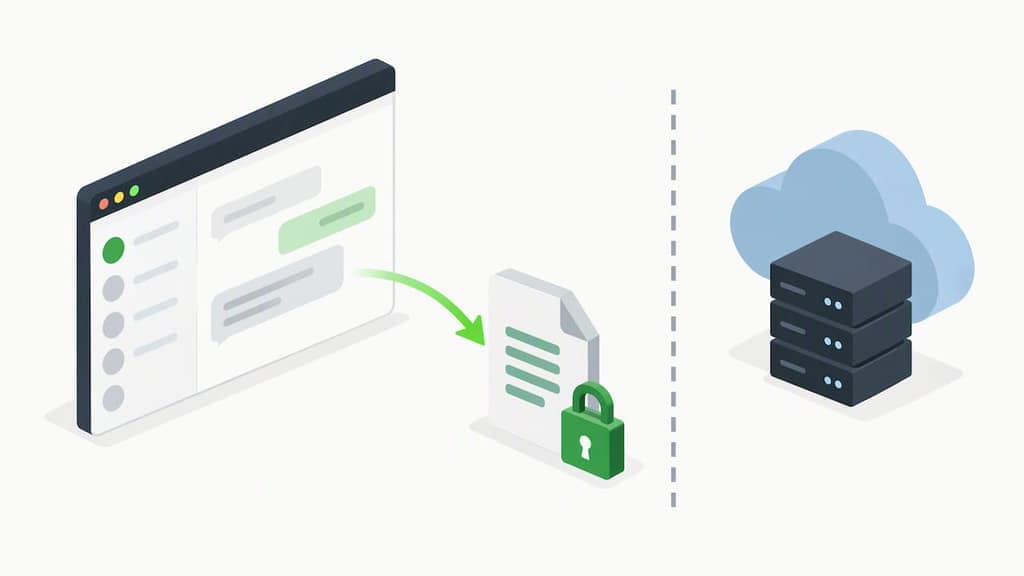
Browser-based exports work in a different trust model entirely. A local-first export reads what your signed-in WhatsApp Web session already displays and writes it to a file on your own machine, without a second login, an API key or a server in between. That is a meaningfully different security posture than a cloud backup: nothing leaves your browser, so the only thing to secure afterward is the exported file itself.
What professionals get wrong about WhatsApp exports
The biggest mistake we see is treating a WhatsApp export like a one-time data dump instead of a repeatable research input. A single export answers one question. A structured, dated, re-runnable export process answers the questions you have not thought of yet, which is the entire point of building lead lists, candidate research or community archives in the first place.
The second mistake is underestimating Advanced Chat Privacy. Teams plan an entire research project around a group, then discover mid-project that the admin flipped on chat privacy and the export option is gone for good. There is no workaround, so the right move is checking that setting before you build a workflow around a chat, not after.
What we would prioritize first: run a small test export, confirm your manifest and column mapping actually work with your CRM, and only then scale up to full archives. Speed matters less than getting the structure right the first time, since re-running a flawed export across a year of messages wastes more time than the ten minutes a proper test would have cost.
— Elias Mahdavi
Try a WhatsApp Web export before you build anything bigger
We built the Mastros WhatsApp Scraper so a growth team, recruiter or research group could get a structured export without writing a script or trusting a server with their data. Start with the Free plan on our landing page, pick one small chat, and export it to CSV. Check that the column headers, timestamps and any attachment references line up the way your CRM or spreadsheet expects.
Once that test looks right, pull a small media bundle from the same conversation and confirm the filenames match what your manifest expects. Everything runs locally in your browser: no API keys, no second login, no data uploaded anywhere on our end.
When a test export checks out, scaling up to a full archive or a recurring research pull is the same process at a larger scope. For teams handling exported data across multiple people, it is worth setting internal rules for retention and sharing before that first large export goes out the door. Our Pro and Scale plans raise the export volume limits once you are ready to move past single-chat testing.
FAQ
What does "WhatsApp backup" mean for research and lead generation?
In a professional context, it means exporting WhatsApp Web data (chat messages, group participants, contacts and media) to structured files like CSV, JSON or JSONL for analysis or CRM import. It is a different process from the phone-level backup and restore system WhatsApp uses to save conversations to Google Drive or iCloud.
Can I export a chat that has Advanced Chat Privacy turned on?
No. When Advanced Chat Privacy is enabled on a chat or group, participants cannot export that conversation or save its media, and no browser tool can bypass that restriction, according to the WhatsApp Help Center.
Which export format should I use for CRM import?
CSV is usually the simplest choice for CRM import, since it maps cleanly to a row-per-message spreadsheet with columns for sender, timestamp and message text. JSON or JSONL works better when you need nested data like reactions or multiple attachments per message.
Is it safe to use a browser extension to export WhatsApp Web data?
A local-first extension that runs entirely in your browser and never uploads data to a server reduces exposure compared with tools that route your data through a third party. Confirm the tool you use does not require an API key, a second login or server-side processing before trusting it with sensitive chat data.
How much does the Mastros WhatsApp Scraper cost?
Mastros offers a Free plan to start, with a Pro and Scale plan available for higher export volumes, all billed through the Mastros landing page.
Sources
- 0xheycat/purr-wa
- About advanced chat privacy | WhatsApp Help Center
- Fulfilling data access obligations: How could (and should) platforms facilitate data donation studies?
- Data sharing agreements | ICO
Recommended
- WhatsApp Export Guides: Contacts, Chats, Media
- Export WhatsApp Web Data Locally Without Uploads: 3 Practical Options
- 4 Privacy First Ways to Export WhatsApp Without an API
- WhatsApp Web Privacy for Bulk Exports: A Practical Guide