



Telegram Desktop's built-in export and the Takeout API both preserve media files and their metadata references, and either one is the right call if you're comfortable with Desktop's menus or writing against the API. For selective bulk downloads without touching API keys, a Telegram Scraper browser extension is the practical option. Watch for two catches either way: per-file size limits, and Secret Chats, which never leave your device.
TL;DR:
- Telegram Desktop places media beside result.json and links files through relative paths, so keep the folder structure intact when moving an archive.
- Audio tags survive only when Telegram stored the original audio file; export one chat first and check tags and thumbnail files before a large run.
- Takeout scripts need a generous per file size cap and resumable pagination; long runs may also require refreshing expired file references.
- The browser extension can filter by chat, date range, and media type, then save metadata as CSV, JSON, or JSONL without API credentials.
- Cloud exports omit Secret Chats, which remain on the device where they were created; files beyond Telegram’s sharing limit must come from the sender.
Table of Contents
- Quick comparison: Desktop export vs Takeout API vs in-browser extension
- How Telegram Desktop export preserves media and metadata
- Takeout API and programmatic exports: flags, file downloads, and metadata handling
- In-browser export tools: how Mastros' Telegram Scraper downloads media while keeping metadata
- Command-line and open-source tools: metadata-only vs full media download modes
- Practical checklist: export and verify your saved metadata
- Why in-browser exports make sense for most people, and when to script instead
- Try Mastros' Telegram Scraper for metadata-preserving bulk downloads
- FAQ
- Sources
Quick comparison: Desktop export vs Takeout API vs in-browser extension
Three routes get you from a Telegram chat to a folder of media with metadata intact, and each fits a different kind of user.
Telegram Desktop's export is the no-code option. You open Settings, pick a chat or your whole account, and Telegram writes out a result.json file plus media subfolders, referencing every photo, video, and document by its relative path. The Telegram export and import documentation describes this layout directly, and it's the right starting point if you just want an archive on your own drive.
The Takeout API is for developers who need automation or datasets too large to click through. It requires writing code against Telegram's MTProto layer, but it gives you fine control over which chats, channels, and file types to pull.
The in-browser extension route, which some Telegram Scrapers exemplify, sits in between: no API credentials, but more selective than a full Desktop export when you only want media from specific chats or date ranges.
What each method preserves:
- Desktop export: embedded audio tags when Telegram stored the original file, thumbnail images as separate files, and JSON references tying each item to its message.
- Takeout API: the same underlying media files, since it calls the same storage layer, plus programmatic control over which fields and chats come through.
- Browser extension: visible message metadata (date, sender, media type) alongside bulk-downloaded files, read directly from your signed-in session.
Pick Desktop for a one-time personal archive, Takeout for scale or automation, and an extension when you want control without a developer setup.
How Telegram Desktop export preserves media and metadata
Telegram Desktop's export lives under Settings, then Advanced, then Export Telegram Data. Telegram's own blog post introducing the feature walks through the original rollout, and the mechanics haven't changed: you select which chats to include, choose a date range, and check boxes for photos, videos, voice messages, and files before Telegram builds the archive.
Once the export finishes, you get a folder structured around one central file, result.json, alongside media subfolders. The Telegram export documentation lays out the pattern: chats live under paths like chats/chat_name/photos, with separate folders for video_files and thumbnail images. Every media reference inside result.json points to one of these files using a relative path, which is how the JSON and the folders stay linked even if you move the whole export elsewhere, as long as you keep the internal structure intact.
A few fields inside each media entry matter more than the rest:
- media_type tells you whether an item is a photo, video, voice note, or generic document.
- performer and related audio fields show up only when Telegram stored the original audio binary, which is what lets you see embedded ID3 tags later.
- mime_type confirms the actual file format, which matters when a document's extension doesn't match its content.
- thumbnail points to a small preview image Telegram generated separately from the full file.
That last point deserves a closer look, because it trips people up. Audio files only retain their original ID3 tags (artist, album, track title) when Telegram had the original file to begin with. If a track was sent as a generic document rather than through Telegram's music player, the tags might be thinner or missing, even though the file downloads fine. Running a small test export on a single chat before committing to a full one reveals exactly this kind of gap, and it takes under a minute to check.
Thumbnails get their own files, typically named with a suffix like _thumb.jpg, sitting in the same subfolder as the full media. If you open result.json and see a thumbnail path but can't find the matching file, check whether your export settings excluded thumbnails specifically, since that's a separate toggle from the main media download in some Desktop versions. Our own breakdown of how Telegram Desktop chat export works covers the folder layout in more depth if you want to cross-reference before running a large export.
Takeout API and programmatic exports: flags, file downloads, and metadata handling
If you're building a script or need an export larger than Desktop's interface handles comfortably, the Takeout API gives you that control, at the cost of writing actual code.
Everything starts with account.initTakeoutSession, which takes a set of flags describing what you want included. You can enable files to pull media, message_chats for regular chats, and message_channels for channel content, each as independent toggles. A file_max_size flag caps how large a single file can be before the session skips it, which matters once you're pulling from chats with large video files or documents.
Once the session is open, actual file downloads happen through upload.getFile, wrapped inside invokeWithTakeout so Telegram knows the request belongs to your takeout session rather than a normal API call. The Takeout API documentation specifies this pairing directly, and it's easy to miss if you're adapting generic Telegram API examples that don't account for takeout sessions.
Two details catch developers off guard:
- Custom emoji documents sometimes need to be resolved separately, since they're referenced by ID rather than embedded inline in message text.
- Expired file references can surface on large exports that run over several hours, requiring your script to re-request a fresh reference rather than retry the stale one.
For pagination, Telegram returns results in batches, so a full channel export typically means looping through messages.getHistory or equivalent calls alongside your takeout session, tracking the last message ID processed so you can resume cleanly if the script stops partway through. Given that file_max_size acts as a hard cutoff, it's worth setting it generously from the start rather than discovering halfway through a multi-hour export that half your video files were silently skipped.
None of this is hard to write for anyone comfortable with REST-style APIs, but it is a real development task, not a weekend script for most non-programmers. That gap is exactly where an in-browser option earns its place.
In-browser export tools: how Mastros' Telegram Scraper downloads media while keeping metadata
We built our Telegram Scraper around a simple idea: you're already signed into Telegram Web, and your browser can already see every message, photo, and voice note in a chat you have open. Our extension reads that same visible session and saves what you choose to a structured file on your own machine. Nothing gets uploaded to a Mastros server, and you never need an API key or a second login, because we're not calling Telegram's API at all, just reading what your screen already shows.
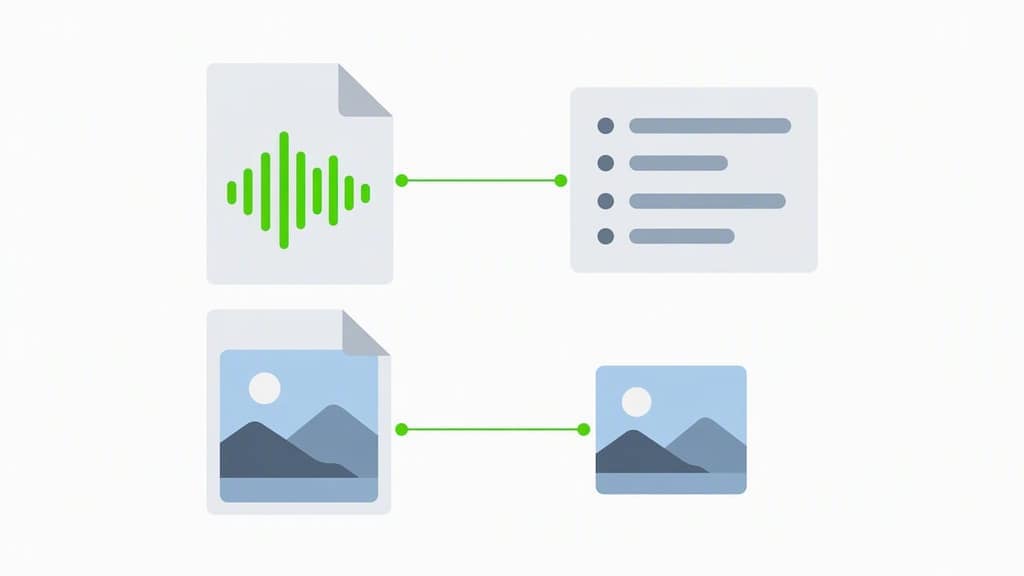
For media specifically, that means bulk-downloading photos, videos, documents, audio, and voice notes from any chat or channel you can open, with each saved file paired against message-level metadata like date, sender, and media type in your export. When Telegram's original file included a thumbnail or embedded audio tags, those carry through to the downloaded file itself, since we're saving the actual file Telegram served, not a re-encoded copy.
You stay in control of the run itself:
- Date range and message count, so a single-chat test or a full-year pull both take the same two clicks.
- Media-type filters, letting you grab only audio from a music-sharing channel instead of every attachment.
- Output format, with CSV, JSON, or JSONL depending on whether you're archiving or feeding the data into another tool.
Because the extension never sends messages, never automates replies, and never needs your Telegram password beyond the session you're already logged into, it fits the kind of privacy-conscious workflow this whole topic tends to attract: people who want their own data in their own hands, not routed through a third-party server — see more on WhatsApp 安全性与个人聊天隐私. You can see the full feature list on the Telegram Scraper product page.
Pro Tip: Run the extension on one small chat first and check the downloaded audio files for their ID3 tags and the photos for matching thumbnails before you commit to a large export. It's a sixty-second check that saves you from redoing a big pull.
Command-line and open-source tools: metadata-only vs full media download modes
If you're already scripting against Telegram or prefer a terminal workflow, a handful of open-source exporters sit between Desktop's simplicity and writing raw API calls yourself. Most of them share a design decision worth understanding before you run one.
- Check the default export mode first. Many tools, including options documented in tg-msg-manager's command reference, default to a metadata-only mode, pulling message text, sender info, and timestamps without downloading the actual binary files, since that's faster and lighter for most research use cases.
- Switch to full media explicitly when you need files, not just records. This usually means passing a flag like
media=fullinstead of the defaultmedia=metadata, and setting a--max-media-sizevalue so the tool knows how large a file it's allowed to save. - Expect a manifest file tracking what happened to each item. Tools following this pattern write a
media_manifest.jsonllog with per-file statuses such asdownloaded,skipped_by_size, orskipped_by_type, which tells you exactly why a file didn't come through rather than leaving you guessing. - Set up credentials carefully. Tools that rely on Telegram's MTProto layer directly, rather than Desktop's built-in export, typically need an
api_idandapi_hashtied to your Telegram account, plus a session file that stores your login state locally. Treat that session file the way you'd treat a password: don't commit it to a public repository, and don't share it across machines you don't control.
This path makes sense if you're comfortable with a terminal and want exact control over flags and manifests. For most people archiving a channel or pulling media out of a few conversations, it's more setup than the job needs.
Practical checklist: export and verify your saved metadata
Once you've picked a method, running the export cleanly and checking the results takes a short, repeatable sequence.
- Pick the method that matches your comfort level and scale, Desktop for a personal one-time archive, the Takeout API for large or automated pulls, or an extension for selective bulk downloads without credentials, then confirm your chosen method's settings include media and, for API-based exports, a generous
file_max_size. - Run a small test first. Export a single chat or a short date range before touching your full archive, since this is where you'll catch missing thumbnails or stripped audio tags while the fix is still cheap.
- Verify audio files with an ID3 tag inspector (most media players show embedded tags directly) and open
result.jsonto confirm the thumbnail paths it lists actually point to files in your media folder. - If thumbnails seem to be missing, check the media subfolder for
_thumb.jpgfiles directly, since some export settings separate thumbnail downloads from full media downloads without making that obvious. - If files show up as skipped, re-run with a higher max file size, or, for files that exceed Telegram's own sharing limits, ask the original sender for the file directly rather than expecting the export to recover something Telegram never stored at that size.
- Write down the export parameters you used, the date range, chat list, and media filters, so a follow-up export months later picks up cleanly instead of guessing what the first run already covered.
Pro Tip: Keep your test export's folder around even after a successful full export. It's a quick reference point if you ever need to confirm whether a specific file's metadata changed between runs.
For anyone exporting from large or long-running channels, our post on avoiding oversized Telegram exports covers filtering strategies that keep a bulk download from turning into an unmanageable pile of files.
Why in-browser exports make sense for most people, and when to script instead
The instinct to reach for an API the moment you need "real" metadata is understandable, but it's often the wrong tool for the job. Most people archiving a channel or pulling shared media out of a conversation don't need pagination logic or a session file sitting on their hard drive. They need the files they can already see, saved somewhere they control.
Scripted exports earn their complexity when the dataset is genuinely large, spans many channels, or needs to run on a schedule without a human clicking through menus. Short of that, an in-browser tool that reads your signed-in session and writes files locally gets you the same preserved tags and thumbnails with far less setup, and without handing session credentials to a third-party server.
That's the trade-off we built around, and it's one worth making deliberately rather than defaulting to whichever method sounds more technical.
— Elias Mahdavi
Try Mastros' Telegram Scraper for metadata-preserving bulk downloads
If you've read this far because you want the media out of a chat without losing the tags and thumbnails that make it useful, our Telegram Scraper does exactly that, directly from your browser.
- Selective bulk downloads, filtered by date, media type, or chat, instead of an all-or-nothing export.
- CSV, JSON, or JSONL output, so your results slot into whatever tool you're already using.
- In-browser, privacy-first operation, with no API keys, no uploads to our servers, and no second login.
Check out the Telegram Scraper product page for details, or see current plans, including a free tier, on the Mastros homepage.
FAQ
How do I export data from Telegram?
Open Telegram Desktop, go to Settings, then Advanced, then Export Telegram Data, and choose which chats, media types, and date range to include. The Telegram export documentation describes the resulting folder structure, built around a central result.json file.
Does Telegram scrub metadata from photos?
Telegram's own export documentation doesn't describe stripping metadata from exported photo files themselves, since the export preserves the files and references them by path in result.json. Whether a specific photo retains camera metadata like location depends more on how it was originally sent than on the export process itself.
Can I send a 2 GB file in Telegram?
Yes. Standard Telegram accounts can share files up to 2 GB each, and Telegram Premium raises that per-file limit to 4 GB, which also affects what gets included when an export applies a file-size cap.
Can we retrieve Telegram chat history?
Yes, through Telegram Desktop's export feature or the Takeout API for programmatic access, both of which pull from Telegram's cloud-synced chats. Secret Chats are the exception, since Telegram's FAQ confirms they live only on the device where they were created and aren't included in cloud-based exports.