



For bulk exporting Telegram Web chats, members and media into CSV/JSON and downloaded files, use a privacy-first in-browser exporter that runs in your signed-in session. Set the chat, scan depth, date range and media types, then run a bounded export. Some files may still get skipped: protected content settings and per-file size limits can block a download even when the message itself is fully visible.
TL;DR:
- Exported files may skip protected content or files exceeding size limits, resulting in missing media or messages during the process.
- Running a small test export helps identify formatting issues and missing fields before doing a full export of large chats or channels.
- Splitting large, media-heavy channel exports into smaller date-bounded runs minimizes failures and simplifies error recovery.
- Preservation of message IDs and media paths is essential for correctly linking downloaded files back to original messages later.
- In-browser exports, like Mastros, avoid third-party server risks and ensure privacy by reading data solely from your signed-in session.
Table of Contents
- Steps to export members, messages and media from Telegram Web
- Planning your export: scan depth, dates, and storage
- Why some files fail and how to retry them
- Making sense of the exported files
- Why in-browser exports are the better call for teams
- Mastros Telegram extension: built for this exact job
- Sources
- FAQ
Steps to export members, messages and media from Telegram Web
Running a clean export takes a few minutes once you know the order of operations. Here's the sequence that gets you a complete, auditable file set without babysitting the process.
- Sign in to Telegram Web and open the target chat, group or channel you want to export.
- Pick your export scope: members, messages, or specific media types (photos, videos, documents, voice notes).
- Set the date window and scan depth so the run covers the period you actually need, not the entire chat history.
- Set a per-file size limit for media downloads, then choose your output format: CSV, JSON or JSONL.
- Start the bounded run and watch progress; a long-running channel export can take a while depending on scan depth.
- Once it finishes, check the output files and the media folder to confirm everything landed where expected.
- Open the result file and confirm each row carries a message_id, date, sender and media_path, per Telegram's export schema.
Pro Tip: Run a small test export (50 to 100 messages) before committing to a full-history pull. It surfaces formatting quirks and missing fields while the fix is still cheap.
If you're aiming specifically at video-heavy channels, a narrower run focused on media type alone tends to finish faster than a full members-plus-messages export. Our guide to bulk media downloads walks through that path in more detail.
Planning your export: scan depth, dates, and storage
A bounded export finishes clean. An unbounded one risks partial files, timeouts, or a folder of media you didn't actually need. Telegram's own Takeout API separates message extraction from file downloading and requires a file_max_size setting before any media gets pulled, which is exactly the kind of guardrail you want to set deliberately rather than leave on defaults.
Before you run anything, work through this:
- Decide whether you need a members list, messages with metadata, media only, or a combined run: each has a different runtime and output shape.
- Choose media types and a file-size cap up front so large videos or documents don't silently get skipped.
- Preserve message IDs and relative media paths in the output. They're what let you join a downloaded file back to its original message later.
- Estimate storage before you start: a small group chat exports in seconds and megabytes, while a media-heavy channel with years of video history can run into gigabytes.
Telegram's own import-export schema notes that media paths can be replaced by a warning when a file exceeds the export's size threshold or falls under a mediatype exclusion filter. That single line explains most "missing file" surprises before they happen.
For a side-by-side of export methods and when a bounded run beats a full-history pull, see our breakdown of Telegram's export options.
Why some files fail and how to retry them
Not every visible message translates into a downloadable file, and knowing why saves you from re-running an export three times over the same problem.
- Protected content and account permissions can block forwarding, screenshots, or saving of media even when the chat itself is fully viewable, per Telegram's API documentation.
- Errors like TAKEOUT_FILE_EMPTY, LOCATION_INVALID, or FILE_REFERENCE_* show up when a file reference has expired or the file itself is unavailable, as documented in Telegram Desktop's export implementation.
- Check your result.json for warning fields or placeholder media paths. They flag exactly which items were skipped and why.
- When a file reference error hits, refresh the source message and retry from the same offset rather than restarting the whole export.
- Run an audit pass afterward: compare expected counts against actual files saved, and spot-check a handful of media items to confirm they open correctly.
Pro Tip: If a large channel export keeps stalling, split it into smaller date-bounded runs rather than one giant pull. Smaller batches isolate failures instead of burying them in a massive log.
Telegram's file download model also calls for incremental saves rather than treating every visible thumbnail as proof of a complete file. Worth remembering before you assume an export is done just because the folder looks full.
Making sense of the exported files
A Telegram export gives you two shapes to work with: a structured result.json, or a flattened CSV/JSONL better suited to spreadsheets and CRMs. Both reference media through relative file paths rather than embedding the files themselves, so the media folder and the data file need to travel together.
- Keep these fields intact through any transformation: message_id, date, sender, media_type and media_path.
- When importing into a spreadsheet or CRM, normalize date formats first and attach media file paths as a column rather than trying to embed the files.
- Reach for JSON when you need nested structure or plan to run it through a script for filtering and deduplication.
- Reach for CSV when the destination is a CRM or a spreadsheet tool that expects flat rows.
Telegram's own export notes frame the export as an offline archive, with JSON suited to structured processing and HTML better for a quick readable review. For a hands-on walkthrough of parsing result.json with tools like jq or pandas, see our JSON export guide.
Why in-browser exports are the better call for teams
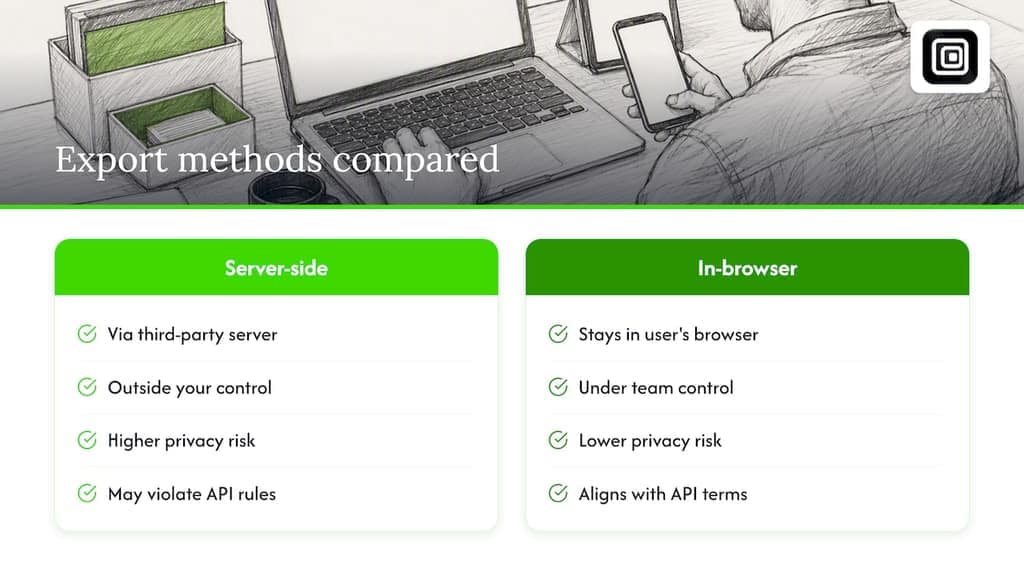
Server-side scraping tools ask you to hand over your session or credentials to someone else's infrastructure, which means your chat data, member lists and media all pass through a system you don't control. An in-browser exporter skips that step entirely: it reads what your signed-in session already displays and writes it to a file, with nothing routed through a third-party server.
That distinction matters for teams that need to document what they collected and why. Telegram's API terms call for privacy safeguards and prohibit acting on a user's behalf without their knowledge, so keeping export activity separate from outreach and logging your authorization scope isn't just good practice, it's what the platform expects from third-party tools. Minimize what you scan, document who approved the export, and treat the export step as distinct from whatever you do with the data afterward.
— Elias Mahdavi
Mastros Telegram extension: built for this exact job
Mastros' Telegram extension runs entirely in your browser, reading what your signed-in Telegram Web session already shows and saving it to a file. Nothing gets uploaded to a Mastros server, no API keys are needed, and there's no second login to manage.
- Exports group members, chat messages, recent contacts and mutual groups.
- Bulk-downloads photos, videos, documents, audio and voice notes from any chat or channel you can open.
- Outputs to CSV, JSON or JSONL, with each item's type and date included so you can narrow a run to exactly the period and media you want.
- Lets you set scan depth yourself, so a small group and a media-heavy channel each get a run sized to fit.
Structured, exportable data is available without setting up a scraping pipeline. Check the Telegram Scraper page for plan details and to start your first export.
Sources
FAQ
What does "telegram auto download" mean for bulk exports?
In this context, it refers to bulk-exporting Telegram Web chats, members and media into CSV, JSON or downloaded files using a browser extension, rather than Telegram's built-in media caching feature. The export runs inside your signed-in session and produces structured files plus a media folder.
Why do some media files get skipped during an export?
Protected content settings and per-file size limits can block a download even when the message is fully visible in the chat, according to Telegram's API documentation. The Takeout API also requires a file size cap before any media downloads, so files above that threshold get excluded automatically.
How do I know if my export is missing data?
Check the result.json or CSV output for warning fields and placeholder media paths, which flag skipped items directly, per Telegram's export schema. Running a count check between expected messages and actual saved files catches most gaps quickly.
Should I export to CSV or JSON?
JSON works best for structured analysis, filtering or deduplication scripts, while CSV suits spreadsheet and CRM imports better. Telegram's own export notes frame JSON as the format for structured processing and HTML as the format for readable review.
Does Mastros require Telegram API keys or a second login?
No. Mastros' Telegram extension runs entirely in your browser using your existing signed-in session, with no API keys, developer credentials or separate login required. Details on export scope and output formats are on the Telegram Scraper page.