



A Telegram data export request is made in Telegram Desktop: open Settings → Advanced → Export Telegram data, tick the chats, contacts and media you want, choose JSON or HTML, and approve the request when Telegram messages your account. The archive lands in a local folder as result.json or messages.html plus the media files; secret chats and deleted messages are never included. JSON suits analysis and scripts, HTML gives a readable archive you can open in any browser. For one chat or a group's member list, the Mastros Telegram extension exports from Telegram Web to CSV, JSON or JSONL. If you manage a community, run research, or just want a personal backup, doing this correctly saves time and prevents data loss.
What data can you export from Telegram?
Telegram Desktop lets you export a wide range of data types. The most common are chat messages, shared media, contact lists, and account information. Group conversations, channels, and direct messages all qualify for export.
Some data types are off the table. Secret Chats are excluded because they use end-to-end encryption stored only on the originating device. Deleted messages are also missing from any export. The export reflects the current state of the conversation, not its full history.

Export formats: JSON vs. HTML
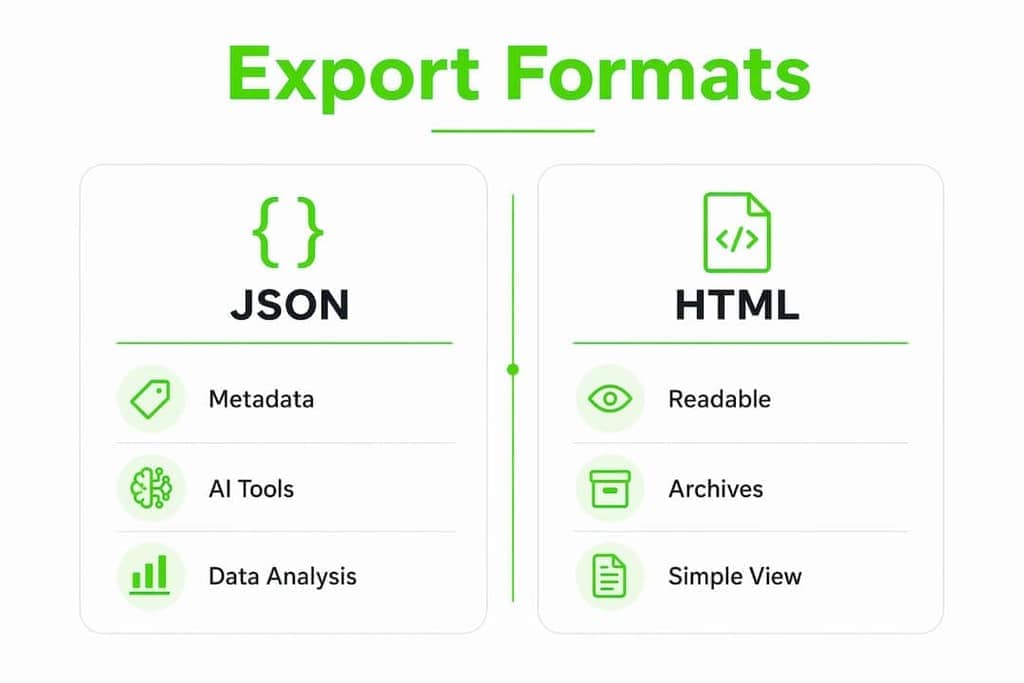
Your choice of format determines what you can do with the exported file.
| Feature | JSON | HTML |
|---|---|---|
| Best use case | Data analysis, AI tools, scripting | Human-readable archive |
| Contains metadata | Yes (timestamps, user IDs) | Limited |
| Technical skill needed | Moderate (requires parsing) | None |
| File size | Smaller (text only) | Larger (formatted markup) |
| Opens in browser | No | Yes |
JSON includes structured metadata such as timestamps and user IDs, making it the right pick for anyone feeding data into a spreadsheet, database, or AI pipeline. HTML is the better choice if you want to browse your archive visually without writing a single line of code.
Pro Tip: If you plan to analyze message frequency, track group activity, or build a contact list from exported data, always choose JSON. You'll thank yourself later when you don't have to parse HTML tags.
Exportable data also includes:
- Text messages and replies
- Photos, videos, voice messages, and files
- Stickers and GIFs (optional)
- Contact information
- Group and channel member lists (with limitations for large groups)
How to perform a Telegram data export using Desktop
Telegram Desktop is the only official path to a full export. The mobile app lets you forward individual messages, but it does not support bulk export. Download the official Telegram Desktop app for Windows, macOS, or Linux before you start.
Follow these steps:
- Open Telegram Desktop and log in to your account.
- Click the three-line menu icon in the top left corner.
- Go to Settings, then select Advanced.
- Click Export Telegram Data.
- Choose which chats to include. You can select all conversations or pick specific ones.
- Select the media types you want: photos, videos, voice messages, files, or text only.
- Set a date range if you only need messages from a specific period.
- Choose your output format: JSON or HTML.
- Pick a destination folder on your computer.
- Click Export and wait for the process to finish.
Export duration depends on how much data you have. A text-only export of a small group finishes in minutes. A large group with years of media can take hours. Text-only exports are faster and smaller than media-inclusive ones, so skip media if you only need message content.
Pro Tip: Run your first export without media to get a fast baseline. Then run a second export with media only if you need those files. Splitting the job keeps file sizes manageable and makes troubleshooting easier.
One thing worth knowing: exported data is private and does not notify other chat participants. You are accessing your own copy of the conversation, which Telegram's privacy policy explicitly supports.
Limitations and troubleshooting common export issues
The mobile app is the most common source of confusion. Many users try to export from their phone and hit a dead end. The mobile Telegram app does not support full chat export. You need the Desktop version, full stop.
Beyond the app limitation, a few other restrictions apply:
- Secret Chats cannot be exported under any method. Their encryption is device-bound by design.
- Deleted messages do not appear in exports. The export captures only what currently exists in the conversation.
- Edited messages appear in their current form only. You cannot recover prior versions.
- Very large groups with thousands of members may produce incomplete member lists through the native export tool.
Large data volumes create their own problems. An export covering several years of a busy group can stall or fail partway through.
If your export fails or produces an incomplete file, wait a few minutes and try again with a narrower date range or fewer media types. Telegram's servers throttle heavy requests, so breaking a large export into smaller chunks by date is the most reliable fix.
Privacy deserves a direct mention here. Your exported file contains real names, user IDs, and message content. Store it securely, use a strong password on your device, and never share the raw export file with untrusted parties. Telegram does not offer a public portal for law enforcement data requests; those go through formal legal channels under applicable treaties. That context matters when you think about what your exported file actually contains.
Advanced options: Telegram API and third-party tools
The native Desktop export covers most personal use cases. When you need programmatic access, bulk extraction, or incremental syncing, the Telegram Takeout API is the next step.
The Takeout API uses invokeWithTakeout to request a data extraction session through Telegram's MTProto protocol. It gives developers fine-grained control over what gets pulled and when. You need solid Python or JavaScript skills to use it effectively, and you must comply with Telegram's API terms of service throughout.
| Method | Best for | Skill level | Media export | Member list export |
|---|---|---|---|---|
| Telegram Desktop | Personal backup, small groups | Beginner | Yes (optional) | Partial |
| Takeout API | Developers, bulk data | Advanced | Yes | Yes |
| Browser-based tools | Community managers, researchers | Beginner to intermediate | Varies | Yes (full) |
Large-scale exports through the API face real technical hurdles. Incremental syncing and checkpointing are the standard techniques for handling these challenges. Checkpointing saves your progress so a failed export resumes from where it stopped rather than starting over. Without it, a 10-hour export that fails at hour nine means starting from scratch.
Full group member list exports are not available through the Telegram Desktop UI for large groups. The native tool shows a partial list. API-based approaches and specialized browser tools are the only reliable way to pull a complete participant list from a group with thousands of members.
Pro Tip: If you manage multiple large Telegram communities and need member data regularly, look at browser-based tools that connect to Telegram Web. They handle the API complexity for you and output clean CSV or JSON files without requiring you to write a single script.
For community managers who want to track Telegram community types and member activity over time, combining a regular Desktop export with an API-based member pull gives you the most complete picture.
Key Takeaways
The most reliable way to export Telegram data is through Telegram Desktop's built-in tool, with JSON format chosen for analysis and HTML for readable archives.
| Point | Details |
|---|---|
| Desktop app is required | Mobile Telegram cannot perform full exports; use the Desktop app on Windows, macOS, or Linux. |
| JSON beats HTML for analysis | JSON includes timestamps and user metadata, making it the right format for data work. |
| Secret Chats are never exportable | End-to-end encryption makes Secret Chat data inaccessible to any export method. |
| Large exports need chunking | Break big exports into date ranges to avoid failures and keep file sizes manageable. |
| API unlocks full member lists | The Takeout API and browser-based tools are the only reliable way to export complete group member data. |
What I've learned from years of managing Telegram exports
Most people treat the Telegram data export as a one-time task. That's a mistake. I've seen community managers lose months of group history because they never set up a regular export schedule. Telegram does not keep deleted messages on your behalf. If a member leaves and deletes their messages, that content is gone from your next export.
My recommendation is simple: run a JSON export of your most active groups at least once a month. JSON gives you structured data you can actually use. HTML looks nice in a browser, but the moment you want to count messages, identify top contributors, or feed data into a spreadsheet, you'll wish you had JSON from the start.
The privacy angle matters more than most guides admit. Your exported file is a detailed record of real conversations with real people. I keep mine encrypted on a local drive, not in cloud storage. The fact that exports don't notify participants is a feature, not a loophole. Use it responsibly.
For anyone managing groups with more than a few hundred members, the native Desktop export will eventually fall short. The member list truncates, and you lose visibility into who is actually in your community. That's when you need a tool that connects directly to Telegram Web and pulls the full participant list. The community management tools that do this well save hours of manual work every week.
Elias
Mastros for deeper Telegram data extraction
If the Desktop export covers your basics but leaves gaps in member data or message history, the Telegram data export extension fills those gaps without requiring you to write code.

Mastros builds a privacy-first Chrome extension for Telegram that runs entirely in your browser. Your data never leaves your device. The extension exports group members, chat messages, recent contacts, mutual groups, and bulk media directly from Telegram Web. All exports come out as CSV, JSON, or JSONL files, ready for analysis or import into your preferred tool. For community managers and researchers who need complete Telegram data beyond what the Desktop app provides, Mastros is the practical next step.
FAQ
What is a Telegram data export request?
A Telegram data export request is the process of using Telegram Desktop's built-in export tool to download your chat history, media, and account data to your local device in JSON or HTML format.
Can you export Telegram data from a mobile phone?
No. The mobile Telegram app only lets you forward individual messages. A full export requires the Telegram Desktop app on Windows, macOS, or Linux.
Are Secret Chats included in a Telegram export?
Secret Chats are never included in any export. Their end-to-end encryption stores data only on the originating device, making them inaccessible to the export tool.
What is the best format for a Telegram chat export CSV or JSON?
JSON is the best format for data analysis because it includes structured metadata like timestamps and user IDs. For a spreadsheet-friendly format, you can convert JSON to CSV after export using standard tools.
How do you export a full Telegram group member list?
The native Desktop export provides only a partial member list for large groups. A complete member list requires the Telegram Takeout API or a browser-based tool like the Mastros Chrome extension, which pulls the full participant list from Telegram Web.