



The safest way to paginate and export Sales Navigator results is to start with official channels: saved lists, CRM sync, or the verified Sales Navigator API. When those aren't available, segmenting your search and using a privacy-first in-browser exporter at a human pace gets the job done without tripping detection systems. Either way, you'll end up merging and deduping subsets before anything touches your CRM.
TL;DR:
- Exporting large amounts of data from Sales Navigator can only be done safely through official channels like saved lists, CRM sync, or verified APIs to minimize account risk.
- The search cap limits you to 2,500 leads per query and 1,000 for account searches, requiring segmentation of large markets into smaller, non-overlapping slices before export.
- Browser extensions can extract data by reading the rendered page, but they carry detection risks unless exports are carefully paced with randomized delays and batch sizes.
- Verified APIs and CRM sync options are best for recurring, high-volume exports, offering better scalability and lower risk compared to manual or browser-based methods.
- Proper data cleanup, normalization, and cautious export pacing are essential to ensure the final CRM-ready data remains accurate and compliant.
Table of Contents
- Comparing your export options at a glance
- Why Sales Navigator caps your search at 2,500 leads
- Getting exports through saved lists, CRM sync, and the official API
- How browser extensions paginate, and the safety trade-offs
- Verified APIs, scraper APIs, and when each makes sense
- A segmentation workflow to beat the 2,500 cap
- Turning raw exports into CRM-ready data
- What a privacy-first, in-browser exporter actually looks like
- When to export yourself versus when to call in your CRM team
- How our LinkedIn exporter fits into this playbook
- FAQ
- Sources
Comparing your export options at a glance
Before you commit to a method, it helps to know what each one actually costs you in setup time, speed, and account risk.
- Native save-to-list: built into Sales Navigator, zero risk, but it doesn't give you a downloadable file on its own.
- CRM sync / API export: requires verified API access, asynchronous and slower to set up, but the lowest ongoing risk for recurring bulk exports.
- Browser extension exporter: a Chrome install away, reads the rendered page, works for one-off or segmented exports without developer resources.
- Third-party scraper API: fast and scalable, but variable reliability and its own compliance questions depending on the provider.
If you only need a few hundred leads once a quarter, a browser extension is probably overkill in complexity and inadequate in risk tolerance for anything bigger. If you're pulling thousands of leads every month for a growth team, it's worth the lift to get CRM sync working properly.
Why Sales Navigator caps your search at 2,500 leads
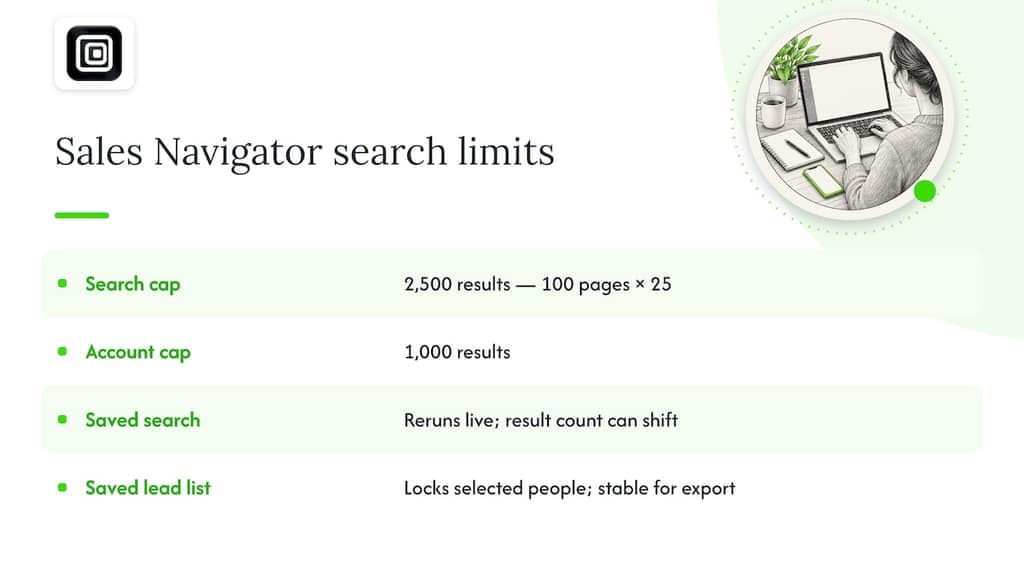
Sales Navigator shows a maximum of 2,500 leads per query, split across 100 pages of 25 results each, and this isn't a bug you can page around. According to Listar's 2026 export guide, account searches cap even lower, at 1,000 results. Hit page 101 and the interface simply stops returning anything new, no matter how good your filters are.
This limit shapes everything downstream. If your target market has 8,000 matching leads, you can't export them in one pass. You have to split the search into smaller, non-overlapping slices, each one staying under the 2,500 ceiling, and export each slice separately.
Saved searches and saved lead lists behave a little differently from a raw, unsaved search result. A saved search re-runs against current data each time you open it, which is useful for ongoing prospecting but means the lead count can shift between sessions. A saved lead list, by contrast, locks in the specific people you've added, which is generally the more stable base for an export you plan to clean and import into a CRM. Either way, the 2,500 cap applies before you ever reach the export step, so segmentation decisions need to happen at the search stage, not after.
Getting exports through saved lists, CRM sync, and the official API
The lowest-risk path runs through features LinkedIn already sanctions. Saving leads to a list is step one: it's free, built in, and the natural staging ground for anything you plan to sync or export later. From there, teams with CRM integrations enabled (think Salesforce or similar sync partners) can pull Sales Navigator data directly without touching the search UI at all.
For teams building their own integration, the Sales Navigator Data Validation export flow runs as an asynchronous job: you create the export job, poll it until the status reads COMPLETED, then retrieve one or more downloadUrls. Large exports get split into multiple files automatically, and the download URLs are short-lived, often valid for roughly an hour, so you need to grab the files promptly or refresh the request.
A quick checklist for admins setting this up:
- Confirm your organization has verified API or CRM sync access before building around it.
- Build polling into your job logic rather than assuming instant completion.
- Download files as soon as the job completes, since URLs expire quickly.
- Store an authorization token refresh step, since calls require valid tokens per LinkedIn's shared authentication docs.
How browser extensions paginate, and the safety trade-offs
Browser extensions take a different approach: instead of calling an API, they read the page you're already looking at. They auto-paginate by triggering the next page the same way your mouse click would, pull the rendered lead or account cards out of the DOM, and assemble the results into a CSV or JSON file as they go.
The appeal is obvious. No API keys, no developer approval process, no waiting on your organization's admin to enable anything. A privacy-first extension that runs entirely in your browser never uploads what it reads to a third-party server, which also sidesteps a chunk of compliance questions that come with handing lead data to an external platform.
The trade-off is detection risk. According to LinkedInsider's 2026 analysis of export ban risk, LinkedIn's detection systems target automation fingerprints and velocity patterns, meaning machine-speed page loads and identical timing intervals between actions, rather than the act of searching itself. A DOM-based exporter that fires through 100 pages in thirty seconds looks nothing like a human scrolling through leads.
A few mitigations cut that risk substantially:
- Space page loads out with randomized delays instead of a fixed interval.
- Export in small batches (a few hundred leads at a time) rather than running one marathon session.
- Spread exports across multiple days instead of compressing a large list into one sitting.
- Avoid running exports back to back on the same account without breaks.
Pro Tip: Run your biggest segmented exports on separate days rather than back to back. It costs you nothing but patience, and it's the single easiest way to look less like a bot.
Verified APIs, scraper APIs, and when each makes sense
A verified API call doesn't leave the scraping footprint that a DOM-based tool does, because you're not rendering pages or simulating clicks at all. Per LinkedInsider, that difference matters for risk tolerance: verified API use tends to surface as recoverable rate-limiting rather than account-level sanctions, since the platform isn't treating the request as a scraping event in the first place.
Export jobs through the API work asynchronously, so bulk requests mean creating a job and polling for status rather than waiting on a live response. That's a fine trade for a scheduled nightly sync, less fine if you need leads in the next five minutes.
Third-party scraper APIs sit in between: often fast and scalable without much setup, but reliability and compliance posture vary a lot by provider, and you're trusting someone else's infrastructure with your search criteria and results.
A short decision checklist:
- Scale: recurring, large exports favor verified API or CRM sync.
- Security: sensitive lead data favors keeping exports in-browser or in-house.
- Developer resources: limited engineering time favors a browser extension over building API integration from scratch.
A segmentation workflow to beat the 2,500 cap
Getting past the per-search limit means splitting one broad search into several narrow ones, each landing comfortably under 2,500 results. The useful axes to split on are geography, company size, seniority level, and boolean keyword refiners, often combined for maximum precision.
- Map your full target audience and estimate its size using Sales Navigator's result count.
- Split the audience into non-overlapping segments using two or three of the axes above (for example, "Software, 51 to 200 employees, United States" as one segment and the same industry and size in Canada as another).
- Verify each segment's count stays under 2,500 before exporting.
- Export each segment separately, using either the native save-to-list flow or your chosen extension.
- Merge the resulting files and dedupe before anything reaches your CRM.
Listar's guide notes that planning the segmentation axes up front saves far more time than exporting one huge list and trying to clean overlaps out afterward. Boolean refiners sharpen each segment further, cutting down on the false positives that make cleanup tedious.
Pro Tip: Write down your segment definitions before you start exporting. It's a lot easier to catch a missing slice of the market on paper than after you've already merged five CSVs.
Scheduling matters too. Running one segment per day, rather than five in an afternoon, keeps your export velocity closer to normal usage and lowers detection risk at the same time.
Turning raw exports into CRM-ready data
Every export, however you got it, needs a pass through cleanup before it's useful. CSV works well for straightforward tabular data headed into a spreadsheet or CRM import tool. JSON is the better pick when you need nested fields (like multiple past positions per lead) preserved without flattening them awkwardly.
Whichever format you choose, keep a few columns non-negotiable:
- LinkedIn profile URL: your most reliable unique identifier across segments.
- Current company name: essential for account-level matching later.
- Lead or account ID: useful if you're syncing against an existing CRM record.
Dedupe against the profile URL first, since names alone produce false matches across people with the same name at different companies. A secondary check on company and title combinations catches near-duplicates that URL matching misses.
Normalization closes the loop: strip legal suffixes like "Inc." or "Ltd." for cleaner company matching, standardize title casing, and remove stray emoji that sometimes creep into display names. Listar notes that export tools increasingly bake these cleanup steps in automatically, which saves a round of manual spreadsheet work before import.
What a privacy-first, in-browser exporter actually looks like
An in-browser exporter that never phones home changes the compliance conversation. Instead of uploading lead data to a vendor's servers for processing, the extension reads what your own signed-in session already displays and writes it straight to a file on your machine. No API keys, no second login, nothing automated behind the scenes.
That matters for two reasons. First, it removes a step where your lead data could sit on someone else's infrastructure, which simplifies the privacy review a lot of teams have to do before adopting a new tool. Second, you keep full control over what gets exported and when, rather than handing that decision to a scraper running on a schedule you don't see.
Our LinkedIn extension works this way: it exports Sales Navigator leads and accounts as structured CSV or JSON files, reading only what's visible in your own browser session, with no server upload and no automated messaging or connection requests involved anywhere in the process.
When to export yourself versus when to call in your CRM team
For a one-off list of a few hundred leads, a segmented search and a privacy-first browser extension is the right call. It's quick, it keeps data local, and the risk of flagging your account stays low as long as you pace the exports and avoid running everything in one sitting.
Once you're pulling thousands of leads a month on a recurring basis, that calculus changes. That's when it's worth the setup cost to negotiate verified API access or work with a CRM sync partner, because the asynchronous job model scales in a way manual exports never will.
Whichever route you take, the habit that pays off every time is data hygiene: dedupe early, normalize consistently, and keep your export velocity slow enough to look like a person, not a script.
— Elias Mahdavi
How our LinkedIn exporter fits into this playbook
We built our LinkedIn Scraper and Sales Navigator Export tool around the same principle this whole playbook leans on: read only what you can already see, and keep that data on your own machine. Everything runs inside the browser, so there's no server upload, no API key setup, and no second login to manage before you can pull a list.
For a one-off research task, a CRM prep job, or a segmented export that stays comfortably under the 2,500-result cap, that's a fast way to get Sales Navigator leads and accounts into a clean CSV or JSON file without touching your organization's API access. If you're scaling into recurring, high-volume exports, pairing this with a verified API or CRM sync partner is still the better long-term setup, and we'd rather tell you that upfront than pretend one tool covers every scale. Check plan details and export limits on our pricing page before you start.
Once your list is clean, the real work starts: our partner's guide on sales follow-up workflows is a useful next stop for turning an exported list into actual outreach.
FAQ
How do I export data from Sales Navigator?
You can save leads to a list and sync through a connected CRM, request an export through the verified Sales Navigator API, or use a browser extension that reads your current search results. The right choice depends on volume: small one-off lists suit an extension, while recurring bulk exports suit API-based export jobs.
Can you export lists from Sales Navigator to Excel?
Yes, once you have a CSV file from either a CRM sync, an API export, or a browser extension, it opens directly in Excel or Google Sheets. Sales Navigator itself doesn't generate an Excel file from the search page, so the export step always happens through one of those three routes first.
Can my company see my LinkedIn Sales Navigator activity?
If your company manages your Sales Navigator seat under a team or enterprise contract, an admin may have visibility into usage and search activity tied to the account. The specifics depend on your organization's license type and admin settings, so check with whoever manages your company's LinkedIn contract for the exact scope.
What are the limitations of Sales Navigator?
The biggest one is the search cap: Sales Navigator returns a maximum of 2,500 leads per search, split across 100 pages of 25, with account searches capped even lower. There's also no native one-click export button on the search results page, which is why saved lists, CRM sync, APIs, and extensions exist as separate workarounds.
Sources
- Sales Navigator Sync Services - Exporting CRM Data Validation - LinkedIn | Microsoft Learn
- Export Sales Navigator to CSV: the complete 2026 guide | Listar
- Sales Navigator Export Ban Risk: The 2026 Reality | LinkedInsider