



LinkedIn does not give most Sales Navigator plans a bulk CSV or XLS export button, and it never has. The sanctioned exits are CRM Sync on Advanced Plus, per-list CSV where your plan includes it, and manual capture for everyone else. If you need speed and control without touching your account's standing, a privacy-first in-browser exporter that runs locally on your own signed-in session is the practical middle path. What you should never do is scrape or automate the platform to force a bigger file.
TL;DR:
- Exporting leads in bulk from Sales Navigator is limited to CRM Sync on Advanced Plus, per-list CSV exports, or manual copying, with no native general CSV or XLS button.
- To avoid risking account restrictions, users should segment large searches into smaller batches, spread work over days, and verify data after merging, rather than trying risky automation or scraping.
- Enrichment tools are necessary to add contact details like emails and phone numbers, as exported data only includes names, titles, companies, and profile URLs.
- In-browser exporters provide a privacy-conscious alternative for small-volume or ad hoc exports, as they run locally without uploading data to third parties.
- Recurring export strategies should be complemented with scheduled enrichment and regular updates, since saved searches and alerts in Sales Navigator update continuously while CSV snapshots become outdated quickly.
Table of Contents
- Which Methods to Export Sales Navigator Search Results Are Actually Sanctioned?
- How Do You Export a Sales Navigator Search to CSV?
- What Does CRM Sync Actually Send, and When Should You Use It?
- How Do You Scale Exports Without Triggering Account Limits?
- How Do You Turn Exported Rows Into CRM-Ready Records?
- Why In-Browser Exporters Fit Privacy-Conscious Sales Teams
- Discovery Compounds, Exports Expire
- Get Sales Navigator Data Out Without an Enterprise Contract
- Where to Verify These Rules Yourself
- Sources
- FAQ
Which Methods to Export Sales Navigator Search Results Are Actually Sanctioned?
Before you build a workflow, pick the route that matches your plan and your patience for setup. LinkedIn's own help center confirms it doesn't offer a general CSV or XLS export of account and lead information from Sales Navigator, so every method below works around that limitation, not against it.
- CRM Sync (Advanced Plus): pushes basic lead and account fields directly into a connected CRM. It's the closest thing to a native pipeline, but it's limited to Advanced Plus and priced on request rather than published as a flat rate.
- Per-list CSV export: where your tier includes it, exporting a saved list gives you names, titles, companies, and profile URLs. This has a hard ceiling of 2,500 leads per list.
- Manual or account-first capture: you page through results and copy profile URLs yourself. Slow, but it works on any plan and carries zero compliance risk.
- In-browser exporters: tools that read what your session already shows and save it locally, without uploading anything to a third-party server.
Reality check: Sales Navigator limits the number of lead results and account results you can access per query, regardless of which export method you use — so segmentation isn't optional at scale, it's the whole game.
Scraping or automating extraction outside these routes violates LinkedIn's User Agreement and puts your account at risk of restriction, which defeats the purpose of building a pipeline in the first place.
How Do You Export a Sales Navigator Search to CSV?
Getting a clean spreadsheet out of Sales Navigator is less about finding a hidden export button and more about setting the search up correctly before you ever click anything.
- Build the search with tight filters. Stack seniority, function, company headcount, geography, and posted-activity recency so the result set is genuinely qualified, not just large.
- Save it as a lead list. This is what unlocks the export control on plans that have one, and it keeps the search reusable for future refreshes.
- Export the list if your tier allows it. You'll get names, titles, companies, and LinkedIn profile URLs. Emails and phone numbers are never part of this file.
- No export option on your plan? Re-run the search and manually copy profile URLs into a spreadsheet. Tedious, but reliable at low volume.
- Import the CSV correctly. Open Excel's File menu, choose Import, and explicitly set UTF-8 encoding with the correct delimiter (semicolon or comma) rather than double-clicking the file. Skipping this step is the single most common reason names show up in the wrong column.
- Split anything over 2,500 leads into sub-searches, export each piece, then dedupe and merge before you move to enrichment.
Pro Tip: Name each export file with the search date and the Sales Navigator list name before you touch it again. Six months from now, "leads_export.csv" tells you nothing, but "2026-03_vp-sales_east-region.csv" tells you everything.
What Does CRM Sync Actually Send, and When Should You Use It?
CRM Sync is the enterprise answer, and it's worth understanding exactly what it does before you pay for Advanced Plus to get it.
- Supported CRMs: Salesforce, Microsoft Dynamics, and HubSpot are the officially supported sync partners.
- What syncs: names, job titles, company names, and LinkedIn profile URLs. What doesn't sync: emails and phone numbers, ever.
- Access model: Advanced Plus pricing is quoted per organization, and onboarding typically involves your CRM admin mapping fields before the sync goes live.
- The account-first alternative: upload target accounts first, let the platform surface match confidence against your CRM records, then enrich the matched contacts for outreach. This works well even without Advanced Plus.
Choose CRM Sync when you have an ongoing team with real CRM discipline and a genuine need for records that update as prospects change roles. Choose account-first, manual capture, or an in-browser exporter when you're doing ad hoc research, running a one-time campaign, or simply don't have Advanced Plus in the budget.
How Do You Scale Exports Without Triggering Account Limits?
Volume is where most exports go wrong. Trying to pull one enormous list is exactly what pushes you against LinkedIn's caps and tempts people toward risky automation.
- Segment by geography, seniority, vertical, and recent activity to slice a large market into sub-searches that each land safely under 2,500 leads.
- Page through results in batches and spread the work across a few days rather than running everything in one session.
- Distribute the workload across team members so no single account is generating an unusual volume of activity in a short window.
- Track an owner column, export date, and source list name on every row so you can trace where a record came from later.
- Dedupe after merging sub-search exports, since overlapping filters almost always produce repeat profiles.
Pro Tip: If you're not sure whether a segment is small enough, check the results count before you export using a practical sales onboarding checklist to ensure every step supports your pipeline process. Anything comfortably under 2,000 gives you a safety margin if the search picks up a few new matches before you finish.
Manual capture is the right call when volume is low, the data is privacy-sensitive, or your team simply doesn't have Advanced Plus access yet.
How Do You Turn Exported Rows Into CRM-Ready Records?
A Sales Navigator export gives you names, titles, companies, and profile URLs. It never gives you emails or phone numbers, so enrichment is not optional if the goal is outreach.
- Upload the LinkedIn profile URLs from your export into an enrichment tool rather than attempting to scrape contact details from LinkedIn itself, which breaks the terms you agreed to.
- Run a waterfall enrichment sequence. A workflow like the one Cleanlist documents passes each URL through multiple providers in order, so a miss on the first provider gets picked up by the next.
- Verify every email before it enters your sequence. Syntax checks, DNS lookups, and SMTP verification catch the addresses that look valid but bounce.
- Clean the CSV before import. Confirm UTF-8 encoding, a consistent delimiter, and matching headers across every batch, then run a small sample import to catch mapping errors before you commit the full file.
- Check your enrichment vendor's data provenance. Ask where the contact data originates and whether their sourcing complies with the privacy rules that apply to your business.
Coverage rates vary by industry and provider, so treat any vendor's stated match rate as a starting estimate, not a guarantee, until you've tested it against your own list.
Why In-Browser Exporters Fit Privacy-Conscious Sales Teams
An in-browser exporter reads exactly what your signed-in Sales Navigator session already displays and saves it to a file on your machine. Nothing gets routed through a vendor's server, and there's no API key or second login to manage.
- No upload, no automation. The tool reads visible data and stops. It doesn't send connection requests, message anyone, or run in the background without you.
- You keep full control of the file. Export runs locally, so the CSV or JSON never leaves your device unless you move it yourself.
- It fits the gap CRM Sync leaves open. Teams without Advanced Plus, or those doing one-off research projects, get a usable export without an enterprise contract.
- It's a reasonable fit alongside manual capture, not a replacement for the judgment calls segmentation still requires. Mastros's LinkedIn exporter is built on exactly this model.
Discovery Compounds, Exports Expire
Saved searches and alerts inside Sales Navigator keep working for you every day, surfacing new matches as people change roles or companies. An exported CSV is a snapshot the moment you take it, and it starts going stale immediately.
If your team runs recurring outreach, the better investment is CRM Sync or a repeatable export and enrichment pipeline you rerun on a schedule, not a one-time dump you'll forget to refresh. For ad hoc research, a privacy-sensitive project, or a team that hasn't bought into Advanced Plus, a local export still beats doing nothing, or worse, reaching for a scraper that puts an account at risk.
— Elias Mahdavi
Get Sales Navigator Data Out Without an Enterprise Contract
CRM Sync solves this well if you've already committed to Advanced Plus, and manual capture works if your volume is small enough to tolerate copying URLs by hand. Mastros solves the gap between those two: its LinkedIn exporter pulls Sales Navigator leads and accounts straight into CSV, JSON, or JSONL, running entirely inside your browser with nothing uploaded to a server and no API key required.
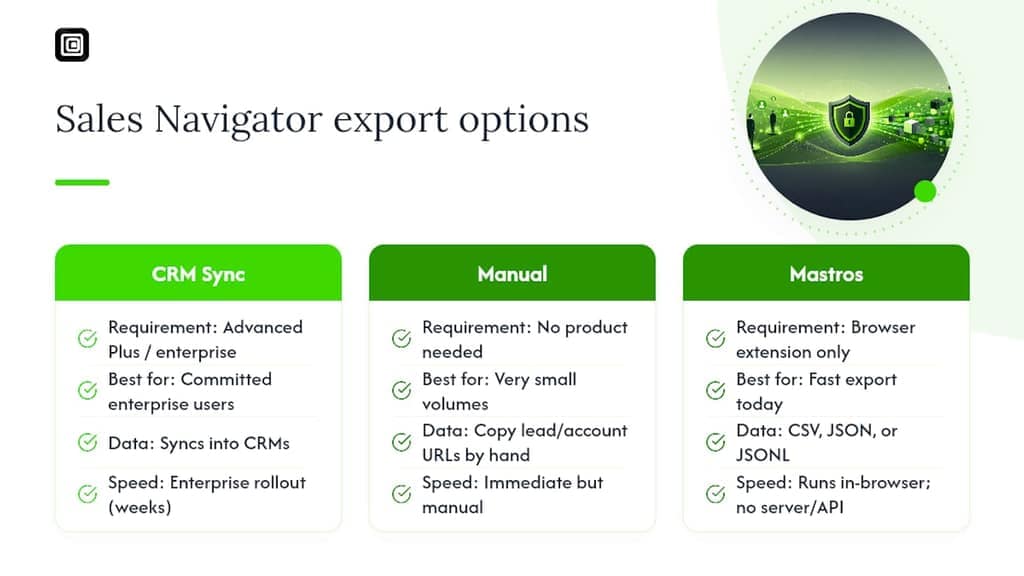
That matters most for teams that need a fast export today, not a six-week enterprise rollout, or for anyone who simply wants their exported data to stay on their own machine. Start with the Free plan to test an export on your own search, and move up to paid plans once you know how much volume your pipeline actually needs.
Where to Verify These Rules Yourself
- LinkedIn's own export guidance confirms what CRM Sync does and doesn't cover.
- ExcelDemy's CSV import walkthrough fixes the encoding errors that ruin most spreadsheet imports.
Sources
- Export account and lead information from Sales Navigator — LinkedIn Help
- Export Sales Navigator Data Legally | Cleanlist
- Sales Navigator lead generation — RevenueFlow
- Export Sales Navigator to CSV: the complete 2026 guide | Listar
FAQ
Can I export a Sales Navigator list to Excel?
Yes, if your plan includes per-list CSV export, you can open that file directly in Excel using File → Import with UTF-8 encoding. If your plan doesn't include export, you'll need to capture profile URLs manually or use a browser-based tool like Mastros's LinkedIn exporter.
How can I extract data from Sales Navigator?
The sanctioned options are CRM Sync on Advanced Plus, per-list CSV where available, and manual capture of profile URLs from search results. LinkedIn's help center is explicit that it does not offer a general bulk export outside these paths, so scraping tools that bypass them carry account risk.
Can you export your contact list?
Sales Navigator exports typically cover leads and accounts you've searched or saved, not your full personal connections list, and native exports never include emails or phone numbers. Getting verified contact details requires a separate enrichment step after export.
How do I export all my LinkedIn data?
LinkedIn's personal data download (available from your account settings, separate from Sales Navigator) covers your own profile activity, but it doesn't replace a Sales Navigator search export for prospecting. For lead and account data from searches, use CRM Sync, per-list CSV, or an in-browser exporter instead.
What's included in a Sales Navigator export, and what's missing?
A standard export includes first and last name, job title, company name, and LinkedIn profile URL. It never includes email addresses or phone numbers, which is why most workflows pair the export with a waterfall enrichment step before contacts go into an outreach sequence.