



If your team has Sales Navigator Advanced or Advanced Plus seats, enable the native CRM sync inside Salesforce Settings. It automates write-back and keeps every profile current without manual re-entry. If you don't have those seats, Lead Gen Forms works for paid campaigns, manual entry covers very low volume, and a browser-based export tool handles bulk lead pulls without a per-seat fee. Check your Salesforce edition and admin permissions before touching any of these. For the browser-based route, Mastros offers a read-only Sales Navigator export to Excel or CSV.
TL;DR:
- Native CRM sync with activity write-back requires Advanced Plus seats and proper API permissions in Salesforce, limiting its use to larger, high-volume teams.
- Lead Gen Forms offers near real-time lead mapping for paid campaigns without additional per-seat costs, making it suitable for quick, low-volume setups.
- Manual entry is inexpensive but not scalable, while export tools provide a cost-effective bulk solution for small teams or testing purposes without full automation.
- Proper field mapping should prioritize LinkedIn Profile URL for deduplication and IP address any sync issues by re-authenticating connections and verifying user licenses.
- Limit exports to user-visible data, document retention rules, and restrict export access to roles to ensure compliance and security when handling LinkedIn data.
Table of Contents
- How Do LinkedIn to Salesforce Integration Methods Compare?
- What Do You Need Before Connecting Sales Navigator to Salesforce?
- How Do You Set Up Native Sales Navigator CRM Sync?
- Which Fields Should You Map, and How Do You Avoid Duplicates?
- Why Did Your LinkedIn to Salesforce Sync Stop Working?
- What Security Rules Apply When Syncing LinkedIn Data?
- Which Setup Fits Your Team's Sales Motion?
- A Browser-Based Alternative for Bulk LinkedIn Exports
- Sources
- FAQ
How Do LinkedIn to Salesforce Integration Methods Compare?
Five methods cover almost every use case, and picking the wrong one wastes weeks of setup time. Here's how they stack up:
- Native Sales Navigator sync: Full automation with activity write-back, but it's gated behind Advanced Plus seats and priced per user monthly.
- Lead Gen Forms connector: Maps ad-generated leads directly into Salesforce with almost no lag, making it the fastest option for paid campaign teams.
- Manual entry: Zero setup cost, but every lead takes minutes of copy-paste work, which doesn't scale past a handful of prospects a week.
- Export and browser-extension tools: Fast and scalable for bulk work, though you should evaluate each platform's terms before relying on one at high volume.
- Automation agents: Simulate user clicks to bypass license gates entirely, but that approach carries its own account-risk trade-offs, according to one industry overview.
Match the method to your volume and budget. High-volume SDR teams justify Advanced Plus seats. Recruiters and small sales teams often get more value from exports or one-way enrichment.
What Do You Need Before Connecting Sales Navigator to Salesforce?
Skipping prerequisites is the number one reason setups stall halfway through. Work through this list first:
- Confirm your Sales Navigator seat tier. Native CRM sync requires Advanced Plus, assigned per user, not per team.
- Verify your Salesforce edition supports the required APIs, and that My Domain and Lightning Experience are both active, since the Sales Navigator app won't install cleanly without them.
- Prepare admin credentials in both systems, along with the permission sets you'll assign to pilot users.
- Decide sandbox versus production. Install in a sandbox org first, and confirm your browser meets Salesforce's supported-version list before you begin.
Missing any one of these four checks is the most common blocker admins run into, and it's almost always caught only after the install fails.
How Do You Set Up Native Sales Navigator CRM Sync?
Once prerequisites are confirmed, the actual build takes under an hour for most orgs. Follow these steps in order:
- Install the Sales Navigator app from AppExchange, starting in your sandbox. Choose which user profiles get access during install, not after.
- Connect to LinkedIn through Sales Navigator Settings in Salesforce. You'll authorize the connection at the org level, which requires an admin login with the right permissions.
- Enable CRM Sync and activity write-back. This is where you choose which objects sync, typically Leads, Contacts, and Accounts, and whether InMail activity logs back to CRM records automatically.
- Create or assign permission sets that match the user profiles you selected in step one, then run the whole flow with a single pilot user before rolling out further.
- Run a sample import and validate the results. Open a test lead record and confirm the Sales Navigator panel appears, that profile data populated correctly, and that write-back entries show up in the activity timeline.
That pilot-user step matters more than it looks. Practical setup guides consistently recommend validating with one test user before wider rollout, because catching a permission-set error after 50 reps are live is far more painful than catching it with one.
Confirming edition and seat eligibility up front is what separates a smooth native integration from a support ticket three days later.
Which Fields Should You Map, and How Do You Avoid Duplicates?
Clean field mapping is the difference between a CRM that helps reps and one that buries them in duplicate junk; to maintain data hygiene effectively, follow advice on how to avoid duplicate customers in QuickBooks and HubSpot. Map these core fields first:
- FirstName, LastName, Title, Company, Email, Phone: the standard fields every lead record needs, prioritized in that order when data conflicts.
- LinkedIn Profile URL: the single highest-priority dedupe field, since names and job titles change but the profile URL doesn't.
- Lead Source Detail: a custom field that lets you separate "LinkedIn organic" from "LinkedIn paid" in reporting.
- Last Sales Navigator Activity: a custom timestamp field that shows reps when a lead last engaged, which field mapping guides list as a high-value addition.
- Connection Degree: useful for recruiters and AEs deciding whether a warm intro path exists before cold outreach.
Set Lead Source to "LinkedIn" consistently across every record, so pipeline reporting doesn't fragment across a dozen near-duplicate tags.
Pro Tip: Start with one-way sync from LinkedIn into Salesforce before you ever enable two-way. One-way enrichment can't accidentally overwrite a rep's notes or a custom field your team relies on, and you can always upgrade to two-way once you trust the mapping rules.
Why Did Your LinkedIn to Salesforce Sync Stop Working?
Most sync failures trace back to one of four causes, and each has a fast fix:
- 401 or 403 errors: Re-authenticate the connection and check that OAuth scopes and API permissions weren't revoked during a security review.
- Write-back stopped for one user: Confirm that user's Sales Navigator seat is still active. A lapsed or reassigned license silently breaks their sync without any visible error.
- Missing panel or fields on the Salesforce record page: Check page layouts and permission sets. This usually means the object wasn't added to that profile's layout during setup.
- Unexpected duplicates appearing: Re-run your mapping test and verify the dedupe rule is actually checking LinkedIn Profile URL, not just email.
If none of that resolves it, contact support with your org ID, a screenshot of the error, and the exact timestamp it started. That's the fastest path to a real answer instead of a generic troubleshooting script.
What Security Rules Apply When Syncing LinkedIn Data?
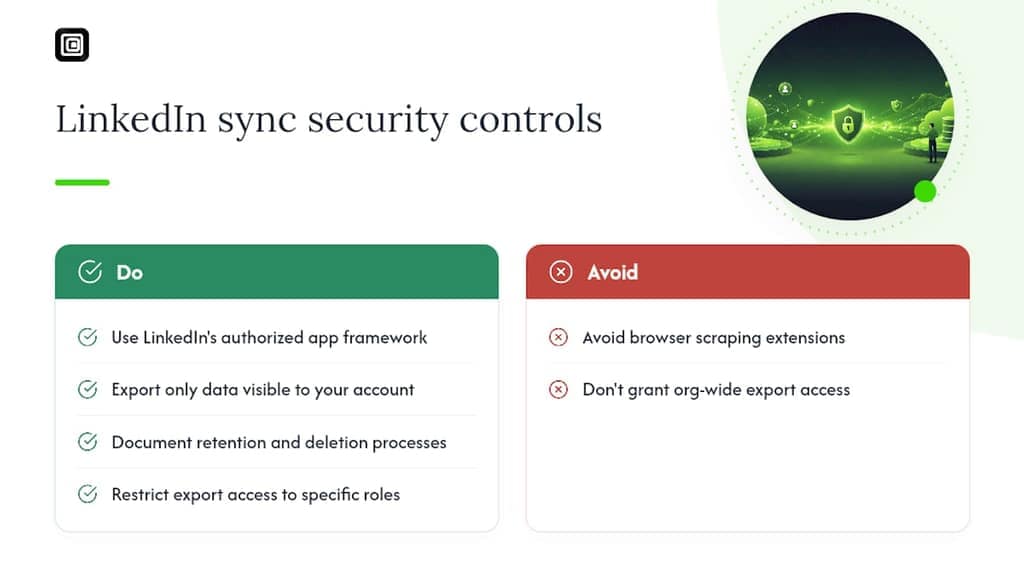
Native sync is the sanctioned path; it works through LinkedIn's own authorized app framework. Many browser extensions instead rely on scraping the page itself, which can conflict with LinkedIn's platform terms. Whatever method you choose, limit exports to data visible to your own account, document a retention and deletion process, and restrict export access to specific roles rather than granting it org-wide.
Which Setup Fits Your Team's Sales Motion?
SDR-heavy teams working high daily volume should invest in native sync once seat costs pencil out against rep hours saved. Small teams or solo AEs often get more value from manual entry or a managed export than from paying for Advanced Plus seats they'll barely use. Recruiters have a different path entirely. CRM Connect and Talent-side integrations handle candidate flows with more nuance than a standard sales sync, and LinkedIn's own CRM Connect documentation covers that setup in detail.
— Elias Mahdavi
A Browser-Based Alternative for Bulk LinkedIn Exports
Buying Advanced Plus seats for an entire sales team just to sync leads is expensive overkill if your real need is a one-time migration or a sandbox full of test data. Mastros exports the Sales Navigator leads and accounts already visible in your browser session directly to CSV or JSON, with all processing done locally in your browser. That makes it a practical fit for bulk exports, one-off CRM migrations, or seeding a sandbox before you commit to native sync pricing. It never automates messages or invites, and there's no second login involved. If your team needs CRM-ready lead files without the per-seat cost of Advanced Plus, try the LinkedIn and Sales Navigator exporter and see whether a free-tier export covers your next batch.
Sources
FAQ
How Do I Add Sales Navigator to Salesforce?
Install the Sales Navigator app from AppExchange, connect it through Sales Navigator Settings in Salesforce, then enable CRM Sync and assign permission sets to your pilot users before rolling out further.
Which CRM Has the Best Integration With LinkedIn?
Salesforce has the deepest native integration with LinkedIn Sales Navigator, including CRM sync and activity write-back built directly into the platform, though it requires Advanced Plus seats to unlock fully.
What's the Cheapest Way to Get LinkedIn Leads Into Salesforce Without Advanced Plus Seats?
Manual entry costs nothing but doesn't scale, while a browser-based export tool like Mastros pulls visible Sales Navigator leads into CRM-ready CSV or JSON files without a per-seat sync fee.
How Do I Avoid Duplicate Leads When Syncing LinkedIn to Salesforce?
Set your dedupe rule to prioritize LinkedIn Profile URL over name or email matching, since profile URLs stay stable while job titles and contact details change.
Who Is Salesforce's Biggest Competitor?
In CRM broadly, competitors are typically named in industry comparisons rather than this article's scope, but Salesforce's own LinkedIn integration remains one of the deepest native CRM connections available for sales teams.