



For most professionals who want CSV or Excel files without uploading anything to a third-party server, a privacy-first browser exporter that saves visible posts locally is the fastest reliable option. Developers who need scheduled, repeatable pulls should use the LinkedIn Posts API. Teams that need scale and don't mind vendor handling of session data can turn to hosted third-party APIs. Mastros builds the local-export option for the first group, and that's the default path this guide recommends.
TL;DR:
- Local browser exporters provide a fast, privacy-conscious way to save visible LinkedIn posts directly to CSV or JSON without API keys or third-party servers, ideal for one-time or ad-hoc research.
- The LinkedIn Posts API offers structured, reproducible data collection for developers needing scheduled or large-scale pulls but requires approval, permissions, and handles pagination limits.
- LinkedIn's built-in data download is best suited for personal archives and does not reliably support search result exports or content outside your own account activity.
- Hosted scraping APIs enable scalable, scheduled searches across multiple profiles but require trusting third-party vendors with session credentials and entail quota or data retention limits.
- For regular, small-volume exports, local browser tools like Mastros's extension are recommended, while API or hosted solutions suit frequent or high-volume data collection needs.
Table of Contents
- Which Method Should You Use to Export LinkedIn Post Search Results?
- How Do I Download My Own LinkedIn Post History?
- What Can the LinkedIn Posts API Actually Retrieve?
- Why Are Local Browser Exporters the Fastest Option for Most People?
- When Do Third-Party Scraping APIs Make Sense?
- How Do You Export a LinkedIn Profile's Posts or a Search Result to CSV?
- What Fields Should You Expect in an Export, and Which File Format Fits Best?
- Why Don't My Exports Always Match What I See on LinkedIn?
- How Mastros Handles LinkedIn Exports Without Uploading Your Data
- Local Exports or API Integrations: How to Decide
- Try Mastros for Your Next LinkedIn Export
- Sources
- FAQ
Which Method Should You Use to Export LinkedIn Post Search Results?
Every export method trades something for something else. Some trade convenience for privacy, others trade completeness for speed. Here's the quick shortlist before you commit to one:
- Official LinkedIn data download — Free, thorough for your own account history, but it's built for personal archives, not for search results or someone else's profile. Expect CSV/JSON files delivered by email, not live search data.
- LinkedIn Posts API — Best for developers who need scheduled, repeatable pulls tied to a specific author URN. Requires app registration,
r_member_socialorr_organization_socialpermissions, and patience with pagination limits. - Local browser exporters — Read what your signed-in session already displays and save it straight to CSV or JSON on your machine. No API keys, no second login, no server upload. This is where extensions like Mastros's LinkedIn tool operate.
- Third-party scraping APIs — Hosted services that accept a search URL or keyword filters and return structured post arrays at scale. Convenient for large jobs, but you're trusting a vendor with credentials or session tokens.
Non-developers doing ad-hoc research or lead lists usually get the best results from a local exporter. Anyone building a recurring data pipeline should look at the API route instead.
How Do I Download My Own LinkedIn Post History?
LinkedIn's built-in export lives under Settings & Privacy → Data privacy → Get a copy of your data. It's the right tool when you own the account and want a compliance-grade record of your own activity, not when you're trying to pull someone else's posts or a keyword search.
Here's the exact path:
- Go to Settings & Privacy from your profile menu.
- Select Data privacy, then click Get a copy of your data.
- Choose "Download larger data archive, including connections, contacts…" or select specific categories if you only want post-related files.
- Confirm your request. LinkedIn emails you when the archive is ready, typically within a day but sometimes longer during high demand.
- Download the ZIP file and open the CSV files inside, which separate posts, shares, comments, and reactions into distinct sheets.
This process is designed as an account data archive rather than a search-result export, and that distinction matters more than most guides admit.
Pro Tip: If you only need your own posts, skip the full archive and select just the "Posts" and "Shares" categories in the request form. It cuts processing time and avoids sorting through connection lists you don't need.
The files you get back rarely include full engagement breakdowns like commenter names, and they won't capture anyone else's content, no matter how public their posts are. Treat this method as a personal backup tool, not a research instrument.
What Can the LinkedIn Posts API Actually Retrieve?
The Posts API lets you pull posts by author URN or through finder parameters, but it comes with real permission and volume constraints that catch new developers off guard. You need r_member_social for member-level posts, or r_organization_social if you're working with company pages, and LinkedIn has to approve your app for that scope before anything returns data.
Here's what the API practically gives you:
- Post text, author URN, creation timestamp, and a direct post URL
- Engagement counts (likes, comments, shares) at the moment of the request
- Media references when a post includes an image, video, or document
- A
viewContextparameter that changes what fields are visible depending on whether you're the author or a third party
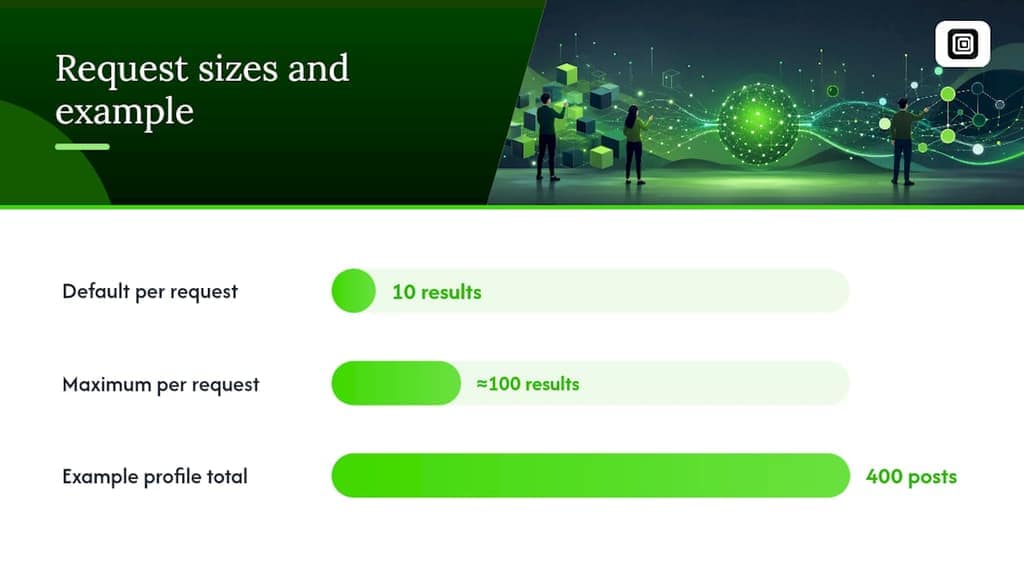
Pagination runs on start and count parameters, and most implementations cap you at a default of 10 results per request with a maximum around 100. That means a profile with 400 posts requires multiple sequential calls, incrementing start each time until the response comes back empty.
The developer workflow generally looks like this: resolve the target's URN first, paginate through results while storing each postId, deduplicate on that ID rather than on text content (post text can repeat across reposts), and log the collection timestamp alongside each batch. Engagement counts are a snapshot the moment you call the API, not a live number, so mixing an old pull with a fresh one in the same spreadsheet will produce inconsistent totals.
Pro Tip: Store the raw API response alongside your parsed CSV. When LinkedIn changes a field name or deprecates an endpoint, and it happens more often than developers expect, you'll want the original JSON to reprocess without rerunning the whole extraction.
APIs are the right call when you need reproducibility and a permission structure you control, but special access or organization-level permissions often gate the fuller field set, which is why plenty of solo researchers skip this route entirely.
Why Are Local Browser Exporters the Fastest Option for Most People?
A local browser exporter reads the DOM your signed-in session is already rendering, which is to say it captures exactly what you see on screen and writes it to a file. There's no API call, no app registration, and no data leaving your machine to reach a Mastros server or anyone else's.
This matters for two practical reasons. First, you skip the entire LinkedIn developer approval process, which can take days or get rejected outright for scopes like r_member_social. Second, nothing you export ever touches a third party's infrastructure, so there's no vendor-side retention question to worry about.
The technique behind most reliable local exporters is two-pass extraction: a first pass scrolls the page to force LinkedIn's client-side cache to load every visible post, and a second pass reads the now-populated DOM and pulls structured fields out of it. Open-source tools like LinkPull demonstrate this pattern well, and it consistently catches posts that a single-pass scraper misses because LinkedIn lazy-loads content as you scroll.
A few things make these runs more reliable:
- Scroll slowly and let each batch of posts fully render before the extractor grabs the page. Rushing this step is the single biggest cause of missing rows.
- Run the extraction twice on the same page and compare row counts. A mismatch usually means the first pass caught the page mid-load.
- Choose your fields deliberately: post text, author name, post URL, timestamp, and engagement counts cover most use cases without bloating the file.
- If you need images or documents attached to posts, confirm the extractor handles media links separately, since bundling media URLs into the same cell as post text makes the CSV harder to parse later.
Local exporters are the fastest, lowest-friction choice when you're doing ad-hoc research, building a one-time lead list, or backing up a profile's content before an account gets deactivated. Browser-based tools skip the credential overhead entirely, which is exactly why privacy-conscious teams default to them over API integrations for routine work.
Pro Tip: If a profile has hundreds of posts, export in smaller date-bounded batches rather than one giant scroll session. It's easier to verify a 50-post batch for gaps than to audit 600 rows after the fact.
When Do Third-Party Scraping APIs Make Sense?
Hosted scraping services accept a LinkedIn content-search URL or a set of keyword filters and hand back structured arrays: post ID, text, author, engagement counts, and canonical URLs, already normalized for you. Vendors like HarvestAPI expose either offset-based paging or continuation tokens so you can iterate through large result sets without manually managing scroll state.
The appeal is scale and scheduling. You can point a hosted API at a saved search, run it weekly, and get a clean, deduplicated feed without touching a browser. Some tools, like Edges' search-content action, even walk pagination automatically and return normalized rows ready for a database.
The trade-off is control. Here's what you're accepting when you choose this route:
- The vendor handles your LinkedIn credentials or session tokens, which means you're trusting their security practices, not just your own.
- Credits or quota limits cap how many posts you can pull per billing cycle, and overages get expensive fast.
- Data retention policies vary by vendor, so your search results may sit on someone else's server longer than you'd like.
Choose a hosted API when you need recurring, large-volume monitoring across many profiles or search queries. Stick with a local exporter when the job is smaller, occasional, or sensitive enough that you'd rather nothing leaves your browser.
How Do You Export a LinkedIn Profile's Posts or a Search Result to CSV?
Two workflows cover almost every real request: pulling one profile's post history, and exporting the results of a content search.
Exporting a profile's posts:
- Open the profile and click into the Activity → Posts tab so you're looking at the actual post feed, not the summary view.
- Scroll to the bottom of the loaded posts several times, pausing to let each batch render before continuing.
- Run your local exporter or extension and select the fields you need: text, timestamp, URL, engagement counts.
- Choose CSV for spreadsheet work or JSON if you're feeding the data into another script.
- Open the file and check the row count against what you counted while scrolling manually.
Exporting a content search result:
- Run your LinkedIn keyword search with content filters applied, then copy the resulting URL, since it encodes your filters.
- Confirm the filters (date range, content type, author) are exactly what you want before extracting.
- Page through results, either manually with your exporter or through a hosted tool's pagination parameters.
- Export each page and merge the files, deduplicating on
postId. - Store the search URL and a collection timestamp with the final file.
Pro Tip: Always test on a narrow window first, one page of results or one week of posts, before running a full extraction. It's much faster to catch a field-mapping error on 20 rows than on 2,000.
Use postId or the backend URN as your primary key throughout. Post text alone isn't a reliable identifier, since reposts and quoted shares often duplicate the same wording.
What Fields Should You Expect in an Export, and Which File Format Fits Best?
Most exports, regardless of method, converge on a similar column set: post text, author name and profile URL, post URL, publish timestamp, and engagement counts (likes, comments, shares). Media attachments usually show up as a separate URL column rather than embedded content.
Pick your file format based on what happens next:
- CSV works for quick spreadsheet review in Excel or Google Sheets and is the most portable choice for non-technical teammates.
- JSON preserves nested structures like multiple media attachments per post, which flattens awkwardly in CSV.
- JSONL (JSON Lines) is worth using when you're processing large exports line by line in a script, since you can stream it without loading the whole file into memory.
- XLSX helps when you need multiple sheets, formulas, or conditional formatting layered directly onto the export.
Before importing into a CRM, normalize timestamps to a single time zone, keep postId as your primary key column, and preserve the original post URL. That URL is your fallback whenever a field looks wrong and you need to check the source post directly.
Why Don't My Exports Always Match What I See on LinkedIn?
Every export is a snapshot, not a live mirror. Infinite scroll means posts you haven't scrolled to yet simply don't exist in the page's DOM, privacy settings can hide older content from your view entirely, and deleted posts vanish without warning between one run and the next.
Engagement counts and post visibility change over time, so comparing an export from March against one from June will show discrepancies that have nothing to do with a broken tool. Mitigate this with two-pass extraction, a stored collection timestamp on every file, deduplication by postId, and small test windows before you commit to a full run. On the legal side, LinkedIn's own terms govern what scraping activity is permitted on the platform. This article isn't legal advice, so review LinkedIn's current terms of service directly before building any automated or large-scale collection process.
How Mastros Handles LinkedIn Exports Without Uploading Your Data
Mastros's LinkedIn extension exports profile, company, jobs, and post search results, along with Sales Navigator leads and accounts, as structured files built for research, recruiting, and CRM import. Every export runs inside your browser against your own signed-in session, and the extension never guesses at email addresses.
You can verify this yourself rather than taking it on faith:
- Open your browser's developer tools and watch the network tab while running an export. You won't see outbound calls to a Mastros server carrying your LinkedIn data.
- Check the exported file's timestamp and location. It lands directly on your device, not behind a download link fetched from a remote host.
- Confirm the extension never prompts for a second login or API key, since it reads only what your existing session already renders.
For a deeper walkthrough of field options and export schemas, Mastros's guide to exporting LinkedIn posts data covers the practical steps in more depth, and the broader LinkedIn export guide for searches and Sales Navigator is worth bookmarking if you're running exports regularly.
Local Exports or API Integrations: How to Decide
I recommend local exporters by default: they're faster to start, need no credentials, and keep sensitive search data off third-party servers. API or hosted integrations earn their complexity only when you need automation, scheduled monitoring, or a pipeline feeding a CRM continuously.
Before choosing, weigh three things: expected volume (dozens vs. thousands of posts), how often you'll repeat the job, and whether your organization has compliance requirements around where data gets processed. If the answer to all three is small and occasional, a browser exporter wins every time.
— Elias Mahdavi
Try Mastros for Your Next LinkedIn Export
Mastros gives you a way to export LinkedIn post search results, profile activity, and Sales Navigator leads without handing your session to a third-party server or registering a developer app. Everything runs locally in your browser, reading only what your signed-in account already displays, and the file lands on your machine the moment the run finishes. That's a meaningfully different proposition from a hosted API that stores your credentials, or an official archive request that takes a day and gives you no control over search filters. If you're running research, recruiting, or lead-gen work on LinkedIn regularly, start with the LinkedIn Scraper and Sales Navigator Export tool and see what a single search or profile export produces before deciding whether the Pro plan at $9 per month fits your volume.
Sources
- Download your data | LinkedIn Help
- Posts API documentation — Microsoft Learn (LinkedIn docs)
- HarvestAPI LinkedIn post search docs
- linkpull — Export LinkedIn posts (GitHub)
FAQ
How Do I Export LinkedIn Search Results?
Run a content search with your filters applied, then use a local browser exporter to scroll and capture the visible results, or pass the search URL to a hosted API that supports pagination. For occasional research, a browser-based tool avoids the developer approval process the LinkedIn Posts API requires.
Is LinkedIn Scraping Allowed?
LinkedIn's terms of service govern what automated collection is permitted, and specifics depend on how the data is collected and used. Review LinkedIn's current terms directly before running large-scale or automated extraction, since this varies by use case and isn't a simple yes-or-no answer.
Is There a Way to Export Posts From LinkedIn?
Yes, through several methods: the official data download for your own account history, the Posts API for developers with proper permissions, or a local browser exporter like Mastros's LinkedIn export tool that reads visible posts and saves them to CSV or JSON.
What Is the 3/2/1 Rule on LinkedIn?
The 3/2/1 rule is a content-planning heuristic, not an official LinkedIn policy, suggesting three educational posts, two relationship-building posts, and one promotional post within a given cycle. It's a useful benchmark when reviewing an exported post history for content balance, but treat it as a guideline rather than a platform rule.
Recommended
- LinkedIn Export Guides: Searches & Sales Navigator
- How to Export LinkedIn Posts Data: Methods, Schemas, and Safe Steps
- Local Exports: Four Ways to Move LinkedIn Data into Google Sheets