



Sales Navigator does not let most plans export a contact list to CSV, and native CRM sync is reserved for higher subscription tiers with limited fields. To build a usable lead list, teams combine saved lists with CRM sync, in-browser exporters, browser automation, headless scripts, or outside enrichment data, each with its own tradeoff between speed, cost, and account risk.
TL;DR:
- Native export options are limited to manual copying and in-platform viewing, with no bulk CSV download available for most plans.
- Higher-tier accounts can sync limited profile data to CRMs like Salesforce but do not permit full contact list exports.
- Using browser extensions or automation tools to scrape or extract more data increases account risk and may trigger LinkedIn detection systems.
- Combining browser-based exports with external data vendors for enrichment offers a low-risk, CRM-ready lead list, avoiding complex scraping.
- Following best practices like session management, pacing, and small batch exports helps stay under platform limits and reduces account restrictions.
Table of Contents
- What Sales Navigator does and does not let you export natively
- The five practical methods teams use to export Sales Navigator leads
- In-browser exporters and privacy-first extensions explained
- Automation, scrapers, and the account risk they carry
- Staying compliant: privacy, legal, and policy considerations
- Turning raw exports into usable CRM data
- A safe-extraction checklist for running exports without flags
- The honest tradeoffs in Sales Navigator data extraction
- A privacy-first way to export your Sales Navigator leads
- FAQ
- Sources
What Sales Navigator does and does not let you export natively
Sales Navigator was built as a prospecting and research tool first, not a data export tool, and the interface reflects that priority. You can save leads and accounts into lists, tag them, add notes, and track changes to job titles or company moves. What you cannot do, on most individual and team plans, is click a button and download that list as a CSV file with names, titles, companies, and contact details ready for a spreadsheet.
Saved lists show you a lot on screen: name, headline, current company, location, and sometimes a shared connection or recent activity signal. None of that is exportable in bulk through the native interface. You can view it, scroll it, and manually copy a few rows, but there is no built-in "export list" function for ordinary plans.
CRM sync changes the picture somewhat, but only at the higher end. Sales Navigator Advanced Plus and enterprise-tier deployments can push data into Salesforce or Microsoft Dynamics, but what gets pushed is typically limited to profile metadata tied to existing CRM contacts, not a fresh export of every lead you have saved. It is a sync of record updates, not a bulk download mechanism, and it depends on your organization having purchased that tier and configured the integration.
There is also a practical ceiling baked into the search experience itself. Sales Navigator search results, whether for leads or accounts, commonly cap out around 2,500 results per saved search or list selection. Even if you could export natively, you would hit that wall on any search broad enough to matter for serious prospecting.
A few things to keep in mind about native limits:
- Saved lists display rich profile fields on screen, but none are exportable in bulk without an external tool or integration.
- CRM sync is a feature of higher-tier plans and pushes limited metadata, not a full contact export.
- Search and list selections commonly cap around 2,500 results, regardless of your export method.
- Session-based browsing limits can throttle how much you can scroll or page through in a single sitting.
Understanding these native constraints is the starting point for everything else in this guide, because every alternative method exists specifically to work around them.
The five practical methods teams use to export Sales Navigator leads
Once you accept that Sales Navigator will not hand you a CSV on request, five practical paths emerge. Each one trades speed, cost, and account risk differently, and the right choice depends on your team's size, compliance posture, and how often you need fresh data.
- Native saved lists plus CRM sync. This is the fully compliant baseline: you build lists inside Sales Navigator, and if your organization has the right tier, limited metadata syncs into Salesforce or Dynamics. It is slow to scale and the fields are thin, but it carries zero platform risk.
- In-browser exporters and privacy-first browser extensions. These tools read what your own signed-in session already displays on screen and save it locally to CSV, JSON, or JSONL, without uploading anything to a third-party server. They respect what is visible to you, so the output is bound by whatever fields Sales Navigator shows.
- Browser-extension automations and scrapers. These go further than reading visible data: some simulate clicks, auto-scroll aggressively, or queue up bulk profile visits to pull more than a normal session would show. They are faster, but they generate the kind of repetitive, high-volume activity that LinkedIn's systems are built to flag.
- Headless-browser scripts and custom scraping. Teams with engineering resources sometimes write their own scripts using tools like Puppeteer or Playwright to log in, navigate, and scrape pages programmatically. This offers the most customization but is fragile: LinkedIn changes its page structure often enough that scripts break, and running a script outside a normal browser session raises detection risk further.
- Rebuild and enrich through outside data vendors. Instead of exporting from Sales Navigator at all, some teams export a thin list (names, companies, LinkedIn URLs) and then rebuild contact details through waterfall enrichment, querying multiple contracted data providers in sequence until a verified email or phone number turns up. This avoids repeated interaction with a logged-in LinkedIn session entirely for the contact-finding step.
For most B2B teams, the practical sweet spot sits between methods two and five: use a browser-only exporter to capture what Sales Navigator already shows you, then enrich and verify that list through dedicated vendors rather than asking a scraper to also guess at emails. That combination keeps your exposure low while still producing a CRM-ready file. Methods three and four can work for narrow, well-tested use cases, but they demand constant maintenance and carry the highest chance of triggering an account review, something we will cover in more detail in the automation section ahead.
In-browser exporters and privacy-first extensions explained
Browser extensions built for this job work on a simple principle: they read the same page your browser has already loaded and rendered, the same list, the same profile card, the same job title, and they capture it into a structured file. Nothing new is requested from LinkedIn's servers beyond what a normal scroll-and-view session would already trigger, and nothing is sent to a third-party server for processing. The extraction and the file-writing both happen in your browser tab.
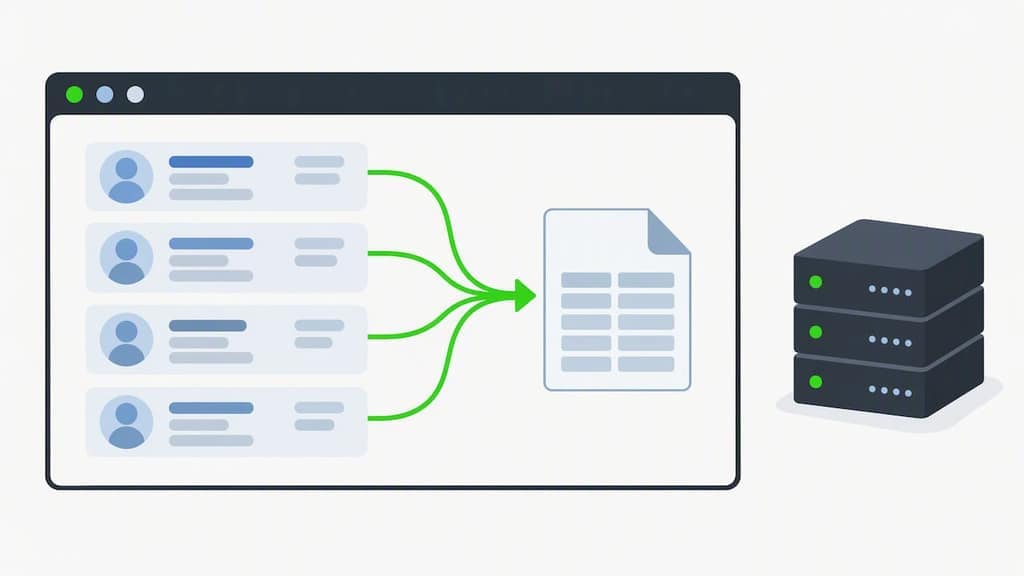
This matters for two reasons. First, because the data never leaves your machine through an intermediary, there is no second login, no API key, and no server-side copy of your leads sitting somewhere you do not control. Second, because the extension is reading, not clicking or navigating on your behalf, it does not generate the artificial activity patterns, like rapid-fire profile visits or scripted page jumps, that automation tools do.
What you can typically expect to pull out of a Sales Navigator saved list or search result through this method:
- Full name, headline, and current job title as displayed on the profile card.
- Current company name and, where shown, company size or industry.
- Location field, when the profile has one set.
- Profile URL, which becomes the anchor for any later enrichment step.
- Shared connections or lead status tags, where Sales Navigator surfaces them.
What you will not get is a guaranteed email address. Sales Navigator does not display verified contact emails on most lead cards, so no exporter, however well-built, can export a field that was never on the page. Anyone promising guaranteed email addresses straight out of a LinkedIn export is overstating what the platform actually shows.
The tradeoffs are fairly clean. On the plus side, the file you export is yours permanently: even if your Sales Navigator subscription lapses next month, the CSV or JSON you pulled last week still exists and still works. The format is CRM-ready, so a spreadsheet or import tool can read it without conversion. And because nothing runs on a remote server, there is no new attack surface for a data breach of your lead list beyond your own device.
On the downside, you are bound entirely by what is visible. If a field is hidden, collapsed, or paginated behind a "load more" click that the page has not yet rendered, the exporter cannot see it either. Session stability also matters: if you are logged out mid-export or LinkedIn serves a different page layout due to an A/B test, a run can stall or produce incomplete rows.
A few operational habits make this method far more reliable in practice. Scroll-and-backfill is the biggest one: load your saved list fully, scrolling to the bottom so every row renders, before starting an export, rather than relying on the tool to auto-scroll through hundreds of entries in one unbroken pass. Chunking a large list into batches of a few hundred leads at a time, rather than attempting the full 2,500-result cap in one run, tends to produce cleaner data and puts less continuous load on a single browser session. For paginated saved lists, exporting page by page and merging the files afterward is usually more reliable than trying to force one giant pass.
Pro Tip: Run a small test export of 20 to 30 leads first and spot-check three or four rows against the live profiles before committing to a full list pull.
Automation, scrapers, and the account risk they carry
LinkedIn's detection systems are built around behavioral patterns, not just raw numbers. Visiting 200 profiles in an afternoon from a browser extension that scrolls, pauses, and reads like a human looks very different from a script that hits the same number of profiles in three minutes with no pauses between requests. The signals that tend to draw attention include unusually fast profile-visit sequences, sustained high-volume activity across many hours in a row, and repetitive click or scroll patterns that do not vary the way a person's browsing naturally does.
Industry guidance on safe operating ranges exists, but it is heuristic, not official policy. Practitioner reports and tool documentation commonly describe teams staying around 100 to 150 profile visits per day and keeping bulk exports in the range of 500 to 2,000 leads per day as a way to stay under the radar, alongside the roughly 2,500-result cap that applies per search or list selection regardless of method. None of these numbers come from a published LinkedIn policy document, and the platform can and does adjust its detection thresholds without notice, so treat any safe-rate figure as a conservative starting point rather than a guarantee.
A few pacing tactics show up repeatedly in how careful teams run exports:
- Spread a large list pull across several days instead of one long session, rather than racing to finish before a deadline.
- Add randomized pauses between actions rather than a fixed, predictable interval that a detection system can learn to spot.
- Avoid running exports at the same exact time each day, since fully repetitive scheduling is itself a pattern.
- Stop immediately if you see a CAPTCHA, a phone verification prompt, or a temporary restriction notice, rather than retrying right away.
One workaround some teams consider is spreading activity across multiple LinkedIn accounts to stay under per-account thresholds. This tends to backfire: maintaining several Sales Navigator seats for the sole purpose of evading rate limits usually costs more in licensing than it saves in risk, and shared IP addresses or browser fingerprints across those accounts can make the pattern more obvious, not less.
The clearest signal that it is time to step back from automation and toward enrichment instead is when your use case requires contact details, like verified emails or phone numbers, that are not visible on the Sales Navigator page at all. No amount of clever scripting extracts data that was never rendered, and at that point a scraper pointed at a logged-in session is taking on account risk for no real gain. Litigation around automated data collection from online platforms is also a live legal backdrop: a court opinion addressing scraping and legal boundaries illustrates that high-volume automated collection from a platform can draw legal scrutiny in certain U.S. cases, which is one more reason to keep scraping activity limited and well-documented when you do use it.
Staying compliant: privacy, legal, and policy considerations
Every export method sits on top of a few legal layers that do not go away just because the technical method changed. The starting point is LinkedIn's own user agreement, which includes an explicit requirement that users comply with all applicable laws and with LinkedIn's own policies while using the platform. That clause covers everything downstream: how you extract data, how you store it, and how you use it to contact people afterward.
Once a lead list leaves Sales Navigator and lands in your CRM, data protection and anti-spam law start to apply in earnest. In the United States, the CAN-SPAM Act, codified in part at 15 U.S.C. § 7704, sets requirements around deceptive practices in commercial messaging, including accurate sender information and a working opt-out mechanism. In the UK, statutory rules such as those found in the Privacy and Electronic Communications Regulations govern how organizations may use personal data for direct marketing, which matters directly if your exported list feeds an email or outreach campaign.
A practical compliance checklist that applies across most markets:
- Establish a documented lawful basis (consent or legitimate interest, depending on your jurisdiction) before using exported contact data for outreach.
- Keep records of where each lead came from and when, since regulators and prospects alike may ask.
- Honor opt-out and unsubscribe requests immediately and remove the contact from future campaigns, not just the current one.
- Apply data minimization: export and retain only the fields you actually need for the campaign at hand, not every field available.
- Review vendor contracts with any enrichment provider to confirm they source contact data lawfully and will stand behind accuracy claims.
None of this is unique to Sales Navigator data. The same obligations apply to any B2B contact list, regardless of where it originated, but the export step is where many teams first have to think seriously about them. Building a short internal policy, who can export, how much, and what happens to the file afterward, saves a lot of scrambling later.
Turning raw exports into usable CRM data
A Sales Navigator export, however clean, is a starting point, not a finished lead list. The profile fields you capture rarely include a verified email, and even the company name or title can be stale if the person changed roles recently. Turning that raw file into something a sales team can actually work requires a few more steps, including precise guidance on Offline Conversions Import: Setup, Data, and Automation.
- Export the raw list. Pull leads from your saved search or list using whichever method fits your risk tolerance, keeping the file to the fields actually visible on screen.
- Cleanse the data. Remove obvious duplicates, standardize company names that appear in multiple formats, and drop incomplete rows that lack enough information to be useful.
- Enrich through a waterfall process. Rather than relying on a single data provider, query several contracted enrichment vendors in sequence, moving to the next one only when the first fails to return a verified contact, which tends to produce higher match rates than any single source alone.
- Verify emails and phone numbers. Run enriched contact details through a verification service before loading them into outreach, since unverified emails drive up bounce rates and can trigger spam complaints that hurt sender reputation.
- De-dupe against your existing CRM. Match new leads against records you already hold, using LinkedIn profile URL or company-plus-name combinations as a key, so you are not creating duplicate contacts or re-contacting someone already in a different pipeline stage.
- Map fields and import. Align your exported and enriched columns to your CRM's field structure before import, so titles, companies, and custom fields land where your sales team expects to find them.
Pro Tip: Keep the original LinkedIn profile URL as a permanent field in your CRM record, even after enrichment, since it is the one stable identifier you can use to re-verify or re-enrich a contact later.
Waterfall enrichment also tends to be the lower-risk path compared to pointing a scraper at your own logged-in Sales Navigator session purely to hunt for contact details, since it moves the data-finding work to vendors contracted for that purpose instead of generating more activity against LinkedIn's own systems.
A safe-extraction checklist for running exports without flags
Running a large export without tripping a rate limit or account review comes down to preparation, pacing, and checking your work afterward, not luck.
Before you start a run, confirm your account is in good standing (no recent warnings or restrictions), size your saved list realistically against the roughly 2,500-result practical cap, and run a small test export first to confirm the tool is capturing the fields you expect.
While the export runs, keep these controls in place:
- Break large lists into chunks of a few hundred leads rather than attempting the full list in one continuous pass.
- Use randomized wait times between actions instead of a fixed interval.
- Keep an eye on the LinkedIn interface itself while exporting; a sudden CAPTCHA or a "please verify" prompt means stop, not retry.
- Avoid running multiple large exports back to back on the same day without a cooling-off period.
After a run finishes, reconcile the exported row count against what the saved list or search actually showed, and spot-check a handful of rows against live profiles to confirm fields like job title and company are current rather than cached from an earlier page load.
If a run produces far fewer rows than expected, the most common cause is an incomplete scroll: the list simply had not finished rendering before the export started. If LinkedIn serves a restricted or stripped-down version of the page mid-session, that is usually a sign to pause entirely rather than push through, log out, wait a few hours, and resume with a smaller chunk size. When failures repeat across multiple sessions despite conservative pacing, it is worth reassessing whether the method, not just the settings, needs to change.
The honest tradeoffs in Sales Navigator data extraction
Most of the advice around exporting Sales Navigator data focuses on speed: how fast can you pull 2,000 leads, how quickly can a script outrun a rate limit. That framing misses the actual tradeoff teams are making, which is between data you can fully account for and data you cannot.
A browser-only export is slower and thinner on fields than a scraper or a headless script, but every row in it came from a page you personally viewed, with no server in between and no automated clicking that LinkedIn's systems have to interpret. A scraper might pull more, faster, but it also generates a behavioral signature that is, by design, something LinkedIn is built to notice. The volume advantage is real; the risk is also real, and it tends to fall hardest on exactly the accounts that most need to stay in good standing, the ones doing daily outreach.
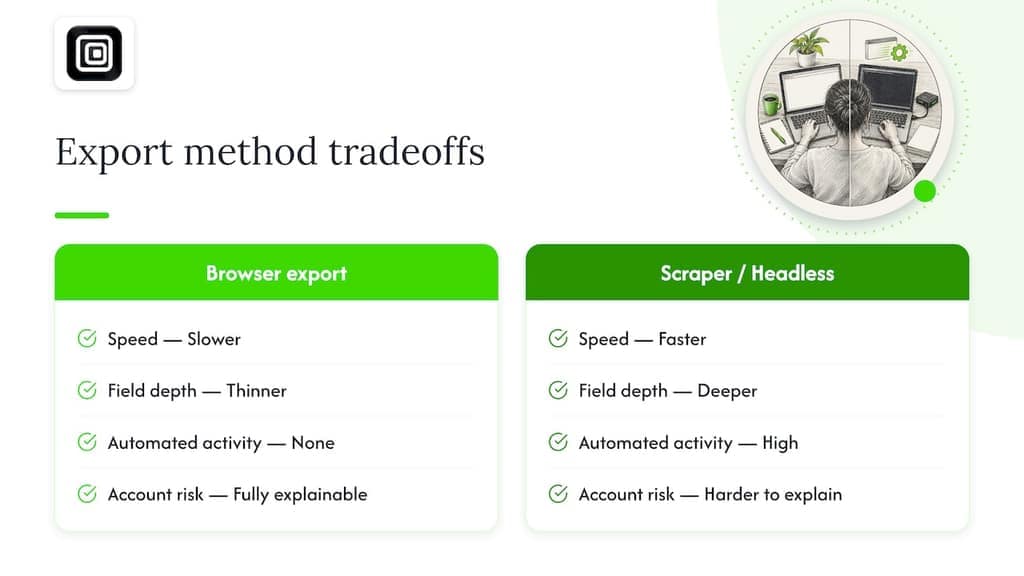
Our honest recommendation for most B2B teams is to treat in-browser export plus staged enrichment as the default, not the fallback. It is unglamorous, but it produces a file you fully control, with no account history to explain to a platform's trust and safety team later. Save automation and scripting for narrow, well-tested cases, a one-time research pull with no outreach attached, where the activity is bounded and the risk is contained.
Small teams rarely need anything beyond a browser exporter and a verification tool. Larger, enterprise teams with CRM sync entitlements should lean on that native path for ongoing updates and reserve manual exports for one-off list builds, rather than running parallel systems that duplicate effort and multiply risk.
— Elias Mahdavi
A privacy-first way to export your Sales Navigator leads
Everything in this guide points toward the same conclusion: the safest way to get Sales Navigator data out is to read what your own session already shows and keep that process entirely in your browser. That is exactly how our LinkedIn and Sales Navigator exporter works.
Our extension runs locally in your Chrome browser, reading the leads, accounts, and search results your signed-in session already displays, and saves them straight to CSV, JSON, or JSONL. Nothing uploads to a server, there is no API key to configure, and no second login to manage. The extension does not guess email addresses or automate clicks, messages, or connection requests: it reads, and you decide what happens with the file afterward.
For a sales or lead-gen team, that means a CRM-ready export without the account-risk behaviors that come with scrapers or headless scripts, and a file that stays useful even if your Sales Navigator subscription changes later. Our LinkedIn & Sales Navigator Data Exporter product page walks through the specific fields it captures from profiles, companies, and job search results, alongside Sales Navigator leads and accounts.
We offer a Free plan to try the exporter on a smaller list, with Pro at $9 per month and Scale at $18 per month for teams that need higher export volumes, all on our pricing page. If you are ready to move a saved Sales Navigator list into a spreadsheet without a server in between, start with a small test export and see what the file looks like before committing to a full pull.
FAQ
How do I export data from Sales Navigator to Excel?
Sales Navigator does not offer a native export-to-Excel button on most plans, so teams typically use a browser-only exporter to save leads as a CSV or JSON file, which any spreadsheet program can open directly. CRM sync is available only on higher-tier plans and pushes limited profile metadata rather than a full exportable list.
How many leads do I need to make a sale?
The number of leads needed to close a sale varies widely by industry, deal size, and outreach quality, and no single benchmark applies across B2B categories. Rather than targeting a fixed lead count, most teams focus on list quality and enrichment accuracy, since a smaller, well-verified list often outperforms a larger, unverified one.
What is the maximum number of connection requests per week on Sales Navigator?
LinkedIn does not publish an official weekly connection-request limit for Sales Navigator, and the platform can adjust its thresholds without notice. Practitioners commonly describe staying conservative, pacing activity across the week and avoiding sudden spikes, rather than aiming for any specific maximum.
Can my company see my LinkedIn Sales Navigator activity?
Organizations that purchase Sales Navigator seats through a company account typically have access to usage and admin reporting for that license, since the subscription itself is managed at the company level. The specific visibility depends on your organization's Sales Navigator tier and admin configuration, so check with your account administrator for the exact reporting your company has enabled.
Sources
- User Agreement | LinkedIn
- U.S. Court of Appeals opinion — scraping-related case
- 15 U.S.C. § 7704
- UK regulation (example statutory reference)