



To export WhatsApp messages to CSV, either run Export Chat on your phone and parse the resulting .txt file into columns, or open the chat on WhatsApp Web and let the Mastros WhatsApp extension save it as CSV directly, one row per message with timestamp, sender and text. WhatsApp itself never produces a CSV, so every method below starts from one of those two places. This guide covers each of them, the common pitfalls, and how to end with clean, usable data.
How to export WhatsApp messages to CSV: the native starting point
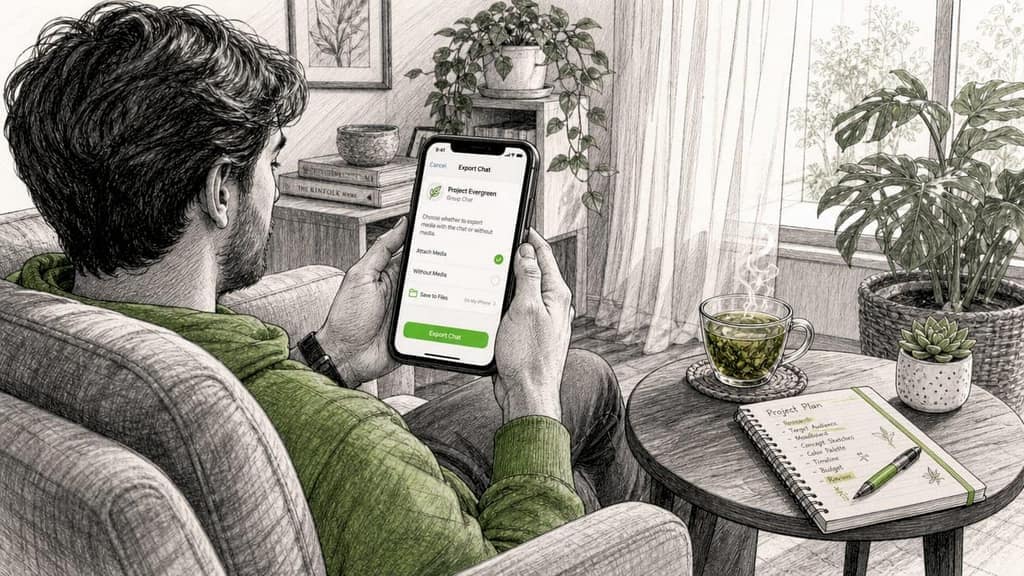
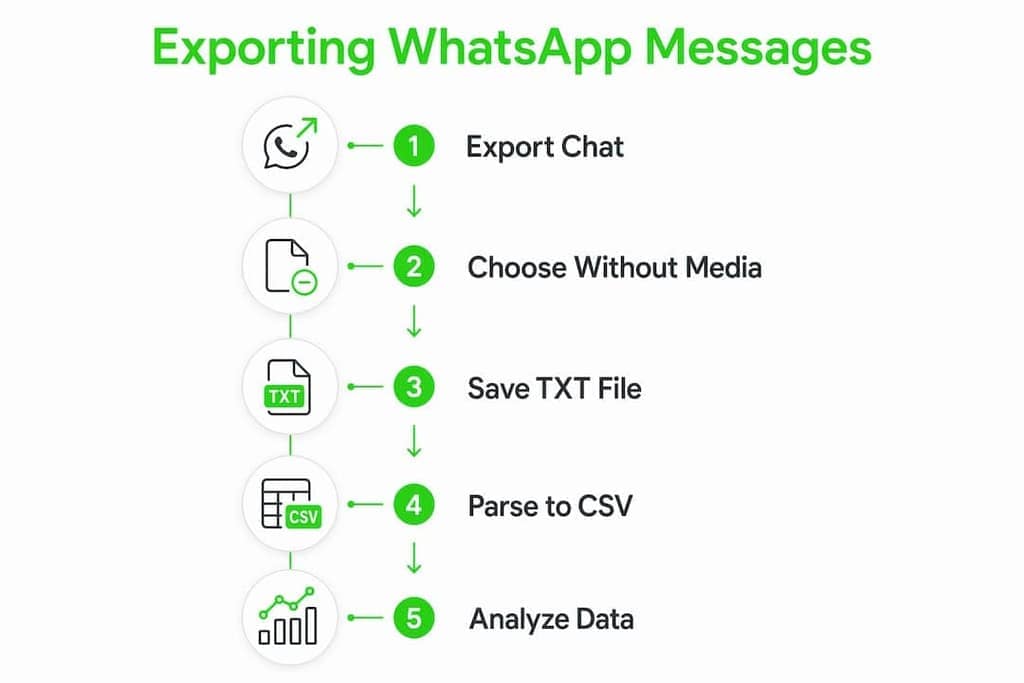
Every CSV workflow starts in the same place: the native Export Chat feature on your phone. WhatsApp does not export chat data directly to CSV or Excel. What you get is a plain-text .txt file, or a ZIP archive when you include media. That file is the raw material for every conversion method below.
Steps for Android
- Open the chat or group you want to export.
- Tap the three-dot menu in the top right corner.
- Select More, then Export Chat.
- Choose Without Media for a clean text file, or Include Media for a ZIP archive.
- Share the file to your email, Google Drive, or any cloud storage you control.
Steps for iPhone
- Open the chat or group in WhatsApp.
- Tap the contact or group name at the top to open the info screen.
- Scroll down and tap Export Chat.
- Choose Without Media or Include Media.
- Use the iOS share sheet to send the file to Files, Mail, or iCloud Drive.
The resulting file is named _chat.txt and contains structured lines in this format: [DD/MM/YY, HH:MM:SS] Sender Name: Message text. That structure is what parsers use to split the data into columns. No bulk export function exists in WhatsApp, so you must repeat this process for each chat individually.
Pro Tip: Always choose "Without Media" first. It exports faster, produces a smaller file, and is all you need for CSV analysis. You can always re-export with media later if you need the attachments.
How do you convert a WhatsApp text export into CSV?
The .txt file WhatsApp generates is structured but not tabular. Converting it to CSV means parsing each line and splitting it into columns. Three practical methods exist, each with different tradeoffs.
Method 1: Open-source Python tools
The library whatstk is the most widely used open-source option. It reads a WhatsApp .txt or ZIP file and loads the chat into a pandas DataFrame, which you can then export to CSV with one line of code. Processing thousands of messages takes under one minute locally, and the library handles multiple date formats automatically.
A basic workflow looks like this:
from whatstk import WhatsAppChat
chat = WhatsAppChat.from_source("_chat.txt")
chat.df.to_csv("whatsapp_export.csv", index=False)
The output CSV contains columns for date, username, and message. You can add your own columns, filter by sender, or run NLP analyses directly on the DataFrame before saving.
Method 2: Third-party desktop software
Tools like iMazing connect to your iPhone via USB or Wi-Fi, read the device backup, and export WhatsApp chats as CSV or Excel with column formatting handled automatically. This approach requires no coding. The tradeoff is cost: iMazing is paid software, and it only works with iOS backups, not Android.
Method 3: Browser-based parsing tools
Several web tools accept a .txt upload and return a CSV download. These are the fastest option for non-technical users. The privacy risk is real, though. You are uploading private conversations to a third-party server. For sensitive business or personal chats, a local tool is the safer choice.
| Method | Skill required | Privacy | Cost | Best for |
|---|---|---|---|---|
whatstk Python library |
Moderate (Python basics) | High (runs locally) | Free | Analysts and researchers |
| Desktop software (e.g., iMazing) | Low | High (runs locally) | Paid | Non-technical iPhone users |
| Browser-based parsers | None | Low (server upload) | Free or freemium | Quick, non-sensitive exports |
Pro Tip: If you use whatstk, run pip install whatstk in a virtual environment to keep your Python setup clean. The library's documentation on GitHub includes examples for multi-language date formats, which matters if your phone locale is not English.
What should you know before exporting a WhatsApp group chat?
Group chat exports carry a few specific quirks that can break your CSV if you are not prepared. Getting these right before you export saves a lot of cleanup time afterward.
- You only get what your device has. The Export Chat feature captures only messages downloaded on your device after you joined the group. If you joined a group six months into its history, those first six months are gone. This creates gaps in any timeline analysis.
- System messages have no sender. Lines like "Alice added Bob" or "You changed the group icon" appear in the
.txtfile without a sender name. Parsers must detect lines lacking sender-name structure to avoid misattributing these events to the wrong person. Most good parsers handle this, but always check your output CSV for rows with empty sender fields. - Unsaved contacts show as phone numbers. Contacts saved in the phonebook appear by name in exports. Everyone else shows as a raw phone number. In a group with 50 members, that makes your CSV nearly unreadable. Save contacts before you export.
- Media references become placeholders. When you export without media, attachments appear as
<Media omitted>in the text. Your CSV will have that string in the message column. Plan for it in your analysis logic.
Saving your contacts before running an export is the single highest-return preparation step. A CSV full of phone numbers instead of names is technically complete but practically useless for any analysis that involves identifying individuals.
What can you do with WhatsApp chat data in CSV format?
CSV is primarily for data analysis like message volume tracking and sentiment scoring. PDF suits reading and sharing. Once you have a clean CSV, the practical applications are wide.
- Spreadsheet analysis. Open the CSV in Google Sheets or Microsoft Excel. Sort by sender to see who sends the most messages. Filter by date range to isolate a specific period. Use
COUNTIFto count messages per person. - Timeline visualization. Import the CSV into a tool like Tableau or Python's matplotlib library. Plot message frequency over time to spot activity spikes, quiet periods, or the impact of specific events on a group.
- Sentiment scoring. Run the message column through a sentiment analysis library like VADER or TextBlob. This is useful for community managers tracking group mood or researchers studying communication patterns.
- Database ingestion. Load the CSV into a SQL database using a simple
IMPORTorCOPYcommand. This lets you query across multiple exported chats, join data sets, and build reports at scale. - Compliance and record-keeping. Businesses in regulated industries sometimes need to archive communications. A timestamped CSV stored in a secure location satisfies many basic record-keeping requirements.
Privacy matters here. A WhatsApp CSV contains real names, phone numbers, and private conversations. Store the file in an encrypted location, limit access, and delete it when you no longer need it.
Key Takeaways
Exporting WhatsApp chats to CSV requires the native Export Chat feature as a first step, followed by a parsing tool to convert the plain-text output into structured, tabular data.
| Point | Details |
|---|---|
| Native export is plain text | WhatsApp produces a .txt file, not CSV. A parsing step is always required. |
whatstk is the best free option |
This Python library converts chat text to a DataFrame and exports CSV in under a minute. |
| Save contacts before exporting | Unsaved contacts appear as phone numbers, making group chat CSVs hard to read. |
| System messages need special handling | Parsers must detect sender-less lines to avoid errors in CSV row attribution. |
| No bulk export exists | Each chat must be exported individually. Plan your time accordingly. |
My take on the WhatsApp-to-CSV workflow
The native Export Chat feature is a solid starting point, and I always recommend it as step one regardless of what you plan to do next. It is free, it works on every phone, and it gives you a file you fully control. That matters.
Where I see people go wrong is skipping the contact-saving step. I have watched researchers export a 10,000-message group chat and end up with a CSV where 60% of the sender column is phone numbers. That is hours of cleanup that a five-minute contact-saving pass would have prevented.
For most technical users, whatstk is the right tool. It is local, free, and fast. The learning curve is minimal if you know basic Python. For non-technical users who need a one-time export from an iPhone, desktop software like iMazing is worth the cost because it handles the parsing automatically.
The one thing I would push back on is the idea that browser-based parsers are "good enough." They are convenient, but you are uploading private conversations to a server you do not control. For anything involving business communications, client names, or sensitive personal data, that is a risk not worth taking. Run the conversion locally.
Finally, name your output files with the chat name and export date, like team_sales_2026-01-15.csv. Future-you will thank present-you when you are looking for a specific export three months later.
Elias
Mastros makes WhatsApp data extraction faster
If you need to pull WhatsApp group members, chat messages, or recent contacts at scale, the manual export-and-parse workflow gets tedious fast. Mastros builds a privacy-first Chrome extension that runs entirely in your browser, so your data never touches an external server.
The Mastros WhatsApp extension works in read-only Web Mode through WhatsApp Web. No API credentials, no automation, no messaging. You get group members, chat messages, and contacts exported directly to CSV, JSON, or JSONL in one step. For growth marketers, community managers, and researchers who need clean, structured data without writing a single line of Python, it is the most direct path from WhatsApp Web to a usable spreadsheet.
FAQ
Does WhatsApp export chats directly to CSV?
No. WhatsApp's native Export Chat feature produces a plain-text .txt file, not a CSV. You need a parsing tool like whatstk or third-party software to convert it.
How do I export WhatsApp group messages for analysis?
Use the Export Chat option inside the group, choose "Without Media," then parse the resulting _chat.txt file with a tool like whatstk to produce a structured CSV.
Why do some senders show as phone numbers in my CSV?
Contacts not saved in your phonebook appear as phone numbers in WhatsApp exports. Save all contacts before exporting to get readable names in your CSV output.
Can I export all my WhatsApp chats at once?
No. WhatsApp has no bulk export function. Each chat must be exported individually, which means repeating the Export Chat process for every conversation you want to capture.
Is it safe to use a web-based tool to convert my WhatsApp export?
Browser-based parsers upload your chat file to a third-party server. For sensitive or business conversations, use a local tool like whatstk or desktop software to keep your data on your own device.
Recommended
- WhatsApp Chat Backup: the browser route to a CSV, and how it differs from a Google Drive backup.
- WhatsApp Media Downloader: the photos, videos and voice notes behind those messages.
- Mastros: Telegram & WhatsApp Data Scrapers for the Browser