



The direct, privacy-safe way to export WhatsApp Business data is to pull what's already visible in WhatsApp Web into a structured file using an in-browser exporter, no uploads involved. Done right, this gives you contacts, group members, messages, and media in CSV for spreadsheets or JSON/JSONL for scripts and CRM pipelines, all generated locally on your machine.
TL;DR:
- Exportable data includes contacts, group members, messages, and media, all generated locally via a browser-based tool without uploads.
- Scrolling to load the full message history is crucial; partial scrolls result in incomplete exports, especially for larger chats or groups.
- Use CSV for simple spreadsheet importing, JSON for nested data, and JSONL for large or streaming exports, always based on destination needs.
- Handling media separately with batch downloads, a manifest, and failure logs prevents mass failures and simplifies reconciling media with messages.
- Always verify counts against WhatsApp Web, record provenance details, and respect chat privacy settings to ensure compliant and complete exports.
Table of Contents
- Quick workflow: sign in, load, scope, export, verify
- Choosing a format: CSV versus JSON and JSONL
- Handling media: batches, manifests, and retries
- Privacy, permissions, and keeping a provenance trail
- Troubleshooting and verifying your export
- What a research-grade export process looks like on a team
- Where Mastros fits into this workflow
- FAQ
- Sources
Quick workflow: sign in, load, scope, export, verify
Before you touch any export tool, run through this checklist. It's the same sequence whether you're pulling one chat or a dozen groups.
- Sign in to WhatsApp Web and confirm you're on the account authorized to view the chat or group you plan to export. This matters more than it sounds: exporting from the wrong account, or one you don't have permission to use, creates compliance headaches later.
- Open the target chat or group. For member lists, open group info first since that's where WhatsApp Web renders the full participant roster.
- Scroll (or use an auto-scroll feature) to load the full date range you need. WhatsApp Web uses virtual scrolling, meaning messages outside the visible window aren't in the page's memory until you scroll to them, so a partial scroll means a partial export.
- Pick your export scope (contacts, members, messages, media) and your format (CSV, JSON, or JSONL depending on where the data is headed next).
- Run the export, save the file locally, and spot-check the counts and timestamps against what you see on screen before you trust the file.
This sequence works whether you're exporting a single conversation for a sales handoff or exporting a WhatsApp group members list for a recruiting pipeline. The scroll step is the one most people skip, and it's the one that causes the most incomplete exports.
Choosing a format: CSV versus JSON and JSONL
Your format choice depends entirely on where the data goes next, not on personal preference.
- CSV works best when the destination is a spreadsheet or a simple CRM import field mapper: one row per contact, member, or message, flat and easy to scan.
- JSON preserves nested structures, like a message with multiple reactions or an attachment reference, so it suits anyone building a custom import script or feeding an analytics tool.
- JSONL (one JSON object per line) is the better pick for large exports or streaming pipelines, since you can process the file line by line without loading the whole thing into memory.
For a clean dataset, aim for this minimal schema: message_id, conversation_id, sender_display, sender_identifier (exactly as shown, never inferred), timestamp in ISO 8601, message_type, text, media_ref, and group_role. Split the output into separate files instead of one giant blob: contacts.csv, participants.csv, messages.csv, and media-manifest.csv. That separation makes joins predictable when you load the data into a CRM or a notebook, and it mirrors the practice of keeping contacts, participants, messages, and media in distinct tables rather than one flat file, which a practical export guide from Witness recommends for exactly this reason. If you're prepping contacts specifically for Excel, our guide to exporting WhatsApp Business contacts walks through the column mapping in more detail.
Handling media: batches, manifests, and retries
Media is the least predictable part of any WhatsApp Web export, so treat it as a separate job from the text.
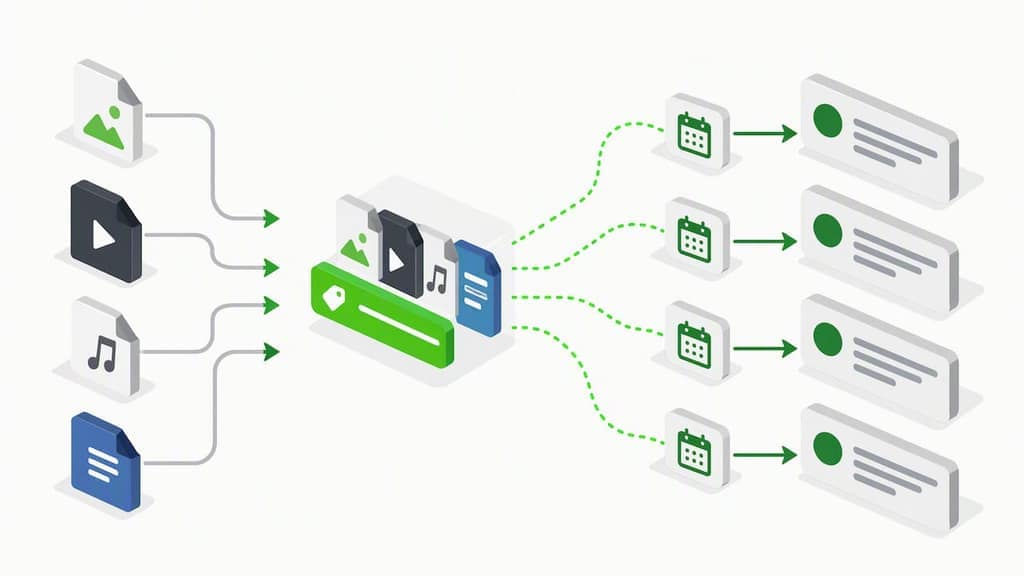
- Export textual metadata first, since messages and contact data are small and reliable; media is the heavy, unpredictable part.
- Download media in smaller batches rather than one giant pull, since browsers can hit memory limits partway through a large job.
- Build a media manifest with
filename,message_id,media_type,original_url(when available), andexported_atfor every file you pull. - Log failed downloads in a separate
failures.csvinstead of letting them silently disappear, so you can retry or manually recover them later.
Open-source export projects consistently point to this same pattern: export text first, then bundle media with a manifest, an approach the purr-wa documentation describes for keeping large media sets reconcilable. Bulk media pulls are also where CDN links expire or downloads silently fail, a known friction point in Web-based export workflows, which is exactly why the manifest and failure log matter more than they might initially seem.
Pro tip: Prefix every media filename with the message ID and date (like MSG4821_2026-01-14_photo.jpg), so joining media back to messages is a straightforward lookup instead of a guessing game.
Privacy, permissions, and keeping a provenance trail
Export only from an account you're authorized to use for that chat, and never attempt automated message sending or bulk actions as part of the process, and review how to manage permissions properly with WhatsApp consent messages, as that's a different job with different rules.
- Record provenance for every run:
exported_at, operator name, export tool and version, load method (manual scroll or auto-scroll), the chat name as displayed, and the message range covered. - Watch for chats that block exports outright. WhatsApp's Advanced Chat Privacy setting disables exports and auto-downloads for specific chats, and it's a per-chat control, not a platform-wide one, according to an EFF analysis of the feature. The right move when you hit one is to log it as skipped, not work around it.
- Keep a short audit note explaining any missing rows or media, so anyone reviewing the export later understands why the counts don't perfectly match.
WhatsApp's own terms frame third-party tools as operating under their own policies, which puts the responsibility on you to keep collection read-only and tied to an account you're actually permitted to use.
Troubleshooting and verifying your export
Before you load anything into a CRM or analysis tool, confirm the export actually captured what you think it did.
- Compare message and participant counts in your export against what WhatsApp Web shows on screen, a quick sanity check that catches most partial exports.
- Normalize every timestamp to ISO 8601 and store the original timezone or locale in your manifest, since raw timestamps from Web sessions can carry inconsistent locale formatting.
- If members or messages are missing, reopen group info or re-scroll the chat to force the browser to load more of the history, then rerun the export.
- Media downloads fail at a non-trivial rate in bulk Web exports, which is why exporting the text manifest first and batching media second keeps a failed photo or video from derailing the whole run.
What a research-grade export process looks like on a team
Treat every export as a small project, not a one-off click. A project manifest should record the owner, purpose, campaign name, exported_at timestamp, and the verification steps someone ran before the file got used.
Preserving the identifier WhatsApp actually displays, rather than trying to infer a hidden phone number, keeps CRM records honest instead of quietly wrong; notes on WhatsApp's identifier behavior confirm that hidden numbers show up as account identifiers, not guesses you should fill in yourself. Batch text first, media second, and reconcile everything against message IDs rather than filenames alone.
— Elias Mahdavi
Where Mastros fits into this workflow
We built the Mastros WhatsApp Scraper to run exactly this workflow without asking you to touch an API or hand over a password. It exports group members, contact lists, chat messages, and bulk media directly from your signed-in WhatsApp Web session, saving everything to CSV, JSON, or JSONL on your own machine.
Nothing gets uploaded to servers, there's no API key to request, and no automation of sending, inviting, or replying. You choose how far back to scroll and which media types to pull, which keeps your export scoped to what you actually need instead of everything WhatsApp Web happens to hold.
- Start on the WhatsApp Scraper product page to see the exact export fields and media options.
- Run a small test export first (one chat, a short date range) to confirm your counts and formatting before scaling up.
- Compare our Free, Pro, and Scale plans once you know your monthly export volume.
If you're also exporting from Telegram or LinkedIn alongside WhatsApp, there are separate extensions available for those with the same no-upload approach.
FAQ
How do I export WhatsApp Business group members to a spreadsheet?
Open the group's info panel in WhatsApp Web, which renders the full participant list, then run an export tool that reads that visible roster into CSV. A CSV with one row per member imports cleanly into Excel, Google Sheets, or most CRM contact importers.
What's the difference between CSV, JSON, and JSONL for a WhatsApp export?
CSV is a flat, one-row-per-record format best for spreadsheets and simple CRM imports. JSON and JSONL preserve nested data like attachments or reactions and suit programmatic pipelines, with JSONL better for very large or streaming exports since it processes one line at a time.
Why does my WhatsApp Web export have fewer messages than expected?
The most common cause is virtual scrolling: WhatsApp Web only loads messages into memory as you scroll to them, so a partial scroll produces a partial export. Reopen the chat and scroll to the full date range you need before rerunning the export.
Can I export a chat that has Advanced Chat Privacy turned on?
No, and you shouldn't try to work around it. Advanced Chat Privacy is a per-chat WhatsApp setting that disables exports and auto-downloads for that specific conversation, so the right response is to log it as a skipped chat in your export notes, as described in EFF's analysis of the feature.
Is it safe to use a browser extension to export WhatsApp Business data?
An extension that runs entirely in your browser and reads only what your signed-in session already displays, without uploading data to an external server, keeps collection local and read-only. Always confirm you're exporting from an account you're authorized to use, and check that the tool doesn't require API keys or a second login before trusting it with business data.