



If you need Sales Navigator data in a spreadsheet or CRM, you have three realistic paths: CRM Sync if you're on Advanced Plus, a privacy-first in-browser exporter like Mastros if you're not, or manual copy-paste for a short one-off list. LinkedIn doesn't offer a native CSV or XLS export button on standard Sales Navigator plans, so the right choice depends on your plan tier and how many records you're moving. Most sales teams without Advanced Plus get the fastest, cleanest result from an exporter extension that reads what's already on-screen.
TL;DR:
- CRM Sync requires Advanced Plus and supports Salesforce, Dynamics 365, and HubSpot; test field mapping first because email and phone usually do not sync.
- A browser exporter captures only loaded rows, so scroll through results first and export batches of a few hundred to reduce omissions and rate limits.
- Exports typically include names, titles, companies, locations, and profile URLs, but email and phone are generally unavailable because Sales Navigator does not display them.
- Manual copy and paste suits lists under fifty records; beyond a hundred, the time cost usually outweighs avoiding an export tool.
- Before importing a full export, test a small batch, check the columns, and store files in an access controlled folder.
Table of Contents
- Four realistic ways to export Sales Navigator accounts and leads
- How to use LinkedIn CRM Sync to move accounts and leads into your CRM
- How to export visible results with an in-browser extension
- Manual and lightweight workarounds for small lists
- What you can't export, and how to avoid common failure modes
- Author perspective: pragmatic, privacy-first exports for sales teams
- How Mastros handles Sales Navigator exports
- FAQ
- Sources
Four realistic ways to export Sales Navigator accounts and leads
Your plan and volume decide which method actually works for you, so start there before picking a tool.
- CRM Sync (Advanced Plus): LinkedIn's own two-way sync into Salesforce, Dynamics 365, or HubSpot. Reliable and supported, but gated behind the top-tier plan.
- In-browser exporter extensions: Tools that read your signed-in Sales Navigator view and save the visible rows to CSV, JSON, or Excel without routing anything through an external server. Good for teams on any plan who want a CRM-ready file today.
- Manual and Google Sheets workarounds: Copy-paste or a small script for a one-off list under a few hundred rows. Slow, but zero cost and zero new tools to vet.
- Third-party connectors and automation platforms: Can work, but availability shifts often. Coverage of lead-gen providers disappearing from LinkedIn is a good reminder to verify a connector still works before building a process around it.
CRM Sync wins for enterprise teams that need ongoing, automatic updates. An exporter extension wins for everyone else who wants a file now. Manual work only makes sense under fifty rows.
How to use LinkedIn CRM Sync to move accounts and leads into your CRM
CRM Sync is LinkedIn's supported route for Sales Navigator Advanced Plus accounts, and it connects directly to Salesforce, Dynamics 365, or HubSpot. The CRM Sync documentation lays out setup and the objects exchanged between systems, so it's worth reading before your admin touches any settings.
- Confirm your seat is on Sales Navigator Advanced Plus and that your CRM is one of the three supported platforms.
- Have an account admin open the CRM Sync settings in Sales Navigator and authorize the connection to your CRM instance.
- Choose which objects sync (leads, accounts, notes) and map them to the matching CRM fields.
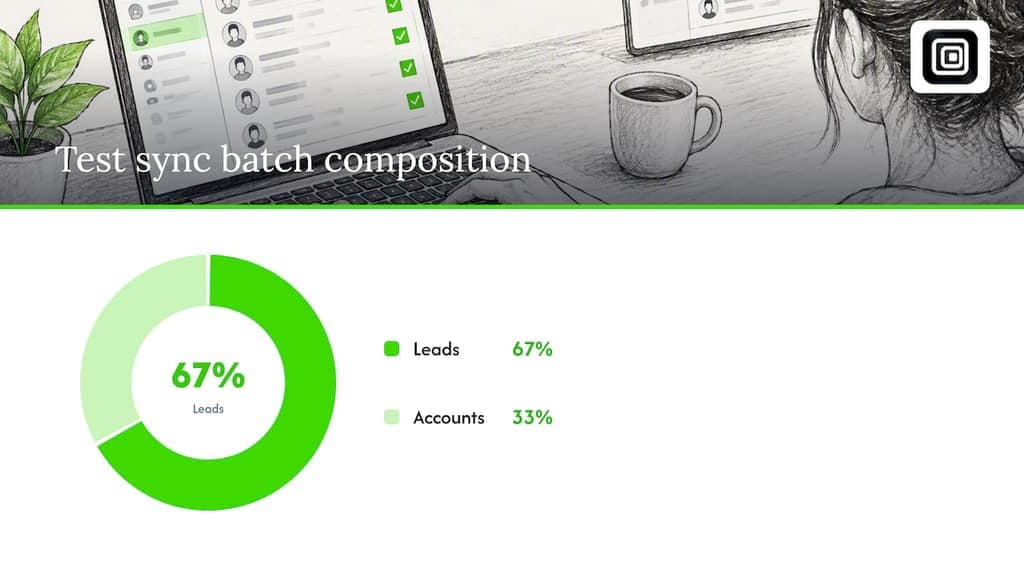
- Run a small test batch, maybe ten leads and five accounts, and check the records land correctly before syncing everything.
- Expand to the full account list once the test batch matches expectations on both sides.
Expect core profile fields like name, title, company, and the Sales Navigator profile URL to sync cleanly. Private contact fields such as email and phone usually don't come through, since CRM Sync passes professional profile data rather than contact details, so plan on a separate enrichment step if you need those.
Pro Tip: Run your first sync against a disposable test CRM list, not your live pipeline, so a field-mapping mistake doesn't scramble real records.
How to export visible results with an in-browser extension
An in-browser exporter reads the rows already rendered in your signed-in Sales Navigator session and writes them to a file on your machine. Nothing gets uploaded anywhere, which matters if your security team won't sign off on a tool that asks for your session cookies or LinkedIn credentials. This is the approach Mastros uses for its LinkedIn & Sales Navigator Data Exporter: it only reads what your browser already displays and saves it locally.
The sequence is simple:
- Build your search or open a saved lead or account list inside Sales Navigator.
- Scroll through the full results so every row actually loads. Sales Navigator lazy-loads rows, and an exporter can only capture what's rendered.
- Run the extension and let it collect the visible rows into a CSV, JSON, or JSONL file.
- Open the file and check the column headers against what you expected before you import anything downstream.
Expect name, title, company, location, and profile URL in most exports. Email and phone are typically absent, since those fields aren't part of the visible profile data Sales Navigator displays to begin with.
Before you run a bulk export, get a quick sign-off from whoever owns data compliance on your team, keep the exported file in a shared, access-controlled folder rather than someone's downloads folder, and delete working copies once the data lives in your CRM.
Pro Tip: Export in batches of a few hundred rows at a time rather than one giant pull. Smaller batches are easier to spot-check and less likely to trigger a rate limit.
Manual and lightweight workarounds for small lists
For a one-off list under fifty records, manual copy-paste into a spreadsheet is often faster than installing anything. Anything bigger than that, even a few hundred rows, starts costing more time than an exporter would save you.
- Open each profile and copy name, title, company, and the profile URL into a spreadsheet row by row for truly small lists.
- For a slightly larger batch, a Google Sheets formula like IMPORTXML can pull specific visible fields from a public profile page, though it won't work on Sales Navigator's authenticated views.
- A short Google Apps Script can loop through a list of saved URLs and log them to a sheet, useful if you already have the list of profile links saved somewhere.
- Before importing to your CRM, clean company names to one consistent spelling, remove duplicate rows, and add a date stamp column so you know when each record was pulled.
Manual work is accurate for small batches but doesn't scale. Past a hundred rows, the time cost usually outweighs whatever you save by avoiding a tool.
What you can't export, and how to avoid common failure modes
Private contact fields like email and phone are generally not available through Sales Navigator exports of any kind. LinkedIn's own help documentation on exporting account and lead information confirms there's no built-in CSV or XLS export on standard plans, and recommends CRM Sync for Advanced Plus users instead.
User reports on Sales Navigator's G2 reviews page consistently flag lazy-loading and batch size as the most common causes of incomplete exports. If your file comes back short, you likely didn't scroll far enough before running the export.
- Scroll the full results list before exporting so every row has actually loaded.
- Export in smaller batches rather than one massive pull, which reduces the odds of hitting a rate limit.
- Watch for a sudden slowdown in page response, a common sign you're exporting too fast.
- Run a small test import into your CRM before committing the whole file, so a formatting issue surfaces early.
Author perspective: pragmatic, privacy-first exports for sales teams
My own preference is boring on purpose: CRM Sync for any team that already pays for Advanced Plus, because consistency across a sales org matters more than any single clever workaround. For everyone else, an in-browser exporter is the practical answer, not because it's exciting, but because it doesn't ask you to hand your session to a server you don't control.
Build one canonical CSV template before your first export, not after, so every subsequent pull maps to the same CRM fields without rework. And limit who on your team can actually run exports. A smaller circle of people with access makes it easier to keep exported files off personal laptops and out of random shared drives.
— Elias Mahdavi
How Mastros handles Sales Navigator exports
We built our LinkedIn & Sales Navigator Data Exporter to solve the exact gap this guide walks through: a way to get Sales Navigator leads and accounts into a CRM-ready file without uploading anything to a server or generating API credentials. The extension runs entirely inside your browser, reading the same signed-in view you already see, and saves it to CSV, JSON, or JSONL.
- No server uploads: your session data never leaves your browser.
- No API keys or developer credentials needed to get started.
- Works on any Sales Navigator plan, not just Advanced Plus.
Start with a free export to check that the column mapping matches what your CRM expects. If you're moving larger volumes every month, our Pro plan at $9 per month or Scale at $18 per month raise the export quota without changing how the tool works. Once your file is clean, pairing it with a setup like the HubSpot and Salesforce integration guide makes the import side just as straightforward.
FAQ
How do you extract contacts from Sales Navigator?
There's no native export button for contacts on standard Sales Navigator plans. Most teams either use CRM Sync on Advanced Plus, an in-browser exporter that reads the visible search or list results, or manual copy-paste for a short list.
What can you use Sales Navigator for?
Sales Navigator is built for prospecting and account research: advanced search filters, saved lead and account lists, and alerts on job changes or company news. Many teams also use it as the starting point for exporting structured contact lists into a CRM for outreach tracking.
Can your company see your Sales Navigator messages?
That depends on your organization's LinkedIn admin settings and any monitoring tools your employer has deployed, not on Sales Navigator itself. LinkedIn's own help documentation is the right place to check your specific account's visibility settings.
How do you get access to Sales Navigator?
You sign up directly through LinkedIn and choose a plan tier, typically Core, Advanced, or Advanced Plus, each unlocking different features like CRM Sync. Advanced Plus is the tier required for the native CRM Sync integration described in LinkedIn's CRM Sync documentation.
Sources
- Export account and lead information from Sales Navigator
- CRM Sync documentation (Microsoft/LinkedIn)
- LinkedIn Sales Navigator reviews on G2
- A pair of lead-gen providers have disappeared from LinkedIn (MarTech)