


WhatsApp has no built-in export feature for contacts. No CSV download, no vCard bundle, no bulk export button anywhere in the app. The good news: you have two reliable paths depending on what you need. For group members, one option is the Mastros WhatsApp extension, which exports them from WhatsApp Web to CSV, JSON or JSONL.
The first path covers your full contact list. Since WhatsApp reads directly from your phone's address book rather than storing contacts independently, exporting your phone contacts via Google Contacts or iCloud gives you everything. The second path targets group members specifically, using WhatsApp Web tools, browser extensions, or open-source scripts to pull participant data.
Common export formats across both paths include CSV, VCF (vCard), JSON, XLSX, and plain TXT. The right format depends on where you're sending the data: CSV for spreadsheets and CRMs, VCF for importing into a new phone, JSON for developer workflows.
Common use cases for exporting WhatsApp contacts:
- Backing up your contact list before switching phones
- Transferring contacts to a new device or number
- Building outreach lists from WhatsApp community groups
- Importing group members into a CRM or email tool
- Auditing group membership for community management
Top tools for group-specific extraction include Contact Extractor for wa (Chrome extension) and Export Contacts: Contact Mover (mobile app), both covered in detail below.
What are the best tools to export WhatsApp contacts?

Two tools dominate this space for different reasons. Contact Extractor for wa handles desktop-based bulk extraction with rich export formats, while Export Contacts: Contact Mover covers mobile users who want app-based backup and transfer.
| Tool | Platform | Export formats | Privacy and security | Ease of use | Key features | Best for |
|---|---|---|---|---|---|---|
| Contact Extractor for wa | Chrome extension | CSV, JSON, XLSX | In-browser, no server uploads | Simple one-click extraction | Group and individual contacts, display name, phone, country | Desktop users needing bulk export with rich data fields |
| Export Contacts: Contact Mover | Mobile app (iOS/Android) | CSV, XLSX, VCF | Device-local processing | Guided app interface | Group and individual contacts, backup, CRM import | Mobile users wanting app-based export and backups |
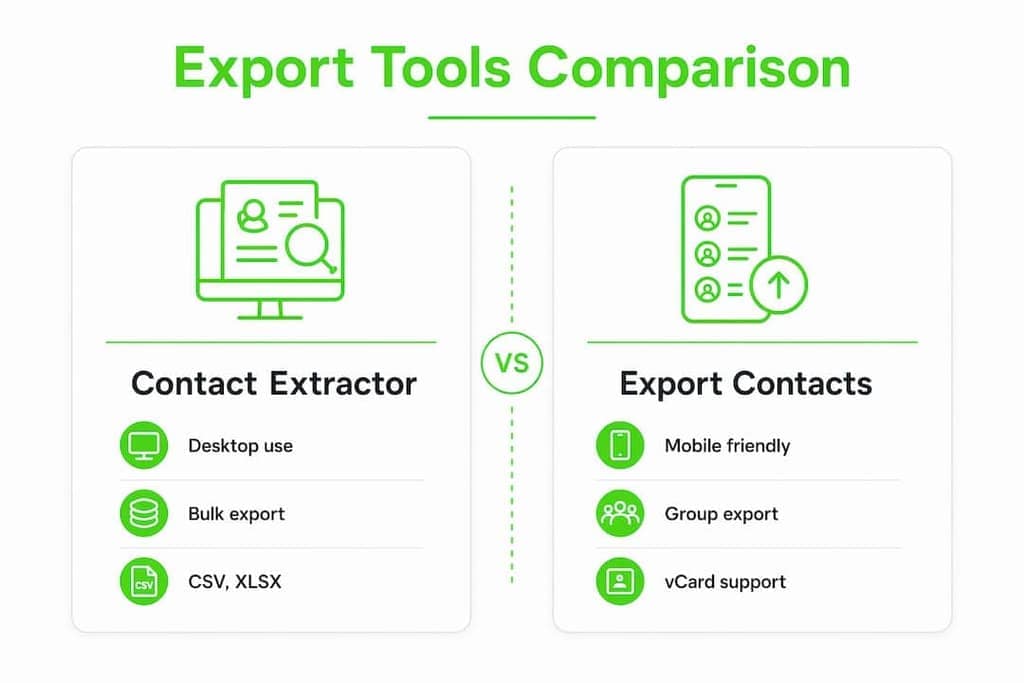
Contact Extractor for wa runs entirely inside your browser on WhatsApp Web. Open a group, click the extension, choose your format, and download. The exported file includes display name, public name, formatted phone number, country code, and country name, the kind of detail that saves hours of manual cleanup before a CRM import. It supports CSV, JSON, and XLSX, so you can go straight to Excel, Google Sheets, or a marketing platform without conversion.
Export Contacts: Contact Mover takes a different approach. As a mobile app, it works directly with your phone's contact storage and WhatsApp data, making it the natural choice if you prefer not to use a desktop browser. It handles both individual contacts and group exports, and its backup features let you save contacts in formats that import cleanly into most CRMs.
Choosing a tool that processes data locally on your device is the single most important privacy decision you'll make when exporting contact data. Any extension or app that uploads your contacts to an external server before delivering the file is a risk you don't need to take.
What to check before installing any export tool:
- Does it explicitly state that processing happens locally, with no server uploads?
- Does it request only the permissions it needs (storage, downloads, access to web.whatsapp.com)?
- Is the privacy policy publicly available and specific about data handling?
- Does the developer provide support documentation or a contact channel?
For a broader comparison of Chrome extension options for WhatsApp data export, several alternatives exist beyond these two tools, each with different trade-offs on features and privacy.
How to export WhatsApp contacts manually, step by step
Manual methods split cleanly into two workflows: exporting your full phone contact list, and extracting group member numbers from WhatsApp Web.
Exporting your full contact list (Android and iOS)
WhatsApp contacts are your phone contacts. Exporting them means exporting from your OS-level contacts app, not from WhatsApp itself.
Android (via Google Contacts):
- Open the Contacts app and tap the three-dot menu.
- Go to Settings and select "Export contacts."
- Save the VCF file to internal storage.
- Open Google Contacts, click Import, and upload the VCF file.
- Once imported, click Export and choose Google CSV or Outlook CSV.
- Download the CSV file for use in Excel, Google Sheets, or your CRM.
iOS (via iCloud):
- Go to Settings, tap your Apple ID, then iCloud, and confirm Contacts sync is on.
- On a computer, go to iCloud.com and log in.
- Open Contacts, select all contacts, click the gear icon, and choose "Export vCard."
- Save the VCF file, then upload to Google Contacts to convert it to CSV.
Limitations of the manual phone export:
| What you get | What you don't get |
|---|---|
| Name and phone number | Profile picture, status, last seen |
| All saved contacts | Unsaved group members |
| VCF or CSV file | Group membership information |
| Works on any device | No WhatsApp-specific metadata |
Extracting group contacts from WhatsApp Web
For group members who aren't saved in your phone, the chat export method is the most accessible no-install option. Export the group chat from your phone (Settings > Chats > Export Chat), then open the _chat.txt file and parse the sender field. Anyone who has sent at least one message appears there with their raw phone number.

A faster technical option: the open-source WhatsApp Contact Extractor script on GitHub runs as a JavaScript snippet in your browser's developer console on WhatsApp Web. Open the group, press F12 to open DevTools, paste the script into the Console tab, and let it run for 1–3 minutes. It scrolls through the full member list automatically and downloads a TSV file with phone numbers, saved names, public names, and saved/unsaved status. The script has been tested on groups with over 1,000 members.
Pro Tip: The _chat.txt parser only captures members who have sent messages. The JavaScript console script captures all visible members regardless of activity, making it more complete for large or quiet groups.
Privacy and security when exporting WhatsApp contacts
The biggest risk with third-party export tools isn't complexity. It's data leakage. Some extensions and apps route your contact data through their own servers before delivering the file to you, which means your contacts (and your group members' contacts) end up on infrastructure you don't control.
Safe practices when choosing and using export tools:
- Prioritize tools that explicitly confirm local, in-browser processing with no cloud uploads.
- Check the permissions list before installing. A contact exporter needs access to WhatsApp Web and your downloads folder. It does not need access to your browsing history or other sites.
- Read the privacy policy. Vague language about "improving services" often signals data collection.
- Delete exported files from shared or cloud-synced folders once you've imported them where needed.
- For business use, check whether exporting and storing group members' numbers complies with applicable privacy regulations, including the CAN-SPAM Act for email and TCPA rules for SMS outreach in the US.
Mastros extensions run entirely in-browser, reading data locally without API calls or remote storage. That architecture means your contact data never leaves your device during the extraction process.
Pro Tip: After any export, open the file in a text editor before importing it anywhere. Spot-check a few rows to confirm the data looks correct and no unexpected fields were captured.
For a deeper look at group-specific extraction methods, the Mastros guide to exporting group members covers both manual and tool-based approaches with current step-by-step detail.
Mastros exports WhatsApp contacts directly from your browser
If you want a privacy-first Chrome extension that handles WhatsApp group members, recent contacts, and chat messages without routing anything through a server, the Mastros WhatsApp scraper is worth a look.

Unlike mobile apps that require device permissions or tools that upload your data to process it, Mastros runs entirely inside your browser on WhatsApp Web in read-only mode. No API connections, no automation, no messaging on your behalf. You get CSV, JSON, or JSONL output, ready for Excel, Google Sheets, or direct CRM import. It's built for growth marketers, community managers, and researchers who need clean, structured contact data without the privacy trade-offs.
Key Takeaways
The most reliable way to export contacts for WhatsApp combines a native phone contact export for your full list with a WhatsApp Web tool or script for group-specific member extraction.
| Point | Details |
|---|---|
| WhatsApp owns no contacts | WhatsApp reads from your phone's address book; export from Google Contacts or iCloud for a full list. |
| Group members need a different method | Use WhatsApp Web tools, a console script, or a Chrome extension to capture unsaved group members. |
| Export formats vary by use case | CSV works for CRMs and spreadsheets; VCF imports directly into phone contacts; JSON suits developer workflows. |
| Local processing is the privacy standard | Choose tools that run entirely in-browser with no server uploads to protect your contacts' data. |
| Mastros for browser-based extraction | The Mastros WhatsApp extension exports group members and contacts from WhatsApp Web in read-only mode, outputting CSV, JSON, or JSONL. |
Recommended
- How to Export WhatsApp Group Members List in 2026 (Mastros Blog)
- WhatsApp Chat Backup: export the conversation itself alongside the contacts.
- Telegram Communities: Top 10 Types for 2026
- Mastros: Telegram & WhatsApp Data Scrapers for the Browser
- Telegram Limitation: What Every User Needs to Know