



Browser extension scraping turns any visible list or table on a web page into a CSV, XLSX, or JSON file in minutes, no coding required. It works best for ad-hoc jobs: pulling a lead list off a directory, archiving a product catalog, or grabbing search results for research. For anything that needs to run on a schedule, handle tens of thousands of rows, or dodge aggressive anti-bot systems, you'll eventually outgrow it and need something heavier.
TL;DR:
- Browser extension scraping works best for quick, one-time data pulls on publicly visible lists or tables, but struggles with large volumes or anti-bot measures.
- Most tools support auto-detection of data patterns, pagination, infinite scroll, and local processing, but you should review limits and processing location for sensitive data.
- Running a small test extraction helps identify misaligned columns or issues early, saving time before full-scale exports.
- Keep in mind, scraping should respect site terms of service, especially with private or protected data, and slowing requests reduces detection risk.
- For comprehensive, scalable jobs, headless or cloud scraping solutions are more suitable, as browser extensions prioritize privacy and speed for ad-hoc tasks.
Table of Contents
- What Browser Extension Scraping Actually Does
- How to Choose a Browser Scraping Extension
- The Actual Workflow: Install, Select, Paginate, Export
- Where Browser Extensions Hit Their Limits
- A Privacy-First Example: How Mastros Handles In-Browser Exports
- Cleaning Up Your Export After the Scrape
- Ethical and Legal Ground Rules Worth Following
- Tips for Avoiding Detection and Blocking
- Comparing the Popular Extension Types
- When an Extension Is Enough, and When It Isn't
- Try a Privacy-First Way to Export Your Own Data
- Sources
- FAQ
What Browser Extension Scraping Actually Does
A browser scraping extension reads the page your browser has already loaded and pulls structured data out of it. No servers, no separate crawler, just your own tab and a script sitting inside it. Most tools on the Chrome Web Store give you two ways to tell the extension what to grab: point-and-click selection, where you click an item and the tool guesses the pattern for the rest of the list, or AI auto-detection, where the extension scans the DOM and flags repeating rows and tables on its own.
Auto-detection is the faster path and works well on standard layouts like product grids or search results. Manual selectors still matter, though, because AI heuristics stumble on inconsistent markup or nested components.
Once the data is selected, here's what a decent extension should offer:
- Export to CSV, XLSX, JSON, or JSONL, with some tools pushing straight to Google Sheets or a webhook
- Pagination handling, so it clicks "next page" automatically instead of stopping at page one
- Infinite-scroll support, which simulates scrolling to force lazy-loaded content to render
- Saved recipes, letting you re-run the exact same extraction later without rebuilding selectors
- Deep or subpage extraction, following links from a list page into each item's detail page
Most of this processing happens locally inside your browser. Some extensions offer optional cloud add-ons for scheduled runs or larger jobs, but the core workflow stays client-side, which is part of why these tools have become the default entry point for people who need data now and don't want to write a script.
How to Choose a Browser Scraping Extension
Not every tool fits every job, so run through this checklist before you commit to one.
- Define the job first. A one-time pull from a single page needs far less than a recurring, multi-page automated run.
- Check pagination and scroll handling. Confirm the extension supports both "next page" button clicks and infinite-scroll simulation, not just one.
- Look for DOM-wait controls. Settings labeled "wait for network idle" or "wait for DOM stable" prevent the tool from grabbing an empty page before content loads.
- Confirm where processing happens. Local-only processing means your data never leaves the browser tab, which matters if you're pulling anything sensitive, as explained in how modern attacks escalate.
- Verify export flexibility. CSV covers most needs, but XLSX and JSON matter if you're feeding the output into a script or a CRM.
- Check the free-tier limits. Row caps, export counts, and feature locks vary widely between free and paid tiers.
- Think about scale. If you're regularly pulling thousands of rows, look for a cloud or proxy option, since your browser's memory is the hard ceiling otherwise.
Pro Tip: Run a five-row test extraction before committing to a full page pull. It takes ten seconds and catches misaligned columns before you've wasted a run on 2,000 rows of garbage data.
The Actual Workflow: Install, Select, Paginate, Export
The mechanics are nearly identical across every major extension, and once you've done it once, the whole process takes under five minutes.
- Install and grant minimal permissions. Most extensions only need access to the active tab, not your whole browsing history. If a scraper asks for broad permissions beyond that, treat it as a red flag.
- Open the target page and let it fully load. This sounds obvious, but skipping it is the number one cause of empty exports on JavaScript-heavy sites.
- Run auto-detect first. Let the tool scan for repeating lists or tables. If it finds the right pattern, you're most of the way done.
- Switch to manual selectors if auto-detect misses. Click the specific elements you want (a name, a price, a link) and let the tool infer the pattern from your clicks.
- Configure pagination or infinite scroll. Set a page limit or a scroll count so the extraction doesn't run forever, especially on feeds that never technically end.
- Test with a small batch. Pull 10 to 20 rows first and check the output before running the full extraction.
- Preview and clean column headers. Rename anything vague ("Column 3") before export so the file is usable the moment it lands.
- Export to CSV, XLSX, or JSON, or send the file directly to Google Sheets if the tool supports it.
- Troubleshoot slow or dynamic pages by increasing the DOM-wait time, switching to manual selectors, or running smaller batches if you hit a CAPTCHA mid-run.
If you're extracting from a messaging platform rather than a public webpage, the flow looks a little different. This step-by-step walkthrough for exporting Chrome extension data covers that variant in more detail.
Where Browser Extensions Hit Their Limits
Every browser scraper is bound by the memory of the tab it's running in. Pull too many rows at once on a heavy page, and the browser slows down or the extension simply stops responding. Beyond memory, the two biggest walls are CAPTCHAs and rate limits: sites that detect unusual click or scroll patterns will throw up a verification screen or start throttling requests.
The fix isn't complicated, it's pacing. Slow the run down, work in smaller batches, and add short pauses between page loads rather than hammering a site as fast as the extension allows.
- Check whether the extension processes data locally or sends it to an external server first
- Read the privacy policy for any mention of stored credentials or third-party data sharing
- Confirm no login or API key is required for basic extraction tasks
- Respect the site's terms of service, especially around private versus publicly visible content
Browser-based scrapers read the page DOM directly, and that's exactly why they're capped by memory and vulnerable to anti-bot triggers in a way that headless cloud scrapers aren't. For high-volume or legally sensitive projects, talk to counsel before you scale up.
A Privacy-First Example: How Mastros Handles In-Browser Exports
Mastros builds Chrome extensions on this exact local-processing model. Every export runs inside your own signed-in browser session, and nothing gets uploaded to a Mastros server. There's no API key requirement, no second login, and no automation running behind the scenes.
That last point matters for compliance as much as for peace of mind. The extensions never send messages, never send invitations, and never auto-reply on your behalf. They read what your session already shows you and save it to a file, nothing more.
What you can currently pull:
- Group members, chat messages, and contact lists from WhatsApp Web
- Group members, chat messages, mutual groups, and bulk media from Telegram Web
- Profile, company, job, and post search results, plus Sales Navigator leads, from LinkedIn
- Exports delivered as CSV, JSON, or XLSX, ready to drop into a spreadsheet or CRM
If you're weighing browser-based exports against writing custom scripts, this overview of browser-based data extraction walks through the tradeoffs in plain terms.
Cleaning Up Your Export After the Scrape
Raw exports are rarely ready to use straight out of the extension. Column headers often come through as generic labels like "Field 1" or "Value," and rows can carry stray whitespace, duplicate entries, or inconsistent date formats depending on how the source page was built.
Start with headers. Rename every column to something you'll recognize in three weeks, not just today. Next, dedupe: most spreadsheet tools have a built-in "remove duplicates" function, and it's worth running even when you're confident the extraction didn't double up, because pagination overlaps happen more than you'd expect.
Formatting inconsistencies show up most in dates, phone numbers, and currency values, since different sites render the same data type in wildly different formats. A quick find-and-replace pass, or a formula-based cleanup in Excel or Google Sheets, handles most of it. For JSON or JSONL exports headed into a script, check for null values or missing keys before you run anything downstream, since a single malformed row can break a parser that expects consistent structure.
If you're pulling data on a recurring basis, save your cleanup steps as a template, whether that's a Google Sheets macro, an Excel formula set, or a short Python snippet. The five minutes you spend building it once saves far more the tenth time you run the same export.
Ethical and Legal Ground Rules Worth Following
Just because data is visible in your browser doesn't mean scraping it is automatically fine. Start with the site's terms of service. Many explicitly prohibit automated extraction, and violating those terms can carry consequences even when the data itself is public.
Public versus private matters too. A public directory listing sits in different territory than data behind a login wall or a friends-only privacy setting, even if a browser extension can technically read both. Treat anything gated behind authentication with extra caution, and never scrape personal data you wouldn't be comfortable having pulled from your own accounts.
Rate limiting your requests isn't just about avoiding blocks, it's basic courtesy toward the site's infrastructure. Hammering a server with rapid page loads can degrade performance for every other visitor, not just you.
For anything that touches personal data at scale, lead lists, contact exports, bulk profile pulls, get familiar with the privacy regulations that apply to your jurisdiction before you run a large extraction. When the stakes are high (commercial use, resale, large datasets of personal information), a quick conversation with legal counsel costs less than the alternative.
Tips for Avoiding Detection and Blocking
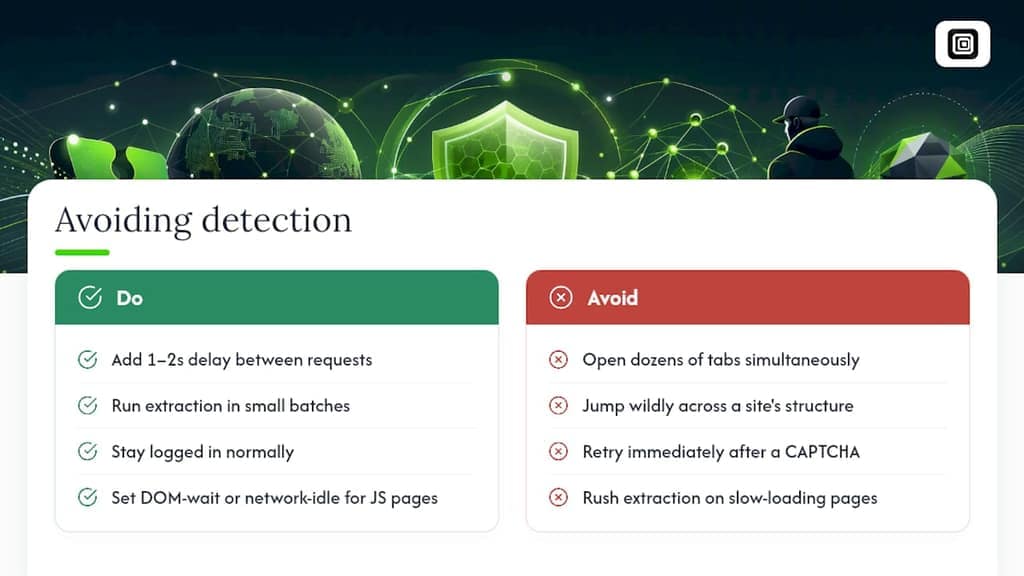
Sites don't block scraping activity out of spite. They block it because rapid, repetitive, non-human patterns are exactly what security systems are built to flag. The fix is to make your extraction behave more like a person browsing casually.
Slow down your run speed. Most extensions let you set a delay between page loads or scroll actions, and adding even a second or two between requests dramatically cuts your odds of tripping a rate limit. Work in smaller batches instead of trying to pull an entire site in one pass, both because it's gentler on the target server and because it's easier to spot a problem early if something goes wrong.
Watch your session behavior too. Staying logged in normally, not opening dozens of tabs simultaneously, and avoiding extraction patterns that jump wildly across a site's structure all reduce the chance of tripping anomaly detection. If you do hit a CAPTCHA, that's usually a signal to pause, not push harder. Running the extraction again immediately, faster, tends to make things worse.
Dynamic, JavaScript-heavy pages need a different kind of patience. Set your extension's DOM-wait or network-idle setting so it doesn't grab a half-loaded page, a control worth checking for explicitly before you rely on a tool for anything JS-heavy. A rushed extraction on a slow-loading page is one of the most common causes of blank or partial exports, and it has nothing to do with blocking at all.
Comparing the Popular Extension Types
Chrome Web Store listings tend to cluster into a few recognizable categories rather than dozens of genuinely different products. Understanding which category you're looking at tells you more than any star rating.
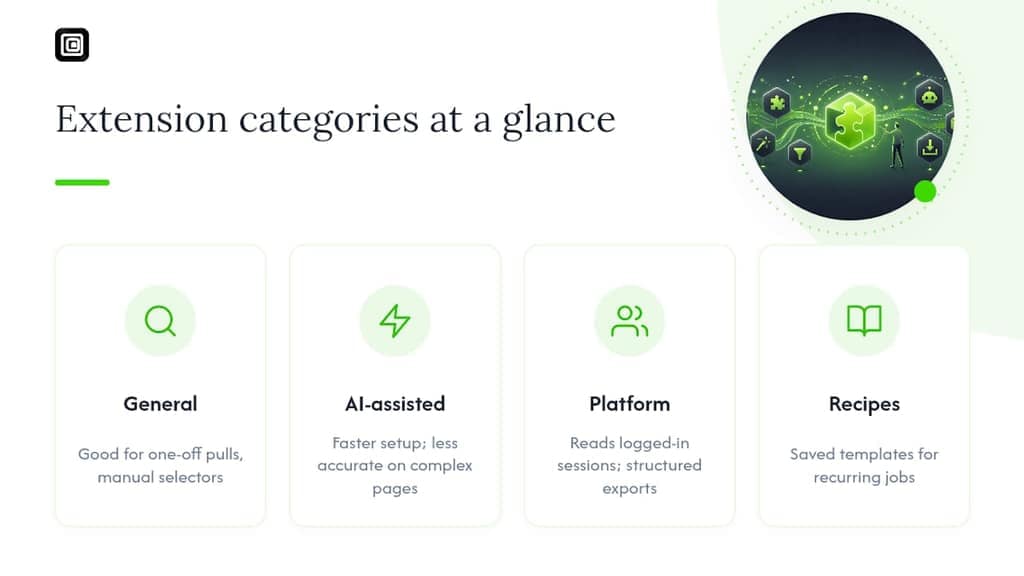
General-purpose point-and-click scrapers handle most public web pages: product listings, directories, search results. They lean on manual selectors plus basic auto-detect, and they're the right starting point if you've never scraped anything before.
AI-assisted extractors add a heuristic layer that scans the page and guesses column structure automatically, often naming fields for you. This speeds up setup considerably, but accuracy tends to drop on complex or inconsistent layouts, so manual recipe adjustment is often still necessary for reliable results.
Platform-specific exporters skip general web scraping entirely and focus on one ecosystem, messaging apps, social platforms, or professional networks, reading the data your own logged-in session already displays rather than crawling the open web. These tend to offer more structured, purpose-built exports (contact lists, chat history, media files) than a general scraper could produce from the same page.
Docs-heavy extensions built around saved recipes and re-runnable templates suit anyone extracting the same type of page on a recurring basis, since you build the selector logic once and reuse it indefinitely.
None of these categories is universally "best." The right pick depends entirely on whether you're doing a one-off pull, a recurring job, or something specific to a platform you already use daily.
When an Extension Is Enough, and When It Isn't
Browser extensions are the right call for ad-hoc pulls, privacy-sensitive tasks, and anything you can do manually in a single sitting. Once a job needs scheduling, tens of thousands of rows, or reliable evasion of aggressive anti-bot systems, headless or cloud scraping tools take over.
The tradeoff comes down to three things: extensions win on speed to first result and privacy, since nothing leaves your browser; cloud tools win on scale and automation, at the cost of more setup and, usually, a server somewhere handling your data.
— Elias Mahdavi
Try a Privacy-First Way to Export Your Own Data
If the appeal of browser extension scraping is speed and privacy, Mastros builds squarely toward that. Every export runs inside your own signed-in session in the browser, nothing gets uploaded to a Mastros server, and there's no API key, no second login, and no automated messaging happening in the background. You get the data you can already see on WhatsApp Web, Telegram Web, and LinkedIn, saved directly to CSV, XLSX, JSON, or JSONL.
Start with the Free plan and run a small export first, pull a group's member list or a handful of chat messages, before deciding whether you need more volume. If WhatsApp is your priority, the WhatsApp Scraper page walks through what it exports. Need group and media exports from Telegram instead? The Telegram Scraper page covers that. When your free-tier quota runs out, paid plans unlock larger export limits; current prices are listed on the Mastros site.
Sources
For deeper technical detail beyond this guide, check individual Chrome Web Store extension listings for feature specifics, and review manual scraping and selector techniques from Library Carpentry when auto-detection alone isn't cutting it.
- ScrapeMaster - Free Web Scraping - Chrome Web Store
FAQ
Is Web Scraping Illegal?
Scraping itself isn't inherently illegal, but it depends heavily on what you're extracting and how. Public data collected respectfully generally carries lower risk than data pulled from behind a login wall or in violation of a site's terms of service, so check those terms and consider legal counsel for any large-scale or commercial project.
Can ChatGPT Do Web Scraping?
ChatGPT can help you write scraping code or interpret HTML structure, but it doesn't browse and extract live page data on its own in a standard conversation. For actually pulling structured data out of a page you're viewing, a browser extension scraper remains the more direct, no-code route.
Is Scraping With BeautifulSoup Legal?
BeautifulSoup is just a Python library for parsing HTML. The tool itself carries no legal status one way or the other; legality depends entirely on the target site's terms, the type of data collected, and how it's used afterward, the same rules that apply to any scraping method.
Which Browser Is Best for Scraping?
Chrome has the largest extension ecosystem for scraping tools, which is why most point-and-click and AI-assisted scrapers, including ScrapeMaster and similar tools, are built for it first. Mastros' extensions are built for Chrome as well, giving you access to the same extension ecosystem for exporting WhatsApp, Telegram, and LinkedIn data.
What Does Mastros Cost to Use?
Mastros offers a Free plan, along with Pro at $9 per month and Scale at $18 per month, each unlocking larger export volumes. Current plan details and features are listed on the Mastros site.