



The fastest way to get Telegram data into Google Sheets is running a privacy-first browser extension that exports Telegram chats to CSV or JSONL files straight from your signed-in session, then importing that file through Google Sheets' built-in import tool. You'll end up with CSV for quick spreadsheet rows or JSON/JSONL for larger, messier datasets. One catch worth knowing upfront: you can only export what your account can already see.
TL;DR:
- Exported data is limited to what your Telegram session can see, often requiring group admin rights for full member lists.
- CSV exports are ideal for quick spreadsheet import, while JSONL files better handle large datasets or integration with machine learning pipelines.
- The desktop export provides comprehensive archives but needs extra parsing to extract clean member lists suitable for CRM use.
- Power Mode enhances exports by retrieving richer profile information, full member lists, and bulk media downloads directly in your browser.
- Always respect privacy settings and avoid attempting to extract hidden phone numbers or sensitive data beyond what your account permissions allow.
Table of Contents
- How to Export Telegram to Google Sheets With a Browser Extension
- When Telegram Desktop's JSON Export Makes More Sense
- Mapping Telegram Fields to Your Spreadsheet or CRM
- What You Can and Can't Export (Permissions and Ethics)
- Who's Behind This Guide and What Mastros Exports
- From Export to Campaign: What the Workflow Looks Like
- Mastros Telegram Exporter: Where to Get It and What It Does
- Quick Tools, Parsers and Official Docs
- Sources
- FAQ
How to Export Telegram to Google Sheets With a Browser Extension
If you want member lists, chat messages, or bulk media without touching a single API key, this is the route. It runs inside Chrome, reads what your Telegram Web session already shows you, and never phones home to a third-party server.
Here's the sequence:
- Install the extension in Chrome or another Chromium browser (Edge, Brave).
- Open web.telegram.org and navigate to the target chat, group, or channel.
- Choose your export type: CSV if you want rows a spreadsheet can read immediately, JSON or JSONL if you're feeding the data into an LLM pipeline or handling a very large group.
- Pick which fields you need (names, usernames, timestamps, message text, media type).
- Set your message or media range. You control how far back the scan reaches.
- Run the export and download the file.
Importing that CSV into Google Sheets takes about a minute: open a blank sheet, go to File, then Import, then Upload, and select your file. Google Sheets will ask how to handle the delimiter (comma works for most Telegram exports) and whether to detect dates automatically. Say yes to both, and your rows should land cleanly on the first try.
This is where Power Mode earns its keep. Standard exports pull what's visible on screen. Power Mode uses your own credentials over MTProto to pull full member lists, mutual groups, and richer profile fields, plus bulk media downloads across photos, videos, documents, and voice notes, all still processed locally in your browser.
Pro Tip: If usernames come back blank for a chunk of members, that's not a bug. Telegram lets users hide their username from anyone outside their contacts, so a blank field usually means a privacy setting, not a failed export.
A few common snags: partial exports usually trace back to a browser memory limit on very large groups (tens of thousands of members), which is solved by narrowing your range and running two passes instead of one. FLOOD_WAIT errors show up if you export too aggressively in a short window. Slowing down between runs clears it. If media downloads stall, check that you selected specific media types rather than "everything" on a channel with years of history.
When Telegram Desktop's JSON Export Makes More Sense
Telegram Desktop's native export tool exists for a different job: a full account archive rather than a tidy per-group member list. If you need complete message history across every chat, or a record that satisfies a compliance or legal hold, Desktop export is the right call. It's simply not built to hand you a clean members.csv, and pulling one out requires extra parsing work either way.
The output is a result.json file following Telegram's own documented schema, with:
- A
chatsarray covering each conversation - A
messagesarray nested inside each chat, withid,type, message content, andtimestampfields - Large numeric IDs that sometimes need 64-bit-safe handling in downstream tools, since some spreadsheet functions silently truncate them
Once you have that JSON, you'll need to convert it before Sheets can do anything useful with it. tg-parser is a solid open-source option here: a command-line tool that outputs CSV, JSON, or markdown, and supports streaming for files over 50MB so your machine doesn't choke on a multi-gigabyte export. Python scripts using ijson for streaming parsing work well too, especially if you want custom filtering logic before anything hits a spreadsheet.
A quick note on file size: once a Desktop export gets large enough that a single CSV becomes unwieldy, switch to JSONL. Each line is its own valid JSON object, which makes chunked processing and partial re-imports far easier than wrestling with one massive file.
Mapping Telegram Fields to Your Spreadsheet or CRM
Raw Telegram exports are messy by nature. Names, timestamps, and message text don't arrive pre-sorted for a CRM, so you need a consistent field structure before anything gets imported.
Here's the mapping that holds up across most CRM imports:
| Field | Source | Why it matters |
|---|---|---|
| telegram_user_id | Member export | Stable primary key; usernames change, IDs don't |
| username | Member export | Secondary identifier, often blank for private accounts |
| display_name | Member export | Human-readable reference for outreach |
| source_group | Chat metadata | Tracks which community a contact came from |
| message_excerpt | Message export | Context for intent scoring |
| timestamp | Message export | Convert to UTC before import to avoid timezone drift |
| media_link | Media export | Points to downloaded file, not the Telegram CDN |
| intent_score | Manual/rule-based | Flags high-priority contacts |
| owner | Manual assignment | Who follows up |
| next_action_date | Manual assignment | Keeps outreach from stalling |
Use telegram_user_id as your primary key. It's the only reliably stable identifier Telegram gives you. Usernames get changed or dropped, and display names collide across large groups, so fall back to username plus a normalized display name only when the ID field is missing.
Before you dump everything into your CRM, run these checks:
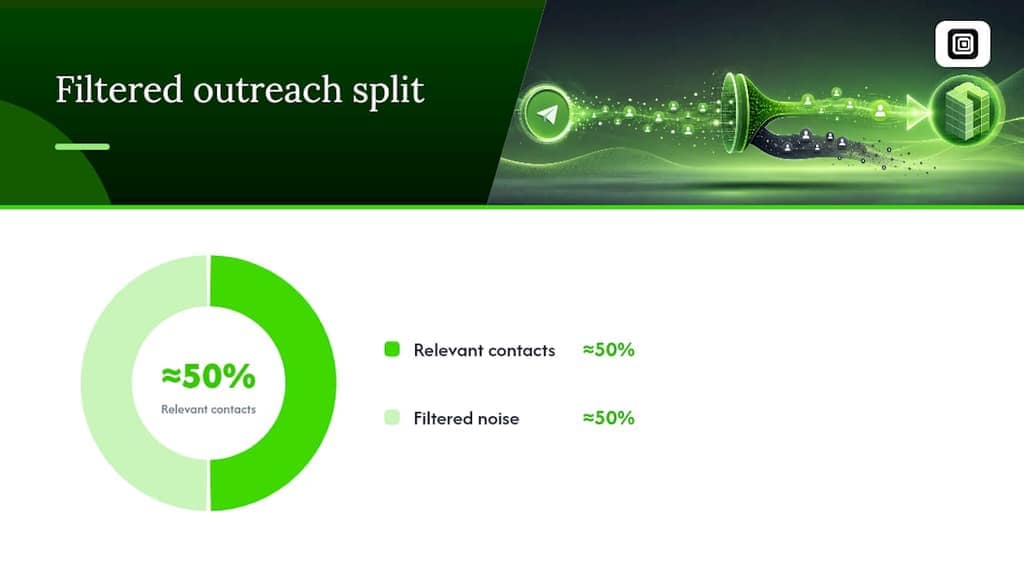
- Filter bios by keyword relevance. This step alone can cut a noisy outreach list by roughly half, which saves your team from qualifying garbage leads later.
- Split full names into first and last name columns if your CRM expects them separately.
- Convert all timestamps to UTC in a single pass, not row by row.
- Tag every record with its source group and campaign name.
- Import a 20 to 50 row sample first to confirm your column mapping before committing the full file.
A tool like TabTasker's CSV to JSON converter handles quick format flips if your CRM wants JSON but your export came out as CSV, without uploading anything to a third party.
What You Can and Can't Export (Permissions and Ethics)
You can only export what your signed-in Telegram session can already see. That's the whole rule, and it matters more than it sounds.
- Full group member lists sometimes require admin rights in that specific group or channel.
- Never attempt to reveal a phone number Telegram's privacy settings are hiding. That data isn't accessible through legitimate means, and treating it as a bug to exploit is a bad look for your team and a real privacy violation.
- Keep personally identifiable information to the minimum your workflow actually needs, and log a consent flag column in your sheet for anyone you plan to contact.
- Set a retention policy. Exported spreadsheets shouldn't live forever on someone's desktop.
- If you're building a compliance record rather than a working lead list, Desktop export's full JSON archive is the more defensible choice over an ad-hoc parsing job.
Who's Behind This Guide and What Mastros Exports
This guide comes from Elias Mahdavi, who focuses on building privacy-first data export tools that keep processing local instead of routing user data through third-party servers. That distinction shapes everything above: no uploads, no API keys required for the standard mode, no second login.
Mastros' Telegram exporter runs entirely in the browser and outputs group members, chat messages, mutual groups, recent contacts, and bulk media as CSV, JSON, or JSONL. Power Mode adds full member lists and richer profile fields for teams that need more than what's visible on screen. Nothing is automated: it never sends messages, never invites, never auto-replies.
— Elias Mahdavi
From Export to Campaign: What the Workflow Looks Like
Most teams follow the same rhythm once they've run their first export. Pull the CSV, filter by bio keywords, tag anything that scores as a real match for intent, then import the cleaned file into the CRM and launch a small test campaign against 50 or so contacts before scaling.
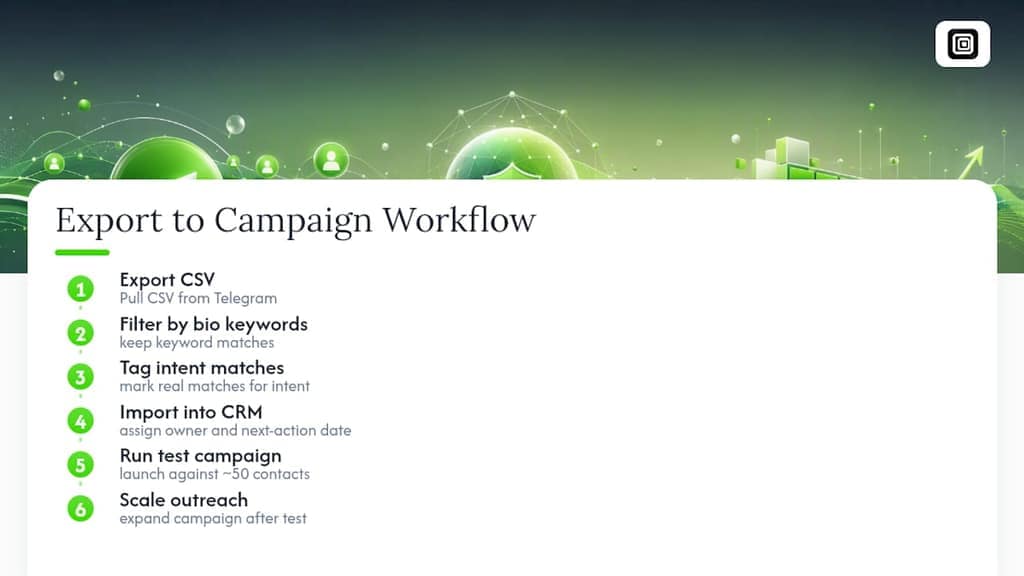
Saved search templates cut real time here. So does assigning an owner and a next-action date at import time instead of after the fact. Teams that skip that step tend to let leads sit untouched for weeks. Treat every export as a raw signal that needs qualification and attribution, not a finished contact list ready to blast.
Mastros Telegram Exporter: Where to Get It and What It Does
If you're managing recruiting pipelines, research panels, or lead-gen for a Telegram community, running the exports yourself beats waiting on a developer to wire up an API integration. Mastros exports CSV, JSON, JSONL, and bulk media entirely inside your browser, with no data uploaded anywhere and no developer credentials to manage.
Power Mode unlocks full member lists, mutual groups, and richer profile fields, and handles larger exports without the file-size headaches that come with parsing a raw Desktop archive by hand. If your workflow also needs the media itself, not just the metadata, the Telegram video downloader pulls photos, videos, documents, and voice notes in bulk from any chat or channel you can open.
Try the free plan to run your first export today, or check the pricing page if you already know you'll need higher volume.
Quick Tools, Parsers and Official Docs
For reference while you work: Telegram's own import-export documentation covers the full result.json schema. tg-parser handles CSV, JSON, and markdown conversion with streaming support for large files. Mastros' group members export guide walks through preparing a members.csv step by step.
Sources
- Telegram import-export documentation
- Exporting Telegram group members, messages, and media to CSV or JSON — Mastros (Hashnode)
- tg-parser (GitHub)
FAQ
Can I import a Telegram CSV export directly into Google Sheets?
Yes. Use File, then Import, then Upload in Google Sheets, and select comma as your delimiter with automatic date detection turned on.
Do I need admin rights to export a group's member list?
Full member lists sometimes require admin access in that specific group, depending on the group's privacy settings and how many members it has.
What's the difference between CSV and JSONL for Telegram exports?
CSV works best for straightforward spreadsheet rows, while JSONL suits very large exports or pipelines feeding into an LLM, since each line is its own parseable object.
Is Telegram Desktop export better than a browser extension?
Desktop export is better for full account archives and compliance records; a browser extension like Mastros is better for tidy, per-group member and message exports ready for a spreadsheet.
Can I export someone's phone number if it's hidden?
No. Hidden phone numbers stay hidden regardless of export method, since that's a privacy setting Telegram enforces at the account level.