



The fastest privacy-safe way to get a JSON Resume from LinkedIn is to request LinkedIn's data archive and run a local converter, or, for a one-off quick export, use an in-browser bookmarklet or extension that never leaves your browser. Connections-only exports usually land in minutes; a full archive can take up to 72 hours. Skip any tool that asks you to upload your ZIP to a third-party server. For search results rather than your own profile, Mastros can export LinkedIn search results to Excel or CSV in the browser.
TL;DR:
- Request the full data archive if you need a complete profile including work history, education, and message data, but plan for up to 72 hours for processing.
- Use in-browser tools like bookmarklets or extensions for immediate JSON export when only current profile data is needed, avoiding third-party uploads for privacy.
- Extract and map only the CSV files from the archive—Profile.csv, Positions.csv, Education.csv, and Certifications.csv—into the JSON Resume schema to build an accurate, complete resume.
- Avoid defaulting to full archive requests for one-off needs, as local browser-based exports are faster, safer, and sufficient for most short-term applications.
- Keep raw ZIP files private, delete them after extraction, and verify any converted JSON with schema validation to prevent errors in resume rendering.
Table of Contents
- Quick Methods Compared: Speed, Privacy, and Completeness
- How to Request and Download Your LinkedIn Data Archive
- Convert the ZIP to JSON Resume on Your Machine
- In-Browser Extraction: Bookmarklets and Extensions
- Privacy and Practical Cautions
- Author Note: Mastros' Approach to Privacy-First Exports
- Why the ZIP-First Habit Is Overrated
- Get a Structured LinkedIn Export Without the Wait
- Sources
- FAQ
Quick Methods Compared: Speed, Privacy, and Completeness
Three routes get you from LinkedIn to structured data, and each trades speed for depth in a different way.
A connections-only CSV export is the fastest option LinkedIn offers. It usually finishes in minutes and gives you names, headlines, and companies for your network, but nothing about your own job history or education.
A full archive request takes longer, sometimes up to 72 hours, because LinkedIn has to package your entire profile, including positions, skills, certifications, and messages, into a ZIP file. This is the only path that gives a converter enough raw material to build a complete resume.json.
A live-page export, done through a bookmarklet or browser extension, reads the profile page you're currently viewing and builds a JSON object from what's visible on screen. It's immediate, but limited to what LinkedIn renders on that page.
Here's how they stack up when you're deciding which to use:
- Speed: connections CSV (minutes) → live-page export (seconds, but only current view) → full archive (hours)
- Privacy: local processing beats any converter that requires an account, login, or upload
- Completeness: full archive > live-page scrape > connections-only CSV
- Technical skill: connections CSV needs none, a CLI converter needs comfort with a terminal, a bookmarklet needs none but has the shortest shelf life
If you need a resume with full work history, request the full archive. If you just need a quick profile snapshot for a job application due tomorrow, the in-browser route wins.
How to Request and Download Your LinkedIn Data Archive
LinkedIn buries this feature a few menus deep, but the path is consistent across desktop and mobile web.
- Click Me in the top navigation, then select Settings & Privacy.
- Go to Data privacy, then How LinkedIn uses your data.
- Click Get a copy of your data.
- Choose Want something in particular? and select Connections for a fast CSV, or choose Download larger data archive for the full export.
- Click Request archive. LinkedIn emails you when the file is ready to download.
The connections option produces a single Connections.csv file, useful for contact lists but not resumes. The full archive produces Complete_LinkedInDataExport_[date].zip, which contains dozens of files including Profile.csv, Positions.csv, Education.csv, and Certifications.csv. Those four files are the ones a JSON Resume converter actually needs.
Timeline callout: connections-only requests typically resolve in a few minutes to about half an hour. Full archives can take up to 72 hours to prepare, so request yours several days before you need a finished resume, not the night before a deadline.
Convert the ZIP to JSON Resume on Your Machine
Once the archive lands in your downloads' folder, the conversion process follows a predictable pattern: unzip, parse the relevant CSVs, map each field to the JSON Resume schema, and write out resume.json.
Field mapping is the part people get wrong. Here's where each JSON Resume field actually comes from inside the export:
- Basics (name, headline, summary): pulled from
Profile.csv - Work (company, title, dates, description): pulled from
Positions.csv - Education (school, degree, field, dates): pulled from
Education.csv - Certificates: pulled from
Certifications.csv - Skills: pulled from
Skills.csv, though LinkedIn doesn't export proficiency levels, so you'll want to rank them yourself
Converters generally fall into three categories. A single-file desktop tool is the easiest for someone who wants to drag a ZIP in and get a file out, with little flexibility to customize field mapping. A Python or Node command-line script gives you full control over which fields get included and how dates are formatted, at the cost of needing to run it from a terminal. A zero-dependency script sits in between, readable enough to tweak in a text editor without installing a framework.
A typical CLI pattern looks like this:
converter --input Complete_LinkedInDataExport.zip --output resume.json --schema jsonresume
Run the output through the JSON Resume schema validator before you trust it. Missing required fields (like basics.name) will break most resume-rendering themes downstream.
Pro Tip: Open Positions.csv in a spreadsheet app first and skim the description column. LinkedIn often stores line breaks as raw characters that some converters mangle into one run-on paragraph.
In-Browser Extraction: Bookmarklets and Extensions
A bookmarklet or lightweight extension reads the DOM of your logged-in LinkedIn profile page, essentially grabbing whatever text and structure the browser renders, and assembles that into a JSON object on the spot. No archive request, no waiting.
This works best for a fast single-profile export when you need a resume today, or when you're only after the profile itself and don't care about connections or message history.
- Misses fields LinkedIn doesn't render on the page, like older positions collapsed under "show more"
- Can't capture attachments, contact emails, or anything behind a click-to-expand element
- Breaks when LinkedIn updates its page structure, since these tools depend entirely on the DOM staying stable
- Manifest or sideloading issues can pop up depending on your browser's extension policies
Stick to extensions that process everything locally in the browser tab. If a tool asks you to paste your profile URL into a website, close the tab.
Privacy and Practical Cautions
Local processing keeps your data under your own control. Uploading your ZIP to an online converter means handing your full work history, education, and contact details to a server you know nothing about, with no way to verify what happens to it afterward.
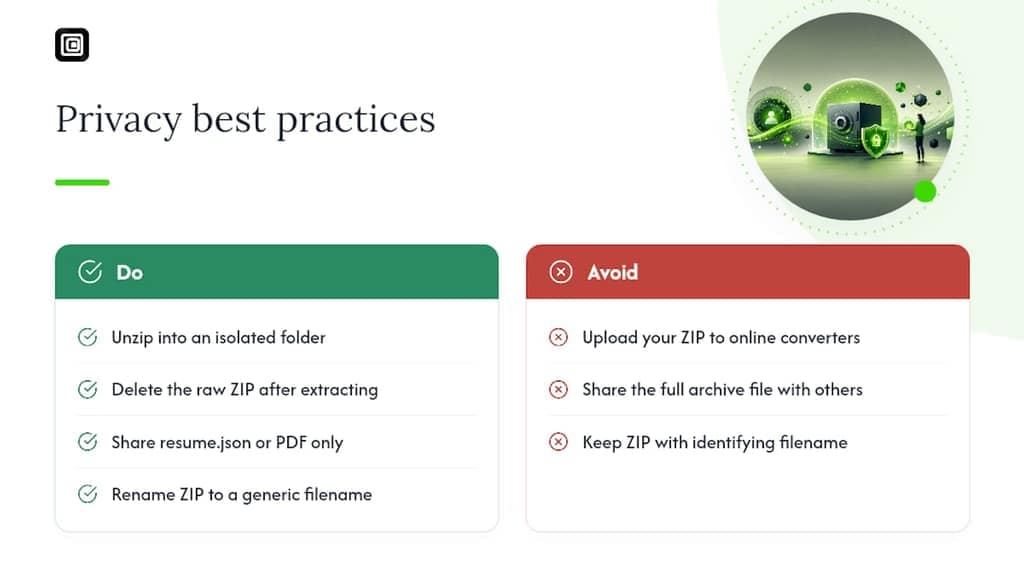
Basic hygiene matters here: unzip your archive into an isolated folder, delete the raw ZIP once you've extracted what you need, and never share the archive file itself, even with a recruiter who asks for "the whole export." Share the finished resume.json or PDF instead.
An API-based or managed scraper setup makes sense for institutional use, think a recruiting team pulling hundreds of candidate profiles for research. For a personal export, that's overkill and adds risk you don't need. See examples of developer tools and integrations that accept structured resume or LinkedIn data for downstream processing in the Export and Integrations: Get Work Out Cleanly | AmmarAI guide.
Pro Tip: Rename your downloaded ZIP something generic before storing it long-term. "Complete_LinkedInDataExport" is exactly the filename a phishing attempt would search your drive for.
Author Note: Mastros' Approach to Privacy-First Exports
I've spent enough time inside LinkedIn's export flow to know where it falls short for anyone who needs structured data fast. Mastros builds its LinkedIn exporter to run entirely in the browser, no servers, no API keys, no second login, and no automation touching your account.
For a quick, structured export of a single profile, a search results page, or Sales Navigator leads, Mastros is the faster route. For a complete personal archive with full message history and every past position, the ZIP-to-converter workflow described above is still the right tool, and Mastros doesn't try to replace it.
Choose based on what you actually need: speed and structure now, or depth and completeness later.
Why the ZIP-First Habit Is Overrated
Most advice on this topic treats the full archive request as the default first move, and that's backwards for most people. If you need one clean resume.json for a job application this week, waiting up to 72 hours for a ZIP you'll mine for four CSV files is a poor trade against a browser tool that reads the same profile in seconds.
The full archive earns its place when you actually need message history, every past role, or a permanent backup, not as a reflexive first step. The privacy cost of the converter step itself should be considered: while a ZIP sitting on your machine is safe, uploading it to an unfamiliar online tool hands your entire career history to an external server for convenience.
Prioritize local processing first, speed second, and completeness only when the situation actually calls for it. Most one-off resume needs don't.
— Elias Mahdavi
Get a Structured LinkedIn Export Without the Wait
There are browser-based tools that run entirely inside your Chrome browser, reading only what your signed-in session already displays, with no server uploads, no API keys, and no automation touching your LinkedIn account. Recruiters pulling a batch of candidate profiles, growth teams building lead lists from search results, and individuals who just need one clean resume export all use it the same way: open the page, run the export, get a file. If your work extends beyond LinkedIn into other platforms, the same browser-only approach powers Mastros' WhatsApp scraper for contacts and group members. Try the LinkedIn and Sales Navigator exporter on your own profile and see how fast a structured export can actually be.
Sources
Start with LinkedIn's own data export process for exact timelines, then check the JSON Resume schema to validate any resume.json you build. For a breakdown of which export file formats work with which tools, see Mastros' guide on LinkedIn export formats, and review legal considerations around exporting LinkedIn data before processing anything at scale.
FAQ
Can You Export Data From LinkedIn?
Yes. LinkedIn's Get a copy of your data feature under Settings & Privacy lets you request either a connections-only CSV or a full data archive covering your entire profile history.
Is LinkedIn Scraping Allowed?
Scraping your own visible profile data through a browser-only tool is different from automated, large-scale scraping of other users' profiles, which risks violating LinkedIn's terms and has drawn regulatory scrutiny. Stick to exporting your own data through official channels or in-browser tools that don't automate actions on your account.
How Do I Export My LinkedIn Connection Data?
Go to Settings & Privacy → Data privacy → Get a copy of your data, select Connections, and request the archive. It typically arrives within a few minutes to about half an hour.
Can I Export My LinkedIn Profile as a PDF?
Yes, LinkedIn offers a Save to PDF option directly from your profile page, though it produces a formatted document rather than structured JSON data you can feed into a resume builder.
What's the Fastest Way to Get a JSON Resume From LinkedIn?
An in-browser bookmarklet or extension that reads your profile page directly is the fastest route, producing a JSON object in seconds without waiting for LinkedIn's archive request.