



Telegram exports are typed JSON files, built for machines to read, with many sections that are optional by design and two distinct shapes: a full-export wrapper or a single-chat object. If fields seem to be missing, the fastest diagnostic is to open result.json and check its top-level keys to confirm which shape you got and which categories you actually requested.
TL;DR:
- Check the top level before parsing: full exports contain a chats wrapper, while single chat exports expose messages directly at the root.
- Sort messages by date_unixtime, not the readable date, and treat ids as unique only within one chat; text may be structured parts, not a string.
- Attachment paths point to files outside the JSON, so preserve the exported folder structure; files above the requested size limit may be referenced but absent.
- When sections are absent, check selection flags and privacy settings; data omitted by choice requires a new export with the relevant categories enabled.
Table of Contents
- Export shapes: full export vs single-chat and what top-level keys to expect
- Message record fields explained: id, date, from, text, media, and more
- Media, files, and relative paths: what to expect and what breaks
- Why fields or sections are missing: Takeout flags and export limits
- What the official schema tells us, and what we add to it
- Why field clarity actually matters once you're past the export
- A privacy-first way to export Telegram data without the guesswork
- FAQ
- Sources
Export shapes: full export vs single-chat and what top-level keys to expect
Before you write a single line of parsing code, you need to know which of the two shapes you're holding. A full-export result.json is rooted at an export object that can carry top-level keys like about, personal_information, profile_pictures, stories, contacts, frequent_contacts, sessions, web_sessions, other_data, chats, and left_chats. Most of those sections are optional, so seeing only a handful of them is normal, not a sign of a broken export.
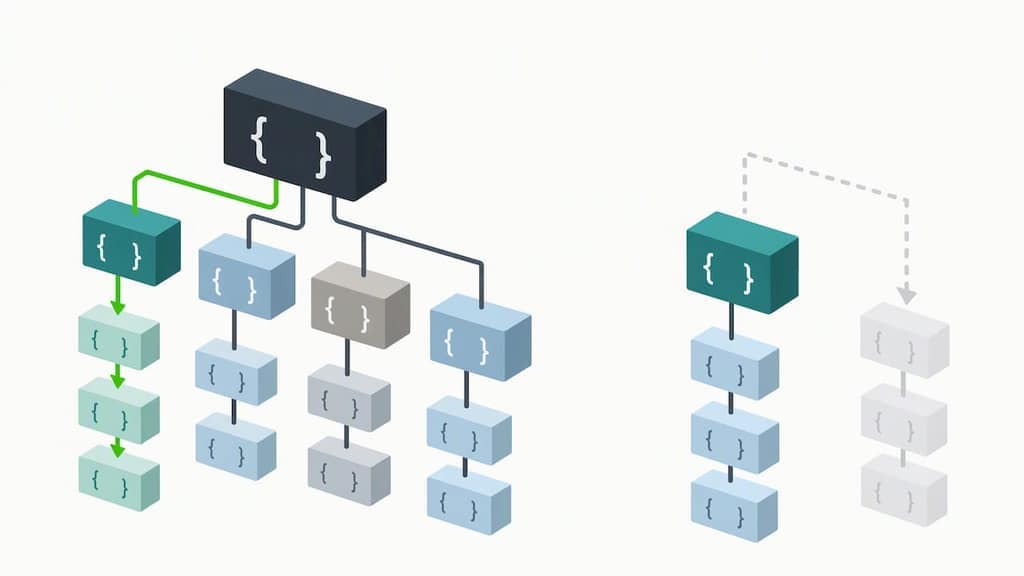
A single-chat export works differently. Its result.json represents one Chat object directly, so there's no chats.list to walk through and no wrapper to peel back. If your script expects chats.list and gets nothing, you're probably looking at a single-chat file, not a corrupted full export.
A few quick checks before you assume anything is wrong:
- Open the file and look at the very first set of keys: do you see
chatsandleft_chats, or do you seemessagesdirectly? - If a section like
frequent_contactsorsessionsis absent, treat it as unselected or privacy-restricted rather than lost. - Confirm whether you ran a full export or exported a single chat or channel, since that choice determines the entire file structure.
Getting this one distinction right saves you from writing a parser that looks for the wrong root object entirely. For a step-by-step walkthrough of the export process itself, our guide on how Telegram Desktop chat export works covers the JSON and HTML options side by side.
Message record fields explained: id, date, from, text, media, and more
Once you're inside the right shape, the message array is where most of the useful data lives. Each record carries a consistent set of fields, but a few of them behave in ways that trip up anyone writing a parser for the first time.
id is the message's identifier within that exported chat. It is not guaranteed to be globally unique across every chat you've exported, so use it for ordering messages inside a single conversation, never for deduplicating across multiple chats.
Dates come in two forms. date is a human-readable ISO 8601 timestamp, easy to read at a glance but awkward to sort programmatically. date_unixtime is the numeric Unix timestamp sitting right next to it. For sorting, filtering by range, or deduplicating messages, the numeric field is the one to trust.
from and from_id identify the sender. text is where things get interesting: it can appear as a plain string, or as an array of structured text parts (bold runs, links, mentions, and so on) when the message mixes formatting. A parser that assumes text is always a flat string will silently mangle any message that uses rich formatting.
One structural detail worth building into every parser: the Telegram Data Export Schema explicitly allows text to be represented as either a scalar string or structured parts, so code that flattens everything to a string on first contact will lose formatting data it can't get back.
A short list of the fields you'll run into most often, and what each one actually tells you:
reply_to_message_idandforwarded_fromdescribe relationships between messages, but neither key is guaranteed to exist on every message, so test for its presence rather than assuming it.media_type,media,file, andthumbnailpoint to attachments, not the attachments themselves; they're references, not embedded binary data.sticker_emoji,width,height, andduration_secondsare metadata tied to specific media types like stickers, photos, and voice notes.editedflags a message that was changed after sending, useful for anyone tracking conversation integrity over time.
The practical rule that saves the most debugging time: always check whether a key exists before reading it, and treat a null value, an absent key, and an empty string as three different things. Collapsing them into one "missing" bucket is how parsers end up dropping legitimate data.
Media, files, and relative paths: what to expect and what breaks
Attachments in a Telegram export are never embedded inside the JSON itself. A photo, video, or voice note shows up as a relative path, something like chats/chat_01/photos/photo_2@29-10-2021_09-30-00.jpg, pointing to a file that lives elsewhere in the export folder.
That distinction matters the moment a file seems to be missing. The Takeout API sets a file_max_size value whenever files are requested as part of the export, and anything larger than that per-file limit gets skipped during download, even though the JSON still contains a reference to it. In other words, you can have a complete-looking media record in your result.json pointing to a file that was never actually downloaded.
Thumbnails complicate this further. A thumbnail and basic metadata can exist in the JSON even when the original full-resolution file is absent, so before concluding that data was lost, check the relative path against your actual export folder structure.
- Relative paths only resolve correctly when the JSON and the media folders stay in the same directory structure they were exported in.
- A file reference with no matching file on disk usually means it was skipped by a size limit, not that your export failed.
- Moving or renaming folders inside the export breaks every relative path that pointed to them.
Pro Tip: Keep the entire export folder intact when you archive or move it. Zip the whole directory rather than pulling out just result.json, since the JSON is useless for media lookup without the folder tree it was exported alongside.
If you want to turn the JSON into something a spreadsheet or script can work with, our walkthrough on exporting Telegram's result.json and analyzing it with jq or pandas covers both tools in detail.
Why fields or sections are missing: Takeout flags and export limits
Most "missing data" questions trace back to one thing: what you actually told Telegram to export. The Takeout API separates export scope into distinct flags, covering contacts, private chats, basic groups, supergroups (via message_megagroups), channels, and files, each one controlling a different slice of your account data.
That separation explains a lot of confusion. A migrated basic group, for example, sometimes needs both the message_chats and message_megagroups flags set to show up fully, since it can straddle both categories depending on its history.
Optional top-level sections follow the same logic. frequent_contacts, sessions, other_data, and left_chats are frequently absent, not because anything broke, but because they weren't selected, or because privacy settings disabled the underlying feature on your account.
A missing field or section usually means one of a few things:
- The category simply wasn't selected when you configured the export.
- A file exceeded the size limit you set and was skipped during download.
- The underlying data is unavailable, expired, or tied to a feature your account doesn't use.
None of these cases mean the data is recoverable by re-reading the same file more carefully. If you need it, you need to re-export with different flags.
What the official schema tells us, and what we add to it
Everything in this guide traces back to Telegram's own published documentation: the Telegram Data Export Schema for field definitions and the Takeout API for the flags that control export scope. Telegram's own 2018 blog post introducing JSON and HTML export frames JSON as the machine-readable format meant for analysis, with HTML built for quick visual review instead.
Our exports run entirely inside your browser. Nothing uploads to a Mastros server, so the file you inspect locally is the only copy that matters. For programmatic analysis, tools like jq or pandas handle JSON cleanly, while HTML remains the faster option for a quick read-through without any setup.
Why field clarity actually matters once you're past the export
Most rework we see with exported chat data doesn't come from a bad export. It comes from a parser built on wrong assumptions about field types, like treating text as always a string or id as globally unique. Fixing that after the fact, once a script has already run against many messages, costs far more time than reading the schema up front.
Local, browser-based exports also sidestep a risk that cloud-based tools introduce by default: your chat history never leaves your machine to reach a third-party server before you've even decided what to do with it.
— Elias Mahdavi
A privacy-first way to export Telegram data without the guesswork
Our Telegram Scraper exports data from Telegram Web, so you can work with it without manually reading the schema. It exports chat messages, group members, recent contacts, and mutual groups straight from Telegram Web, and bulk-downloads photos, videos, documents, and voice notes from any chat or channel you can open.
- Everything runs in your browser; nothing uploads to our servers and no API keys are required.
- Output comes as JSON, CSV, or JSONL, so you choose the format that fits your workflow.
- You set how many messages to scan, and every exported item carries its type and date for easy filtering.
Once you've exported, converting JSON to CSV for dashboards or analytics tools is its own small task. QRlytics covers that workflow well in their guide to CSV export for analytics if you're feeding the data into a reporting pipeline.
Start with our Free plan to test the export flow, or move to Pro or Scale when you need higher volume.
FAQ
How can I download my Telegram chat history?
Use Telegram Desktop's built-in export feature, found in Settings under "Export Telegram Data," and choose JSON for machine-readable output or HTML for a readable archive. You can select which chats, media types, and date ranges to include before the export runs.
What data does Telegram share?
Telegram's export covers only the data tied to your own account and the chats you choose to include, organized into sections like personal_information, contacts, and chats as defined in the Telegram Data Export Schema. Which sections appear depends entirely on what you select and your account's privacy settings.
Can I send a 2 GB file in Telegram?
File size limits depend on your account type and the version of Telegram you're using, and they're unrelated to export file limits, which are controlled separately by the file_max_size flag in the Takeout API. Check Telegram's current upload limits directly in the app before sending a large file.
Are Telegram chats deleted forever?
Once a message or chat is deleted and not recovered through Telegram's own undo options, it's gone, and no export field can reconstruct data outside what was actually selected and available at export time. Absent fields in a result.json reflect selection or size limits, never a backup of deleted content.
Sources
Work through these in order rather than jumping straight to re-exporting. Most "broken" exports turn out to be a shape mismatch or a skipped file, not actual data loss.
Pro Tip: When you re-export, enable files explicitly and raise file_max_size if attachments matter to you. For very large group histories, run a single-chat export instead of a full export to avoid mixing up the two root shapes while you troubleshoot.
If you've worked through all five steps and attachments or messages are still missing, our guide on fixing Telegram web exports without uploads walks through the less common edge cases.